---
title: "Manage your email notifications"
description: "Learn how to control your notifications for project activities, new decisions submitted, and more."
url: https://help.filestage.io/en/articles/6978893-manage-your-email-notifications
collection: "Personal settings"
updated: 2026-10-07
language: en
alternates: [fr, de, es]
---

# Manage your email notifications

Learn how to control your notifications for project activities, new decisions submitted, and more.

* * *

_Stay up to date with your projects and notifications by managing email notifications in your account. In this article, you will learn how to control your email notifications, including disabling them for yourself or a reviewer, receiving immediate notifications, and setting the timing for project activity emails. Discover the benefits of project activity emails and the types of activities included in these emails._

* * *

## Overview of all notifications

**Currently, we send various email notifications to our users and reviewers, including:**

-   [Invitation for review](https://help.filestage.io/en/articles/1459680-invite-or-remove-reviewers.md)
    
-   [Invitation for team members](https://help.filestage.io/en/articles/2281387-invite-team-members-to-collaborate-on-your-project.md)
    
-   Invitation for project collaborators
    
-   Notification for [review decisions](https://help.filestage.io/en/articles/2562896-submit-your-review-decision.md)
    
-   Notification for [mentions](https://help.filestage.io/en/articles/7002949-commenting-on-files.md)
    
-   Reminder for [due dates](https://help.filestage.io/en/articles/3161155-set-up-and-manage-due-dates.md)
    
-   Updates on project activities.
    

* * *

## Control the email notifications you receive

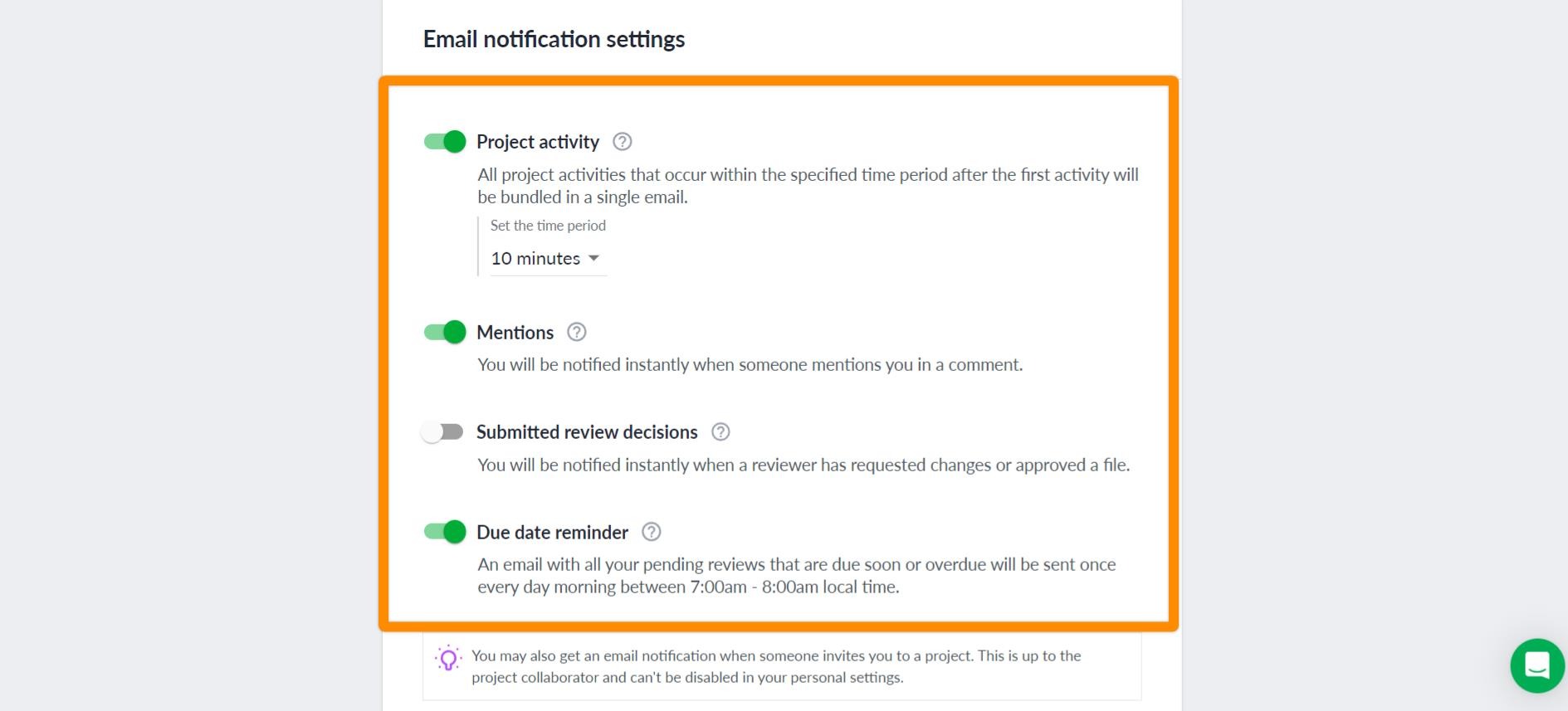
We know that some of you want to keep email alerts to a minimum, while others like to stay up to date. You can customize notifications for **project activities, mentions, submitted reviews, and due dates.** Additionally, you can decide whether your reviewers should receive project activity notifications.

<table data-id="31e324bc-bf18-4965-a5c4-9d7610f5f174" style="min-width: 25px;"><colgroup><col style="min-width: 25px;"></colgroup><tbody><tr><td colspan="1" rowspan="1"><ol><li><p data-id="a6b34ad2-e16a-47a1-bde8-b072d148d423" style="text-align: left;">Click on your<strong> avatar </strong>in the top right corner of the screen</p></li><li><p data-id="329a3aba-9980-46e0-a71c-0df4e51e3e88" style="text-align: left;">Go to <a target="_blank" rel="noopener noreferrer nofollow" class="linktype-link intercom-content-link link" data-linktype="link" href="https://app.filestage.io/#!/profile/"><strong>Personal settings</strong></a></p></li><li><p data-id="e52a3ea1-97ad-4867-b26d-51dc9639b9ba" style="text-align: left;">Select <a target="_blank" rel="noopener noreferrer nofollow" class="linktype-link intercom-content-link link" data-linktype="link" href="https://app.filestage.io/#!/profile/notifications"><strong>Notifications</strong></a></p></li><li><p data-id="eebf5cd6-4325-4e4a-921f-2b3fc3896e90" style="text-align: left;">Choose the notifications you want to enable or disable according to your preferences</p></li></ol><img src="https://staticfiles.gleap.io/helpcenter/668fad7b14cdc36cb3fd211c/20240814123622_9068.jpg" style="width: 540px; height: auto; cursor: pointer;"></td></tr></tbody></table>

* * *

## How to receive email notifications for a project?

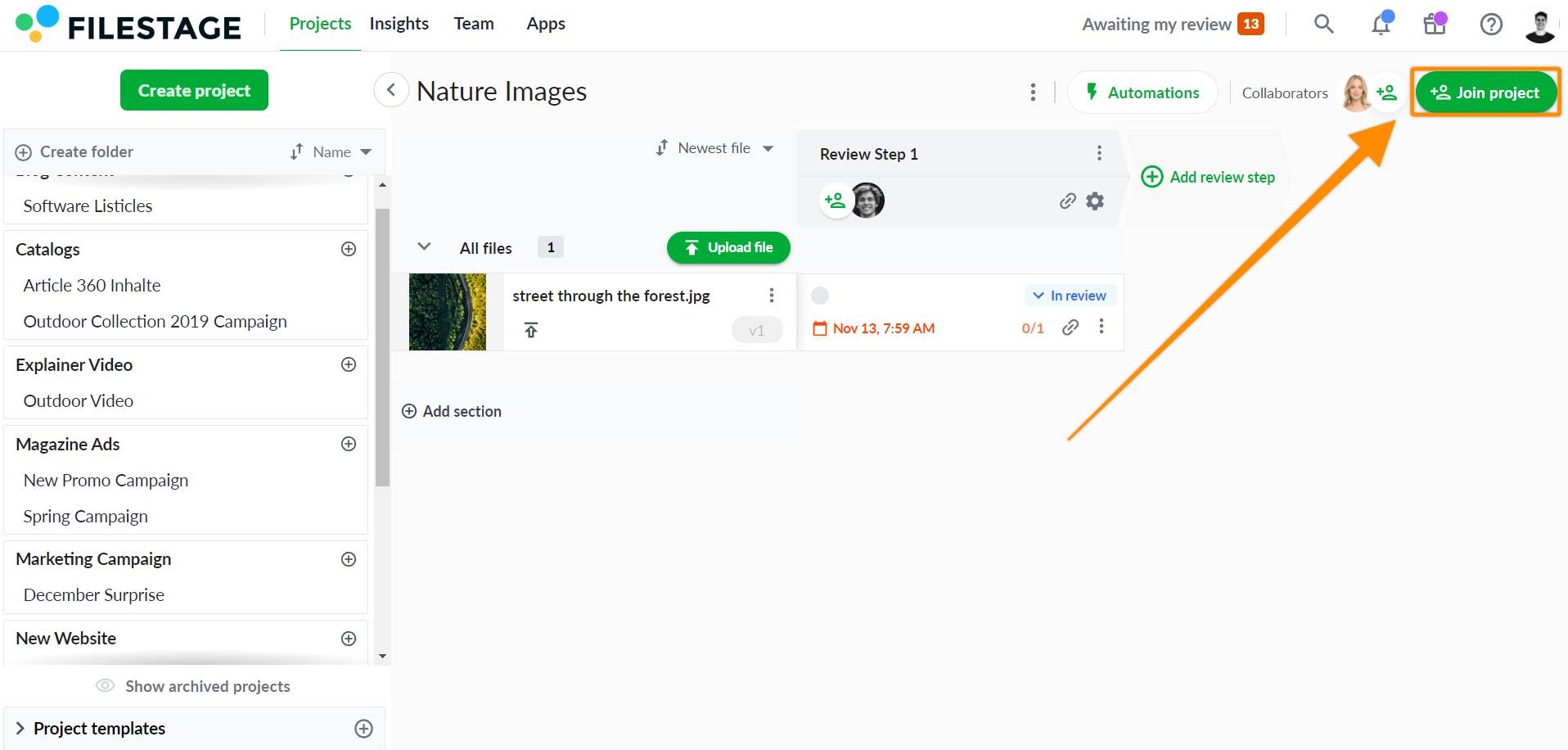
As a team administrator, you have the ability to see all files and projects created by your teammates. However, you will only receive email notifications for projects where you are specifically a [project collaborator](https://help.filestage.io/en/articles/2281387-invite-team-members-to-collaborate-on-your-project.md). To enable email notifications for a project, you can join the project by inviting yourself as a project collaborator.

<table data-id="376cbf12-1b9b-462a-8d5f-983b09ad27f6" style="min-width: 25px;"><colgroup><col style="min-width: 25px;"></colgroup><tbody><tr><td colspan="1" rowspan="1"><ol><li><p data-id="874ec637-5580-4941-b282-0da3e34da9b1" style="text-align: left;">Go to the project for which you want to receive notifications</p></li><li><p data-id="054398d8-9435-494b-aa29-d85496b8e52e" style="text-align: left;">Click the <strong>Join Project </strong>button in the top right corner</p></li></ol><img src="https://staticfiles.gleap.io/helpcenter/668fad7b14cdc36cb3fd211c/20240814123623_7294.jpg" style="width: 543px; height: auto; cursor: pointer;"></td></tr></tbody></table>

This way, you can receive updates only on the projects you truly care about. If you don’t receive notifications, check your spam or other mail folders and whitelist notifications@filestage.io if necessary.

* * *

## Project Activity Email

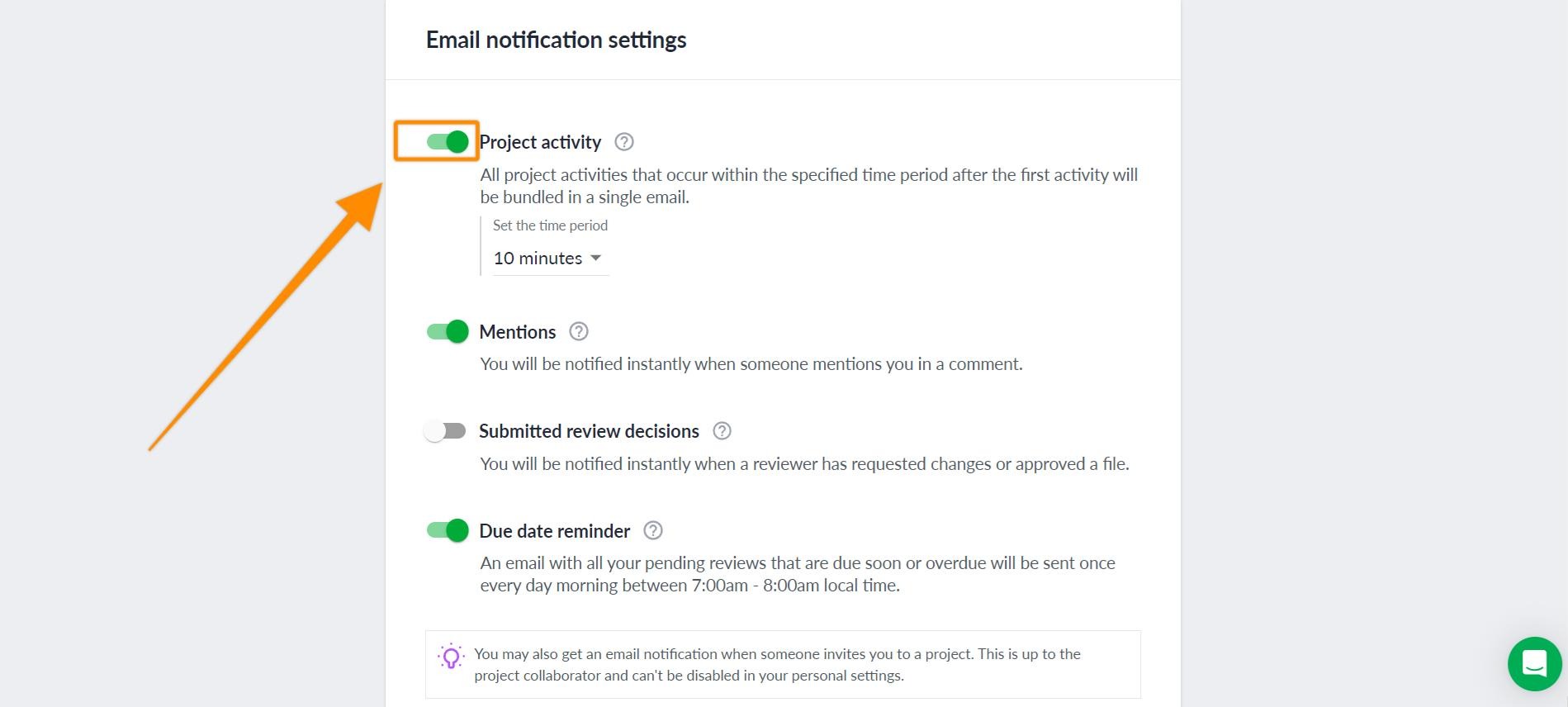
Filestage sends you a single email notification for all new activities happening in your projects. The notification is sent within a selected period ranging from 10 minutes to 8 hours. This allows you to receive all relevant updates in one email, making it easier to keep track of your projects. You can decide whether you want to receive project activity emails.

<table data-id="69eae45f-e2d4-4790-a623-b57be8b313a2" style="min-width: 25px;"><colgroup><col style="min-width: 25px;"></colgroup><tbody><tr><td colspan="1" rowspan="1"><p data-id="868c41e0-8afa-4565-852c-a5dd4d4a8e77" style="text-align: left;">​<strong>To do this:</strong></p><ol><li><p data-id="74b35329-67b7-43a4-8d67-7e02e910b132" style="text-align: left;">Click on your<strong> avatar </strong>in the top right corner of the screen</p></li><li><p data-id="e3c9fb70-a168-47a6-901e-ddd199346396" style="text-align: left;">Go to <a target="_blank" rel="noopener noreferrer nofollow" class="linktype-link intercom-content-link link" data-linktype="link" href="https://app.filestage.io/#!/profile/"><strong>Personal Settings</strong></a></p></li><li><p data-id="4d2ac66e-10c5-4b93-9bbc-317ce5a7d393" style="text-align: left;">Select <a target="_blank" rel="noopener noreferrer nofollow" class="linktype-link intercom-content-link link" data-linktype="link" href="https://app.filestage.io/#!/profile/notifications"><strong>Notifications</strong></a></p></li><li><p data-id="2ab2981c-c1ad-4f4f-acd6-40e0d3531e29" style="text-align: left;">Click on the <strong>Project Activity </strong>toggle to enable or disable the notification according to your preferences</p></li></ol><img src="https://staticfiles.gleap.io/helpcenter/668fad7b14cdc36cb3fd211c/20240814123623_6481.jpg" style="width: 544px; height: auto; cursor: pointer;"></td></tr></tbody></table>

> **Info:** **_Tip:_** _Instead of disabling email notifications for project activities, we suggest_ [_extending the period for receiving them_](#h_0a8fecc751)_. This way, you can stay informed without overloading your inbox and be reminded to return to the project._

<table data-id="a907d5cf-dce1-4cc3-a861-0234b1d85f16" style="min-width: 25px;"><colgroup><col style="min-width: 25px;"></colgroup><tbody><tr><td colspan="1" rowspan="1"><p data-id="a59509f3-8305-4db6-8b6d-ccc987e9f57a" style="text-align: left;"><strong>Activities included in project activity notifications:</strong></p><p data-id="4513d817-6473-4bb7-b752-5a8c9cb46014" style="text-align: left;"><span data-name="check_mark_button" data-type="emoji">✅</span> <a target="_blank" rel="noopener noreferrer nofollow" class="linktype-link intercom-content-link link" data-linktype="link" href="https://help.filestage.io/en/articles/7002949-commenting-on-files.md">New comments and replies</a></p><p data-id="c5ccd1be-d77c-4587-98d0-92a323b27386" style="text-align: left;"><span data-name="check_mark_button" data-type="emoji">✅</span> <a target="_blank" rel="noopener noreferrer nofollow" class="linktype-link intercom-content-link link" data-linktype="link" href="https://help.filestage.io/en/articles/3188612-manage-your-project-files.md">New files</a> and <a target="_blank" rel="noopener noreferrer nofollow" class="linktype-link intercom-content-link link" data-linktype="link" href="https://help.filestage.io/en/articles/2211321-manage-different-versions-of-a-file.md">new versions</a></p><p data-id="d2e7bb54-9a3b-431c-98fb-a761bb76bd09" style="text-align: left;"><span data-name="check_mark_button" data-type="emoji">✅</span> <a target="_blank" rel="noopener noreferrer nofollow" class="linktype-link intercom-content-link link" data-linktype="link" href="https://help.filestage.io/en/articles/2562896-submit-your-review-decision.md">Submitted review decision</a></p><p data-id="49d1e139-c368-4c15-9821-895a7478cf1d" style="text-align: left;"><span data-name="check_mark_button" data-type="emoji">✅</span> <a target="_blank" rel="noopener noreferrer nofollow" class="linktype-link intercom-content-link link" data-linktype="link" href="https://help.filestage.io/en/articles/3342576-keep-track-of-the-review-status-in-the-review-summary.md">Changes in review status</a></p><p data-id="fed9d556-fc90-4d96-86a1-3fbca21c31e3" style="text-align: left;"><span data-name="check_mark_button" data-type="emoji">✅</span> Liked comments</p></td></tr></tbody></table>

<table data-id="41754a4f-9fca-494a-ac22-209a9ab12fb3" style="min-width: 25px;"><colgroup><col style="min-width: 25px;"></colgroup><tbody><tr><td colspan="1" rowspan="1"><p data-id="becb2369-af75-4ecd-9e3c-95234704e78a" style="text-align: left;"><strong>Separate activities in immediate email notifications:</strong></p><p data-id="17ac1891-554f-454b-92f7-2b266ce6caee" style="text-align: left;"><span data-name="cross_mark" data-type="emoji">❌</span> Invitations to become a<a target="_blank" rel="noopener noreferrer nofollow" class="linktype-link intercom-content-link link" data-linktype="link" href="https://help.filestage.io/en/articles/2281387-invite-team-members-to-collaborate-on-your-project.md"> project collaborator</a></p><p data-id="f3c1d84e-fc2a-4259-8f62-3a7af43afde4" style="text-align: left;"><span data-name="cross_mark" data-type="emoji">❌</span> Invitations to become a <a target="_blank" rel="noopener noreferrer nofollow" class="linktype-link intercom-content-link link" data-linktype="link" href="https://app.intercom.com/a/apps/stzo2etl/articles/articles/1459680/show">reviewer for a </a><a target="_blank" rel="noopener noreferrer nofollow" class="linktype-link intercom-content-link link" data-linktype="link" href="https://help.filestage.io/en/articles/1459680-invite-or-remove-reviewers.md">review group</a></p><p data-id="c5876e9c-ebc0-43ef-92a3-8e7d48ebafb7" style="text-align: left;"><span data-name="cross_mark" data-type="emoji">❌</span> Mentions by other users</p></td></tr></tbody></table>

### When are email notifications sent for project activities?

All project activities that occur within the selected period between 10 minutes and 8 hours after the first activity are sent to you in a single email notification.

**_For example:_**

_Let’s say your teammate creates a comment at 10 AM._ and you have selected a period of one hour. _This means that the project activity email will be sent 1 hour later at 11 AM. All activities that occur between 10 AM and 11 AM will be grouped into this email notification._

If you mark a project activity as **read** in the [**notification center**](https://help.filestage.io/en/articles/4611082-see-the-latest-activities-in-the-notification-center.md) before the project activity email is sent, this update will not be listed in the project activity email.

### How to set the duration for project activity emails?

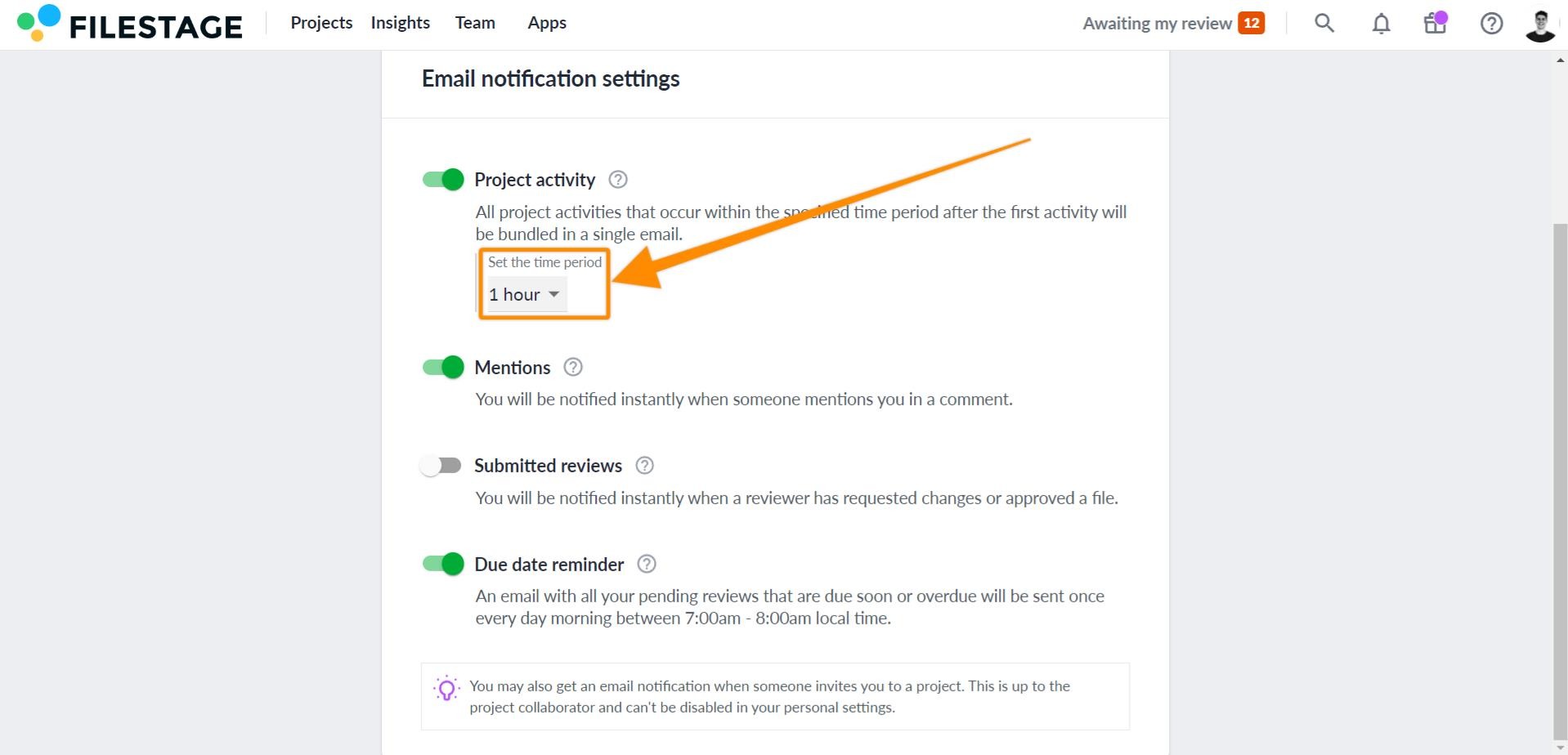
The default period for project activity emails is 1 hour, but you can customize this period in your account notification settings.

<table data-id="ace23357-ecfd-4922-876b-bf21eb6381c1" style="min-width: 25px;"><colgroup><col style="min-width: 25px;"></colgroup><tbody><tr><td colspan="1" rowspan="1"><p data-id="f45aa62a-c328-4c4b-a4eb-6594b69116d7" style="text-align: left;"><strong>To do this, follow these steps:</strong></p><ol><li><p data-id="77ea3c77-c28d-4332-9ab5-0026d4e31c92" style="text-align: left;">Click on your avatar and open your <strong>personal settings</strong></p></li><li><p data-id="76c802c7-1979-4bac-9574-d426e56eac54" style="text-align: left;">Open the <strong>notifications</strong></p></li><li><p data-id="93a742ec-79a9-4cbd-a3b3-be0510ccc256" style="text-align: left;">Select your preferred period from the dropdown menu</p></li></ol><img src="https://staticfiles.gleap.io/helpcenter/668fad7b14cdc36cb3fd211c/20240814123623_6315.jpg" style="width: 567px; height: auto; cursor: pointer;"></td></tr></tbody></table>

> **Warning:** In order to receive project update notifications for a specific project, you need to either be a project collaborator or a reviewer of that project.

* * *

## Mentions

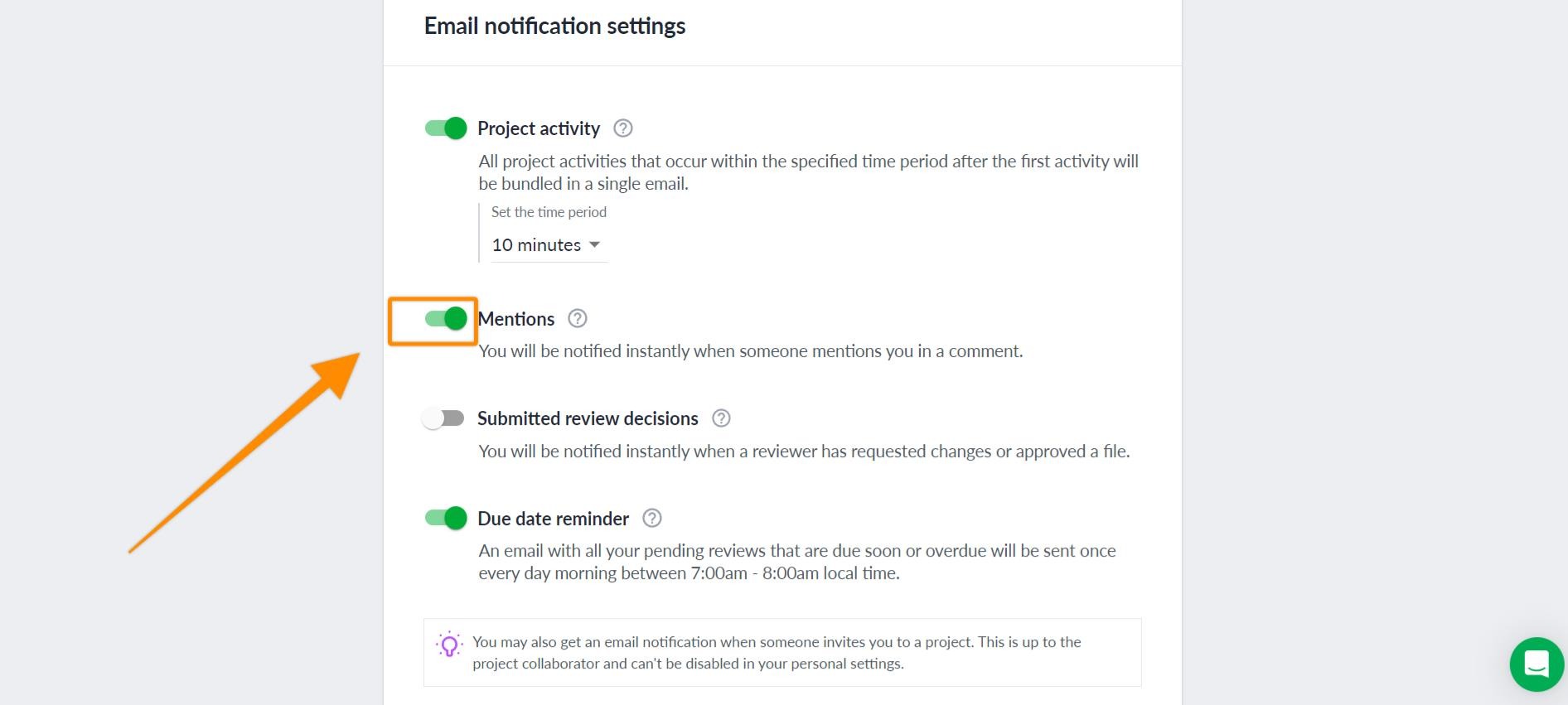
When you are [mentioned in a comment](https://help.filestage.io/en/articles/7002949-commenting-on-files.md), you will be immediately notified by a separate email. You can decide whether you want to receive notifications for mentions.

<table data-id="d697a1b2-0a7a-431e-91d4-5df37b8d4680" style="min-width: 25px;"><colgroup><col style="min-width: 25px;"></colgroup><tbody><tr><td colspan="1" rowspan="1"><p data-id="b55bb72e-dc3b-43c5-a17b-54e2265f4dac" style="text-align: left;"><strong>To do this:</strong></p><ol><li><p data-id="0fd5f314-8b59-4c2e-98b6-113854c1b5d9" style="text-align: left;">Click on your<strong> avatar </strong>in the top-right corner of the screen</p></li><li><p data-id="eeacaaf9-9c39-496e-acfc-37eec445bf87" style="text-align: left;">Go to <a target="_blank" rel="noopener noreferrer nofollow" class="linktype-link intercom-content-link link" data-linktype="link" href="https://app.filestage.io/#!/profile/"><strong>Personal Settings</strong></a></p></li><li><p data-id="b7b70396-8145-4bfc-9e11-04d0f77d82c1" style="text-align: left;">Select <a target="_blank" rel="noopener noreferrer nofollow" class="linktype-link intercom-content-link link" data-linktype="link" href="https://app.filestage.io/#!/profile/notifications"><strong>Notifications</strong></a></p></li><li><p data-id="bbc6b780-a65b-4f36-9298-f24313965d71" style="text-align: left;">Click on the <strong>Mentions </strong>toggle to enable or disable the notification according to your preference</p></li></ol><img src="https://staticfiles.gleap.io/helpcenter/668fad7b14cdc36cb3fd211c/20240814123623_0847.jpg" style="width: 575px; height: auto; cursor: pointer;"></td></tr></tbody></table>

* * *

## Submitted Review Decisions

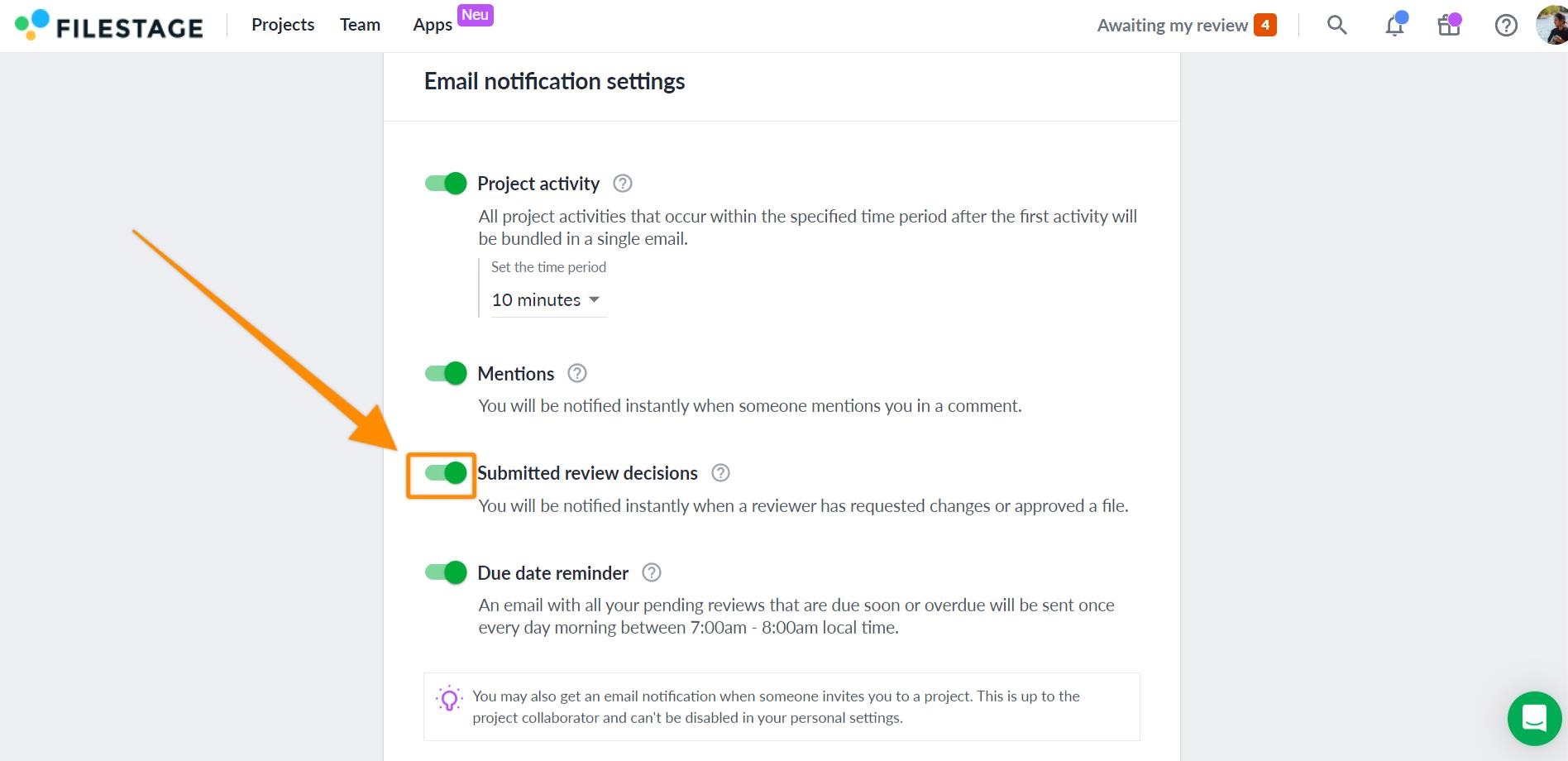
When a reviewer has [requested changes or approved a file](https://help.filestage.io/en/articles/2562896-submit-your-review-decision.md), you will be immediately notified by a separate email. You can decide whether you want to receive notifications for submitted review decisions.

<table data-id="38eaa9da-cbbd-43dc-af6f-fbba7f57cc2f" style="min-width: 25px;"><colgroup><col style="min-width: 25px;"></colgroup><tbody><tr><td colspan="1" rowspan="1"><p data-id="1c61c368-1c86-4d03-a1b0-68846e6391fc" style="text-align: left;"><strong>To do this:</strong></p><ol><li><p data-id="af0e728c-2018-4c20-9577-462e76a2097f" style="text-align: left;">Click on your<strong> avatar </strong>in the top right corner of the screen</p></li><li><p data-id="7b570eca-9eec-4377-b27e-ca402b02472b" style="text-align: left;">Go to <a target="_blank" rel="noopener noreferrer nofollow" class="linktype-link intercom-content-link link" data-linktype="link" href="https://app.filestage.io/#!/profile/"><strong>Personal Settings</strong></a></p></li><li><p data-id="a30dbad0-27d1-4d1a-885f-ba192d51b868" style="text-align: left;">Select <a target="_blank" rel="noopener noreferrer nofollow" class="linktype-link intercom-content-link link" data-linktype="link" href="https://app.filestage.io/#!/profile/notifications"><strong>Notifications</strong></a></p></li><li><p data-id="868d0755-a3fa-41f7-b4f9-db7189bae3ad" style="text-align: left;">Click on the <strong>Submitted Review Decisions toggle</strong> to enable or disable the notification according to your preferences</p></li></ol><img src="https://staticfiles.gleap.io/helpcenter/668fad7b14cdc36cb3fd211c/20240814123623_8782.jpg" style="width: 545px; height: auto; cursor: pointer;"></td></tr></tbody></table>

* * *

## Due Date Reminder

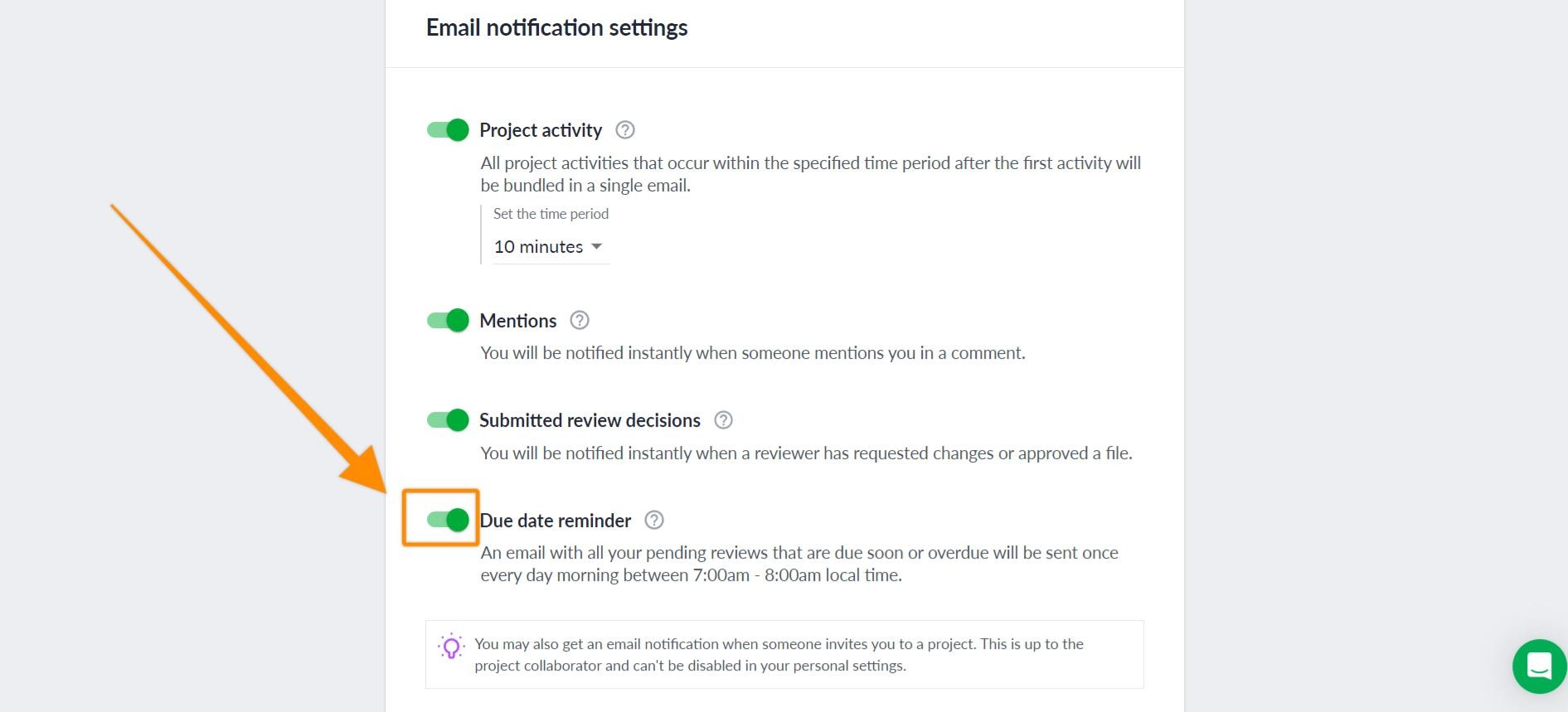
Once you have been invited to a reviewer group as a reviewer, you will receive a daily email reminder between **7:00 AM and 8:00 AM local time** listing all your pending reviews that are **upcoming or overdue**, but only if you have a pending review with a due date between **2 days ago and in 5 days**. These reminders will only be sent on weekdays, not during the weekend.  
Learn more about how to [set up and manage due dates](https://help.filestage.io/en/articles/3161155-set-up-and-manage-due-dates.md).

> **Warning:** **Currently, only review task due dates** (formerly called "review due dates") trigger these email reminders. Due dates set on **upload tasks** do not trigger email reminders yet.

You can decide whether you want to receive notifications for submitted review decisions.

<table data-id="1ace1122-e3c2-4eba-888a-b7c4abf64976" style="min-width: 25px;"><colgroup><col style="min-width: 25px;"></colgroup><tbody><tr><td colspan="1" rowspan="1"><p data-id="1a5ee9dc-6c78-46b9-b073-2858499e1f48" style="text-align: left;"><strong>To do this:</strong></p><ol><li><p data-id="82bba8af-26e2-4a79-8f87-c582aa902dda" style="text-align: left;">Click on your<strong> avatar </strong>in the top right corner of the screen</p></li><li><p data-id="453ca1ab-1cb6-4030-8f3a-9adce5f151c5" style="text-align: left;">Go to <a target="_blank" rel="noopener noreferrer nofollow" class="linktype-link intercom-content-link link" data-linktype="link" href="https://app.filestage.io/#!/profile/"><strong>Personal Settings</strong></a></p></li><li><p data-id="55dd91d9-7eea-4d71-b12f-d08883c368ae" style="text-align: left;">Select <a target="_blank" rel="noopener noreferrer nofollow" class="linktype-link intercom-content-link link" data-linktype="link" href="https://app.filestage.io/#!/profile/notifications"><strong>Notifications</strong></a></p></li><li><p data-id="3953b679-dbbf-440c-bf54-dc99e52b2b26" style="text-align: left;">Click on the <strong>Due Date Reminder </strong>toggle to enable or disable the reminder according to your preference</p></li></ol><img src="https://staticfiles.gleap.io/helpcenter/668fad7b14cdc36cb3fd211c/20240814123622_3996.jpg" style="width: 549px; height: auto; cursor: pointer;"></td></tr></tbody></table>

* * *

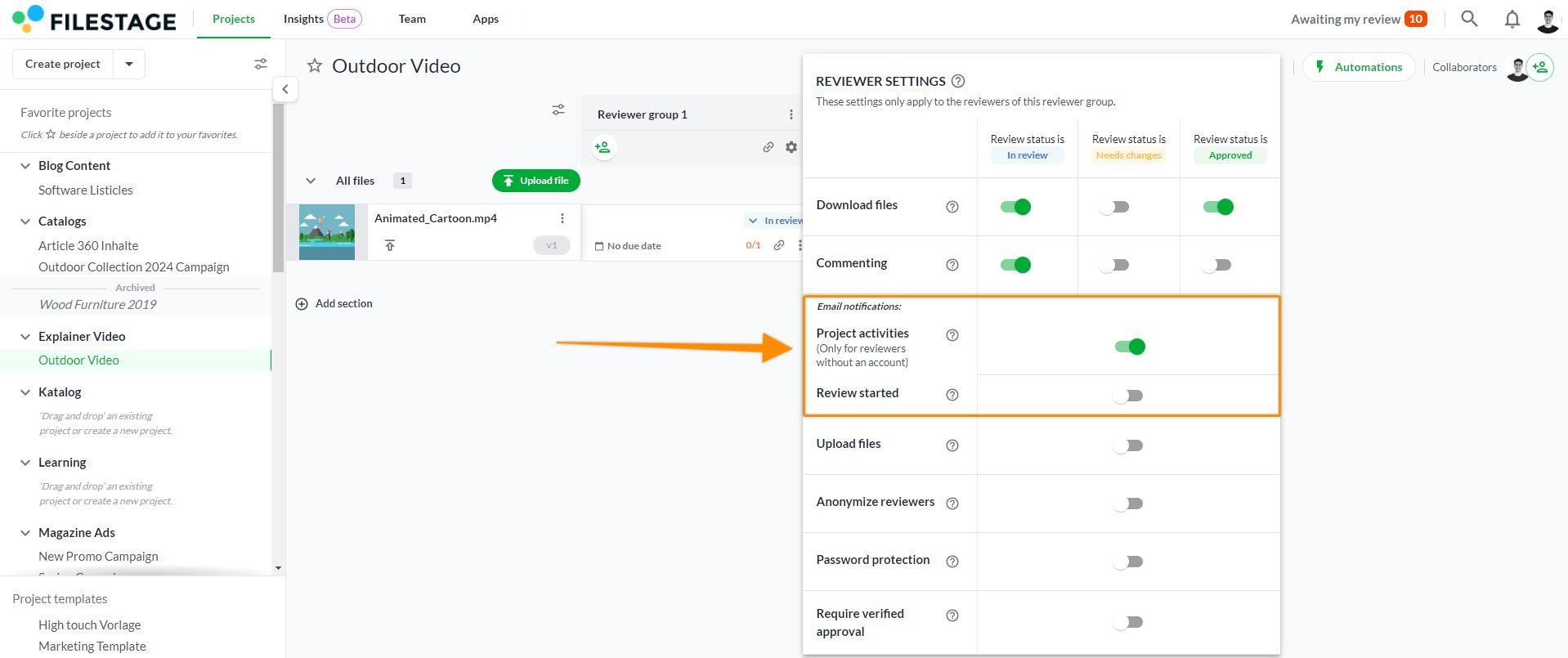
## Manage email notifications for your reviewers

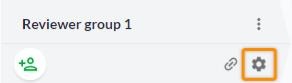
<table data-id="dca36673-05c7-44d4-9e9e-754977320102" style="min-width: 25px;"><colgroup><col style="min-width: 25px;"></colgroup><tbody><tr><td colspan="1" rowspan="1"><ol><li><p data-id="60d0e42c-933b-46bb-bbca-0ac60a9bfa33" style="text-align: left;">Locate the reviewer group for which you want to disable email notifications</p></li><li><p data-id="3eaefb4d-56c4-428f-8d8c-e492f6df3375" style="text-align: left;">Click on the <strong>Manage reviewer settings </strong>icon.</p></li></ol><img src="https://staticfiles.gleap.io/helpcenter/668fad7b14cdc36cb3fd211c/20240814123622_0962.jpg" style="width: 214px; height: auto; cursor: pointer;"><ol start="3"><li><p data-id="99c352ae-1cdf-4d36-8d1e-858174cdd393" style="text-align: left;">Disable <strong>email notifications for all files</strong></p></li></ol><img src="https://staticfiles.gleap.io/helpcenter/668fad7b14cdc36cb3fd211c/20240814123622_4992.jpg" style="width: 604px; height: auto; cursor: pointer;"></td></tr></tbody></table>

> **Info:** **_Please note:_** _If your reviewer has their own account, they can disable project activity emails in their personal notification settings. The personal setting_ **_will override the email notification setting in the reviewer group._**

* * *

## Use mentions to immediately notify others

If you want someone to be immediately informed about new activity, you can use the [mention feature](https://help.filestage.io/en/articles/7002949-commenting-on-files.md). Email notifications for mentions are sent immediately.

> **Warning:** Mentions and their corresponding notifications only work with people who are already part of the review process (reviewers, collaborators).

Additionally, the [notification center](https://help.filestage.io/en/articles/4611082-see-the-latest-activities-in-the-notification-center.md) displays real-time updates. You can use this feature to see updates instantly. Thanks to the circle in the tab title and the blue badge on the bell icon, you can see if new updates are available.

* * *

💡 **What’s next?** Once you’ve finished setting up your notifications, learn how to [set up and manage due dates](https://help.filestage.io/en/articles/3161155-set-up-and-manage-due-dates.md)!

* * *

_Let us know if you have any questions by contacting us via chat or sending us an email at_ [_support@filestage.io_](mailto:support@filestage.io) _We’re always happy to help!_