---
title: "Manage different versions of a file"
description: "Learn how to upload and switch between different versions of a file and delete them"
url: https://help.filestage.io/en/articles/2211321-manage-different-versions-of-a-file
collection: "File and Version Management"
updated: 2026-07-01
language: en
alternates: [fr, de, es]
---

# Manage different versions of a file

Learn how to upload and switch between different versions of a file and delete them

_When uploading a_ **_new version_** _of a file, the new file will not have any comments attached to it since it is considered new. However, you can always view the_ [_file history_](https://help.filestage.io/en/articles/2562925-viewing-older-versions-navigating-through-different-files.md) _by switching between the previously uploaded versions to see past remarks and the progression of that file._

_If you made a mistake and uploaded the wrong file -_ **_you can permanently delete it as well_.**

* * *

* * *

## Upload a new version of a file

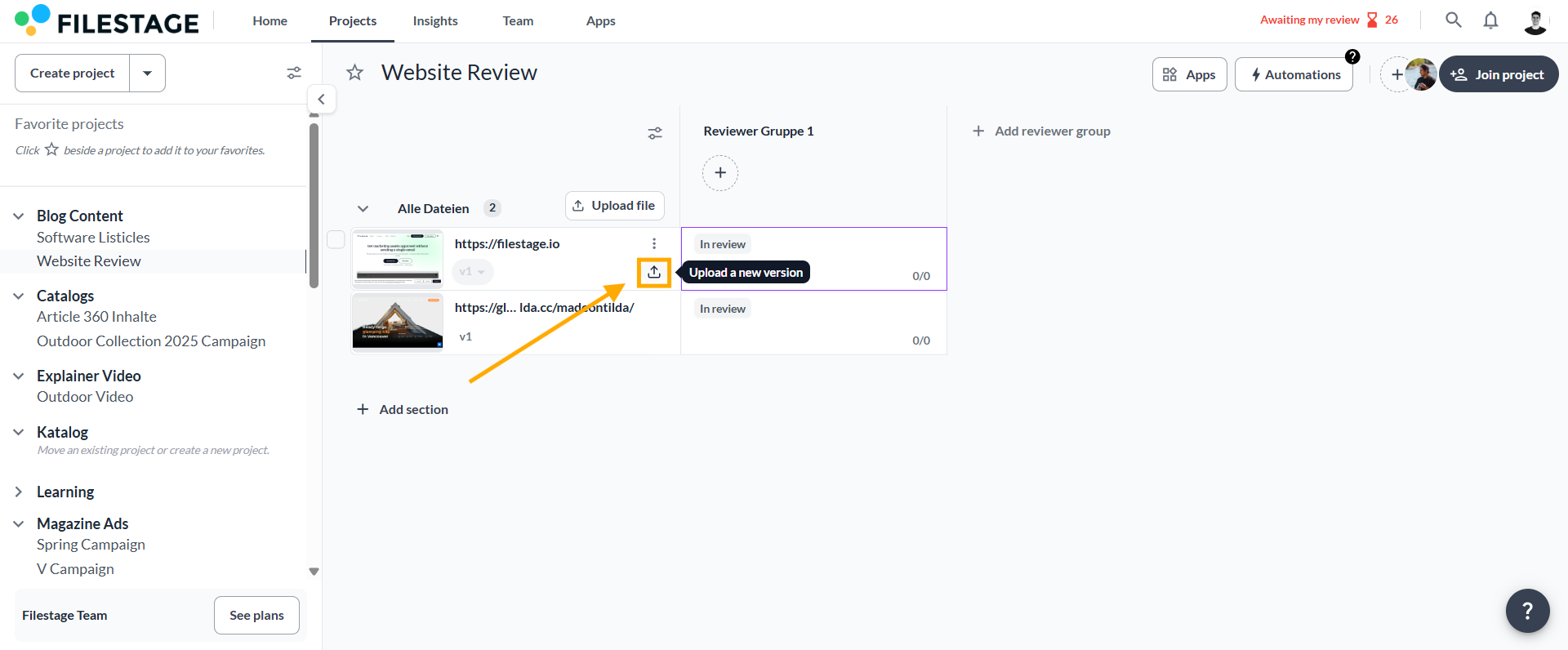
You can upload a new version of a file from the project overview section or on the file view.

### Upload a new version on the project dashboard

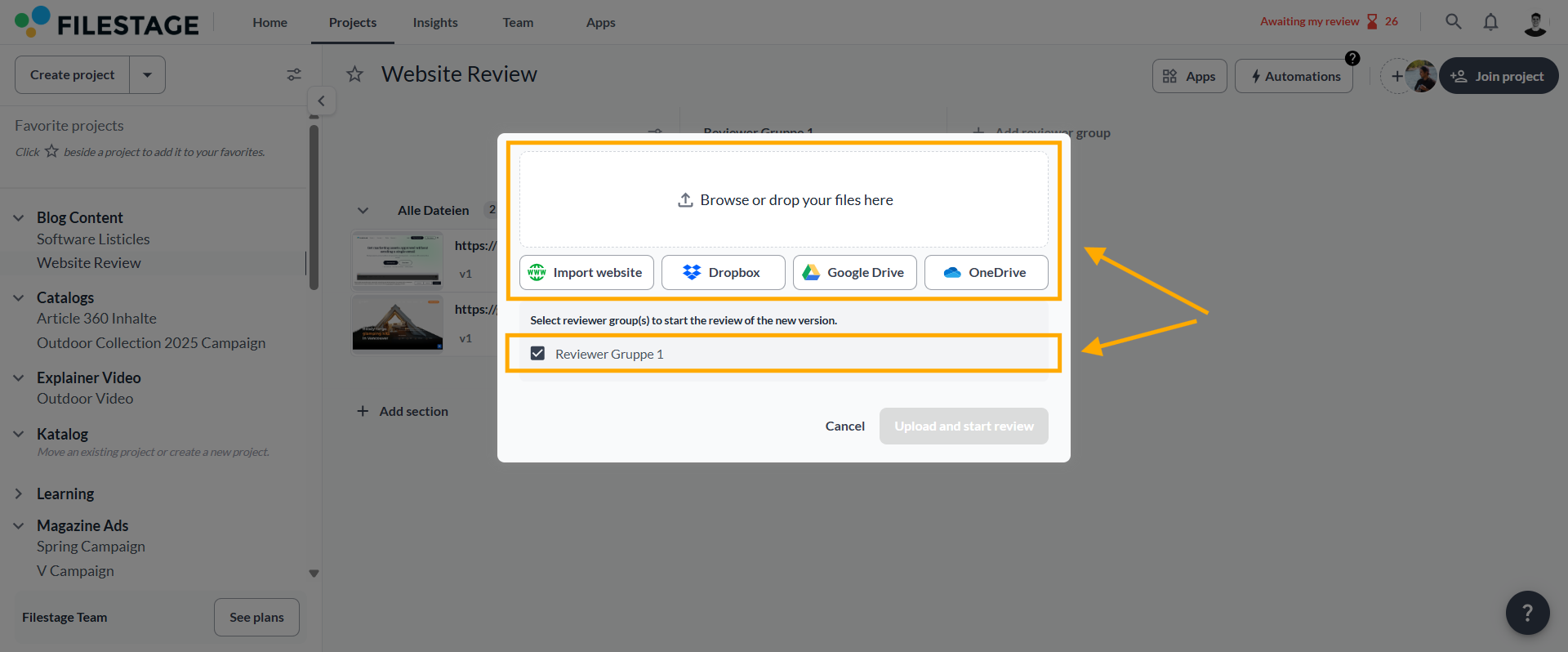
<table data-id="c2929b67-ef94-4f5e-9c3e-cfbc92977349" style="min-width: 25px;"><colgroup><col style="min-width: 25px;"></colgroup><tbody><tr><td colspan="1" rowspan="1"><ol><li><p data-id="2c9cf056-5320-438d-b053-972c9da39a62" style="text-align: left;">Click the<strong> up arrow</strong> icon on the file where you wish to upload a new version of it</p><div style="text-align: left; width: 100%;"><img src="https://staticfiles.gleap.io/gattachments/MgLosYa694hu7q5YoejhReOnm7gddLIpyHULeY6kuDClWPN0reF3p2gFVbk3FtERGmygOdXqMSG.png" data-width="65%" data-align="left" style="width: 65%; border-radius: 10px; margin-top: 10px; margin-bottom: 10px;"></div></li></ol><ol start="2"><li><p data-id="ce5641f5-ffaf-46a6-9c0b-95ec0da36e1a" style="text-align: left;"><strong>Select the file</strong> from your hard drive, Google Drive, OneDrive, Dropbox or via Import website</p></li></ol><ul><li><p data-id="d9763503-ffd4-4b28-8927-1dc033a807d2" style="text-align: left;"><strong><em>optional, </em></strong>you can choose in which reviewer group the review should be started for the new version.</p><div style="text-align: left; width: 100%;"><img src="https://staticfiles.gleap.io/gattachments/ZUfgujqbIcdj3TZmkMHz61b29Lu6gPANml77dfjPL8wFjQ5YjneggpeZsAJ1KVegby9omYHJ2AI.png" data-width="65%" data-align="left" style="width: 65%; border-radius: 10px; margin-top: 10px; margin-bottom: 10px;"></div></li></ul></td></tr></tbody></table>

* * *

### Upload a new version in the file view

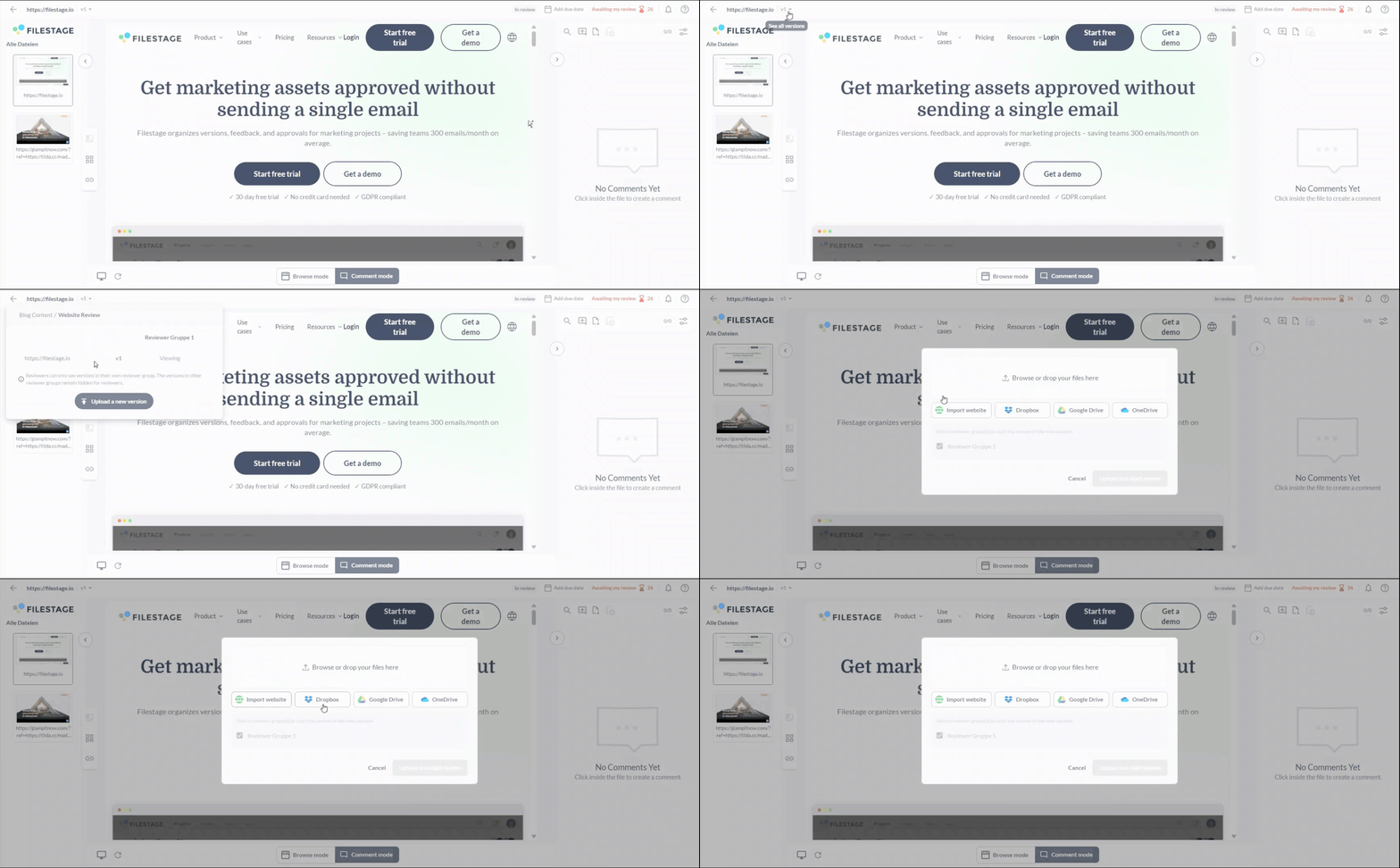
<table data-id="e7dace8b-319f-4f67-999c-3a2badaf84b6" style="min-width: 25px;"><colgroup><col style="min-width: 25px;"></colgroup><tbody><tr><td colspan="1" rowspan="1"><ol><li><p data-id="8f8c4a7d-2464-4f32-a938-2153310957d7" style="text-align: left;">In the file view, <strong>click on the upload button</strong> above the file</p></li><li><p data-id="d74a86c0-08d1-479b-8eef-4edfc49c6445" style="text-align: left;"><strong>Select the file</strong> from your hard drive, Google Drive, OneDrive, Dropbox or via Import website</p><ul><li><p data-id="6f30c5f8-93b3-442e-a467-05bdce479545" style="text-align: left;"><strong><em>optional, </em></strong>you can choose in which reviewer group the review should be started for the new version.</p></li><li><p data-id="b02ca209-e487-4ce9-808c-03d810a6efd2" style="text-align: left;"><strong><em>Alternatively,</em></strong> you can upload a new version in the file view by dragging and dropping the file. To do this, drag the file over toward the comments section, and it’ll upload that file as a new version.</p><img src="https://staticfiles.gleap.io/gattachments/bZYZlm5Vl7uAxADIsz6kZJIC4HPCl4Cs1LdouHM8LrCH7iwmiIyz4nn2RiffbOqPMCNM9RwWzzp.gif" alt="" style="width: 484px;"></li></ul></li></ol></td></tr></tbody></table>

> **Warning:** **_Please note:_** _Only project collaborators will be able to see historical versions and comments in all steps. Reviewers will only be able to see version history in the reviewer group that they are invited to see._

* * *

### Uploading multiple new versions for several files at once

To upload multiple new versions, **drag and drop all the new versions of your files** into your project.

![](https://staticfiles.gleap.io/ghelparticle/08kNQCisPHtT8cQtKpG5E5lhmt0U1alxonaYGdjAaK4cmHpJcMJOiUSWV6dDa5fgJycnYoMEeJ1.jpeg)

Any file names that match any of your existing files will automatically be added as a new version. **Only the prefix of each version needs to match.**

**For example:**

-   You have a file in your project called "**file\_name.pdf**"
    
-   You drag and drop the next version, "**file\_name\_v2.pdf**", into your project
    
-   Filestage auto-matches it to your existing file and adds it as the next version
    

**Note:** The new version of your file can be an exact match or include a version number suffix like "**v2**". If the file name is different or you use different naming conventions for your files, they won't automatically be matched as new versions.

![](https://staticfiles.gleap.io/helpcenter/668fad7b14cdc36cb3fd211c/20240814123624_9078.jpg)

* * *

## Delete a version of a file

You can delete the latest version of the file, which will remove that version and the feedback made to it. You can also delete an older version of the file that you no longer need.

> **Warning:** **_Please note:_** _Deleting a version of a file will permanently remove it from your account with any comment and feedback that has been given to it in any reviewer group, so be sure to choose the right option for your needs._

### Delete the latest version of a file

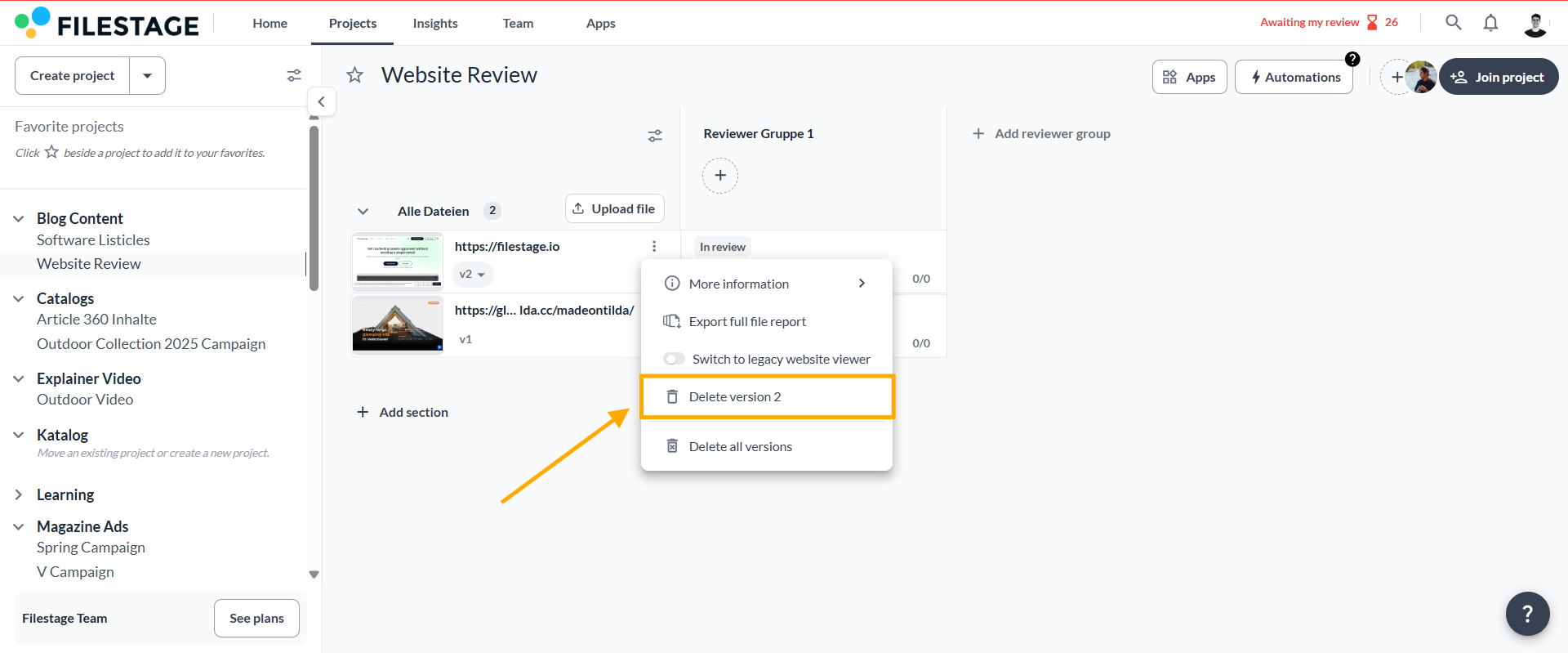
<table data-id="ba090456-48dd-4391-8b35-34f81843c180" style="min-width: 25px;"><colgroup><col style="min-width: 25px;"></colgroup><tbody><tr><td colspan="1" rowspan="1"><ol><li><p data-id="345309c5-a0e4-4972-a8e0-343eb9651955" style="text-align: left;"><strong>Locate the file</strong> where you wish to remove the latest version</p></li><li><p data-id="e3ffc697-4249-4922-ac62-5cc464cee988" style="text-align: left;">Select the <strong>three dots</strong> and click on <strong>Delete version x</strong></p><img src="https://staticfiles.gleap.io/gattachments/gMFBvtYqsB0Ay1OzwbTq2m98UUvqeG7cOGmfir4jddVvWcdAOhBMuJWXjJwuHXRf2Nt4ZVG7oGS.png" alt="" style="width: 497px;"></li><li><p data-id="a17f81ea-bc90-41e8-91cd-85ee869a15b2" style="text-align: left;">Confirm by selecting <strong>delete version</strong></p><ul><li><p data-id="546dfc45-1a2b-4019-82ec-96e6d74a030a" style="text-align: left;">If you wish to delete all versions of the file, select <strong>Delete all versions</strong></p></li></ul></li></ol></td></tr></tbody></table>

* * *

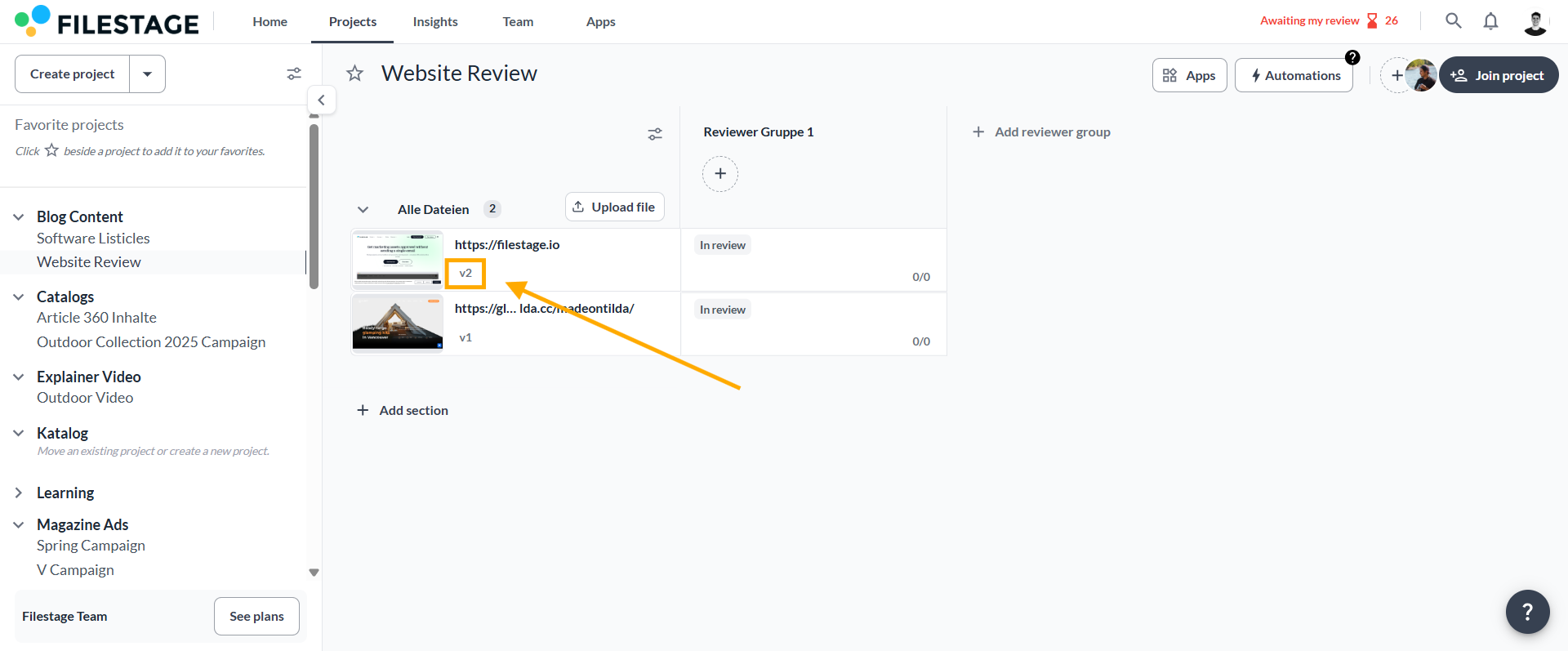
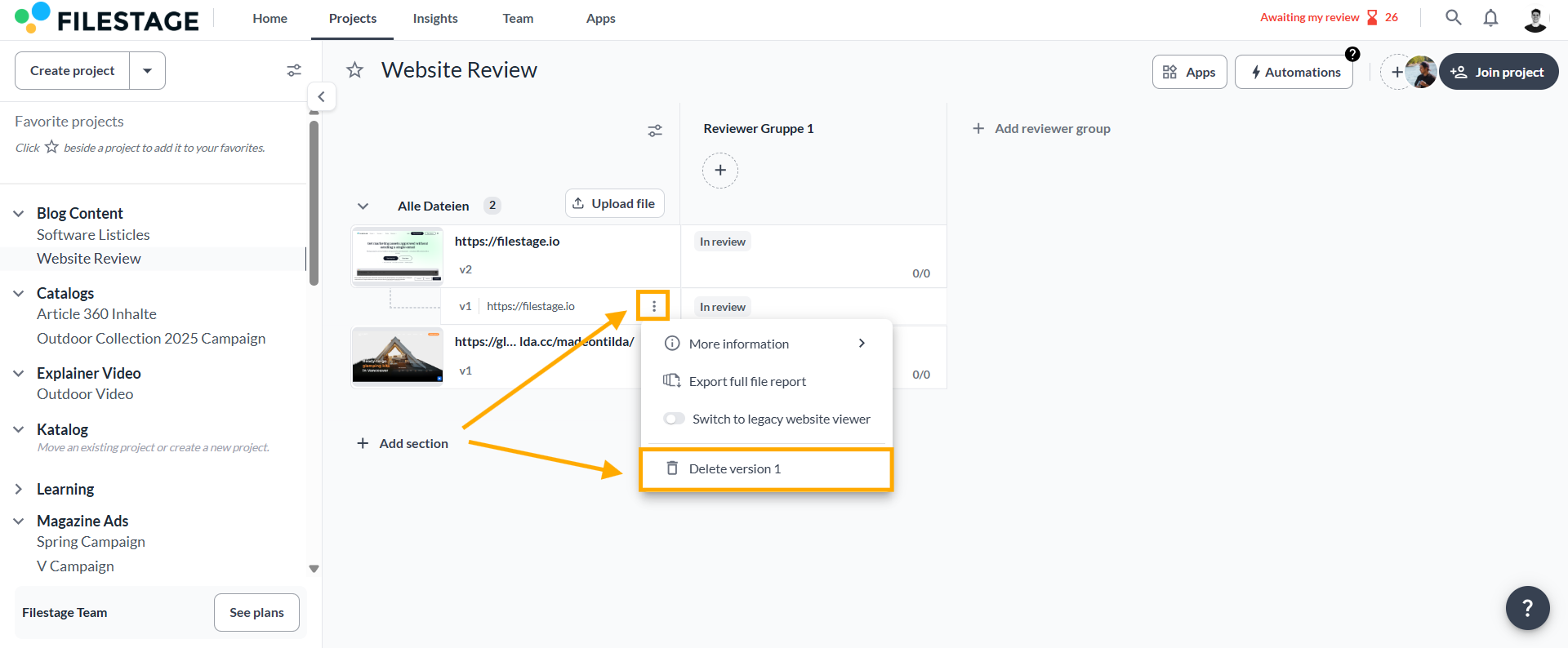
### Delete an older version of a file

It is also possible to delete any older version of a file. To do so, follow these steps:

<table data-id="3be3b23f-30cb-436f-86c3-37c94972189d" style="min-width: 25px;"><colgroup><col style="min-width: 25px;"></colgroup><tbody><tr><td colspan="1" rowspan="1"><ol><li><p data-id="76efc667-115f-43da-a308-d2d6b12ee29f" style="text-align: left;">Locate the file where you wish to remove an older version</p></li><li><p data-id="3f843d1c-60d8-4fd4-b99c-62f5710dd9eb" style="text-align: left;">Open the version overview and locate the version you wish to remove</p><div style="text-align: left; width: 100%;"><img src="https://staticfiles.gleap.io/gattachments/TCfrJaGTiGWLeeo5ZSQ9vD2HyWZslpChI8GmNotnDgLJ00BRVZOo2r2pK1usmMUFvyA0Ho8kSvH.png" data-width="65%" data-align="left" style="width: 65%; border-radius: 10px; margin-top: 10px; margin-bottom: 10px;"></div></li><li><p data-id="ff70fdb9-33b8-42b8-a826-8b5d157e50c0" style="text-align: left;">Select the <strong>three dots</strong> on the selected version and click on <strong>Delete version x</strong></p><div style="text-align: left; width: 100%;"><img src="https://staticfiles.gleap.io/gattachments/NZFOdl9goODI233A99YhbCDoLDndWUQufmeokJKbCCGsgfiKTh2JM6bN4kjtWIckb9xw4hShoew.png" data-width="65%" data-align="left" style="width: 65%; border-radius: 10px; margin-top: 10px; margin-bottom: 10px;"></div></li><li><p data-id="fda3ad5b-439d-4a0f-a891-c8285e8056a6" style="text-align: left;">Confirm by selecting <strong>Delete version</strong>.</p></li></ol></td></tr></tbody></table>

* * *

💡 **What's next?** Once you understand how to manage different versions of a file, see [how to manage your email notifications](https://help.filestage.io/en/articles/6978893-managing-your-email-notifications.md#h_6ca95850e8).

* * *

_Let us know if you have any questions by reaching out to us on chat or emailing us at_ [_support@filestage.io_](mailto:support@filestage.io) _We're always happy to help!_