---
title: "Manage your project files"
description: "Learn how to import, rename and delete files"
url: https://help.filestage.io/en/articles/3188612-manage-your-project-files
collection: "File and Version Management"
updated: 2026-07-01
language: en
alternates: [fr, de, es]
---

# Manage your project files

Learn how to import, rename and delete files

**_As a project collaborator,_** _you can manage files in a project. You can upload files to a project, edit and delete their names. If desired,_ [_external partners_](https://help.filestage.io/en/articles/2751188-let-external-users-upload-files-to-your-team-s-projects.md) _and reviewers can upload files. You can manage this in_ [_reviewer permissions_](https://help.filestage.io/en/articles/2787865-manage-reviewer-permissions.md)_._

# Upload files to your project

Once you’ve created a new project, there are different ways to upload files. You can upload from your **hard drive, Dropbox, or Google Drive.**

* * *

## Upload from your computer

### Select the file manually from your hard drive

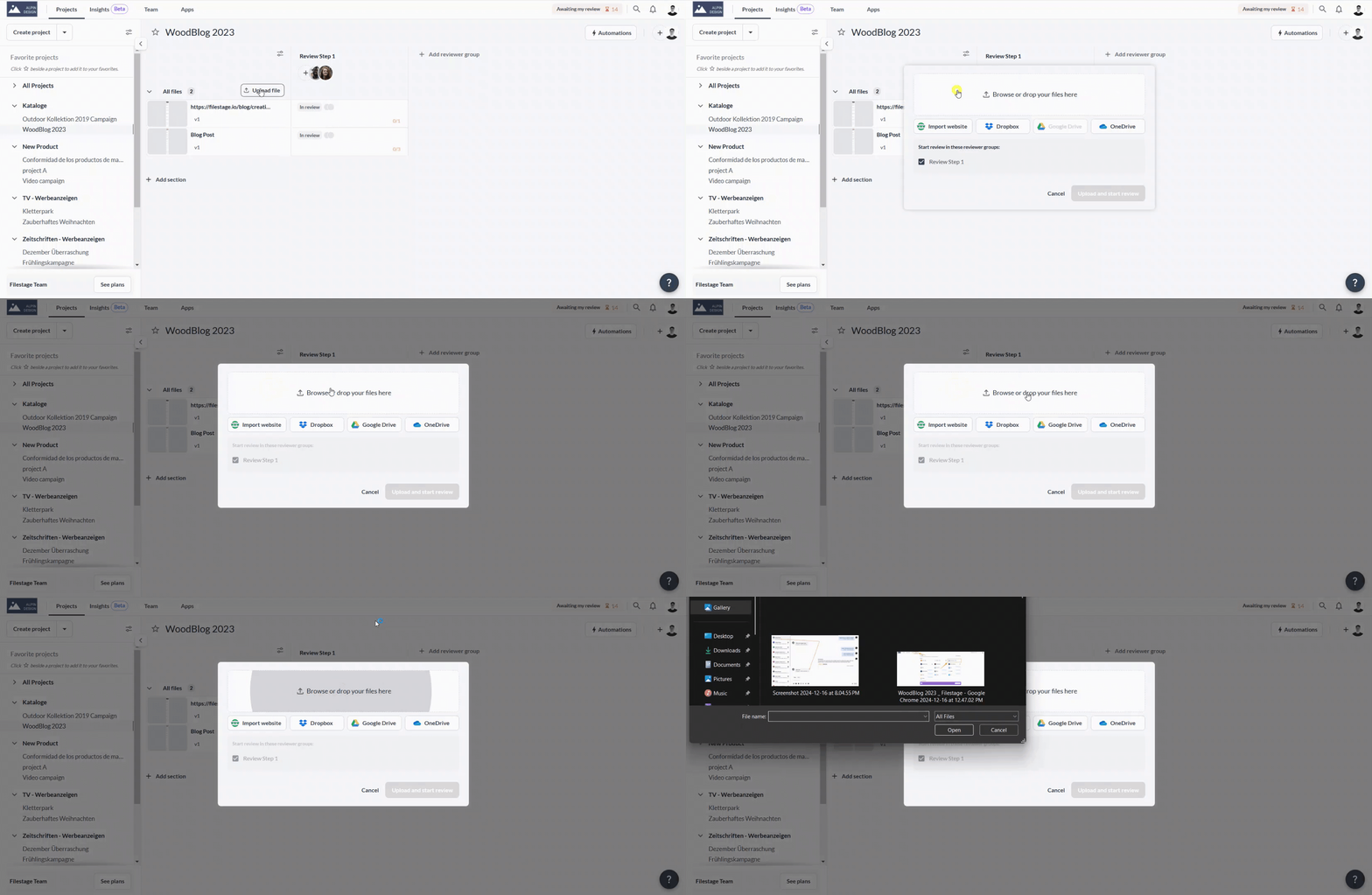
<table data-id="7552effe-867d-4a29-b953-f6190d24a210" style="min-width: 25px;"><colgroup><col style="min-width: 25px;"></colgroup><tbody><tr><td colspan="1" rowspan="1"><ol><li><p data-id="d8075689-a637-4327-ad36-9f5fabbd73d8" style="text-align: left;">Click on the<strong><em> </em>Upload file</strong> icon.</p><img src="https://staticfiles.gleap.io/ghelparticle/PZOPlWiXVx8yXH06Xu2gBrkzTuB5P9s3UrpaEUci5aeSxvfY5IGrSL3afnHzkxkWRDKoL1Py4NJ.jpeg" style="width: 70px;"></li><li><p data-id="bb3d92b9-ef6a-4465-a064-838d5c5e1905" style="text-align: left;">Select a file to upload either by<strong> clicking on browse your computer </strong>or<strong> drag and drop your file into the upload box</strong></p></li><li><p data-id="49cc82b1-a467-4e3b-bdc2-376d8e4ce751" style="text-align: left;"><strong><em>Optionally, </em></strong>choose if and in which reviewer group the review should start</p></li><li><p data-id="4fc994a0-0935-43f0-b22a-778742adcf5c" style="text-align: left;">Click on <strong>Upload and start review</strong></p><div style="text-align: center; width: 100%;"><img src="https://staticfiles.gleap.io/ghelparticle/DSAc3dEGqnqdcuHsnk6NLNs507kWapjaZcHS8zyAERMDjKcQKF1cEbitxsTjnuwPqKb7XIJERUn.gif" data-width="100%" data-align="center" style="width: 100%; border-radius: 10px; margin-top: 10px; margin-bottom: 10px;"></div></li></ol></td></tr></tbody></table>

* * *

### Drag & Dropping the file

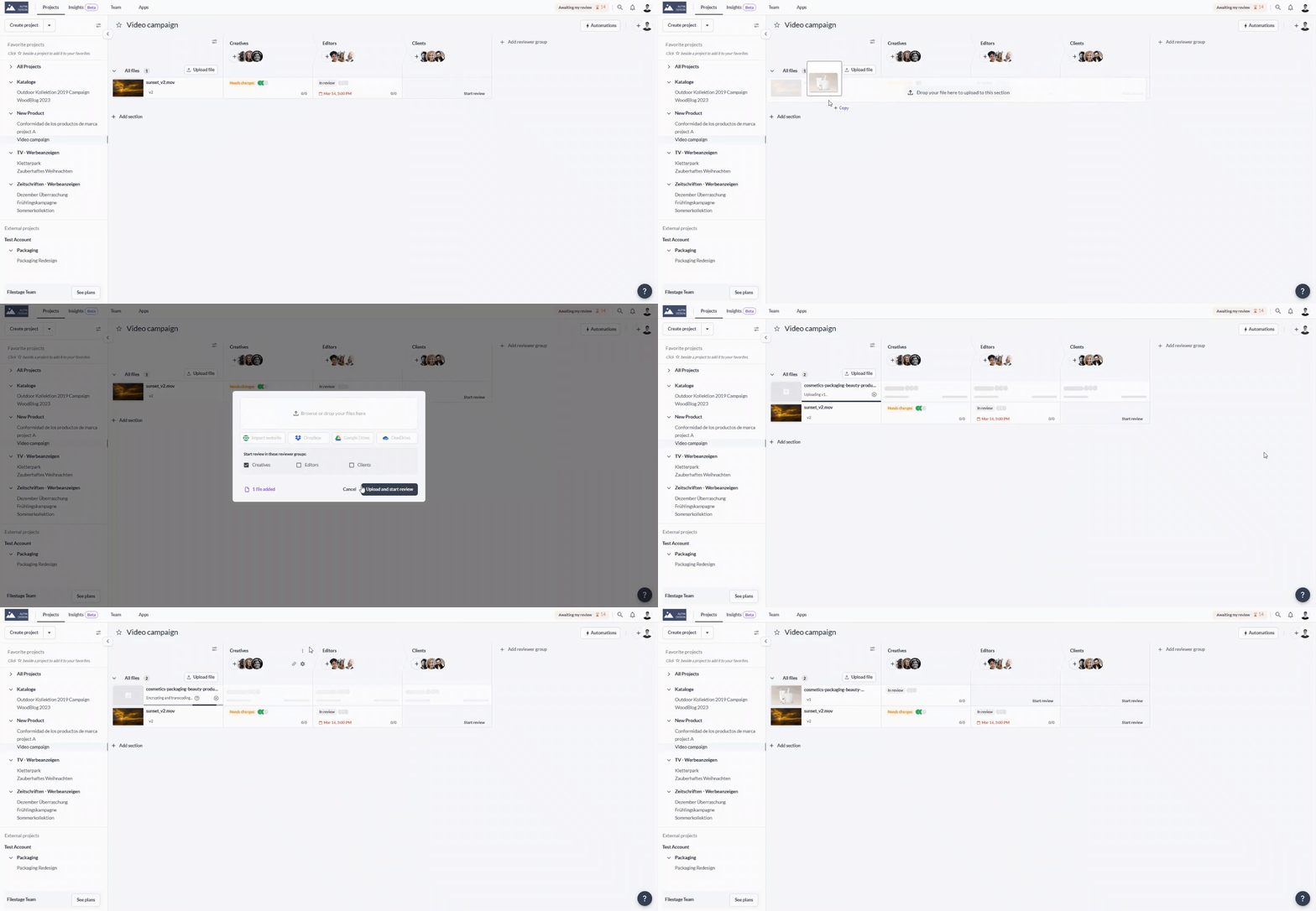
<table data-id="2cf4b0c9-68df-4bec-ada0-f57b9ba88d33" style="min-width: 25px;"><colgroup><col style="min-width: 25px;"></colgroup><tbody><tr><td colspan="1" rowspan="1"><ol><li><p data-id="1b7c35d7-a708-4905-bb1c-512d59ca194a" style="text-align: left;">Select the file(s) from your computer</p></li><li><p data-id="0a45c493-4834-43e5-a41f-8cdbc9014c68" style="text-align: left;">Hold down and drag it into your project</p></li><li><p data-id="bf3a026b-18c1-4303-a9b3-b8219daf197d" style="text-align: left;"><strong><em>Optionally, </em></strong>choose if and in which reviewer group the review should start</p></li><li><p data-id="6962acd5-d372-4949-a2b9-085815b3db57" style="text-align: left;">Click on <strong>Upload and start review</strong></p><div style="text-align: center; width: 100%;"><img src="https://staticfiles.gleap.io/ghelparticle/nPVdvP3sir12VsedIZo7gSxOhDEbqfdUsJoukbxsKjhKbGLh8548tpjRR2aXYoVlnUVDHfS8QfR.gif" data-width="100%" data-align="center" style="width: 100%; border-radius: 10px; margin-top: 10px; margin-bottom: 10px;"></div></li></ol></td></tr></tbody></table>

* * *

### Upload from Google Drive, OneDrive, or Dropbox

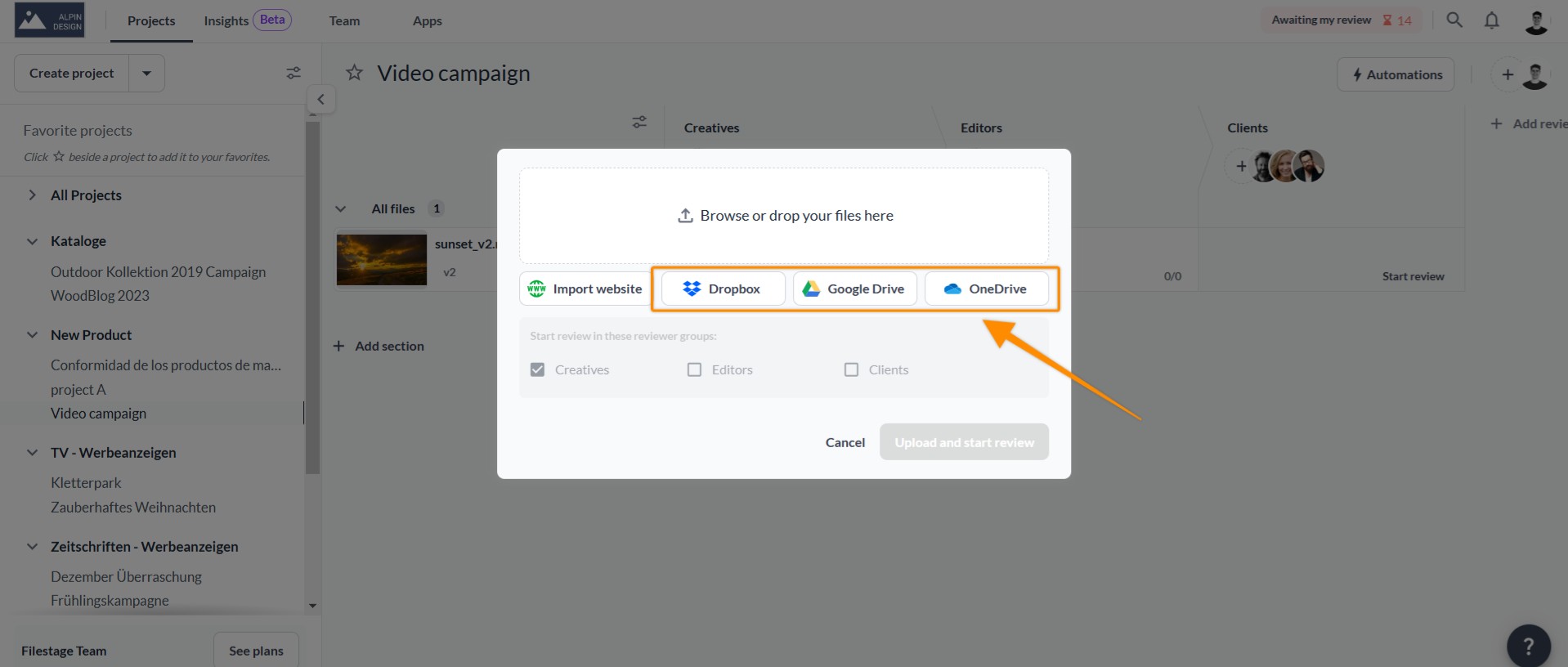
<table data-id="c33cc968-2aa2-4357-8f12-be7f744cbddd" style="min-width: 25px;"><colgroup><col style="min-width: 25px;"></colgroup><tbody><tr><td colspan="1" rowspan="1"><ol><li><p data-id="dbabe3fd-4785-4721-a33f-eee51b6b199e" style="text-align: left;">Click on the<em> </em><strong>Upload file </strong>icon.</p><img src="https://staticfiles.gleap.io/ghelparticle/PZOPlWiXVx8yXH06Xu2gBrkzTuB5P9s3UrpaEUci5aeSxvfY5IGrSL3afnHzkxkWRDKoL1Py4NJ.jpeg" style="width: 69px;"></li><li><p data-id="e088ca7b-3e04-46ae-b8fe-e6a69f14ba02" style="text-align: left;">Choose either<strong> Google Drive, OneDrive or Dropbox</strong></p></li><li><p data-id="deb82670-75cb-4506-8c6b-537f5e52ca87" style="text-align: left;">Choose the file(s) you would like to upload.</p></li><li><p data-id="8a5acb12-ef53-4d1c-a77b-47abab2fab46" style="text-align: left;"><strong><em>Optionally, </em></strong>choose if and in which reviewer group the review should start</p></li><li><p data-id="ab7066a7-3ca8-49c9-a7b1-26e3b00f36a0" style="text-align: left;">Click on <strong>Upload and start review</strong></p><div style="text-align: center; width: 100%;"><img src="https://staticfiles.gleap.io/ghelparticle/bzsXOFrQqdPhVKkuuqobExj2uuNjNwwetcQuN2qzRHykwRfV1UwvXLGmhP2dN8NtEq33V0lik6R.jpeg" data-width="100%" data-align="center" style="width: 100%; border-radius: 10px; margin-top: 10px; margin-bottom: 10px;"></div></li></ol></td></tr></tbody></table>

* * *

# Rename files in your project

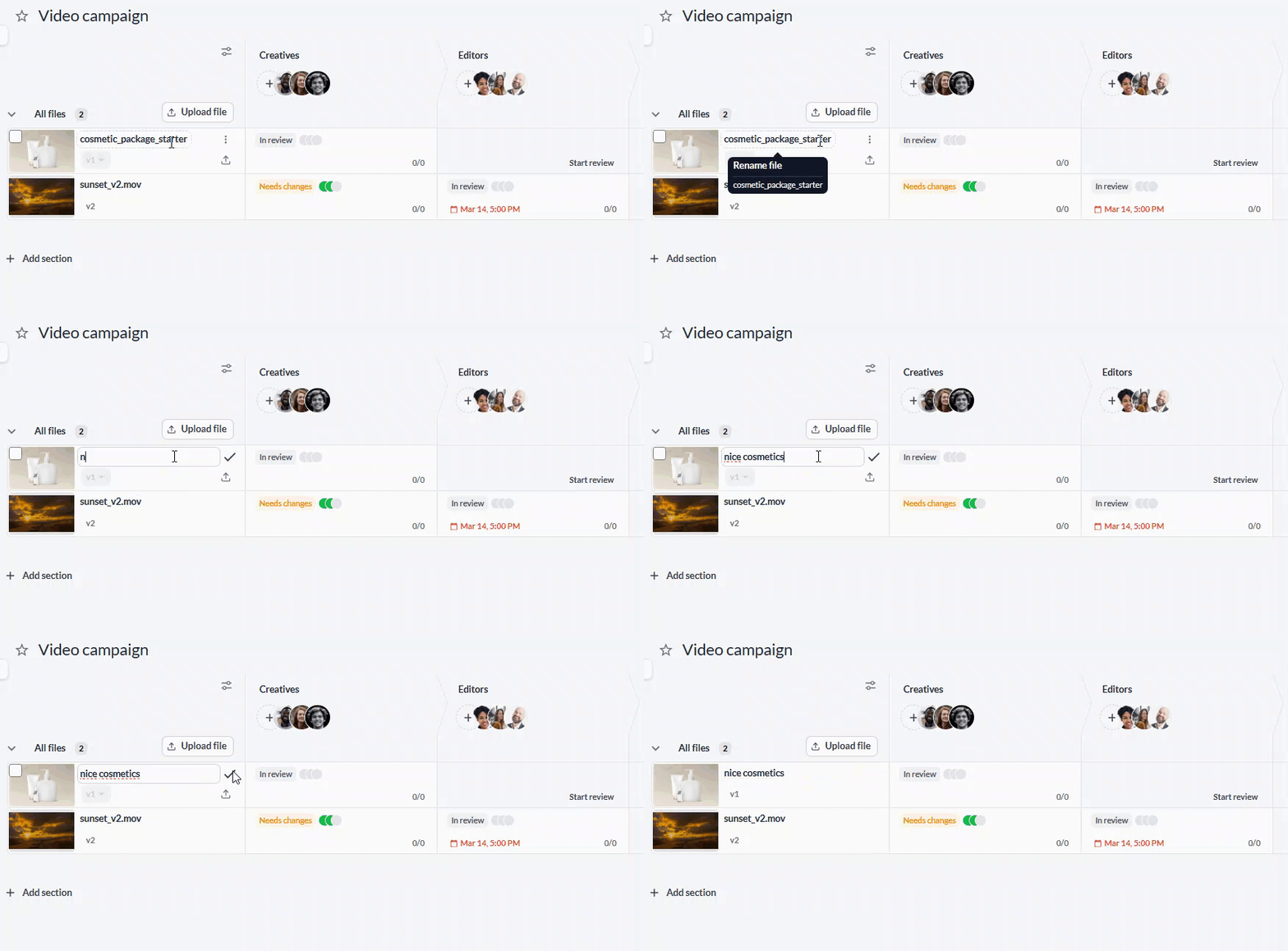
By default, Filestage displays the **original name of an uploaded file.** When you upload a new version, the file name is automatically updated to reflect the new version's name.

**Example:**

-   _You upload a new file called “my\_film\_v1.mov”. The file name is “_**_my\_film\_v1.mov”_**_._
    
-   _Now, you upload version 2 of this file called “my\_film\_v2\_extended.mov”. We update the file name to “_**_my\_film\_v2\_extended.mov_**_”._
    

## How to override the file name, so it doesn't update to the latest version

<table data-id="67017450-2916-4c47-b88f-8d855e4b1ef5" style="min-width: 25px;"><colgroup><col style="min-width: 25px;"></colgroup><tbody><tr><td colspan="1" rowspan="1"><ol><li><p data-id="bef800ba-3785-4a9a-9711-b0c9a9739daa" style="text-align: left;"><strong>Hover over a file name</strong> in your project overview</p></li><li><p data-id="8d32e9a9-3717-4686-8594-3305c42189a9" style="text-align: left;"><strong>Click on the file name</strong></p></li><li><p data-id="55ab48d4-d142-4298-baa0-f936026c50ef" style="text-align: left;"><strong>Enter a new name</strong></p></li><li><p data-id="7cc32f39-662b-41ba-b97d-c7a990d60085" style="text-align: left;">Click on the <strong>green check mark</strong> or press the <strong>Enter key to confirm</strong></p><ul><li><p data-id="7ff8a927-6da6-45a0-9ac9-41eb8f40ef0b" style="text-align: left;">Your file name will then stay the same, even after you upload a new version.</p></li></ul><div style="text-align: left; width: 100%;"><img src="https://staticfiles.gleap.io/ghelparticle/JWnJVWMtv5rL9Xklx8PVqNVLayQE7smQj3lYwdEXVgUuciSNEcVtw1jpbxgm7WAhCAiQ81A1Tlv.gif" data-width="75%" data-align="left" style="width: 75%; border-radius: 10px; margin-top: 10px; margin-bottom: 10px;"></div></li></ol></td></tr></tbody></table>

## **How to reset your file name to the latest version**

<table data-id="84666f97-4f02-47eb-aac6-33158e7eb76e" style="min-width: 25px;"><colgroup><col style="min-width: 25px;"></colgroup><tbody><tr><td colspan="1" rowspan="1"><ol><li><p data-id="e29017bc-2672-4878-a991-ee3e6c282afe" style="text-align: left;"><strong>Hover over a file name</strong> in your project overview</p></li><li><p data-id="5c34dedb-696e-47f1-b1d0-f1942715b259" style="text-align: left;">Click on the<strong> three dots</strong> next to the file name</p></li><li><p data-id="feef1486-9c94-4127-acdd-9c1234cb8220" style="text-align: left;">Select<strong><em> </em>Reset file name</strong></p><ul><li><p data-id="5d407ef8-8482-4440-869b-ab33f41f2dce" style="text-align: left;">The file name will be updated to match the next time you upload a new version.</p></li></ul><div style="text-align: left; width: 100%;"><img src="https://staticfiles.gleap.io/ghelparticle/36NXBmgLjMJI2hQtjyDnWrShEbmv4gPHL6xZo2qIYtLWyuD0q0AMFF0Tz4bJ9sM0EQZINMO1CgR.jpeg" data-width="75%" data-align="left" style="width: 75%; border-radius: 10px; margin-top: 10px; margin-bottom: 10px;"></div></li></ol></td></tr></tbody></table>

* * *

# Delete files from your project

If you’ve made a mistake and uploaded the wrong file, or if the file is outdated and you don't care to have the file history, **you can delete a single file or bulk delete files from a project**.

## How to delete an individual file

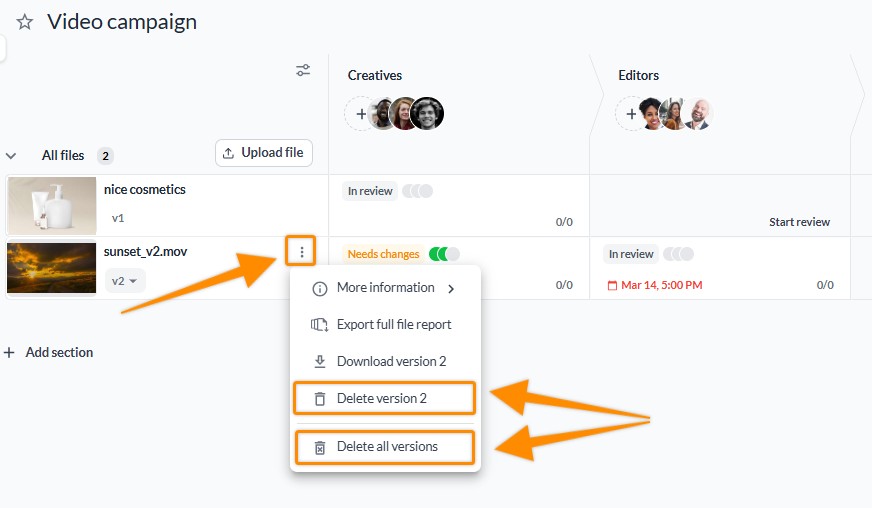
<table data-id="3b4569bc-2558-43b0-9d80-d3278f5e698c" style="min-width: 25px;"><colgroup><col style="min-width: 25px;"></colgroup><tbody><tr><td colspan="1" rowspan="1"><ol><li><p data-id="75dad28d-1afc-4fdc-a933-2013b4d0bab6" style="text-align: left;"><strong>Hover over a file name</strong> in your project overview</p></li><li><p data-id="d2581e50-4bf0-4004-aded-449298ecf60d" style="text-align: left;">Click on <strong>Delete version x</strong> to remove the latest version or select <strong>delete all versions </strong>to remove all versions of the file</p></li><li><p data-id="3e1f47d1-d43b-4249-bf1b-ffdedeca7ec1" style="text-align: left;">Confirm your selection.</p><div style="text-align: left; width: 100%;"><img src="https://staticfiles.gleap.io/ghelparticle/YqkeGN5jCYJJXZciYS3FD63YJdDdZbgQkHzK2RVyHrysZQhtrYX0uI9tkqjjvV3NUN7PBeAl9V6.jpeg" data-width="75%" data-align="left" style="width: 75%; border-radius: 10px; margin-top: 10px; margin-bottom: 10px;"></div></li></ol></td></tr></tbody></table>

> **Warning:** **_Please note:_** _Deleting a file irretrievably deletes all versions, comments and shares. For security reasons, a once-deleted file is completely removed from our system. It is not possible to recover deleted files._

* * *

## How to delete multiple files

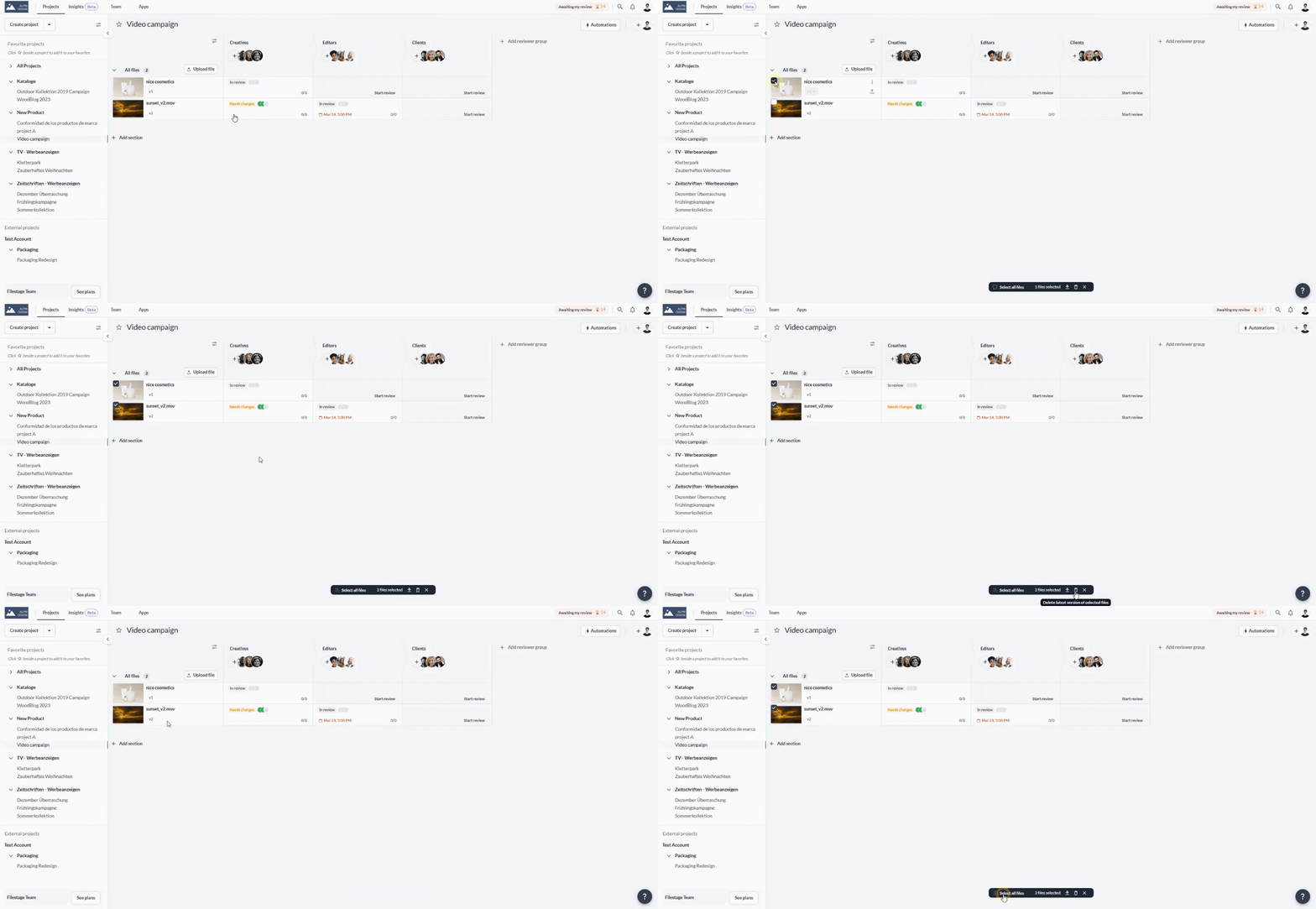
<table data-id="dd0bc2f6-0708-48c2-b4aa-01e791ee7253" style="min-width: 25px;"><colgroup><col style="min-width: 25px;"></colgroup><tbody><tr><td colspan="1" rowspan="1"><ol><li><p data-id="af4131fa-02c1-4c53-902d-4d991cb8e925" style="text-align: left;">Hover over a file and click on the <strong>checkbox</strong> that appears.</p></li><li><p data-id="775ea0e4-ddaa-430d-83e5-1f8da944e388" style="text-align: left;">Select all checkboxes for the files you want to delete. Alternatively, click on <strong>Select all files</strong> in the selection box.</p></li><li><p data-id="d45dd0da-3e0f-4a4f-b4ca-f094dc49e547" style="text-align: left;">Click on the Recycle bin in the selection box.</p><div style="text-align: center; width: 100%;"><img src="https://staticfiles.gleap.io/ghelparticle/FE3O4dxU9EVITnHm52sM9QvR3BqlXz5bk4PZNbPZLRJFHauMevyMEz7dqsPtFfOHSSN8w3NDPMR.gif" data-width="100%" data-align="center" style="width: 100%; border-radius: 10px; margin-top: 10px; margin-bottom: 10px;"></div></li><li><p data-id="dac308e1-0333-4f4e-b177-b6eaf2449c7d" style="text-align: left;">Confirm your selection</p></li></ol></td></tr></tbody></table>

> **Warning:** **_Note:_** _Please be aware that when you perform a bulk delete, only the most recent version of a file will be removed. If a file has multiple versions, the previous versions will remain unaffected. However, if a file has only one version, the entire file will be deleted. Additionally, please note that deleting files and their versions will result in the loss of all feedback from each reviewer group, and this action cannot be undone._

* * *

💡 **What's next?** Once you understand how to manage your project files, see how to [manage different versions of a file.](https://help.filestage.io/en/articles/2211321-manage-different-versions-of-a-file.md)

* * *

_Let us know if you have any questions by reaching out to us on chat or emailing us at_ [_support@filestage.io_](mailto:support@filestage.io)_! We're always happy to help!_  
​