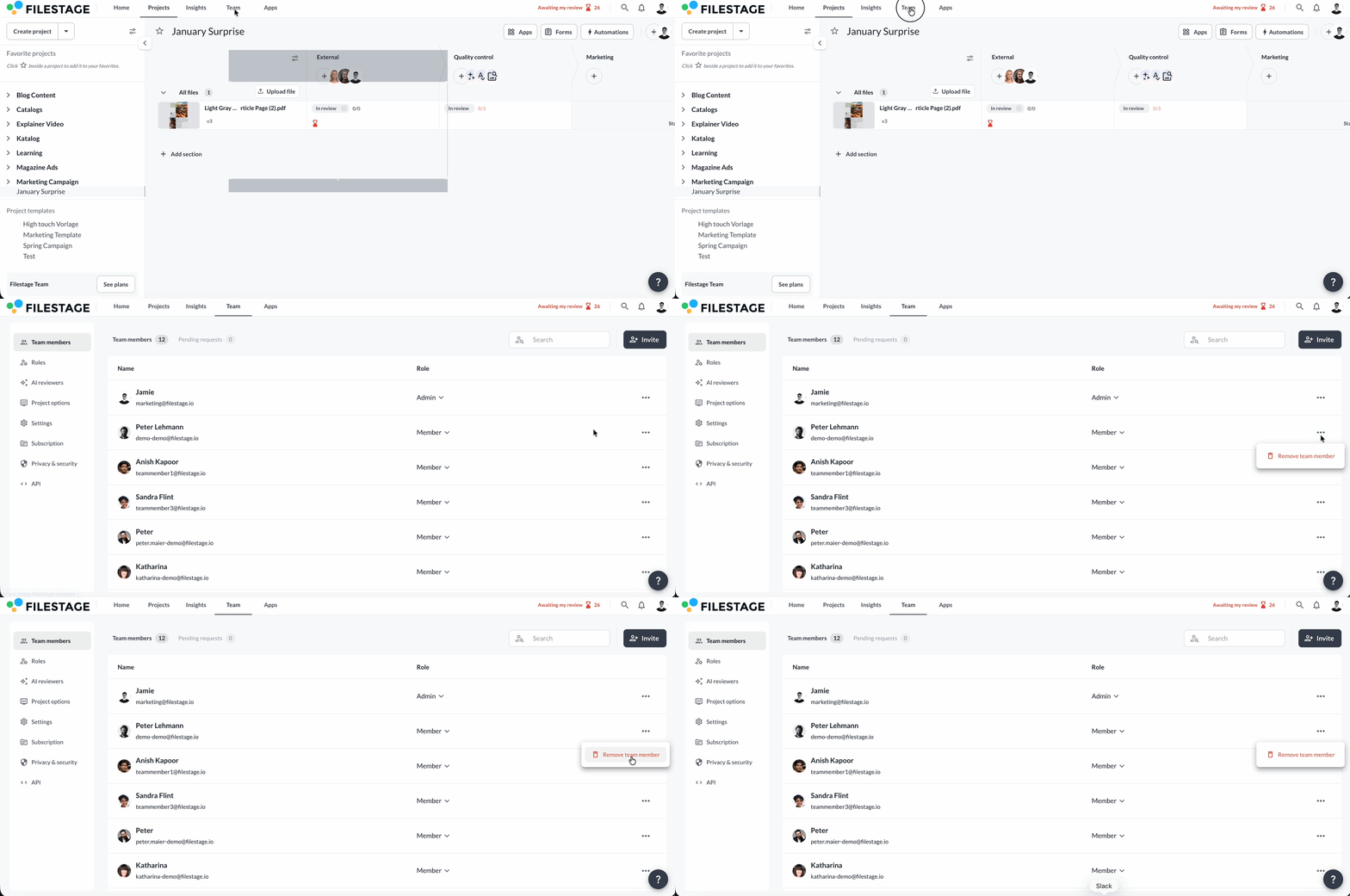
How managing team members can help you
Managing team members allows you to control who can access your workspace and what they’re allowed to do.
With proper team management, you can:
Assign the appropriate role to each team member
Invite multiple users quickly using a shared link
Allow colleagues to join automatically using their company domain
Require approval before new members gain access
Maintain security when employees join or leave
Roles such as Admin, Manager, and Member determine how much access someone has within your workspace.
Here's what roles are available:
Filestage offers three main roles:
Admin
Full access to all settings, team management, and projects
Manager
Access to all projects, but limited team management permissions
Member
Access only to projects to which they are invited or created themselves
Depending on your plan, you may also be able to create custom roles with more granular permissions.
How to invite and manage team members
Follow the steps below to invite new members, configure team access settings, and manage existing users.
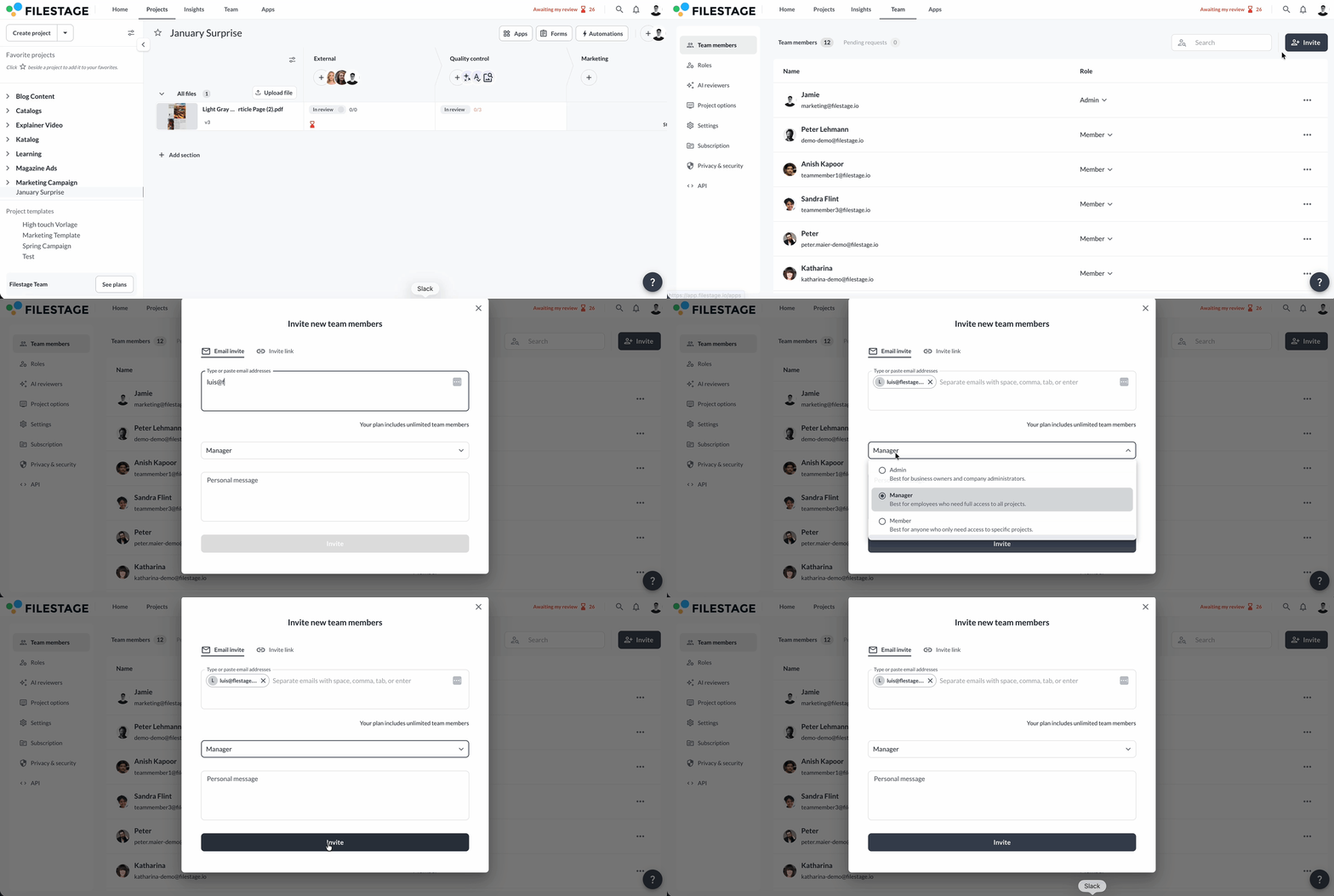
Invite a team member directly
Go to the Team tab in the top navigation. Click Invite in the top-right corner. Enter the email address. Select a Role (Admin, Manager, or Member). Optionally, add a personal message. Click Send invite.
|

The invited person will receive an email with instructions to join your team.
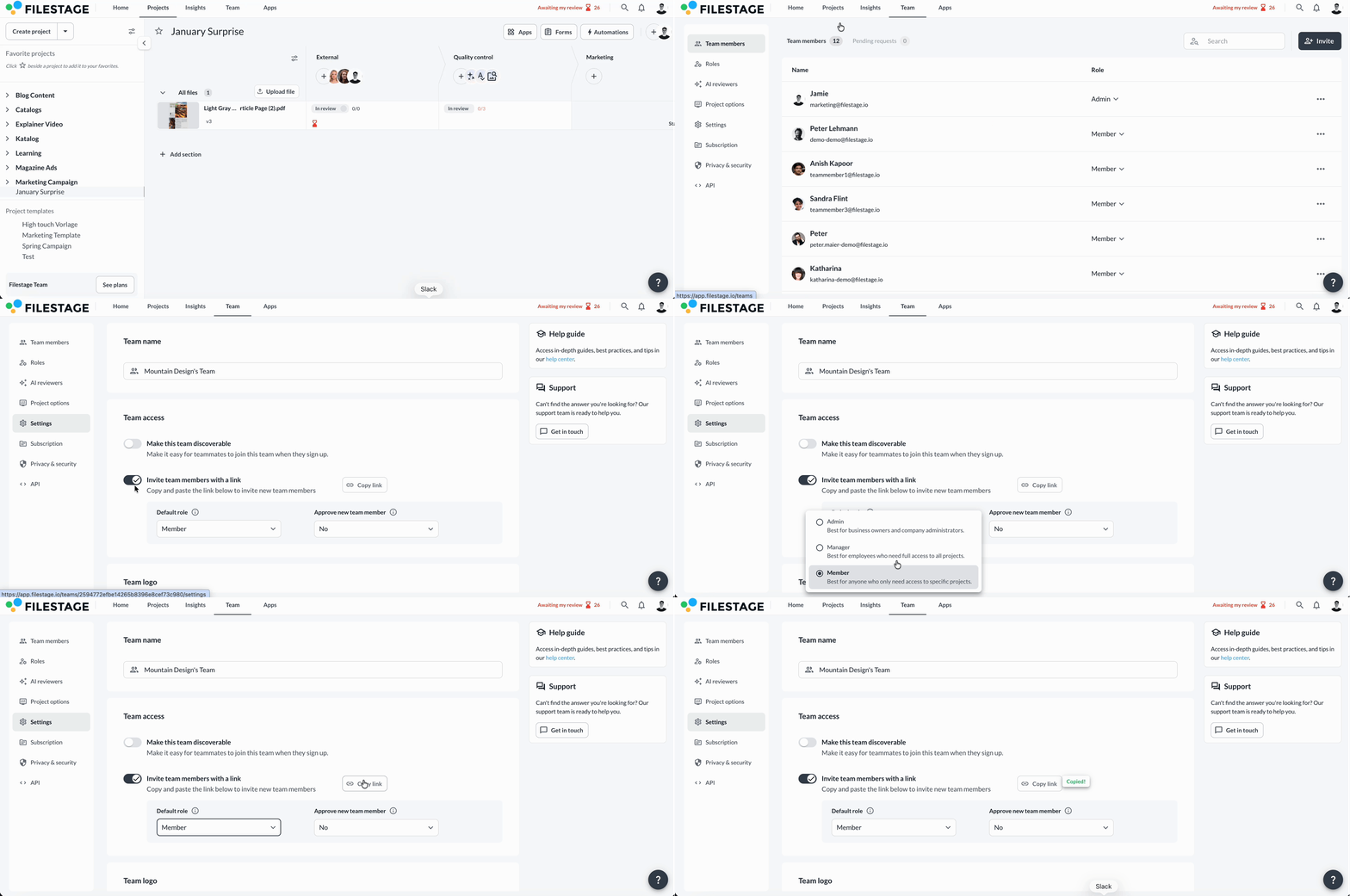
Invite team members with a link
Go to Team → Settings. Enable Invite team members with a link. Choose a Default role. Under Approve new team member, choose whether approval is required. Copy and share the generated invite link.
|
New users joining via the link will automatically receive the selected default role. If approval is enabled, they must be approved before accessing the team.
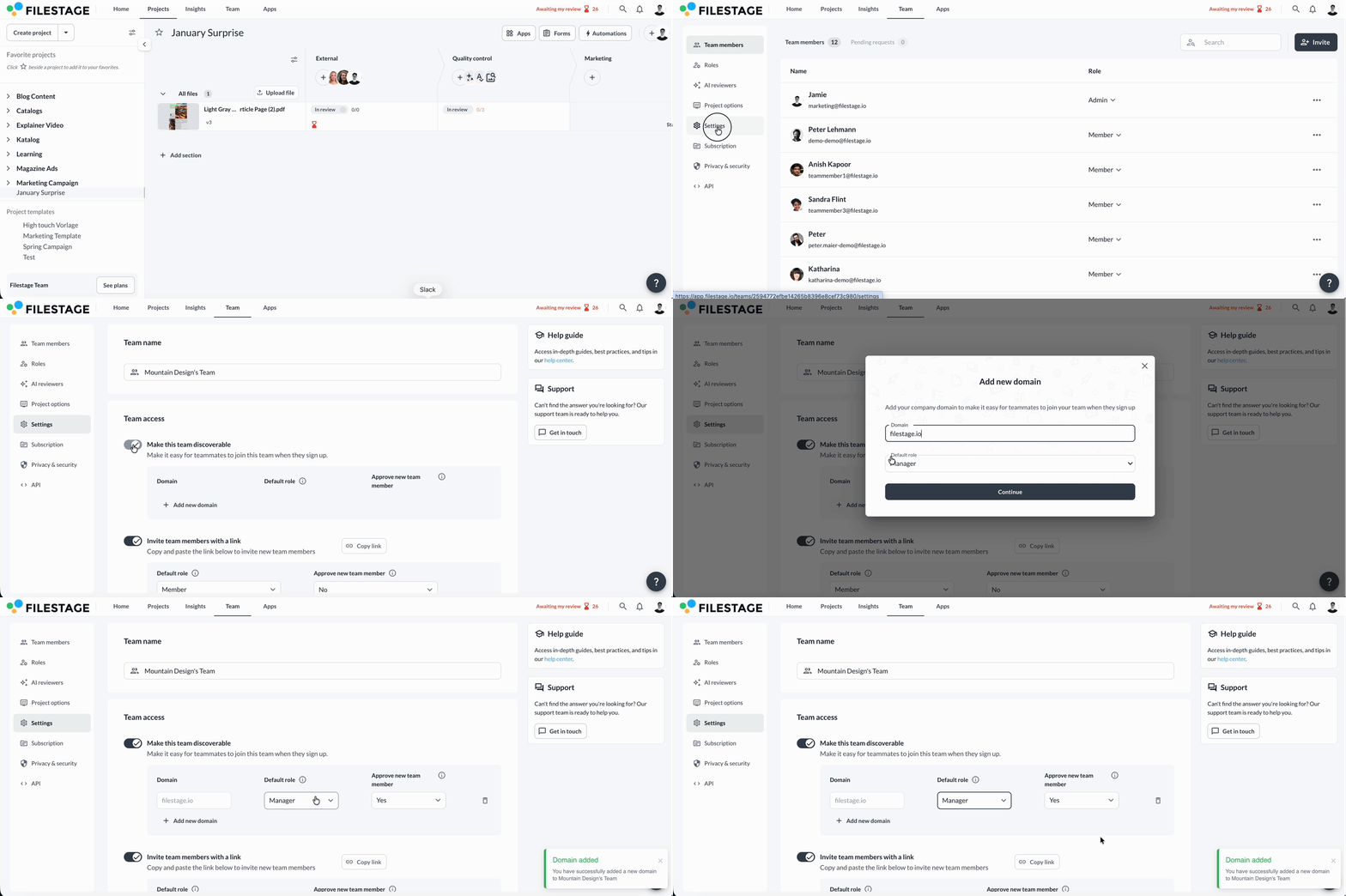
Enable domain-based team joining
Go to Team → Settings. Enable Make this team discoverable. In the Domain field, enter your company email domain (for example: yourcompany.com). Select a Default role from the dropdown. Under Approve new team member, choose whether approval is required (Yes or No). Click Add new domain if you want to allow additional domains.
|
Users who sign up with one of the configured domains will be prompted to join your team. If approval is enabled, they must be approved before gaining access.
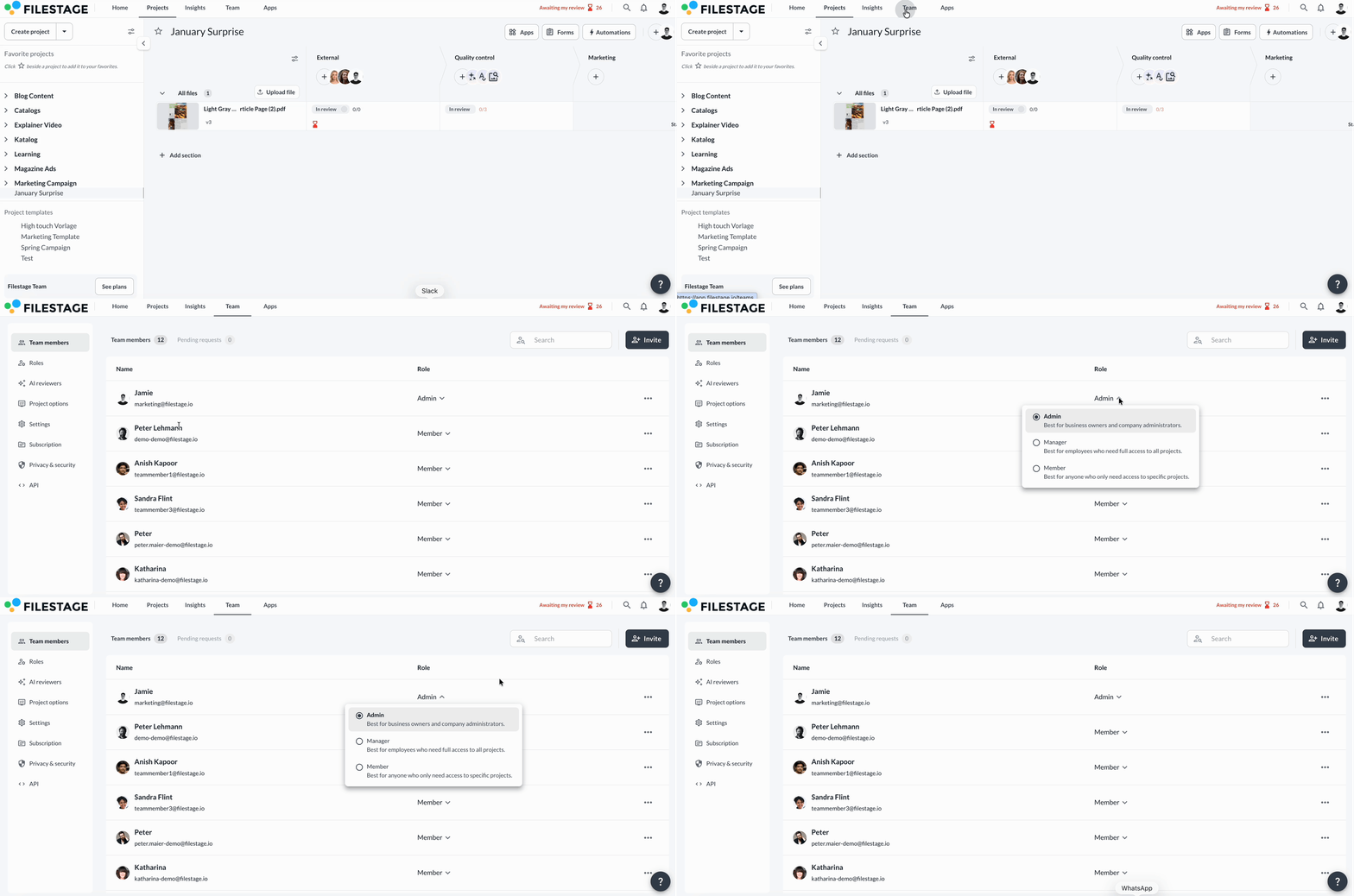
Change a team member’s role
Go to the Team tab. Locate the team member in the list. Click the current Role displayed next to their name. Select a new role from the dropdown (Admin, Manager, or Member).
|
Remove a team member
Go to the Team tab. Locate the team member. Click the three dots on the far right of their row. Select Remove team member. Confirm your decision.
|

Once removed, the user immediately loses access to all team projects. If they owned projects, ownership is reassigned to ensure continued access.
💡What´s next? After managing your team members, see all roles for team members.
Let us know if you have any questions by reaching out via chat or emailing us at [email protected]. We're always happy to help!