The browser console is a tool that records errors and warnings occurring behind the scenes. When you encounter a technical issue in Filestage, these logs can provide our support team with the diagnostic information needed to identify the root cause and provide a solution.
Sharing your browser console logs is one of the most effective ways to speed up the troubleshooting process. While a description of the problem tells us what is happening, the console logs tell us why it is happening.
These logs are particularly valuable for:
Identifying failed network requests or loading errors.
Debugging issues with file uploads or playback.
Pinpointing specific scripts that may be blocked by browser extensions.
Helping our engineers recreate the issue in a controlled environment.
The browser console is a built-in feature of your web browser. Follow the instructions below to open it.
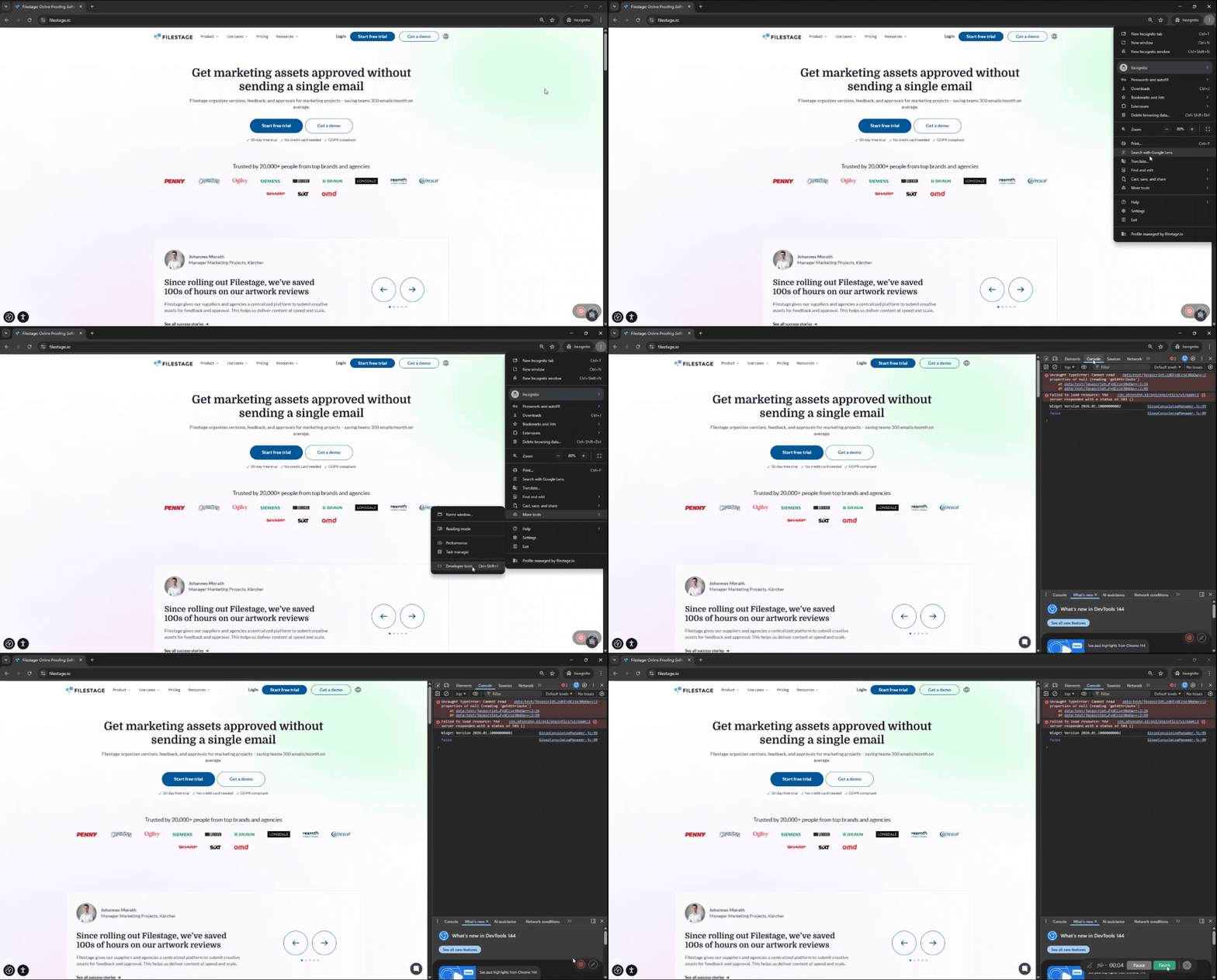
|
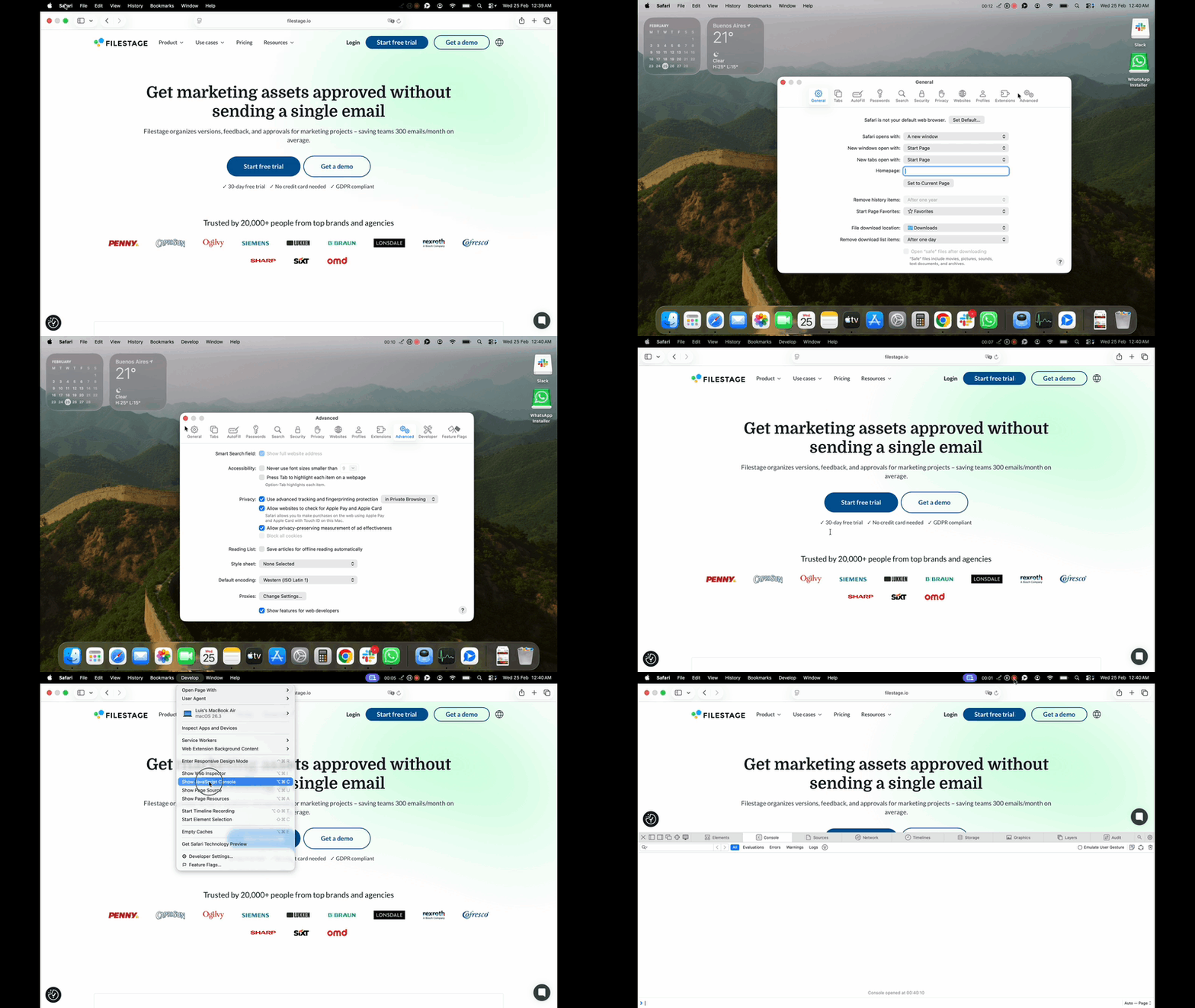
|
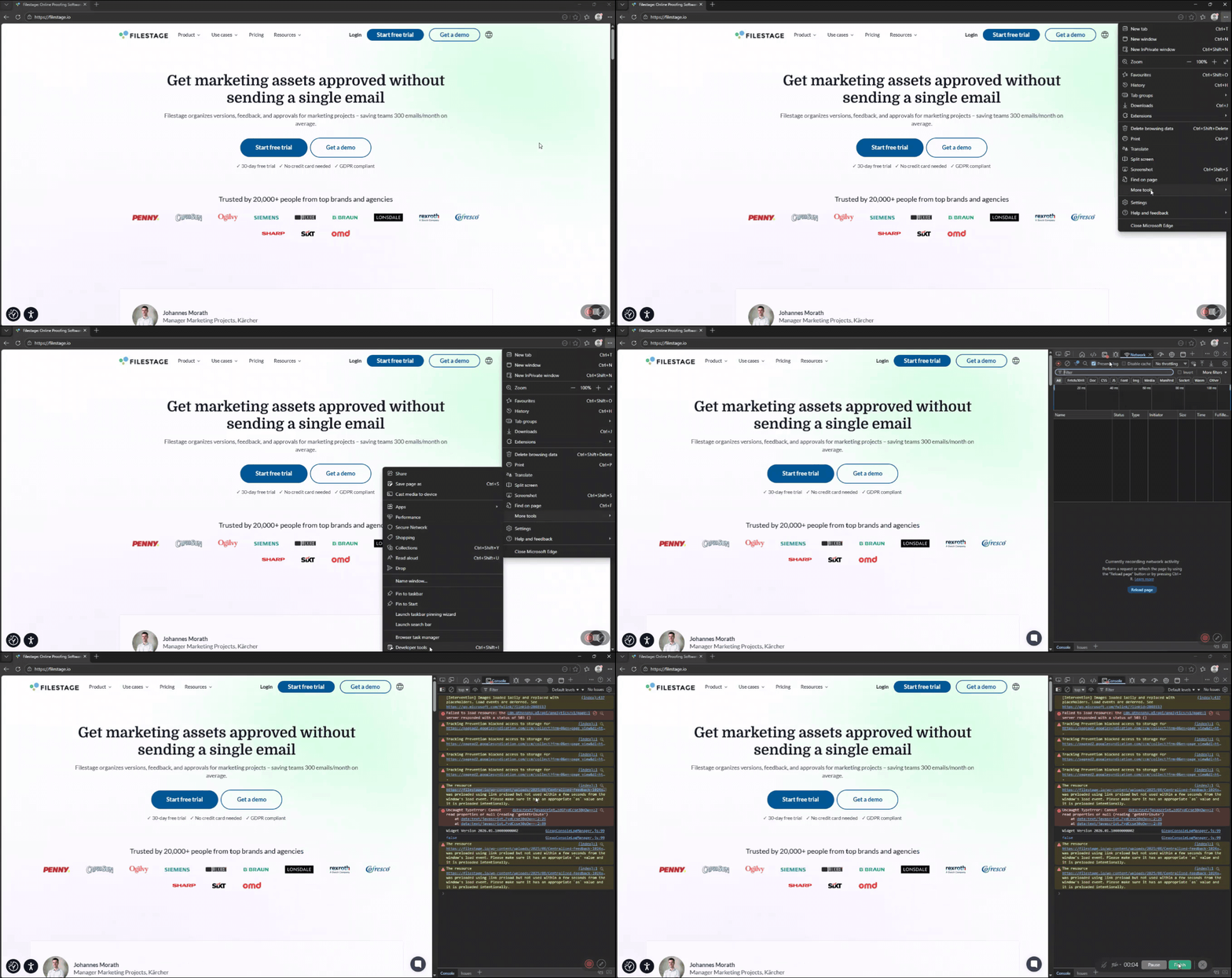
|
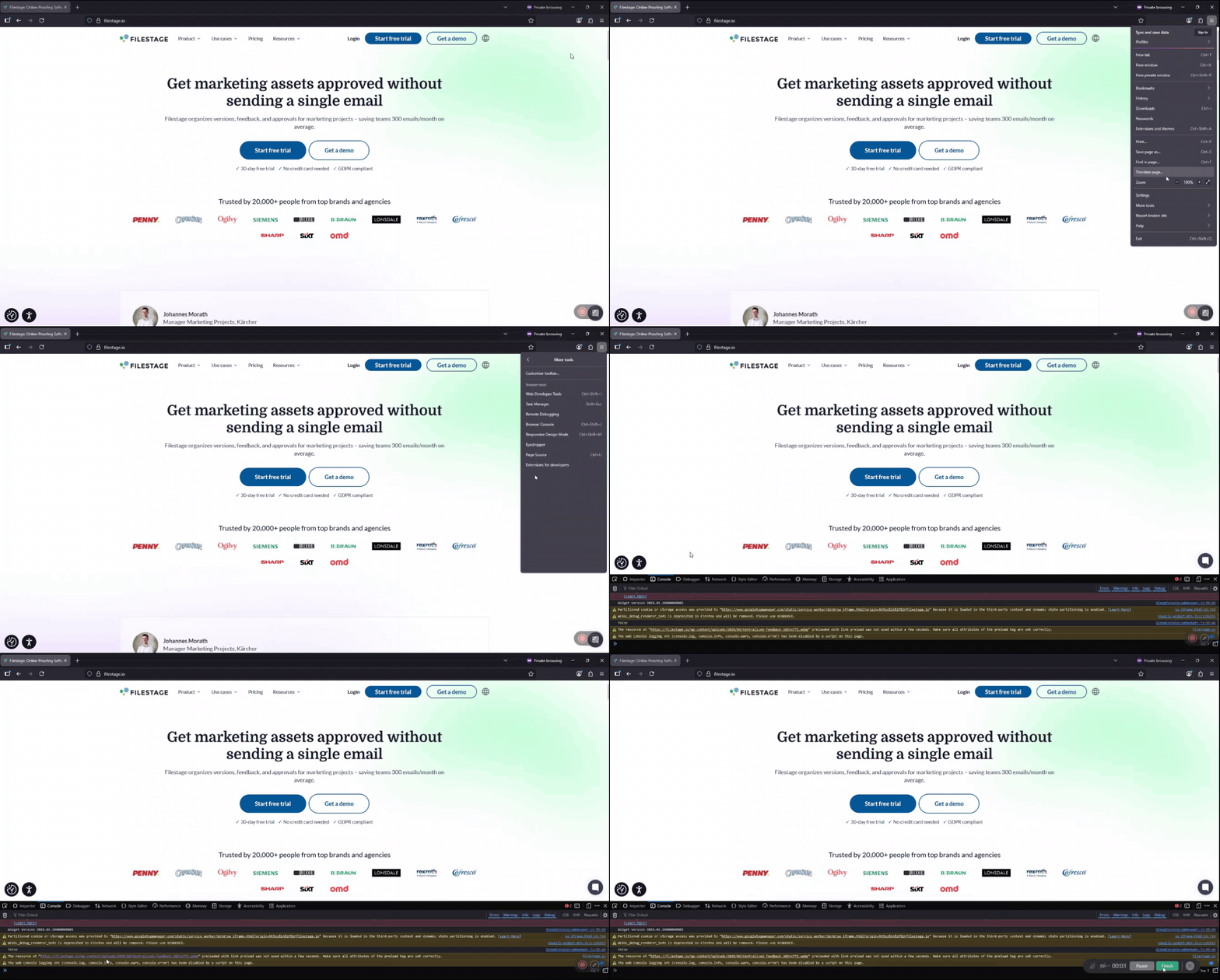
|
To help our support team reproduce the issue as quickly as possible for further analysis, please ensure your capture includes the following details:
Reproduce the error in real-time
With the console already open, perform the specific actions in Filestage that trigger the bug. This allows the console to log the exact moment the error occurs.
Capture the full browser window
Ensure the entire browser interface is visible, including the URL address bar. The specific URL is vital for our team to pinpoint the location of the issue.
Ensure legibility
When recording, keep the console window expanded so that any red error text is clearly readable. Avoid covering the console with other windows during the recording.
Visible Metadata
Filestage logs often include helpful metadata like browser version. Ensure these details are not obscured so we can see the environment in which the bug appeared.
Share the console in a screen recording
If you are using a tool like Loom or Vidyard to record your screen, please ensure the console is open before you start the recording. This allows us to see the logs update in real-time as you reproduce the error. Make sure the recording captures the entire browser window so the error messages and the URL are clearly visible.
Create a screen capture of the console
To take a static screen capture, ensure the console is expanded enough to show all the red error text. On Windows, you can use the Snipping Tool (Windows Key + Shift + S), and on Mac, you can use Command + Shift + 4. Capture the area that includes both the Filestage interface and the open console logs.
Send your logs to Filestage support
Once you have your screen capture or recording, you can share it with us in a few different ways:
Support chat: Click the chat icon in the bottom-right corner of Filestage and add your file as an attachment.
Email: Send the file directly to [email protected].
Filestage: Upload the file to a project in Filestage and invite our support agent as a reviewer to see the results.
💡 What's next? Once you've shared your logs, see how to create an HAR file for additional debugging.
Let us know if you have any questions by reaching out to us on chat or emailing us at [email protected]. We’re always happy to help!
