Managing complex review processes with multiple contributors can feel like a juggling act. To help you keep your projects on schedule without the mental heavy lifting, Filestage offers the option to assign and track Tasks.
The Tasks dashboard gives Project Managers and teams a single, centralized hub to track every assigned review and upload task across your projects. No more digging through emails or manually checking files to see who owns what.

Tasks in Filestage are tightly integrated into your existing review workflow. They are automatically created, updated, and resolved based on the actions your team takes on a file. Here’s what happens as your team moves files through review:
|
The Tasks dashboard offers a centralized, birds-eye view of all action items across your projects, helping you keep your creative operations moving smoothly.
You can access your task dashboard directly from the side navigation bar by clicking Tasks
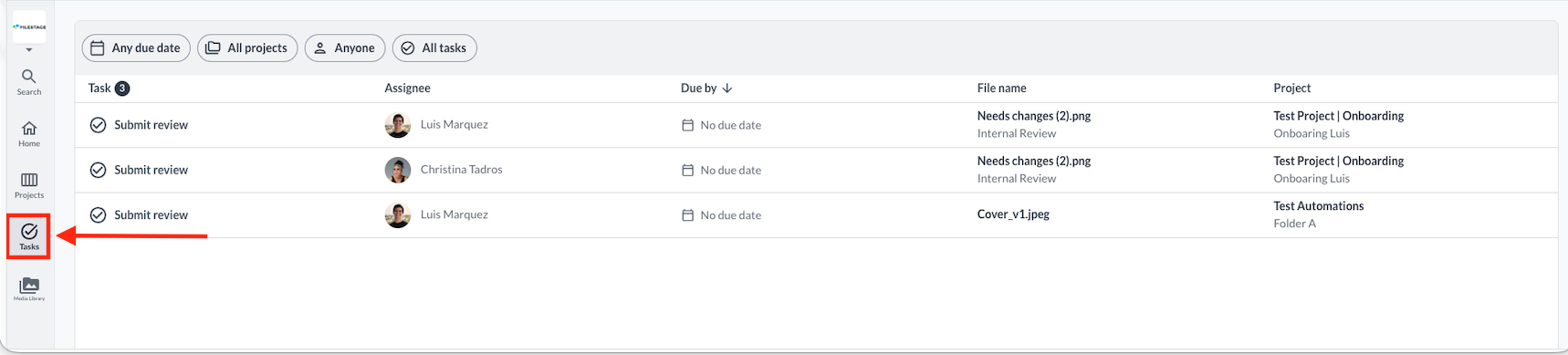
At the top of the dashboard, you can use interactive filter pills to quickly slice and dice your view:

Due Date: Filter tasks by specific deadlines (for example, any due date, today, or this week).
Projects: Narrow down your list to particular projects (in the same or different folders), your favorite projects (updated dynamically), or select All projects to see everything at once.
Assigned to: Filter tasks by specific teammates or see what is on your own plate.
Task type: Toggle between Upload tasks and Review tasks to focus on the exact lifecycle stage you want to manage.
Reset filters: Quickly clear your active selections to return to the default overview.
The main dashboard table breaks down each task into five scannable columns:

Task | Indicates the action required (e.g., Upload version) alongside a completion checkmark circle. |
Assignee | Displays the profile picture and full name of the teammate responsible for completing the task. |
Due by | Shows the deadline. |
File name | Lists the name of the file requiring action, along with its specific review group or workflow stage context noted underneath. |
Project | Displays the main project folder title and the project owner's name so you know exactly where the file belongs. |

Task Count: A dark badge next to the "Task" column header tells you exactly how many active tasks match your current filter criteria (e.g.,Task 4).
Urgency Sorting: Tasks are automatically ordered by their deadline (Due by ↓), placing upcoming or overdue work right at the top of your page.
Your ability to interact with tasks depends on your project role:
Admin/Managers: Full access to create, view, edit, assign due dates, and delete tasks across the project. They can track all project tasks via the central Tasks page.
Internal Reviewers / Collaborators: Can view their assigned tasks, receive automatic task notifications, and complete tasks by uploading files or submitting decisions.
External Reviewers: Receive review tasks automatically when invited to a review; completing their review decision automatically clears their task.
💡 What's next? Now that you can effortlessly track your workload using Tasks, see how to Organize your projects in folders to keep your workspace tidy!
Let us know if you have any questions by reaching out to us on the chat or emailing us at [email protected]. We're always happy to help!
