Whether you are reviewing assets on your mobile device or trying to explain a complex visual thought in a rush, you can now record your feedback verbally.
Filestage saves your original audio for tone and nuance, using AI to instantly generate a clean, searchable text summary for your team.

This feature is included exclusively in our Business and Enterprise plans.
How to leave a voice comment
Leave verbal feedback directly in Filestage, timestamped to the exact frame of your file — and spend up to 3x less time than you would typing long explanations. Here’s how it works:
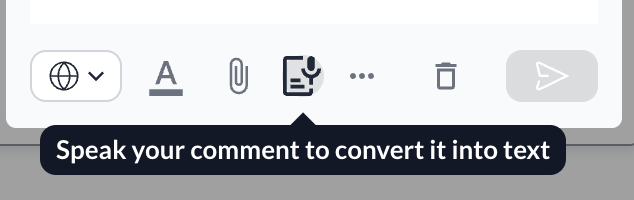
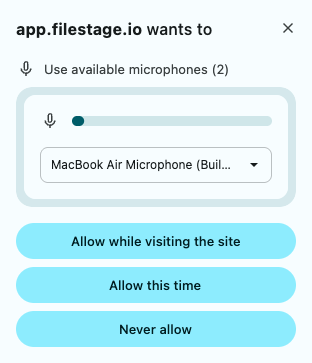
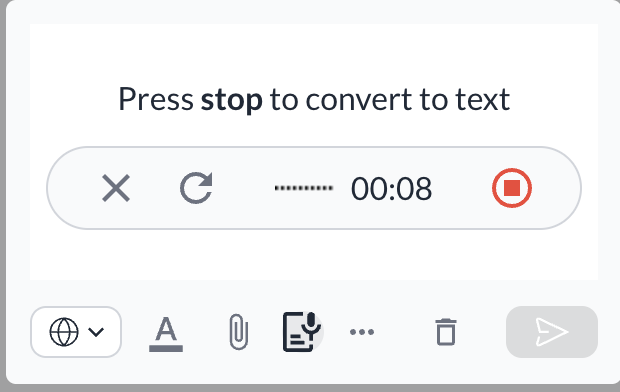
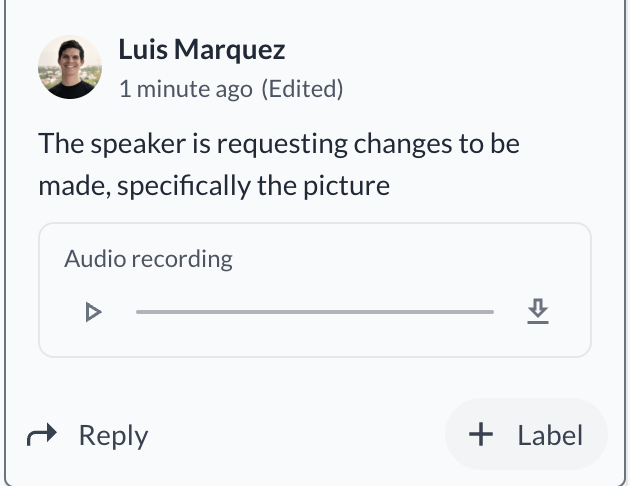
Open the Recorder (inside the review interface): Navigate to the file you are reviewing. In the bottom toolbar of the comment box, click the Voice Comment Icon (the document with a microphone) where the tooltip reads "Speak your comment to convert it into text". Grant access (first-time only): If prompted by your browser, click Allow Microphone Access so Filestage can use your device's microphone. Record your feedback (with live waveform visualization): Speak naturally while watching your video or reviewing the file. There’s no need for perfect phrasing — even if you ramble, the AI will turn your words into a clear, concise summary. You will see a live waveform visualization as you record. You can pause and resume as needed. Process the recording (generate the AI text): When you are finished talking, click Stop/Process. The system will automatically transcribe your speech and generate a concise summary.
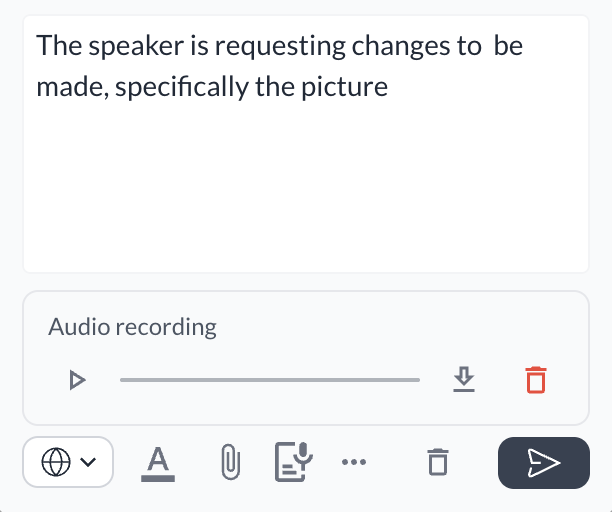
Pre-flight review (verify your text): A preview modal will appear showing both the audio player and the generated text. Review the text summary and edit any technical terms, names, or typos directly in the window. Post your comment (share with the team): Click Post Comment. Your feedback will appear in the sidebar with a "Voice" badge and the clean, indexable text summary visible to everyone.
|
Any project user who has permission to write standard comments on a file can create, view, edit, and delete their own voice comments.
Managing your sent voice comments
Need to correct a technical term after posting? You can update the text of your voice comment at any time.
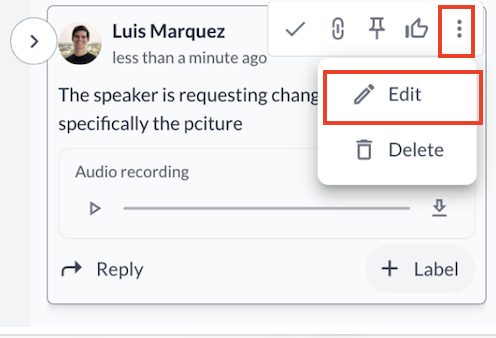
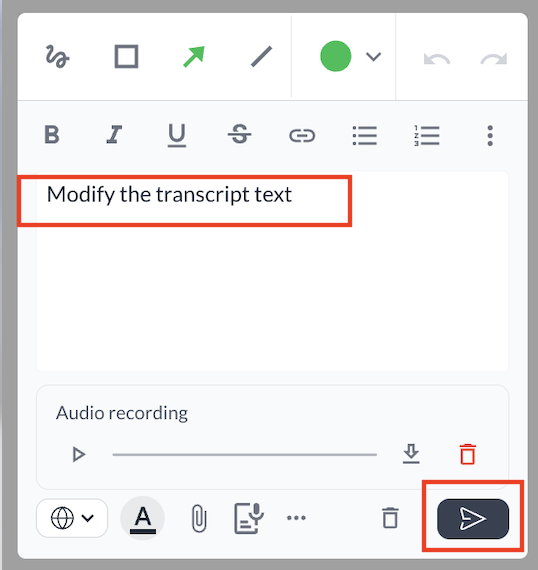
Open the Comment Sidebar and locate the voice comment you want to change. Click the three-dot menu (...) next to your comment and select Edit. Modify the Transcript Text in the modal that opens. Click Save to update the text display for your team.
|

Note: While you can edit the text summary at any time, you can’t re-record the original audio file. To change the audio, you must delete the comment and record a new one.
We are using the OpenAI Whisper model for the transcription, the supported languages can be found here.
💡 What's next? Once you've accepted a request, see how to organize your projects in folders to keep your workspace tidy!
Got a question? Reach out on the chat or email us at [email protected]. We're always happy to help!