Learn about inviting and removing team members, understand admin, manager and member roles, and how to switch roles.
Working on Filestage is more effective and fun with your team! Learn how you can add new team members to your Filestage team and how you can manage them using our Team settings.
Invite a team member
You can invite new team members through the team members’ tab, share a direct invite link, or enable automatic team joins for users with a specified domain.
To invite a team member, follow these steps:
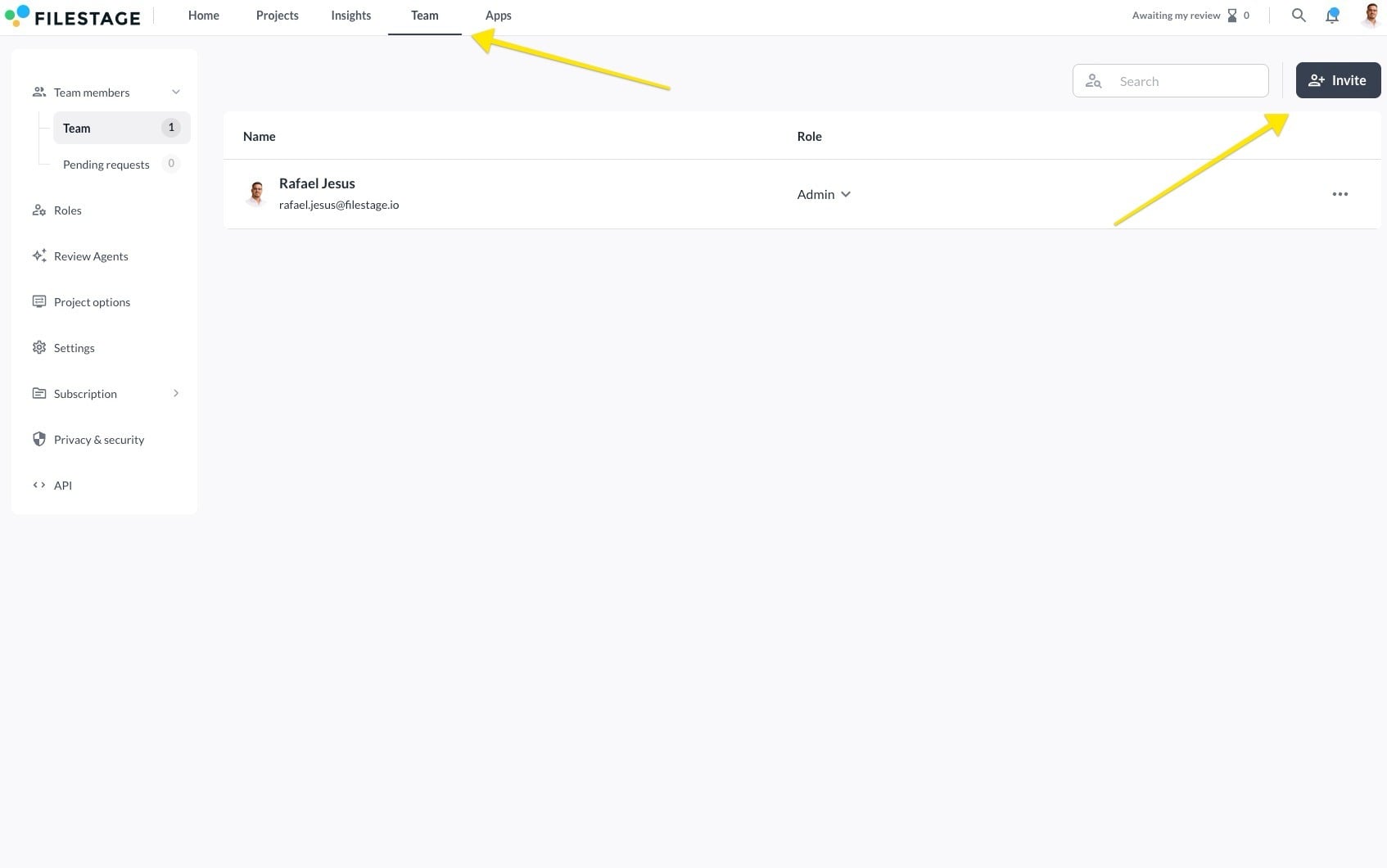
Invite over the team members tab
Open your Team tab
Click on Invite team members
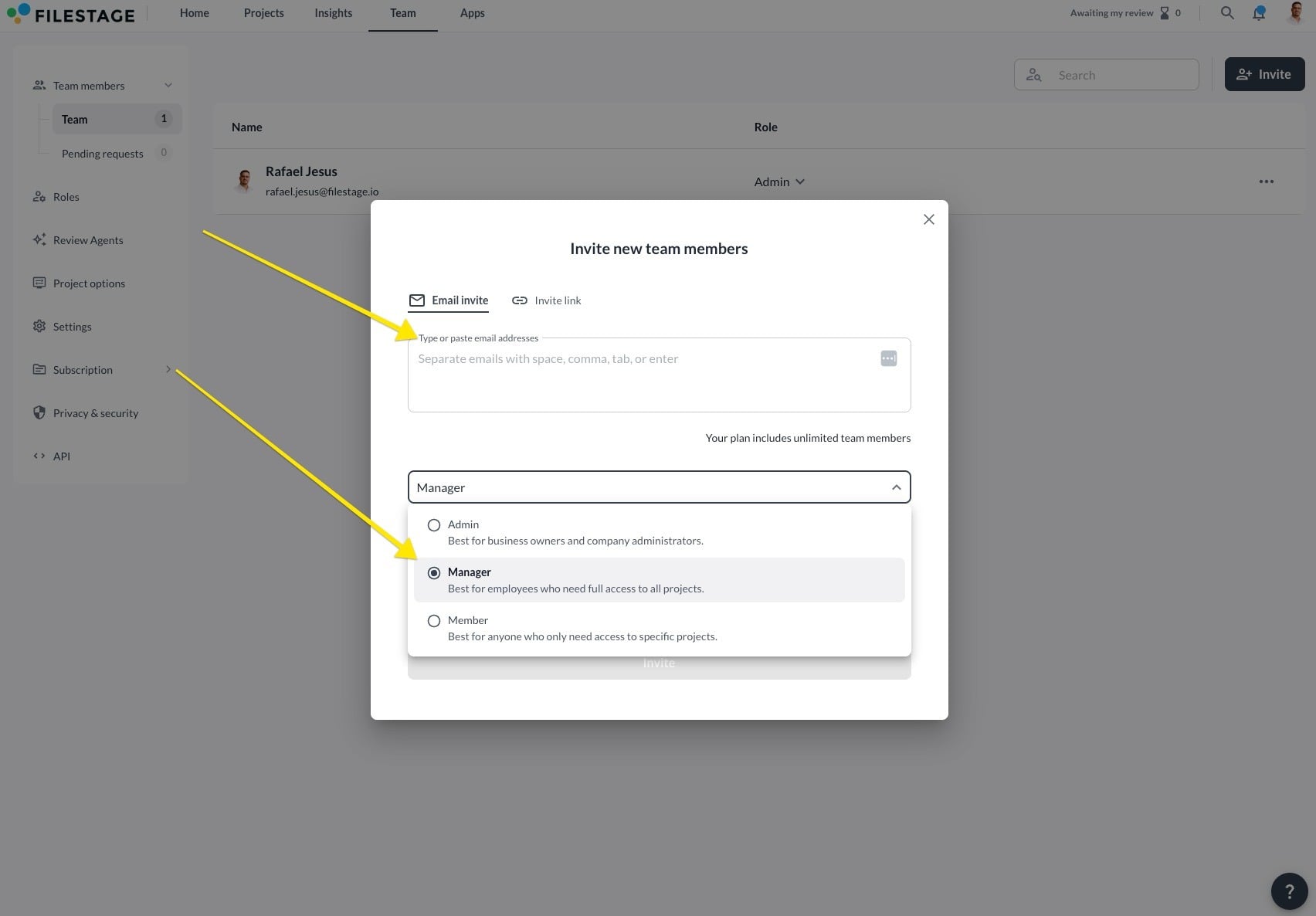
Enter the desired email address and choose their role
📬What happens next? The invited team member will receive an email with instructions on how to join your team. Once they accept the invitation, they can access your projects and begin collaborating.
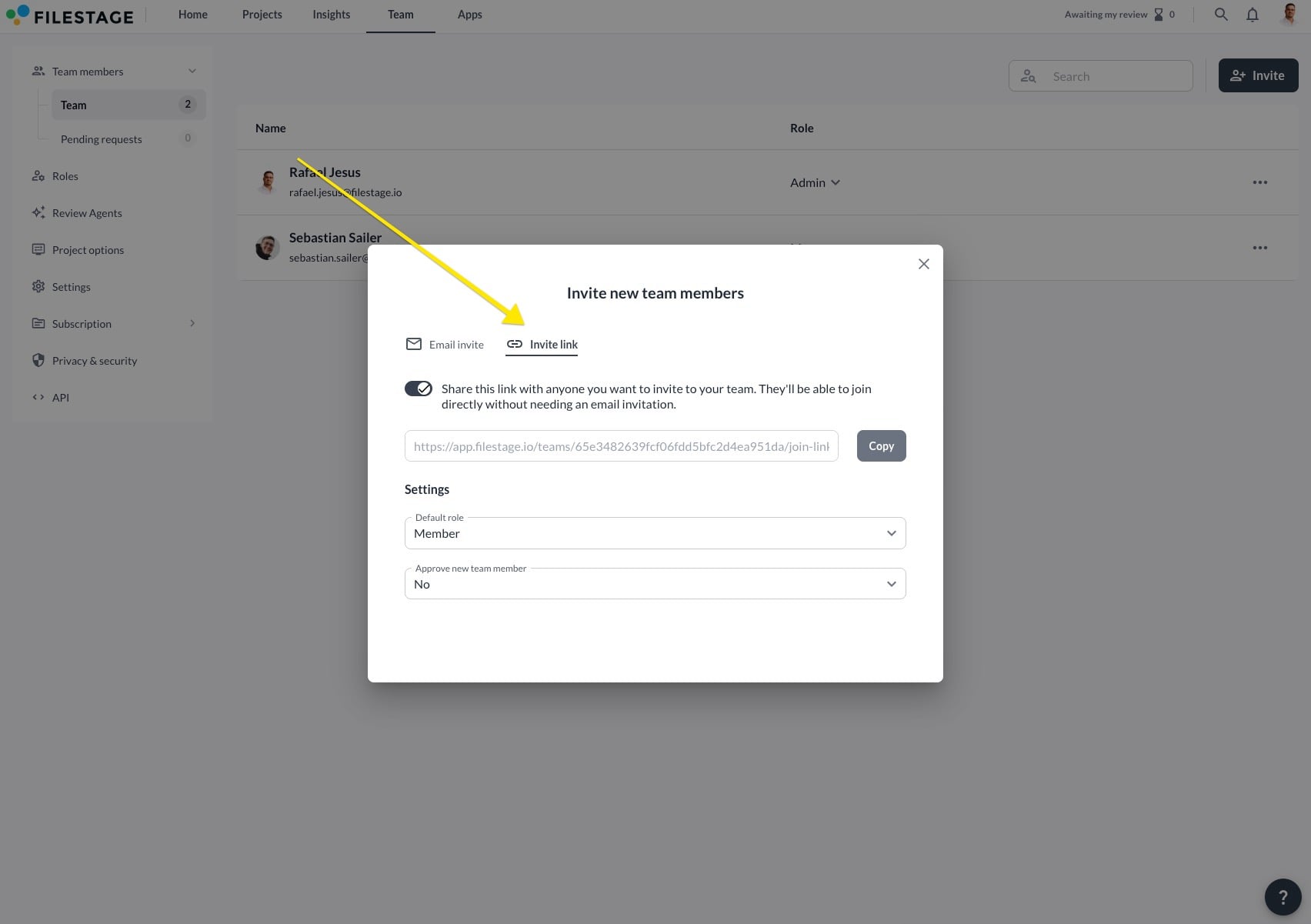
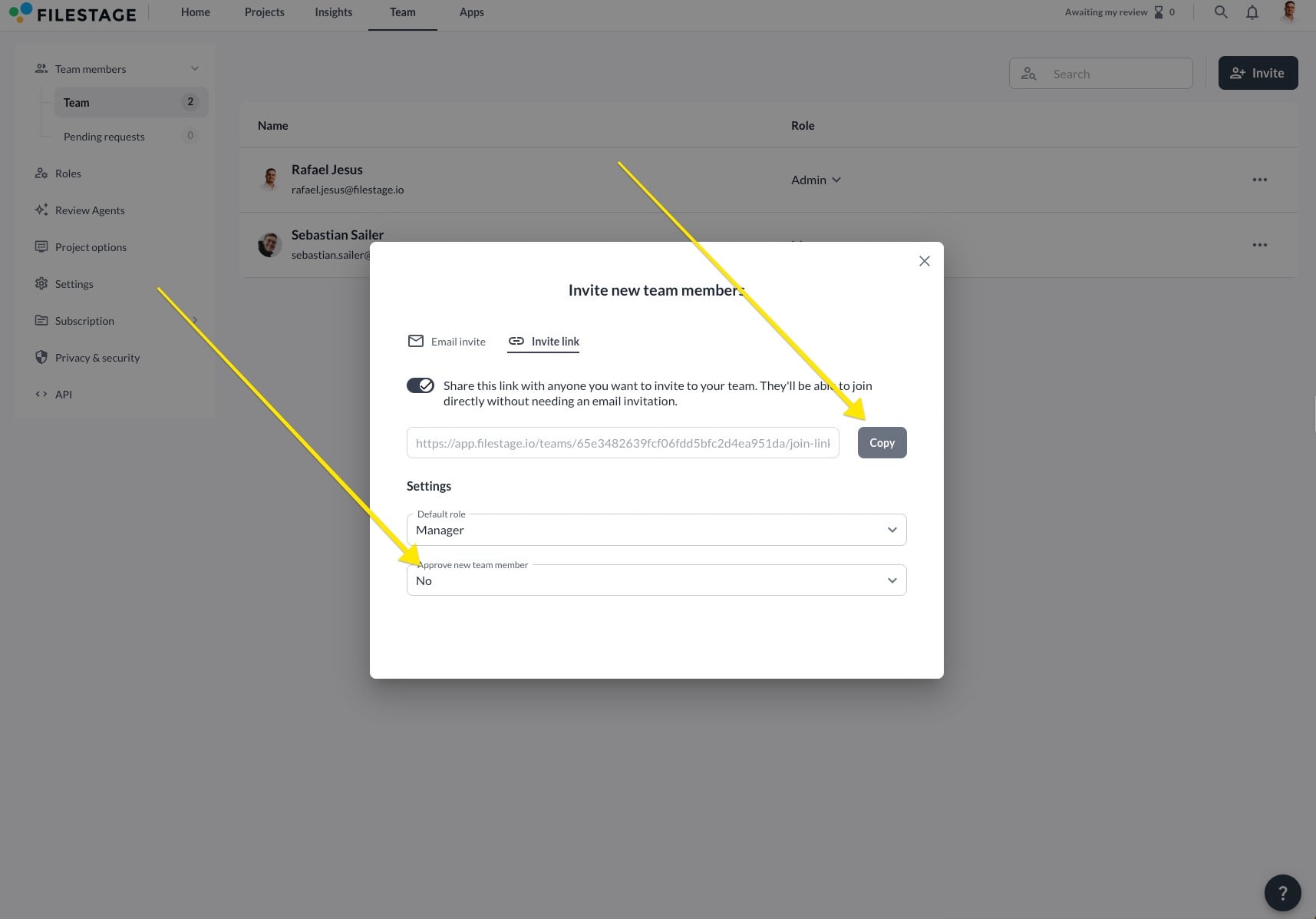
Invite via invitation link
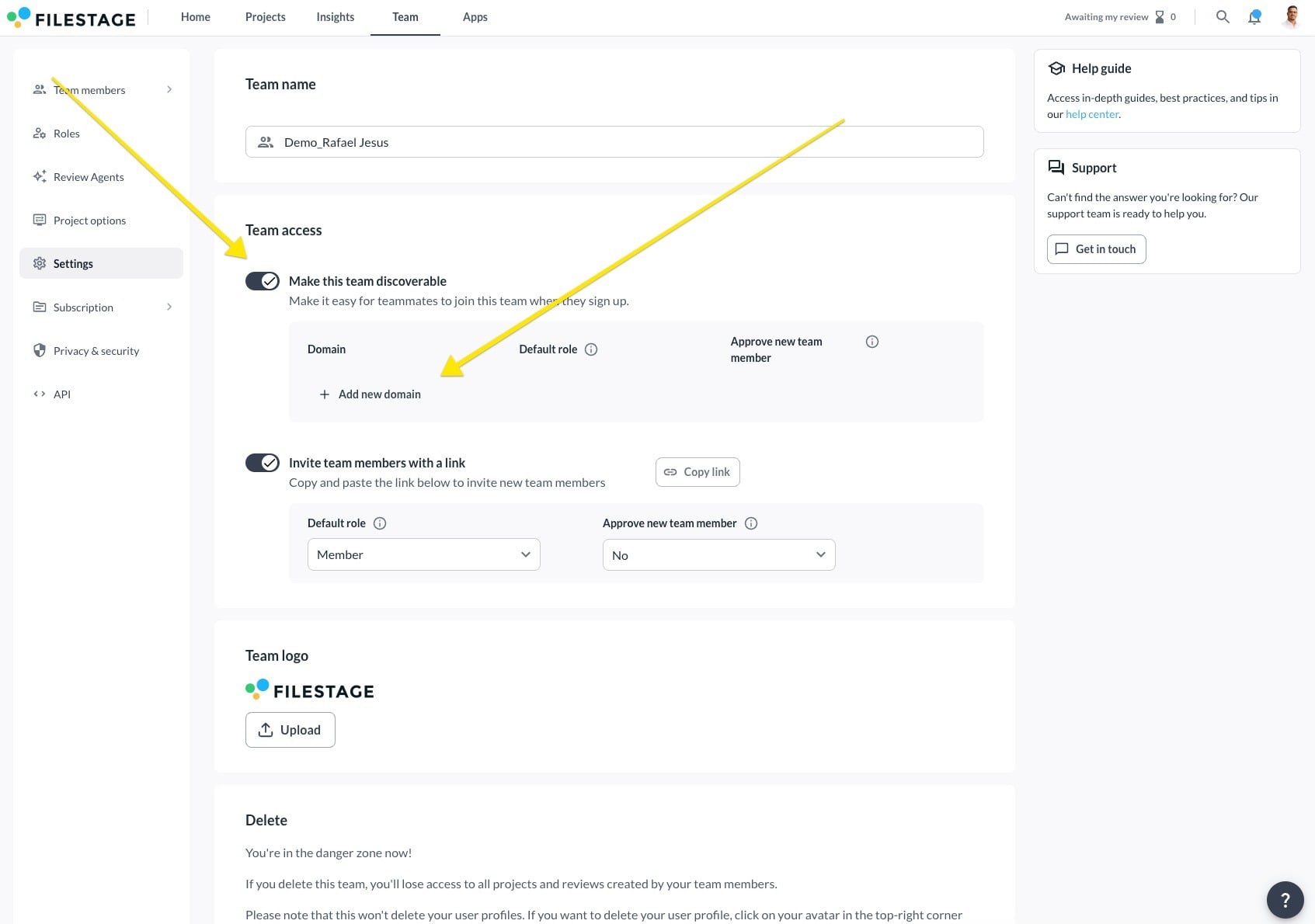
Go to your Team settings tab
Click on the Invite team members with a link slider
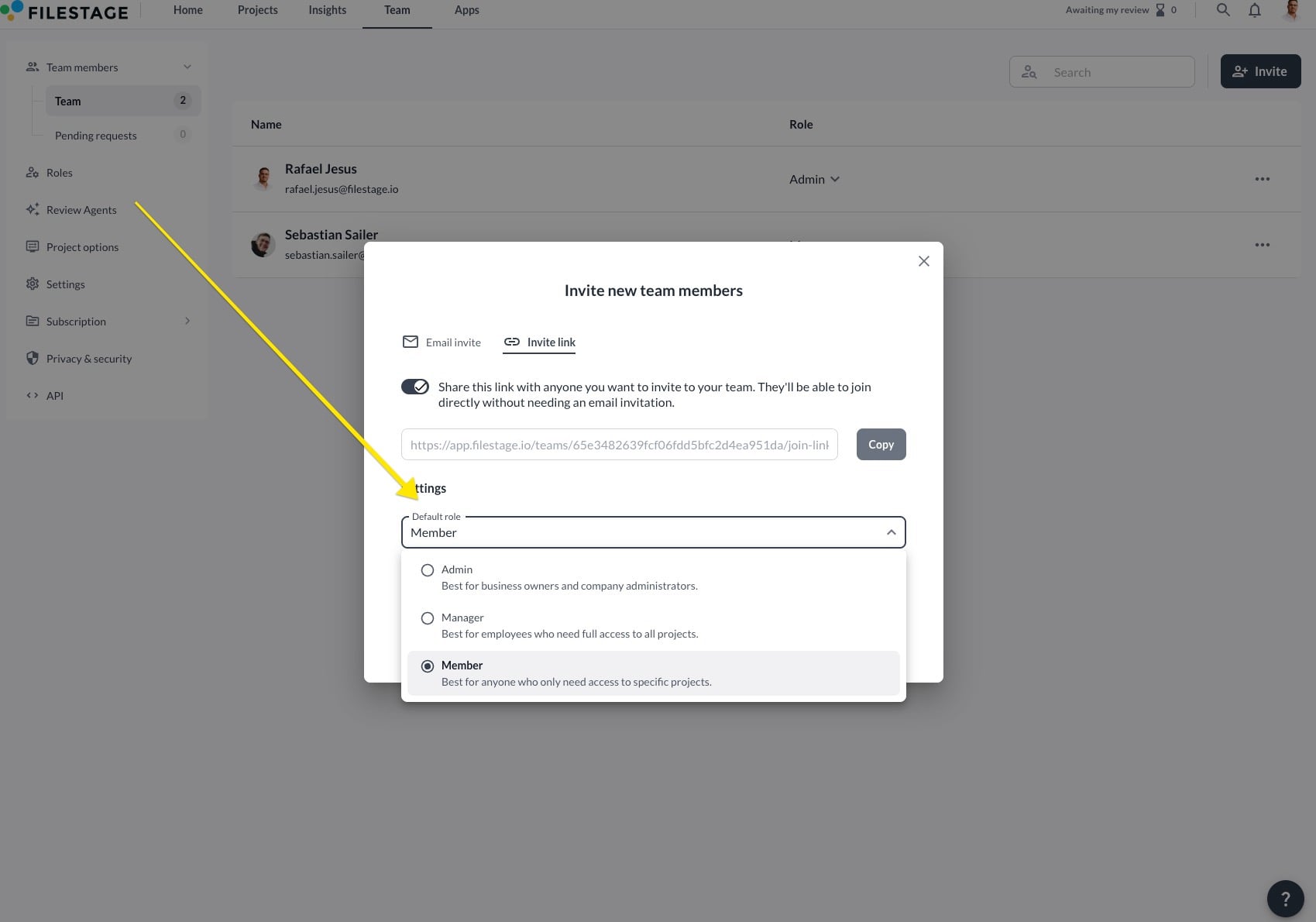
Choose a default role from the dropdown menu
Decide if new members require approval from a manager If you activate this option, any registration requests will appear in the team members tab. The member can only join the team upon the manager’s approval of their request.
Click n Save changes and then Copy link to share the invitation link with your new team members. The invited team member will be added to your team after successfully registering an account.
Invite via domain access
Go to your Team settings tab
Click on the Make this team discoverable slider
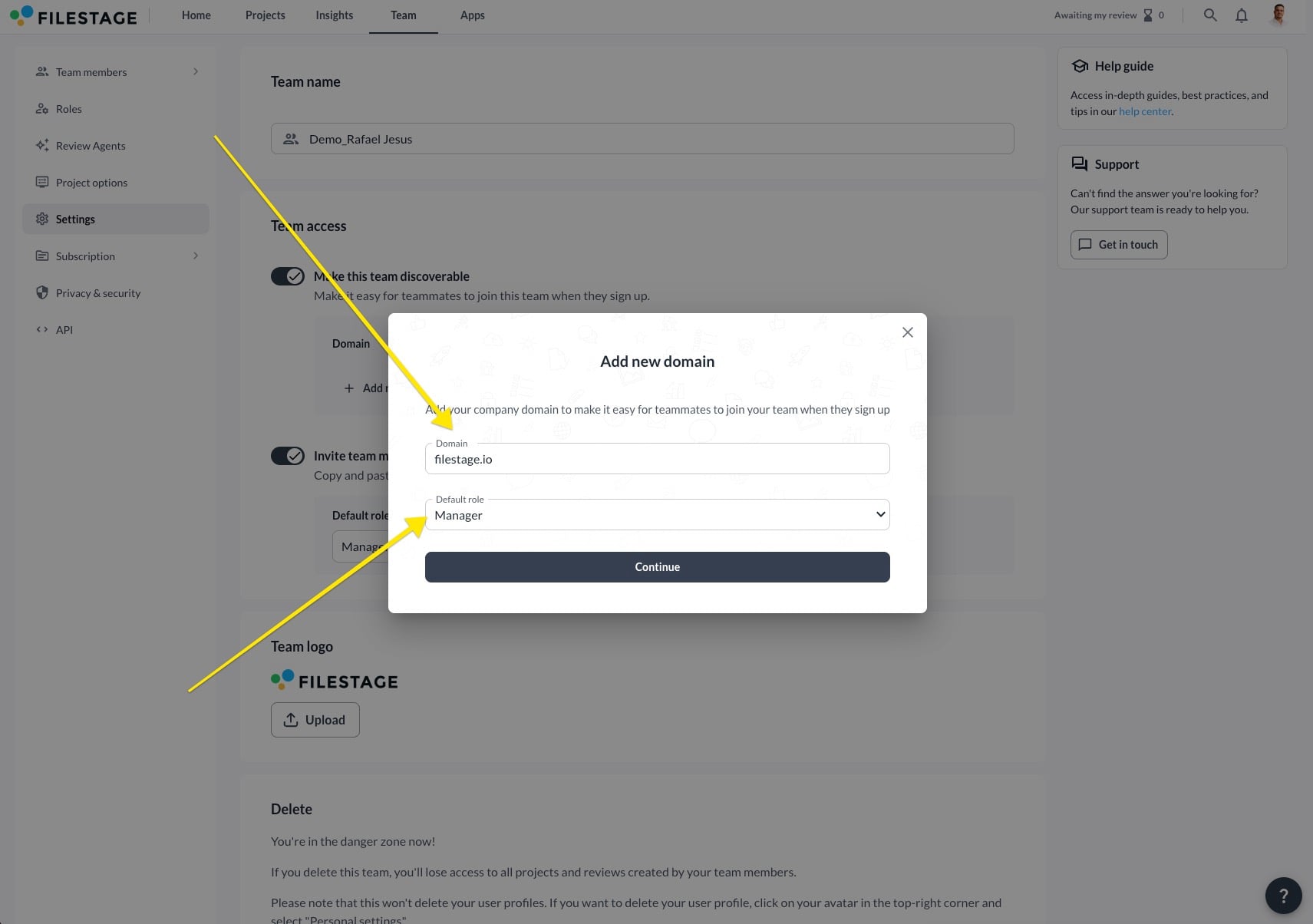
Click +Add new domain
Insert the domain name, assign roles for new users, and click Continue
Decide if new members require approval from a manager If you activate this option, any registration requests will appear in the team members tab. The member can only join the team upon the manager’s approval of their request.
After selecting Save changes, any new account registered with the specified domain will receive a prompt to join your team during setup.
Understand roles for team members
When inviting a team member to Filestage, you can assign them specific roles - Admin, Manager, or Member - based on their responsibilities and access requirements. These roles can also be switched later on, giving you the flexibility to adapt as your team evolves.
What are the roles for team members in Filestage?
Admin: Best for business owners and company administrators.
Manager: Best for employees who need full access to all projects.
Member: Best for anyone who only needs access to specific projects.
The Member role is available in our Business and Enterprise plans.
Which permissions do the different roles provide?
Click on the “►” symbol in the table to access more detailed information of each function and permission.
Permission
Admin
Manager
Member
Access to all projects
This permission determines whether a team member can access all of the team’s projects or only those to which he or she has been invited
✅
✅
ℹ Can only see the projects to which he or she has been invited
Manage projects
Create, rename and delete projects
Create projects using project templates
Create, rename and delete reviewer groups
Add and remove project reviewers
Change reviewer settings of reviewer groups
✅
✅
✅
Upload new files
Upload new files to projects
✅
✅
✅
Manage the team
Invite and remove team members
Create, edit, and delete roles
Edit the team name and delete the team
✅
❌
❌
Manage the subscription
View subscription details and invoices
Change plan and payment details
✅
❌
❌
Manage the branding
Change the team branding
✅
❌
❌
Manage project templates
Create, rename, and delete projects
Create, rename, and delete reviewer groups in project templates
Change reviewer group settings in project templates
✅
✅
❌
Manage Apps
Add and remove apps from projects
Manage notifications sent to app projects and channels
Change settings for existing apps
✅
✅
✅
Manage automations
Create and delete automations
Activate or pause existing automations
✅
✅
✅
View Insights
View project metrics and data
✅
❌
❌
The same information can also be found in the roles page of your account. Please note that it is accessible only to admins.
The same information can also be found in the roles page of your account. Please note that it is accessible only to admins.
Are there customizable roles?
In the Enterprise plan, you can create individual roles for your team to manage permissions more accurately. Feel free to reach out to us if you’re interested in custom roles. [email protected].
Remove a team member
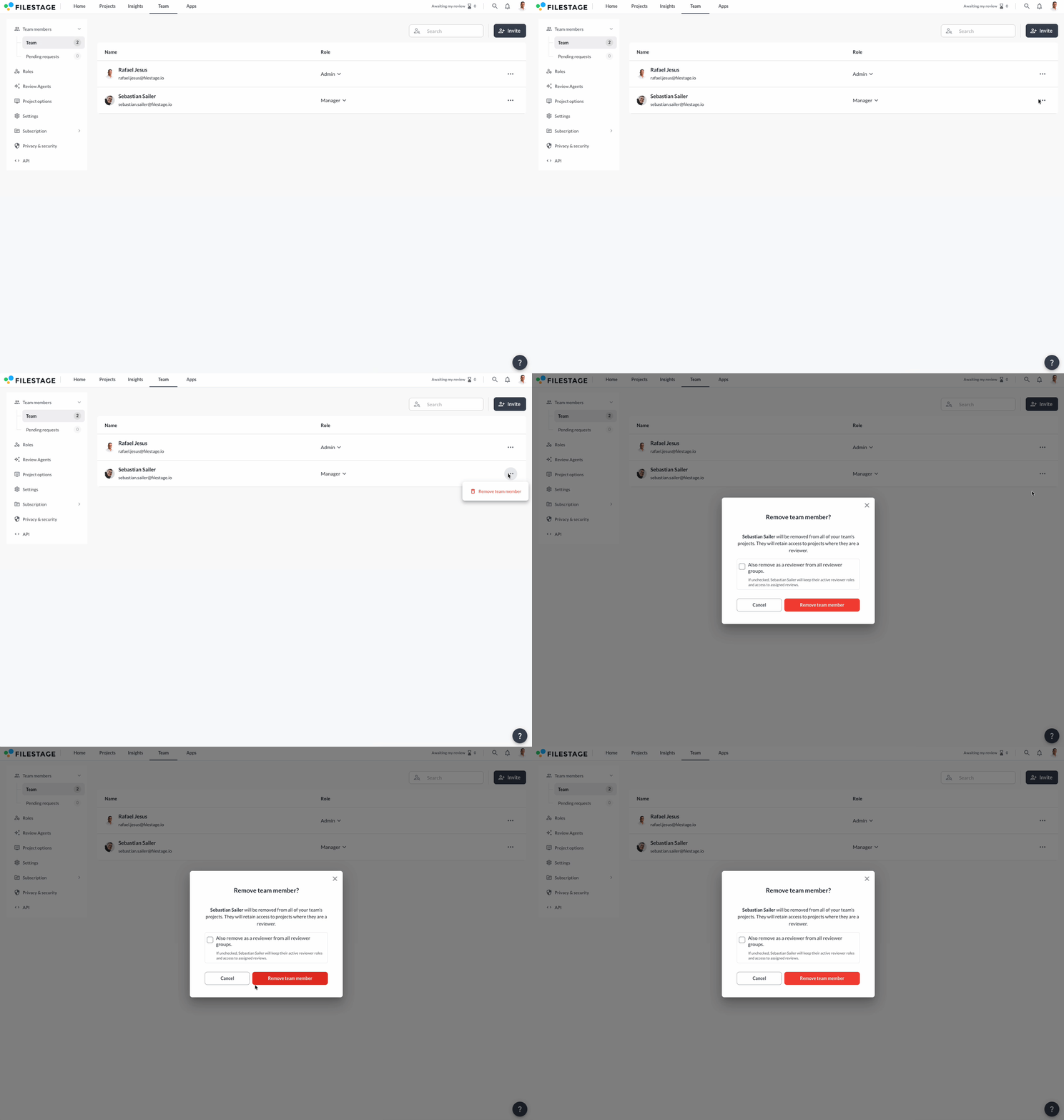
If you need to remove a team member from your team, follow these steps:
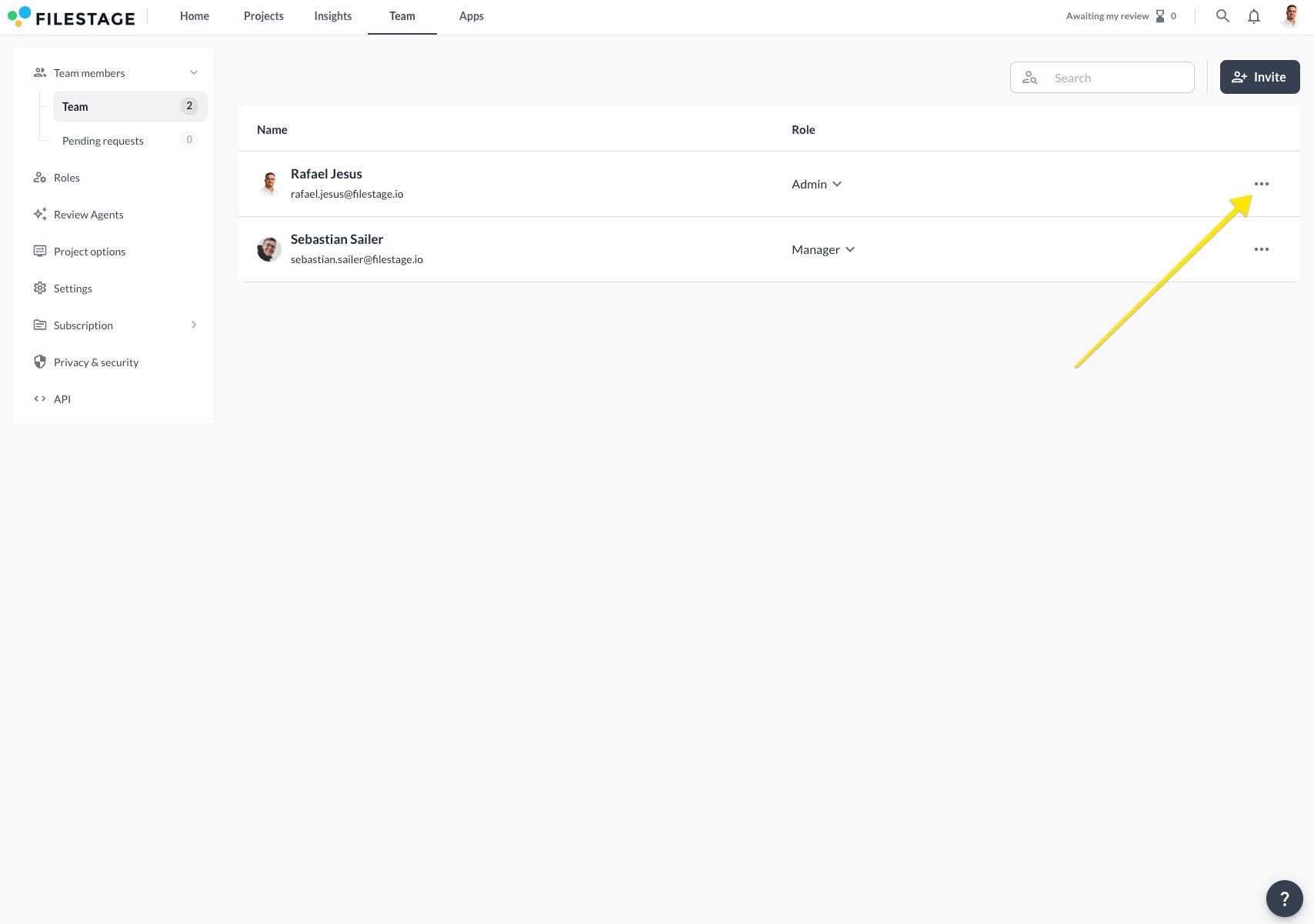
Open your Team tab.
Find the team member you want to remove and click on the three dots.
Select Remove team member.
Confirm your decision in the following dialogue window.
⚠️ Please note: Once you remove a team member, they will lose access to all projects within the team. If the removed team member was the sole owner of a project, this project will be transferred to the admin who removed the team member.
Switch the role of a team member
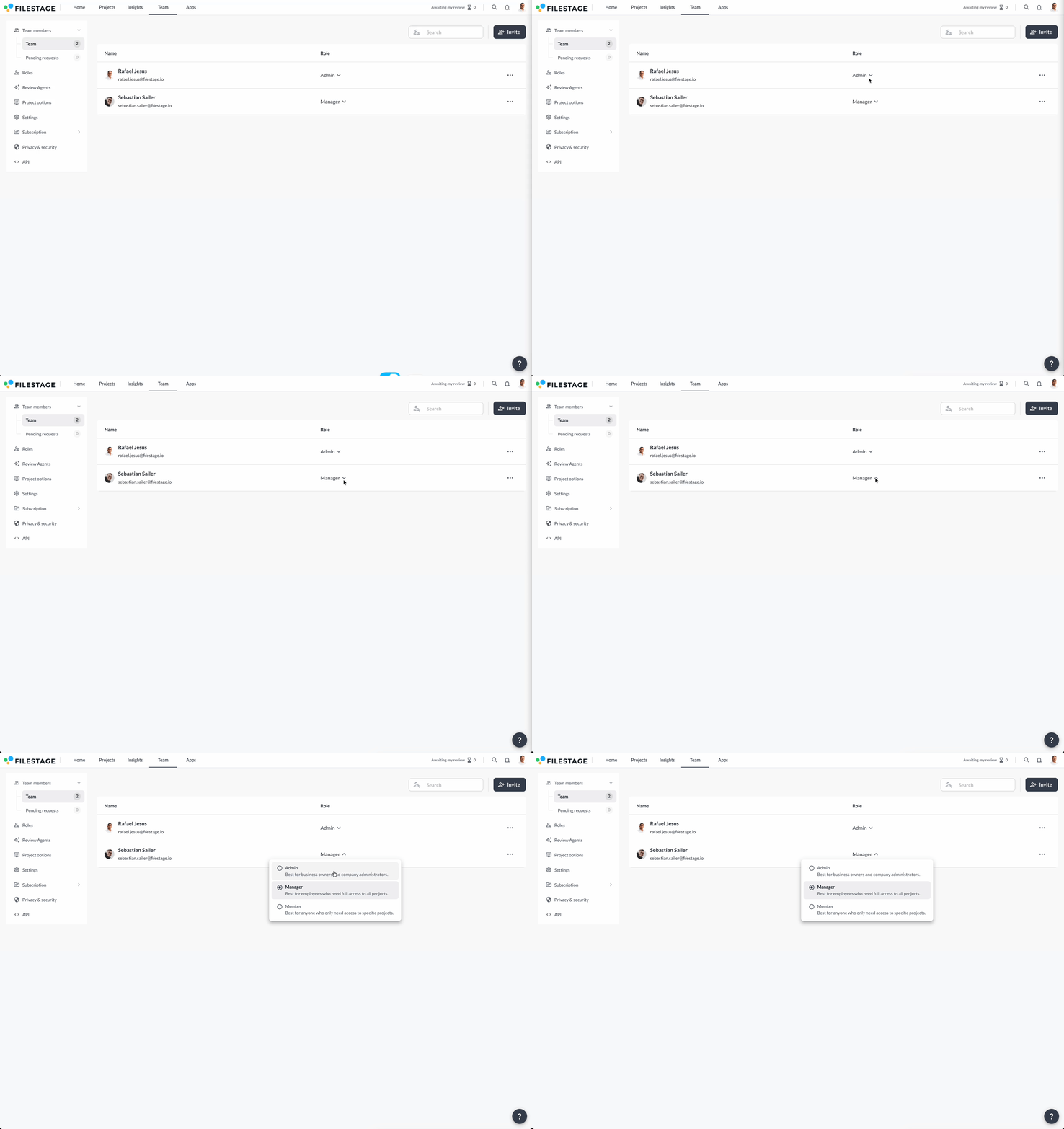
If you need to switch a team member’s role, follow these steps:
Open your Team tab.
Find the team member you want to switch role and click on the arrow icon next to their email address.
Select a new role to confirm.
By switching a team member’s role, you can change their access to your projects and give them more or less responsibility.
Every Filestage plan includes 10 team member seats. On our Starter, Business, and Enterprise plans, you can add more seats in bundles of 5. For full details, check our pricing page.