Filestage’s intake forms provide a structured way for stakeholders to submit new work requests — and a simple way for external parties to submit files for review. By using a dedicated form, you can ensure that every request arrives with the necessary context, deadlines, and files required to kick off your review process instantly.

Intake forms act as a professional "front door" for your team, allowing you to centralize project requests, briefs, and file uploads. By standardizing the submission process, you ensure every request arrives with the necessary context and files to start your review process immediately.
Intake forms help you:
Standardize briefings: Use mandatory fields to ensure no request is submitted without critical details.
Centralize assets: Automatically collect reference files and project assets in one secure location.
Improve organization: Keep your dashboard clean by reviewing and approving requests before they become active projects.
Enhance stakeholder experience: Provide a simple, clear interface for clients or colleagues to submit their needs.
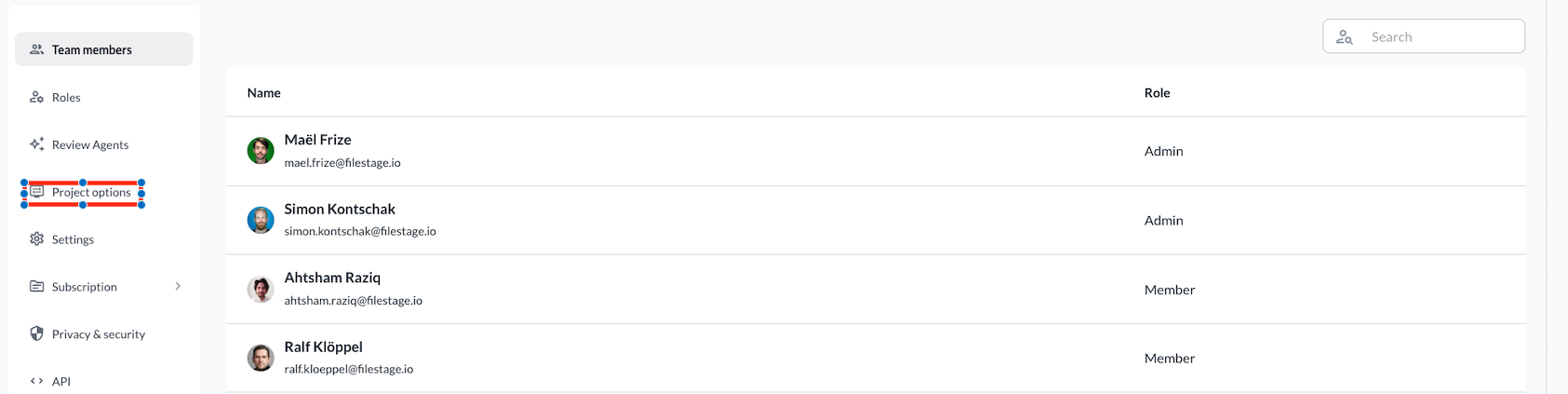
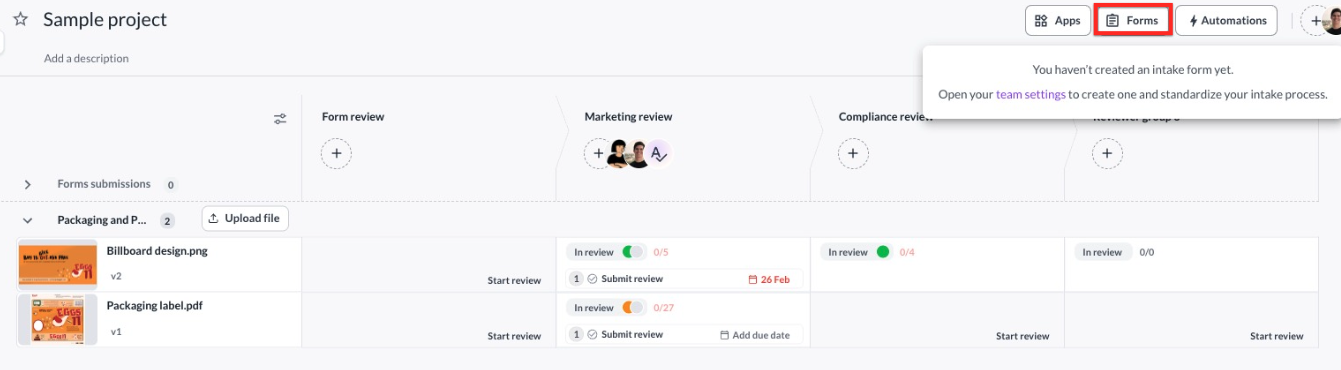
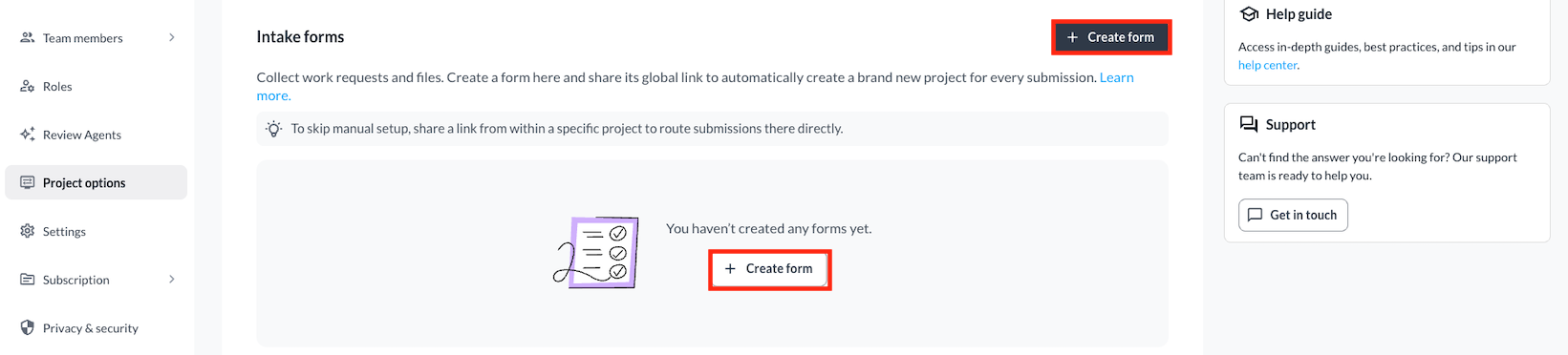
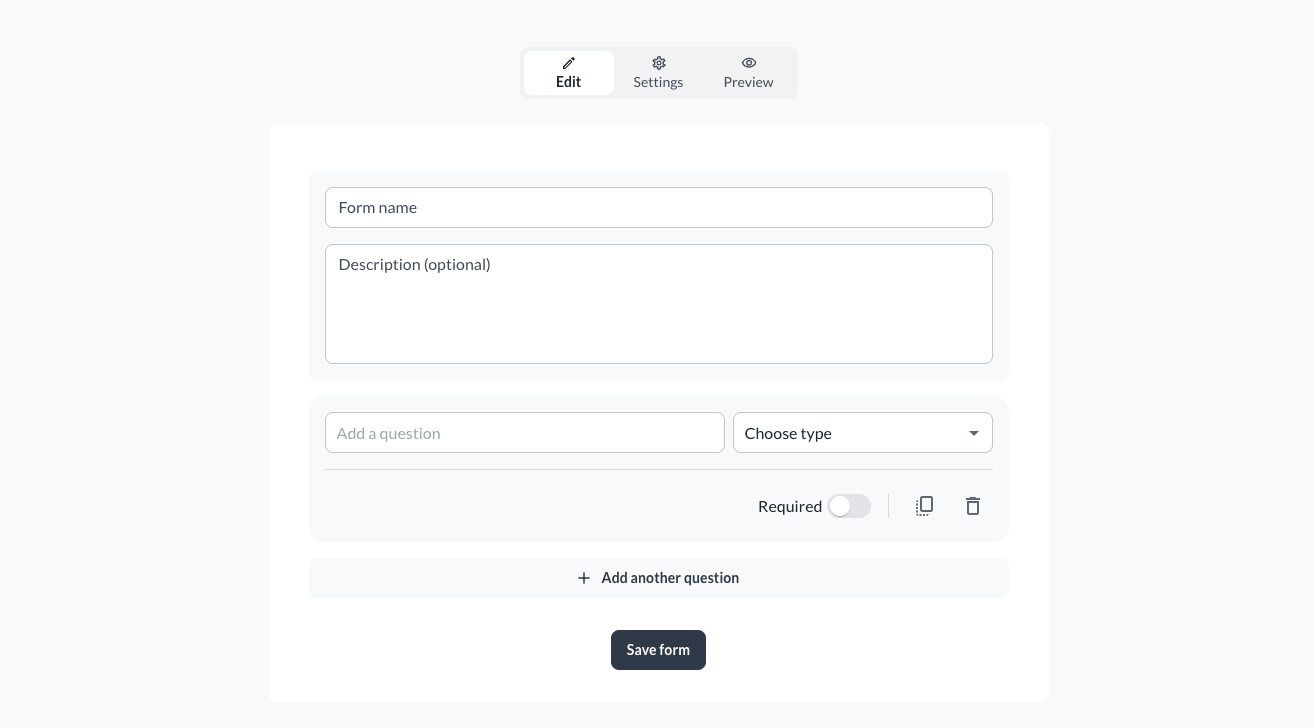
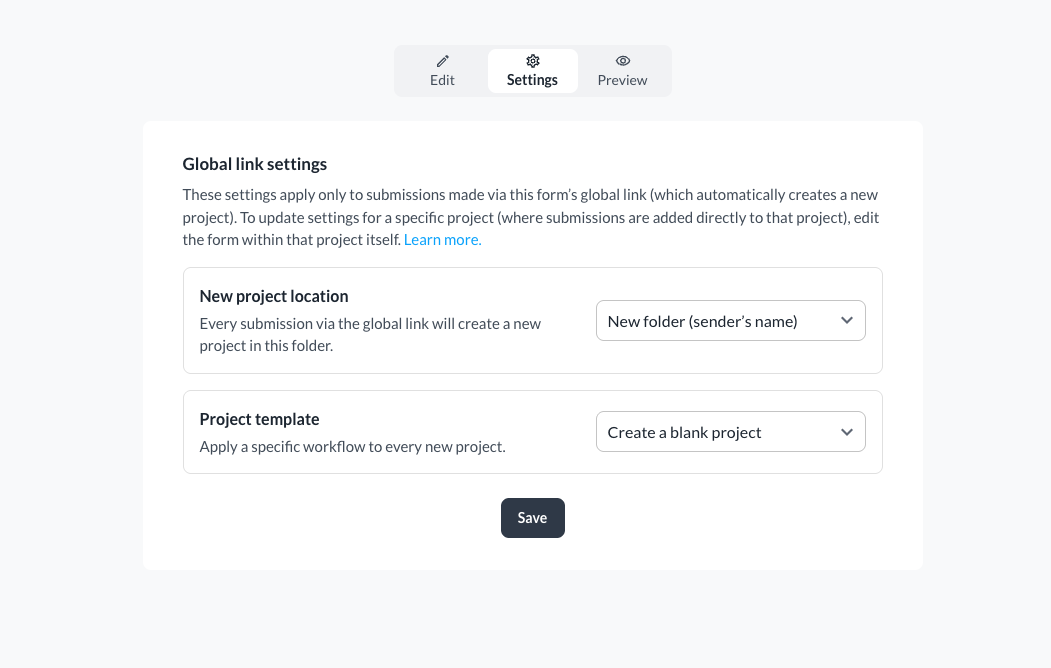
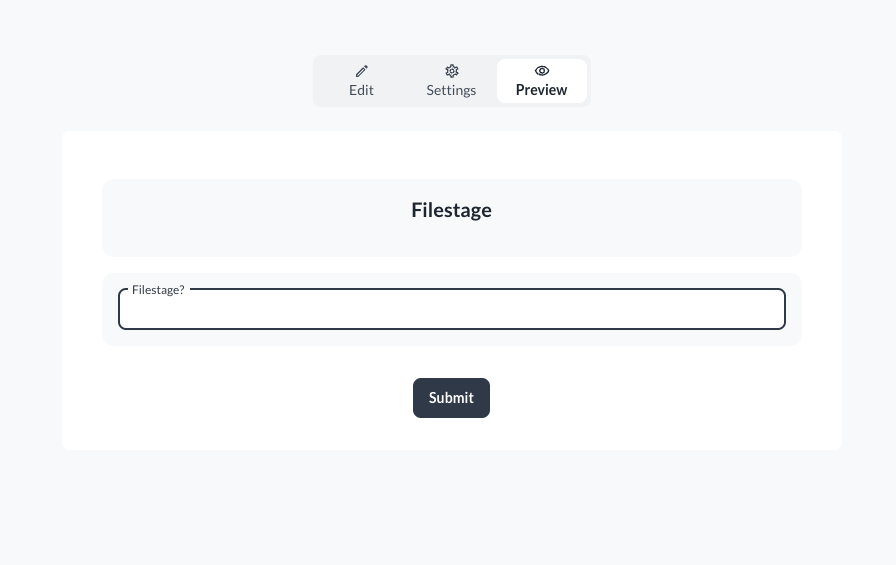
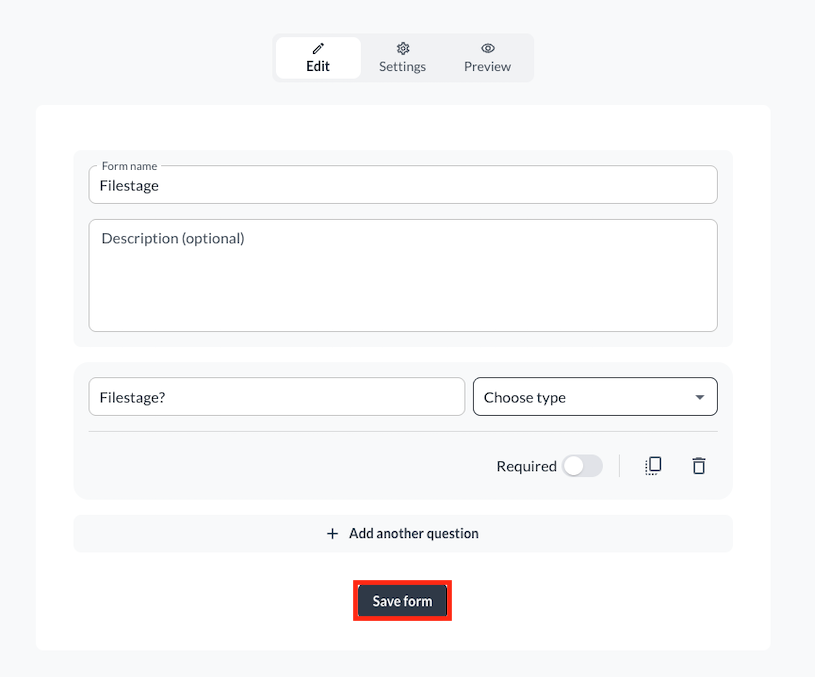
Here's how to create and share an intake form in six easy steps:
|
Intake forms can be customized to support multiple creative and operational workflows, whether you are dealing with internal departments or external clients:
Upload work requests: Perfect for creative agencies or marketing teams to receive defined design, copywriting, or video creation requests from other departments.
Submit project briefs: Standardize how external clients send over comprehensive target audience descriptions, goals, and campaign context before a kickoff.
Directly collect files and assets: Easily gather raw production assets, brand guidelines, fonts, and heavy media items directly from creators or production partners into your workspace.attached files.
When a stakeholder submits a form, Filestage automatically routes the data to your chosen project.
Direct-to-Review: Files bypass manual sorting and land directly in the designated review step.
Unified Data: Text fields and supplementary information are attached alongside files, keeping project context immediately visible to reviewers.
Filestage helps prevent clutter by automatically stacking new files as versions of existing ones. For this to trigger, ensure the following:
Exact name match: The filename must be identical to the one already in your project.
Version modifiers: The system strictly recognizes the “_vX” suffix
(e.g., “Campaign_Video_v2.mp4”).
Note: Filenames with spaces before the version number (e.g., " v2") or custom naming conventions without the underscore will result in a completely new file upload.
💡 What's next? Once you've accepted a request, see how to organize your projects in folders to keep your workspace tidy!
Let us know if you have any questions by reaching out to us on chat or emailing us at [email protected]. We're always happy to help!