---
title: "How to Use Video Safe Zones in Filestage"
description: "Learn how to apply video safe zones in Filestage to preview platform layouts like TikTok and keep your key content visible"
url: https://help.filestage.io/fr/articles/9465095-how-to-use-video-safe-zones-in-filestage
collection: "Commentaires sur les fichiers"
updated: 2026-07-02
language: fr
alternates: [en]
---

# How to Use Video Safe Zones in Filestage

Learn how to apply video safe zones in Filestage to preview platform layouts like TikTok and keep your key content visible

_As a creative team, ensuring your video content displays perfectly across different platforms can be a challenge. With Video Safe Zones, you can visualize platform-specific UI overlays or broadcast limits directly within Filestage — preventing critical text, logos, or action from being obscured or cropped._

* * *

## **How video safe zones can help you**

Video safe zones help creative teams stay compliant and deliver polished video content without accidental layout issues. By previewing exactly how a video will interact with external platform elements, you eliminate guesswork during the creative workflow.

-   **Social media compliance:** Preview standard overlays for platforms like TikTok and Instagram Reels to make sure buttons or profile names don’t cover important text.
    
-   **Broadcast accuracy:** Apply standard SMPTE layouts to keep safe margins for television broadcast elements.
    
-   **Brand customization:** Ensure tailored layout checks across specialized digital campaigns.
    

* * *

## **Apply a video safe zone**

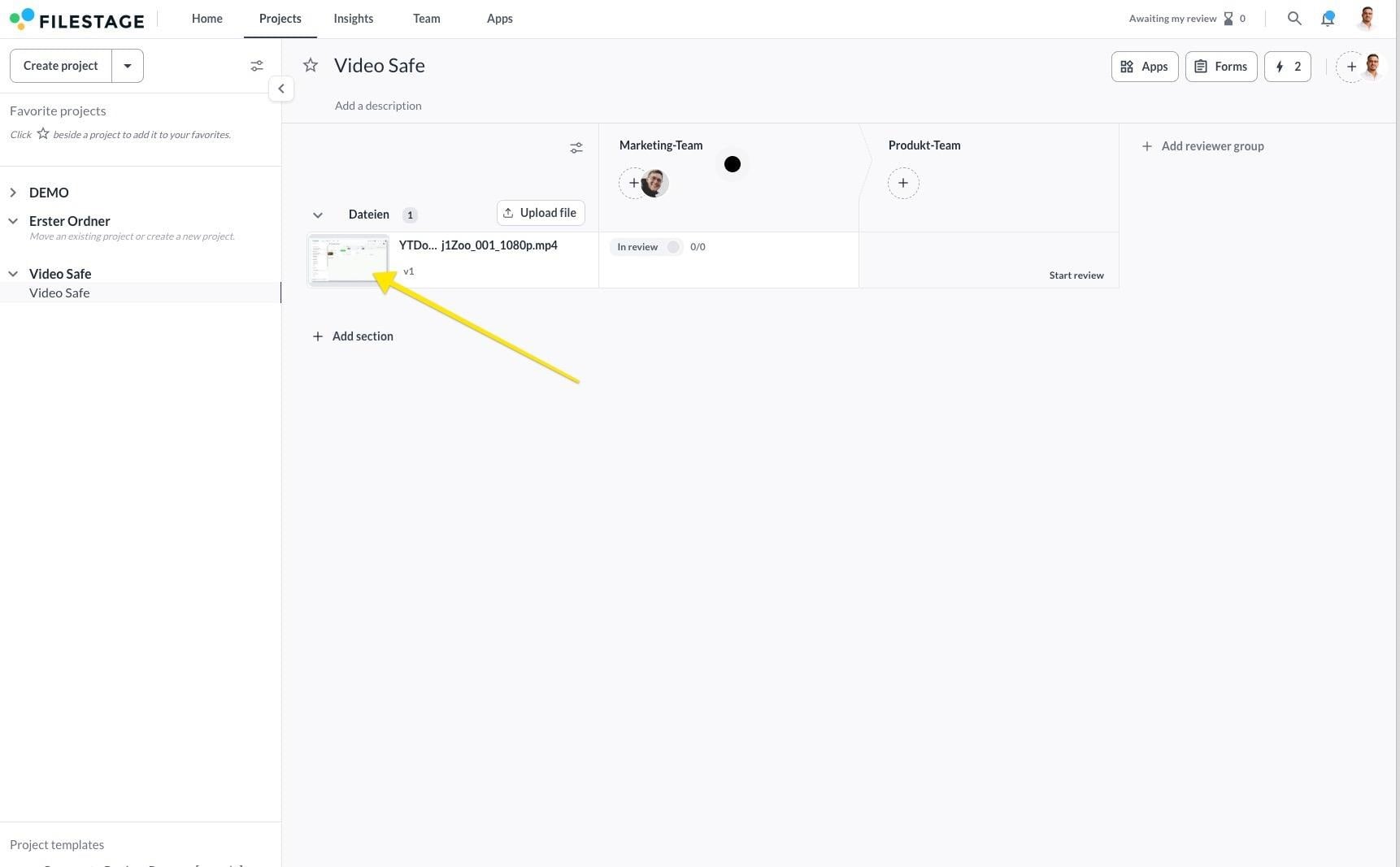
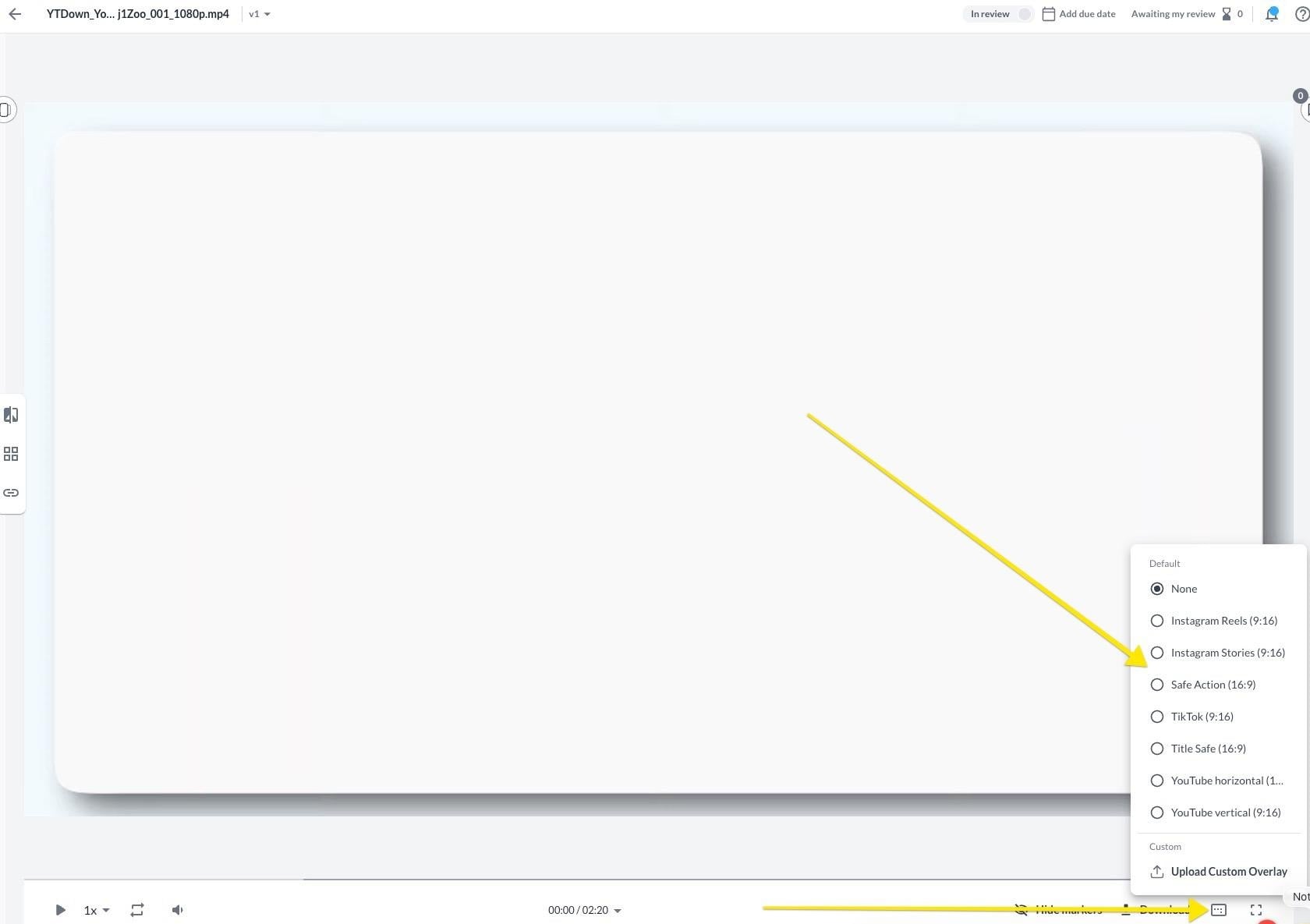
<table data-id="0e066989-ec21-4c02-8e5f-ed6f3b375c07" style="min-width: 25px;"><colgroup><col style="min-width: 25px;"></colgroup><tbody><tr><td colspan="1" rowspan="1"><ol><li><p data-id="513c1d6d-d35a-4f75-86c7-0811faa58def">Open your <strong>project dashboard</strong> and select the video file you want to review to open the file view.</p></li><li><p data-id="7468e815-1a93-4bd8-9acc-ec52b78f8e2c"></p><div style="text-align: center; width: 100%;"><img src="https://staticfiles.gleap.io/gattachments/z4xG0hYdlvigXGUsDoOjORwfADflMGbWv15UEum8mi0Dwb7f3ASy9h6eGTEHcMrcvVEt7DPFBLV.png" data-width="100%" data-align="center" style="width: 100%; border-radius: 10px; margin-top: 10px; margin-bottom: 10px;"></div></li><li><p data-id="dbc94960-332b-4fee-950a-19934bc9122d">Locate the video player control bar at the bottom of your screen.</p></li><li><p data-id="f9573152-e2a9-48fa-b43f-1b67476c93cd">Click on the Safe Zone icon.</p></li><li><p data-id="326cc655-3358-411b-965d-30e528477852">Select your desired preset overlay from the dropdown menu (e.g. “TikTok (9:16)”). The semi-transparent guide will instantly render over your video.</p></li></ol><div style="text-align: center; width: 100%;"><img src="https://staticfiles.gleap.io/gattachments/6rlzfvhoe88eIJrJH9Q7uTFCr6q3rzf9vChLGXJNxDXDkQ1dOriOcznEc9V797lXca9TwDhiQ96.png" data-width="100%" data-align="center" style="width: 100%; border-radius: 10px; margin-top: 10px; margin-bottom: 10px;"></div></td></tr></tbody></table>

* * *

## **Use custom overlays**

If your team is on an Enterprise plan and requires specialized visual guidelines beyond our standard presets, you can upload bespoke templates.

> **Info:** _This feature is included exclusively in our_ **_Business and Enterprise plans._**

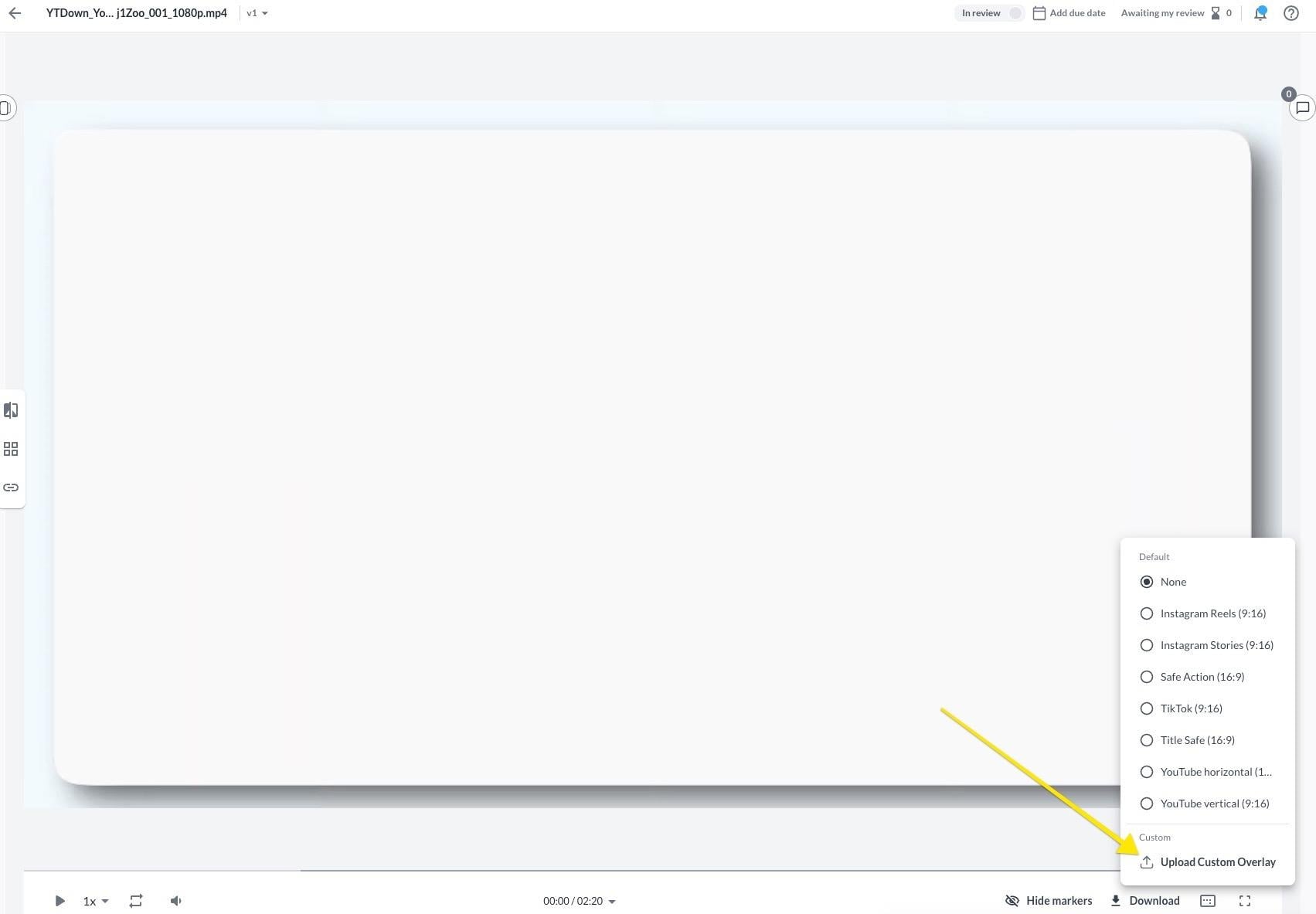
<table data-id="774bf844-1f4b-4781-aa37-d37324123c75" style="min-width: 25px;"><colgroup><col style="min-width: 25px;"></colgroup><tbody><tr><td colspan="1" rowspan="1"><ol><li><p data-id="5284e32c-c5aa-4cb7-85e9-020b808f5a71">Click on the <strong>Safe Zone icon</strong> in the video player control bar.</p></li><li><p data-id="8be2abeb-646f-4e9b-be03-966ecef32b8b">Select the <strong>Upload Custom Overlay</strong> option from the dropdown menu.</p></li><li><p data-id="bb9026e4-9d53-4070-857b-ea8ffb5ba419">Choose a <strong>transparent PNG file</strong> from your computer matching your layout rules.</p></li><li><p data-id="dbf30972-abac-42b5-9f54-fc36bc56ab4c">The custom guide will instantly overlay onto the file container for your campaign review.</p><div style="text-align: center; width: 100%;"><img src="https://staticfiles.gleap.io/gattachments/WA3CvKh1Hz8lTJOokJhop5f4abLmc8rF8Ix9AZpCwo3iQQsjNfcekdV0XmQPcLnbYWIvkCxFpMq.png" data-width="100%" data-align="center" style="width: 100%; border-radius: 10px; margin-top: 10px; margin-bottom: 10px;"></div></li></ol></td></tr></tbody></table>

* * *

> **Info:** 💡 **Note:** Overlays map to the player container. Ensure your video’s aspect ratio is compatible with the selected preset to avoid unexpected letterboxing or stretching.

* * *

💡 **What’s next?** Once you’re done, see how to [Switch time specifications and loop your videos](https://help.filestage.io/en/articles/6403980-switch-time-specifications-and-loop-your-videos.md)!

* * *