---
title: "Using voice to text (AI summary)"
description: "Learn how to record verbal feedback on creative assets, generate automatic AI summaries, and edit text transcripts directly within Filestage"
url: https://help.filestage.io/fr/articles/9465093-using-voice-to-text-ai-summary
collection: "Commentaires sur les fichiers"
updated: 2026-08-18
language: fr
alternates: [en]
---

# Using voice to text (AI summary)

Learn how to record verbal feedback on creative assets, generate automatic AI summaries, and edit text transcripts directly within Filestage

Whether you are reviewing assets on your mobile device or trying to explain a complex visual thought in a rush, you can now record your feedback verbally.

Filestage saves your original audio for tone and nuance, using AI to instantly generate a clean, searchable text summary for your team.

* * *

> **Info:** _This feature is included exclusively in our_ **_Business and Enterprise plans._**

### How to leave a voice comment

Leave verbal feedback directly in Filestage, timestamped to the exact frame of your file — and spend up to 3x less time than you would typing long explanations. Here’s how it works:

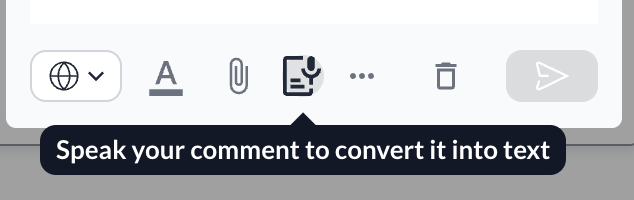
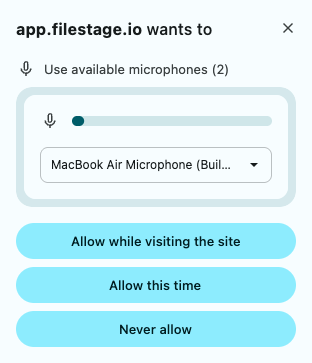
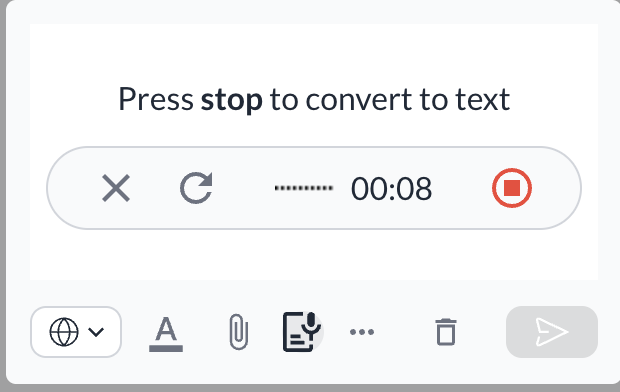
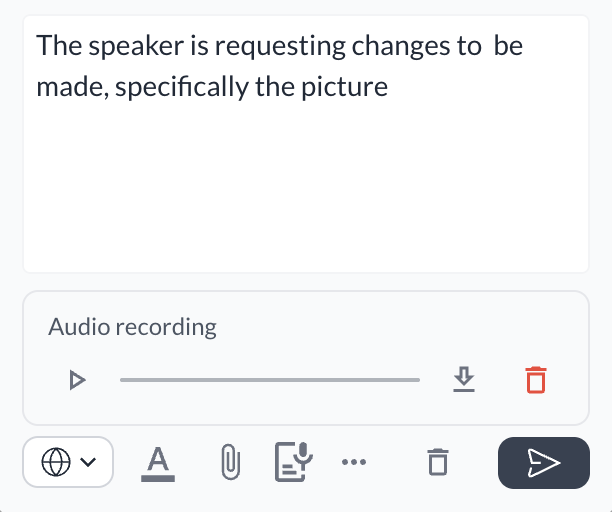
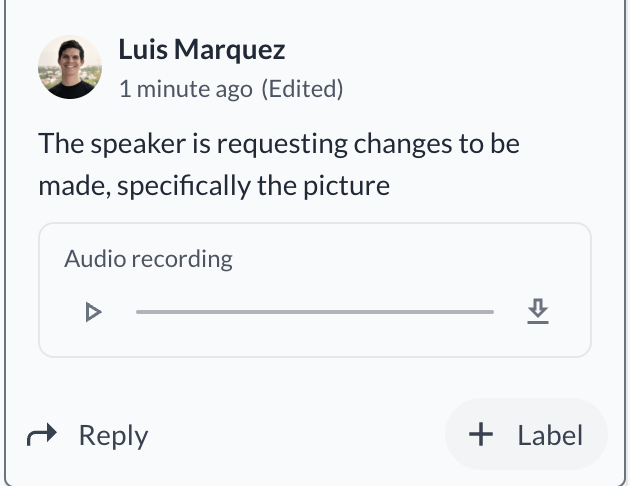
<table data-id="d5df52a2-01b3-47ef-b8dc-ed0bac82a5d2" style="min-width: 25px;"><colgroup><col style="min-width: 25px;"></colgroup><tbody><tr><td colspan="1" rowspan="1"><ol><li><p data-id="e6583f01-193e-45c0-a743-8b36b4d9ea1a"><strong>Open the Recorder (inside the review interface):</strong> Navigate to the file you are reviewing. In the bottom toolbar of the comment box, click the <strong>Voice Comment Icon</strong> (the document with a microphone) where the tooltip reads <em>"Speak your comment to convert it into text"</em>.</p><div style="text-align: left; width: 100%;"><img src="https://staticfiles.gleap.io/gattachments/ymGwD3IuiHpFdh5j2hx1i8urQttpNW1HEfxm02Jq8d8N788pXQd3bvMiaXMSB6zsOGvUjMlRZpl.png" data-width="50%" data-align="left" style="width: 50%; border-radius: 10px; margin-top: 10px; margin-bottom: 10px;"></div><p data-id="b05f8c67-bd2f-4489-9299-af1ac03df71f"></p></li><li><p data-id="0e753150-051e-48ac-8159-873f4a578e6f"><strong>Grant access (first-time only):</strong> If prompted by your browser, click <strong>Allow Microphone Access</strong> so Filestage can use your device's microphone.</p><div style="text-align: left; width: 100%;"><img src="https://staticfiles.gleap.io/gattachments/yeDJjVYKTy1hStWA7c88pi0rqO0MyzHDc4XqY33PL2U9ReOkXqEgq4xqgxJrYANg95eTsCjTgwd.png" data-width="50%" data-align="left" style="width: 50%; border-radius: 10px; margin-top: 10px; margin-bottom: 10px;"></div><p data-id="57d33d78-3582-4892-96f5-ab24f6b13fe1"></p></li><li><p data-id="e66ec096-fe8e-43c6-860f-03972f7ff95a"><strong>Record your feedback (with live waveform visualization):</strong> Speak naturally while watching your video or reviewing the file. There’s no need for perfect phrasing — even if you ramble, the AI will turn your words into a clear, concise summary. You will see a live waveform visualization as you record. You can pause and resume as needed.</p></li><li><p data-id="a52df5a9-8e8b-4716-a8d2-97f5996c8fc9"><strong>Process the recording (generate the AI text):</strong> When you are finished talking, click <strong>Stop/Process</strong>. The system will automatically transcribe your speech and generate a concise summary.<br></p><div style="text-align: left; width: 100%;"><img src="https://staticfiles.gleap.io/gattachments/wb3EF0Hnj5bpo0pm46O4wcVjtXA2peGTB6ddeKXuC3QeNvSsGDo9SxXxFTdp1fatuq7rwuNXhTV.png" data-width="50%" data-align="left" style="width: 50%; border-radius: 10px; margin-top: 10px; margin-bottom: 10px;"></div><p data-id="1380e5d4-71f1-4eff-b53d-7b878fe212d7"></p></li><li><p data-id="97079d21-231b-403e-9e0b-820163cc6fc5"><strong>Pre-flight review (verify your text):</strong> A preview modal will appear showing both the audio player and the generated text. Review the text summary and edit any technical terms, names, or typos directly in the window.</p><div style="text-align: left; width: 100%;"><img src="https://staticfiles.gleap.io/gattachments/VprjqQHMGWoaQqB3Hk64ooZYd3p8qSqp7LnI2VGgqTDTx1JnhQlFNkj02XxANd10pNPJTXOgdm0.png" data-width="50%" data-align="left" style="width: 50%; border-radius: 10px; margin-top: 10px; margin-bottom: 10px;"></div><p data-id="4964d903-e290-4be2-8113-cf8b36f6aabf"></p></li><li><p data-id="71122d6b-486a-4a25-9920-4c5a684a5d71"><strong>Post your comment (share with the team):</strong> Click <strong>Post Comment</strong>. Your feedback will appear in the sidebar with a <strong>"Voice" badge</strong> and the clean, indexable text summary visible to everyone.<br></p><div style="text-align: left; width: 100%;"><img src="https://staticfiles.gleap.io/gattachments/oERhTepoRBIRs48ksWIvacoXZoxIOvGVZAIoQtNo6P90bbKbdiwyLtfjt2BMbpea2hq4X4jSZaW.png" data-width="50%" data-align="left" style="width: 50%; border-radius: 10px; margin-top: 10px; margin-bottom: 10px;"></div><p data-id="afefd8bf-21a7-4b8b-8571-814096754a5e"></p></li></ol></td></tr></tbody></table>

> **Info:** _Any project user who has permission to write standard comments on a file can create, view, edit, and delete their own voice comments._

* * *

### Managing your sent voice comments

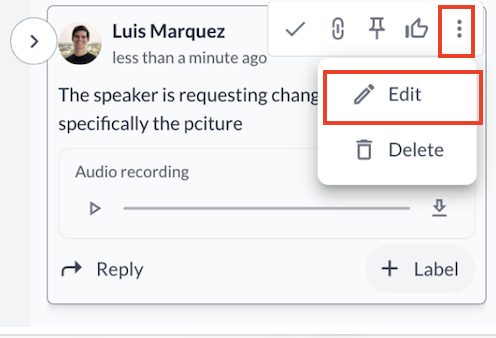
Need to correct a technical term after posting? You can update the text of your voice comment at any time.

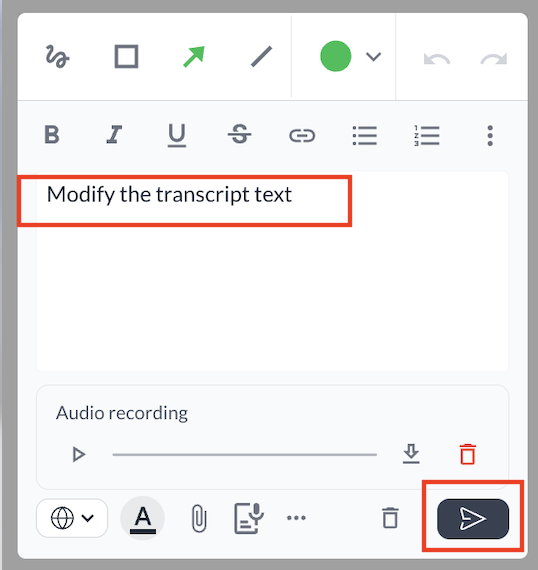
<table data-id="b489932c-d518-475c-9100-98c982d6cb8c" style="min-width: 25px;"><colgroup><col style="min-width: 25px;"></colgroup><tbody><tr><td colspan="1" rowspan="1"><ol><li><p data-id="27894155-d4f7-4ae2-bf73-a84b8f4174de">Open the <strong>Comment Sidebar</strong> and locate the voice comment you want to change.</p></li><li><p data-id="44e88ae3-9515-4b92-95dd-7f537652d8a9">Click the <strong>three-dot menu (...)</strong> next to your comment and select <strong>Edit</strong>.</p><div style="text-align: left; width: 100%;"><img src="https://staticfiles.gleap.io/gattachments/JoH82RWHcp0ilUaLBxZOt1O4rvyb6ekk1n1M2Zzis92P9iWhEzcrgUysB3Cbdd4yUEis0R1d15g.png" data-width="50%" data-align="left" style="width: 50%; border-radius: 10px; margin-top: 10px; margin-bottom: 10px;"></div><p data-id="7356fb4c-faef-4496-8966-52e3cfac5e5f"></p></li><li><p data-id="e4ddfe96-5af4-478f-b525-1573d9e2bd10">Modify the <strong>Transcript Text</strong> in the modal that opens.</p></li><li><p data-id="e195a197-0752-4957-a838-f066b47332ca">Click <strong>Save</strong> to update the text display for your team.<br></p><div style="text-align: left; width: 100%;"><img src="https://staticfiles.gleap.io/gattachments/xgfo4Q6jQ2FK7Y5ps2pyNc4sE6rxNU21rRogjkmsYJAtaC58jhxwLyvLqQcRMfCEqsHj5xjzwm2.png" data-width="50%" data-align="left" style="width: 50%; border-radius: 10px; margin-top: 10px; margin-bottom: 10px;"></div><p data-id="4b3c377f-b3de-43c5-9be6-f6d053412ec7"><br></p></li></ol></td></tr></tbody></table>

> **Warning:** **_Note:_** _While you can edit the text summary at any time, you can’t re-record the original audio file. To change the audio, you must delete the comment and record a new one._

* * *

> **Info:** _We are using the OpenAI Whisper model  for the transcription, the supported languages can be found_ [_here_](https://developers.openai.com/api/docs/guides/speech-to-text#supported-languages)_._

* * *

💡 **What's next?** Once you've accepted a request, see how to [organize your projects in folders](https://help.filestage.io/en/articles/2416550-organize-your-projects-in-folders.md) to keep your workspace tidy!

* * *

Got a question? Reach out on the chat or email us at [support@filestage.io](mailto:support@filestage.io). We're always happy to help!