Project templates let you define your ideal project structure once. This includes sections, reviewer groups, pre-defined reviewers, reviewer group settings and automations. You can reuse this setup for every new project. To save even more time, you can set a template as your default. This ensures every new project automatically follows your workflow, it eliminates manual setup and keeps your processes consistent.

Instead of rebuilding workflows from scratch, templates allow you to launch a ready-to-go project in seconds.
They are especially helpful for:
Consistency: Ensure every project follows the same review structure
Speed: Reduce setup time for recurring marketing campaigns or client workflows
Standardization: Pre-define reviewer groups, permissions and automated actions
Accuracy: Minimize manual errors during the project creation phase and ensure your reviewers always have the correct permissions
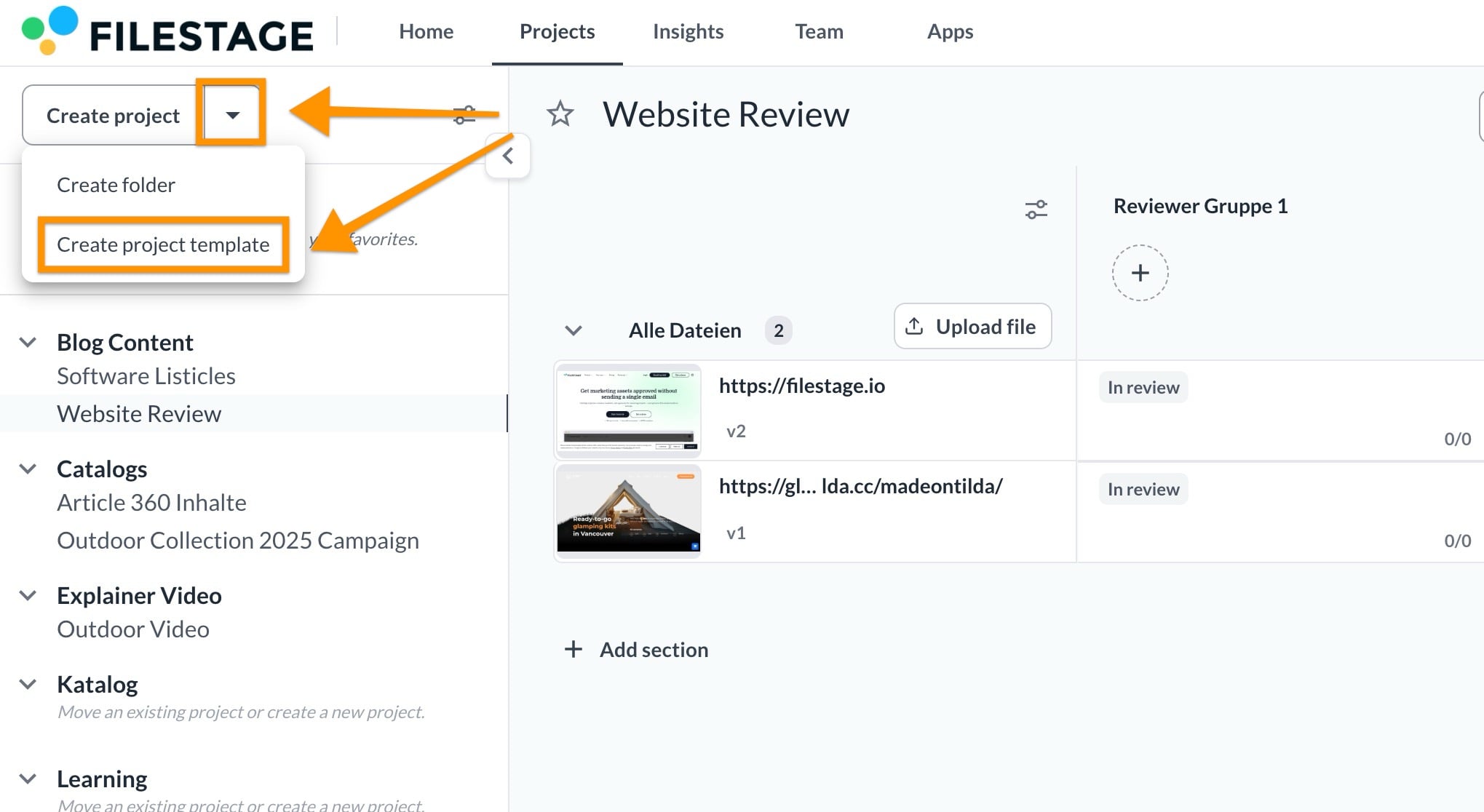
Click on the arrow next to the "Create project" Button
Click Create project template
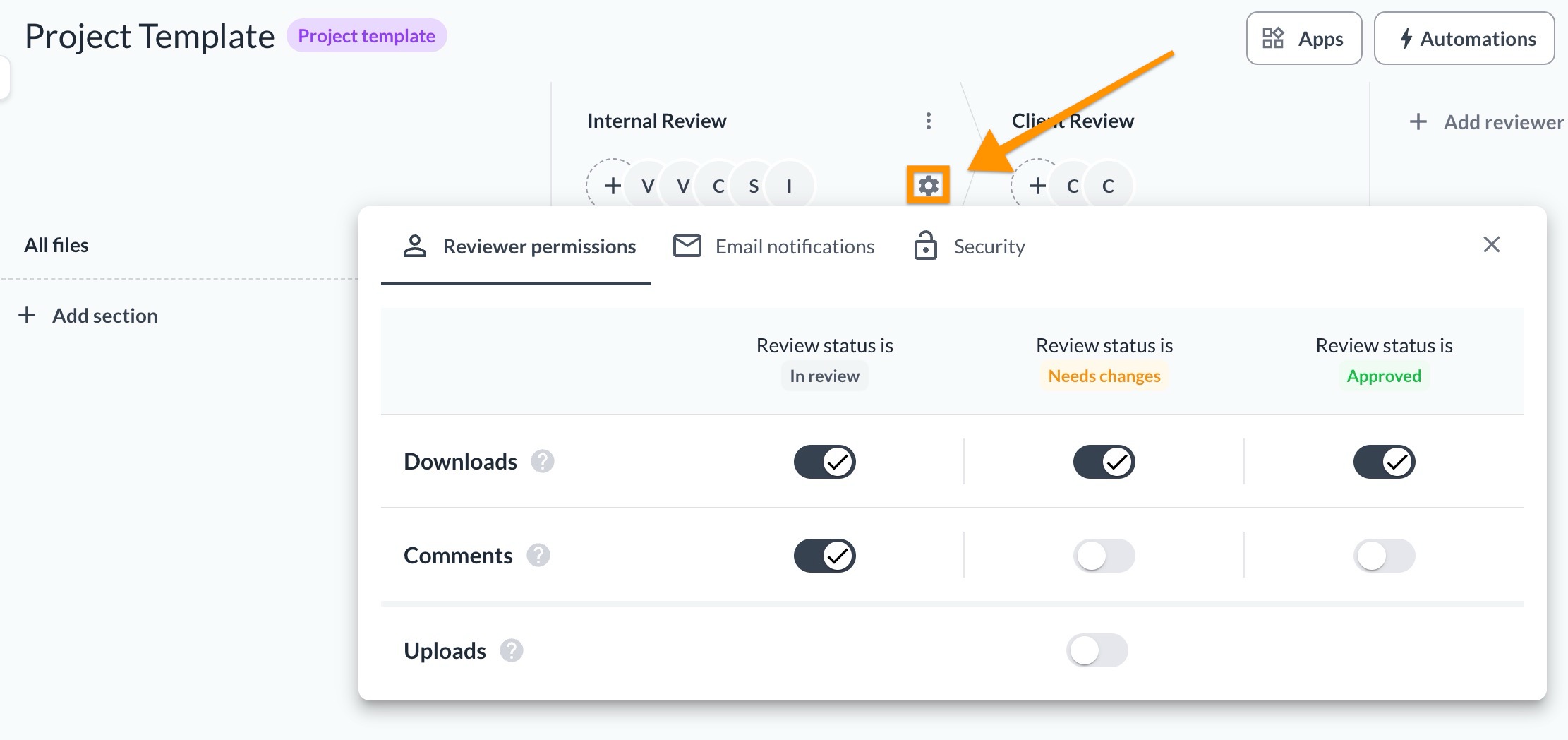
Create reviewer groups and assign roles
Update reviewer groups settings
Optional: Add automations, default reviewers and sections to your template
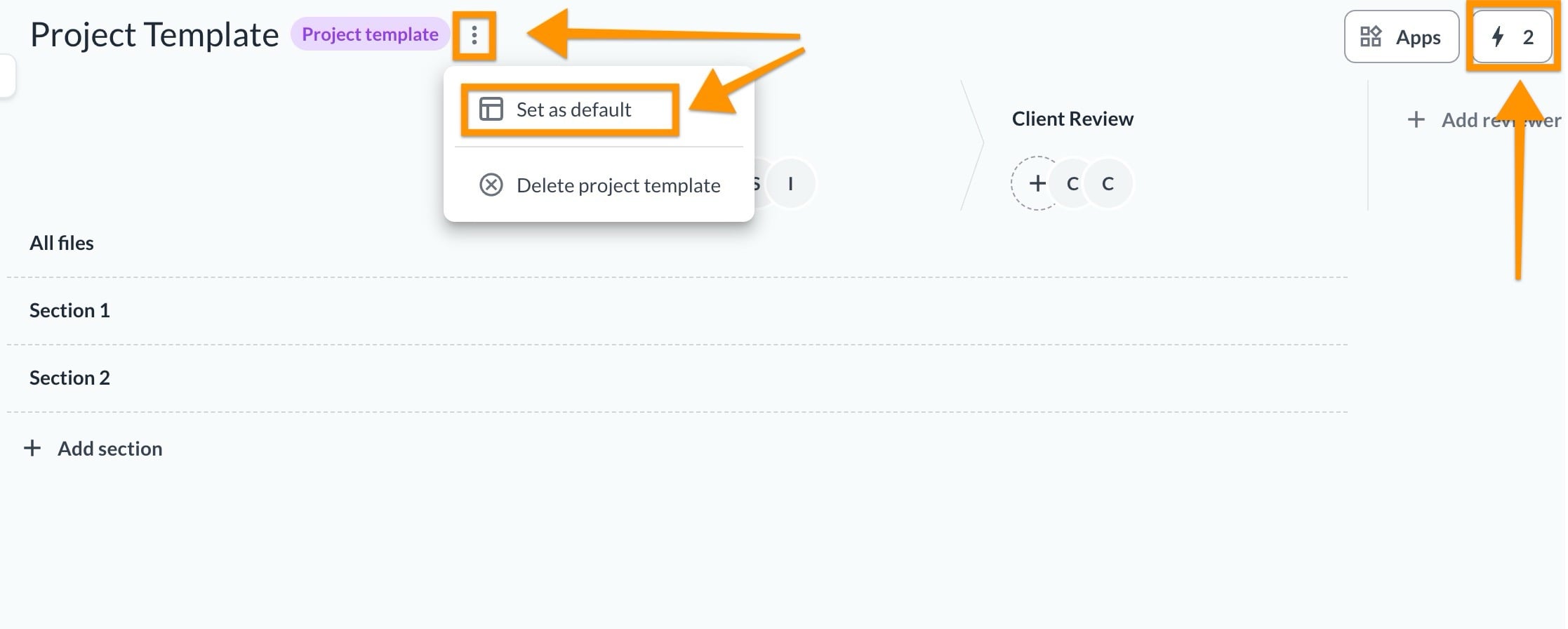
 Tip: Set your template as default to ensure a consistent review process.
You can set up and manage multiple templates to cover all your recurring review processes.
Filestage includes a set of pre-defined templates to help you get started quickly. These are based on common review scenarios and can be customized to fit your needs.
Pre-defined templates are particularly useful if you:
Want a quick starting point without building a setup manually
Are new to Filestage and need a proven workflow
Have similar review steps across multiple projects
Alternatively, you can set up and manage multiple templates to cover all your recurring review processes.
Set a default template: If the majority of your projects follow the same workflow, you can set one template as your default. This structure will be applied automatically every time you create a new project.
Custom templates for specific workflows: You can save additional templates for other recurring processes. This gives you the flexibility to choose the right blueprint whenever you start a project that requires a different setup.

What´s next? After understanding how to create and use project templates, see how to use the automations you need.
Let us know if you have any questions by reaching out to us on chat or emailing us at support@filestage.io. We're always happy to help!
