---
title: "Set up your single sign-on (SSO) via Microsoft Entra ID, formerly Azure Active Directory"
description: "Learn how to establish a connection between Entra ID single sign-on and Filestage"
url: https://help.filestage.io/es/articles/9465071-set-up-your-single-sign-on-sso-via-microsoft-entra-id-formerly-azure-active-directory
collection: "Configuración, compatibilidad y resolución de problemas"
updated: 2026-07-02
language: es
alternates: [en, de, fr]
---

# Set up your single sign-on (SSO) via Microsoft Entra ID, formerly Azure Active Directory

Learn how to establish a connection between Entra ID single sign-on and Filestage

> **Info:** This feature is only available for users on Enterprise plans. Should you have any additional questions, please reach out to our customer support via [support@filestage.io](mailto:support@filestage.io) or via our chat.

* * *

Registering the Filestage platform as an application establishes a trust relationship between Filestage and the Microsoft identity platform.

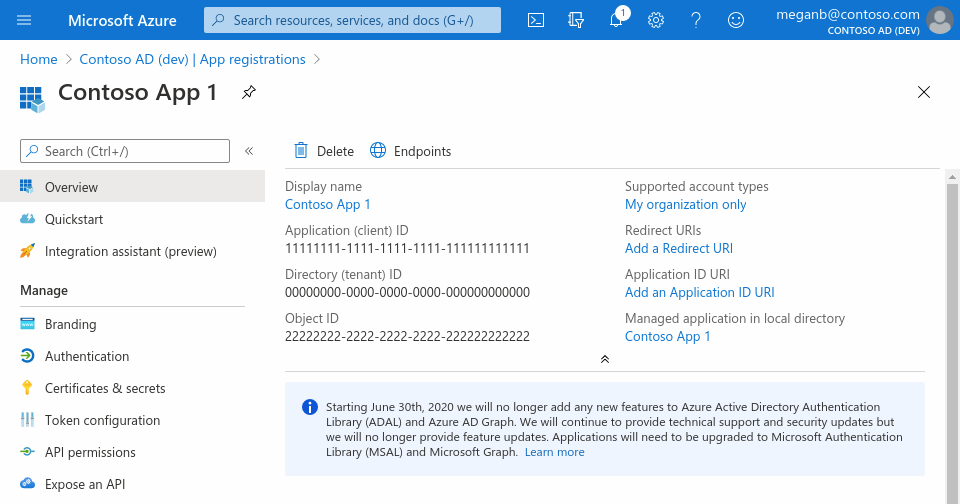
<table data-id="5a249c1d-dfc4-45de-ab37-73df44eb44a7" style="min-width: 25px;"><colgroup><col style="min-width: 25px;"></colgroup><tbody><tr><td colspan="1" rowspan="1" style="box-sizing: border-box; font-family: proxima-nova, &quot;Helvetica Neue&quot;, system-ui, &quot;Segoe UI&quot;, Roboto, Helvetica, Arial, sans-serif, &quot;Apple Color Emoji&quot;, &quot;Segoe UI Emoji&quot;, &quot;Segoe UI Symbol&quot;; line-height: 1; border: 1px solid rgba(0, 0, 0, 0.1); min-width: 100px; padding: 0.5rem; position: relative; text-align: left; vertical-align: top; margin-top: 0px;"><p data-id="546d3a7f-a8a3-4765-ba30-38511337528f" style="text-align: left;"><span style="color: rgb(0, 0, 0);"><strong>And this is how you set up this relationship:</strong>&nbsp;</span></p><ol><li><p data-id="300f7002-5c57-4e3e-bef1-ad7f898594d7" style="text-align: left;"><span style="color: rgb(0, 0, 0);">Sign in to the <strong>Entra ID Portal.</strong></span></p></li><li><p data-id="ae68396d-eded-4ea8-975b-0cb5366375fe" style="text-align: left;"><span style="color: rgb(0, 0, 0);">If you have access to multiple tenants, in the top menu, use the Directory + subscription filter to select the tenant in which you want to register an application.</span></p></li><li><p data-id="65e8857c-a144-405c-9953-3e6ef3fa3710" style="text-align: left;"><span style="color: rgb(0, 0, 0);">Select <strong>Entra ID</strong> (Azure Active Directory)<strong>.</strong></span></p></li><li><p data-id="efe78b68-ea19-491a-94a8-0c7bc2c790f6" style="text-align: left;"><span style="color: rgb(0, 0, 0);">Under <strong>Manage</strong>, select App registrations &gt; New registration.</span></p></li><li><p data-id="18d0e830-921e-4e0b-83ad-b5ce9be3b85b" style="text-align: left;"><span style="color: rgb(0, 0, 0);">Enter the Display Name, in this case Filestage, for the application.&nbsp;</span></p></li><li><p data-id="d6fe695b-bd3d-4d7f-bf25-d4ff49c5a39a" style="text-align: left;"><span style="color: rgb(0, 0, 0);">Specify the users for this application.</span></p></li><li><p data-id="f26891e6-5a67-47cb-b476-b1f66b36722f" style="text-align: left;"><span style="color: rgb(0, 0, 0);">Don’t enter anything in the <strong>redirect URI</strong>. We will configure it in the next section.</span></p></li><li><p data-id="c780ab89-ac1d-450c-b0a0-219af0075279" style="text-align: left;"><span style="color: rgb(0, 0, 0);">Select <strong>Register </strong>to complete the app registration.</span></p></li><li><p data-id="735270f8-a20f-4781-aee1-9b4c0b072f2d" style="text-align: left;"><span style="color: rgb(0, 0, 0);">When registration is over, the Entra portal displays the application <strong>Overview </strong>panel/section. Please copy the <strong>Client ID*</strong> (<strong>required by Filestage</strong>) from this panel.</span></p></li></ol><img src="https://staticfiles.gleap.io/ghelparticle/iQQ50tuIFS3Wb1vrbTdGVZRsCpsCiKhd0stEmRUhaTXeqVQVie8vjv5CS2oeveUDkdIE9jCjxet.png" style="box-sizing: border-box; font-family: proxima-nova, &quot;Helvetica Neue&quot;, system-ui, &quot;Segoe UI&quot;, Roboto, Helvetica, Arial, sans-serif, &quot;Apple Color Emoji&quot;, &quot;Segoe UI Emoji&quot;, &quot;Segoe UI Symbol&quot;; line-height: 1; height: auto; width: 621.523px; max-width: 100%; margin-top: 24px; margin-bottom: 24px; border-radius: 8px; align-self: center; cursor: pointer;"></td></tr></tbody></table>

* * *

## **Configure the redirect URI**

The **redirect URI** is the location where your Entra ID (Azure AD) redirects a user and sends security tokens after authenticating. The Filestage servers use this security token to uniquely identify and safely log your users into the Filestage platform.   
  
Set up the **redirect URI** as follows:

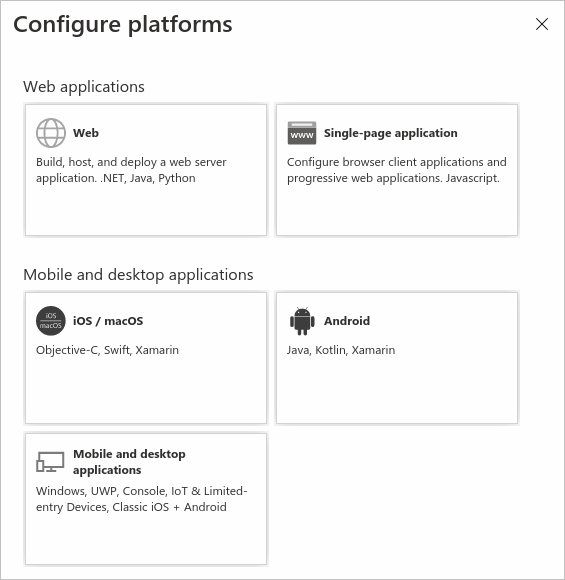
<table data-id="94f5f7ea-d9c4-4a49-b8fd-014289724a0a" style="min-width: 25px;"><colgroup><col style="min-width: 25px;"></colgroup><tbody><tr><td colspan="1" rowspan="1" style="box-sizing: border-box; font-family: proxima-nova, &quot;Helvetica Neue&quot;, system-ui, &quot;Segoe UI&quot;, Roboto, Helvetica, Arial, sans-serif, &quot;Apple Color Emoji&quot;, &quot;Segoe UI Emoji&quot;, &quot;Segoe UI Symbol&quot;; line-height: 1; border: 1px solid rgba(0, 0, 0, 0.1); min-width: 100px; padding: 0.5rem; position: relative; text-align: left; vertical-align: top; margin-top: 0px;"><ol><li><p data-id="c37677af-090a-445f-b971-8398e6dc0abc" style="text-align: left;"><span style="color: rgb(0, 0, 0);">In the Entra ID Portal, in App registrations, select your application.</span></p></li><li><p data-id="bba31975-5d15-4df0-94c5-97c9d260174f" style="text-align: left;"><span style="color: rgb(0, 0, 0);">Under <strong>Manage</strong>, select <strong>Authentication</strong>.</span></p></li><li><p data-id="d0591231-3fdb-43fc-99fc-ec335dda81b3" style="text-align: left;"><span style="color: rgb(0, 0, 0);">Under <strong>Platform configurations</strong>, select <strong>Add a platform.</strong></span></p></li><li><p data-id="34f914fe-1351-455e-b0ab-3230408aa8e7" style="text-align: left;"><span style="color: rgb(0, 0, 0);">Under <strong>Configure platforms</strong>, select the tile <strong>Web</strong> to configure its settings.</span></p><img src="https://staticfiles.gleap.io/ghelparticle/Jz1JPDz69UDWUGS1vq65ZztePtljnCJ3vXMzK6mtpfavOMcleGWmWlnNMfap5ZJQFCcZDnEgFVr.png" style="box-sizing: border-box; font-family: proxima-nova, &quot;Helvetica Neue&quot;, system-ui, &quot;Segoe UI&quot;, Roboto, Helvetica, Arial, sans-serif, &quot;Apple Color Emoji&quot;, &quot;Segoe UI Emoji&quot;, &quot;Segoe UI Symbol&quot;; line-height: 1; height: auto; width: 418.145px; max-width: 100%; margin-top: 24px; margin-bottom: 24px; border-radius: 8px; align-self: center; cursor: pointer;"></li><li><p data-id="806a3bb1-8e95-416f-bd8c-c81dbfc4eb63" style="text-align: left;"><span style="color: rgb(0, 0, 0);">Add <strong><em><u>https://api.filestage.io/auth/enterprise/callback</u></em></strong> as the redirect URI and select <strong>Configure</strong> to save the platform settings.</span></p></li></ol></td></tr></tbody></table>

* * *

## **Set up the client secret**

Sometimes the client secret is also called the “_application password”_. The client secret is a string value the Filestage platform uses to identify itself at your Entra ID (Azure AD).

<table data-id="b5e2c06c-b11f-4543-a325-c2ae76d2bf2a" style="min-width: 25px;"><colgroup><col style="min-width: 25px;"></colgroup><tbody><tr><td colspan="1" rowspan="1" style="box-sizing: border-box; font-family: proxima-nova, &quot;Helvetica Neue&quot;, system-ui, &quot;Segoe UI&quot;, Roboto, Helvetica, Arial, sans-serif, &quot;Apple Color Emoji&quot;, &quot;Segoe UI Emoji&quot;, &quot;Segoe UI Symbol&quot;; line-height: 1; border: 1px solid rgba(0, 0, 0, 0.1); min-width: 100px; padding: 0.5rem; position: relative; text-align: left; vertical-align: top; margin-top: 0px;"><p data-id="8d430c78-e935-41bb-af3f-c0581c311bd1" style="text-align: left;"><span style="color: rgb(0, 0, 0);"><strong>Let’s set it up:&nbsp;</strong></span></p><ol><li><p data-id="89210c12-0968-4cd9-aae5-d65b14fee934" style="text-align: left;"><span style="color: rgb(0, 0, 0);">In the Entra ID (Azure) portal, in App registrations, select your application.</span></p></li><li><p data-id="9422aae3-6b7c-4283-8435-6d5c089b0063" style="text-align: left;"><span style="color: rgb(0, 0, 0);">Select <strong>Certificates &amp; secrets </strong>&gt;<strong> New client secret</strong>.</span></p></li><li><p data-id="f647320d-23aa-4ea4-b1ec-078eca4739e0" style="text-align: left;"><span style="color: rgb(0, 0, 0);">Add a description to the client secret.</span></p></li><li><p data-id="cf42591d-874d-4a37-ad45-8bd7f750ea84" style="text-align: left;"><span style="color: rgb(0, 0, 0);">Select an expiration for the secret or specify a custom lifetime (a 1 year lifetime is recommended).</span></p></li><li><p data-id="5aa0b658-fdb3-47f4-b5c1-d88a6475e992" style="text-align: left;"><span style="color: rgb(0, 0, 0);">Select <strong>Add</strong>.</span></p></li><li><p data-id="25dc327e-b467-48c5-be2d-ce14a896ce09" style="text-align: left;"><span style="color: rgb(0, 0, 0);">Record the <strong><em>secret’s value*</em></strong> (<strong>required by Filestage</strong>). This secret value will be permanently hidden once you leave this page.</span></p></li></ol></td></tr></tbody></table>

> **Info:** The client secret is a value that needs to be updated once its lifetime has expired, otherwise the SSO will stop working for your team members.
> We therefore recommend planning ahead and reaching out to our customer support ([support@filestage.io](mailto:support@filestage.io)) with a new client secret a week before the active secret expires.

* * *

## **Provide us with the technical details**

Time for us to do our homework and set everything up on our side. To configure your SSO instance, we need the following details from your Entra ID directory:

1.  **Client ID** generated in 9th step of **Register app in Entra ID****.**
    
2.  **Client Secret** generated in **6th step of Create client secret**.
    
3.  **Entra ID domain name** (eg: [example.onmicrosoft.com](http://example.onmicrosoft.com)) found on the overview page of Entra ID.
    

> **Error:** To ensure compliance with security standards, please provide this information securely and via an encrypted channel to your dedicated Customer Success Manager or our support team ([support@filestage.io](mailto:support@filestage.io)).

And that's it - your users can now access Filestage through your SSO! 🎉