---
title: "Set up Single sign-on (SSO) via Okta (SAML 2.0)"
description: "Learn how to establish a connection using SAML 2.0 protocol for SSO with Filestage"
url: https://help.filestage.io/en/articles/9465130-set-up-single-sign-on-sso-via-okta-saml-20
collection: "Setup, Compatibility and Troubleshooting"
updated: 2026-08-11
language: en
alternates: [de, fr, es]
---

# Set up Single sign-on (SSO) via Okta (SAML 2.0)

Learn how to establish a connection using SAML 2.0 protocol for SSO with Filestage

> **Info:** This feature is available on our Enterprise plan, or as a paid add-on on our Business plan. Should you have any additional questions, please reach out to our customer support via [support@filestage.io](mailto:support@filestage.io) or via our chat.

* * *

_Single sign-on (SSO) lets your team log in to Filestage with the Okta account they already use every day. No extra passwords, tighter security, and full control over who can access your projects - and connecting Okta via SAML 2.0 only takes a few minutes._

## How single sign-on via SAML 2.0 can help you

Connecting Filestage to Okta makes logging in easier for your team and gives your admins central control over access:

-   **No extra passwords** - everyone signs in to Filestage with their existing Okta account.
    
-   **Central access control** - decide in Okta who can access Filestage and remove access in one place when someone leaves your organization.
    
-   **Enterprise-grade security** - your authentication policies, like multi-factor authentication, automatically apply to every Filestage login.
    

## How to set up SSO with SAML 2.0 (via Okta)

### Step 1: Get your SAML details from Filestage

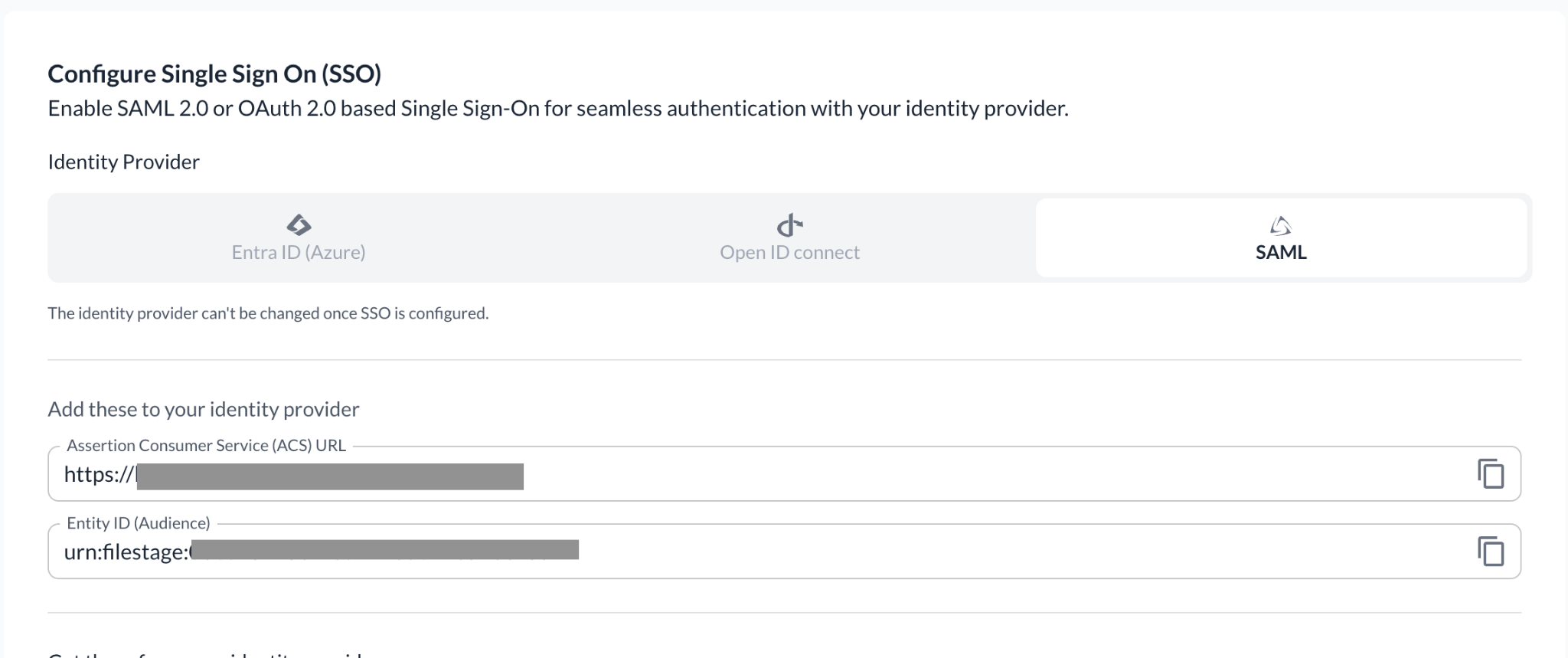
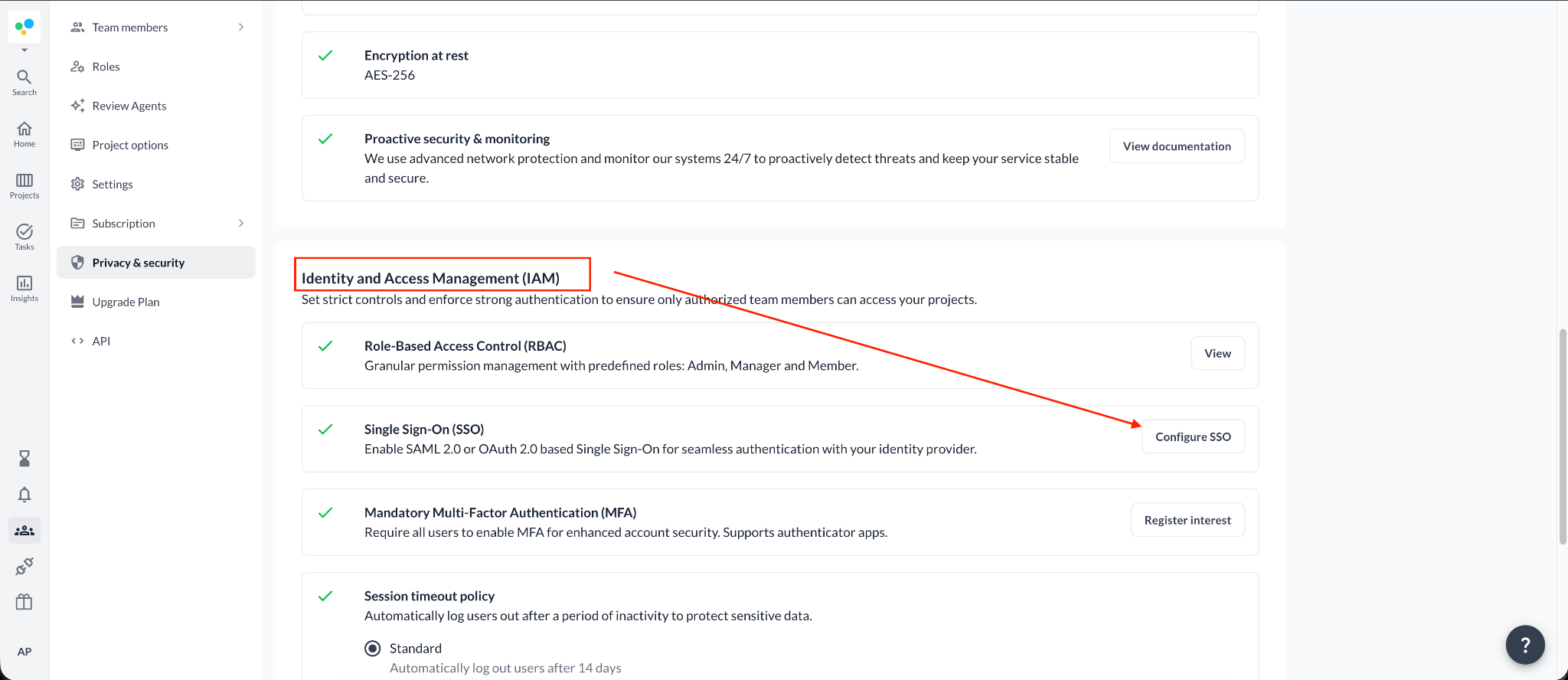
<table style="min-width: 25px;"><colgroup><col style="min-width: 25px;"></colgroup><tbody><tr><td colspan="1" rowspan="1" style="box-sizing: border-box; font-family: proxima-nova, &quot;Helvetica Neue&quot;, system-ui, &quot;Segoe UI&quot;, Roboto, Helvetica, Arial, sans-serif, &quot;Apple Color Emoji&quot;, &quot;Segoe UI Emoji&quot;, &quot;Segoe UI Symbol&quot;; line-height: 1; border: 1px solid rgba(0, 0, 0, 0.1); min-width: 100px; padding: 0.5rem; position: relative; text-align: left; vertical-align: top; margin-top: 0px;"><ol><li><p style="text-align: left;"><span style="color: rgb(0, 0, 0);">In Filestage, go to </span><a target="_blank" rel="noopener noreferrer nofollow" class="linktype-link link" data-linktype="link" href="https://app.filestage.io/teams/security-and-privacy"><span style="color: rgb(0, 0, 0);"><u>app.filestage.io/teams/security-and-privacy</u></span></a><span style="color: rgb(0, 0, 0);"> - this opens the security and privacy settings of your last selected team.</span></p></li><li><p style="text-align: left;"><span style="color: rgb(0, 0, 0);">Scroll down to the <strong>Identity and Access Management (IAM)</strong> section and click <strong>Configure SSO</strong>.</span></p></li><li><p style="text-align: left;">Select the <strong>SAML</strong> tab.</p></li><li><p style="text-align: left;">Copy the two values shown under <strong>Add these to your identity provider</strong>: the <strong>Assertion Consumer Service (ACS) URL</strong> and the <strong>Entity ID (Audience)</strong> - you'll need both in Okta.</p></li></ol><img src="https://staticfiles.gleap.io/g/KALQiXS5g2aIdtaoSbGuE4xtlQWKmSTmVK4feRV65mWgJAys0LjYo5eYVVeACjucKaLpR8Icth1.png" style="box-sizing: border-box; font-family: proxima-nova, &quot;Helvetica Neue&quot;, system-ui, &quot;Segoe UI&quot;, Roboto, Helvetica, Arial, sans-serif, &quot;Apple Color Emoji&quot;, &quot;Segoe UI Emoji&quot;, &quot;Segoe UI Symbol&quot;; line-height: 1; height: auto; width: 100%; max-width: 100%; margin-top: 24px; margin-bottom: 24px; border-radius: 8px; align-self: center; cursor: pointer;"></td></tr></tbody></table>

### Step 2: Create the SAML app in Okta

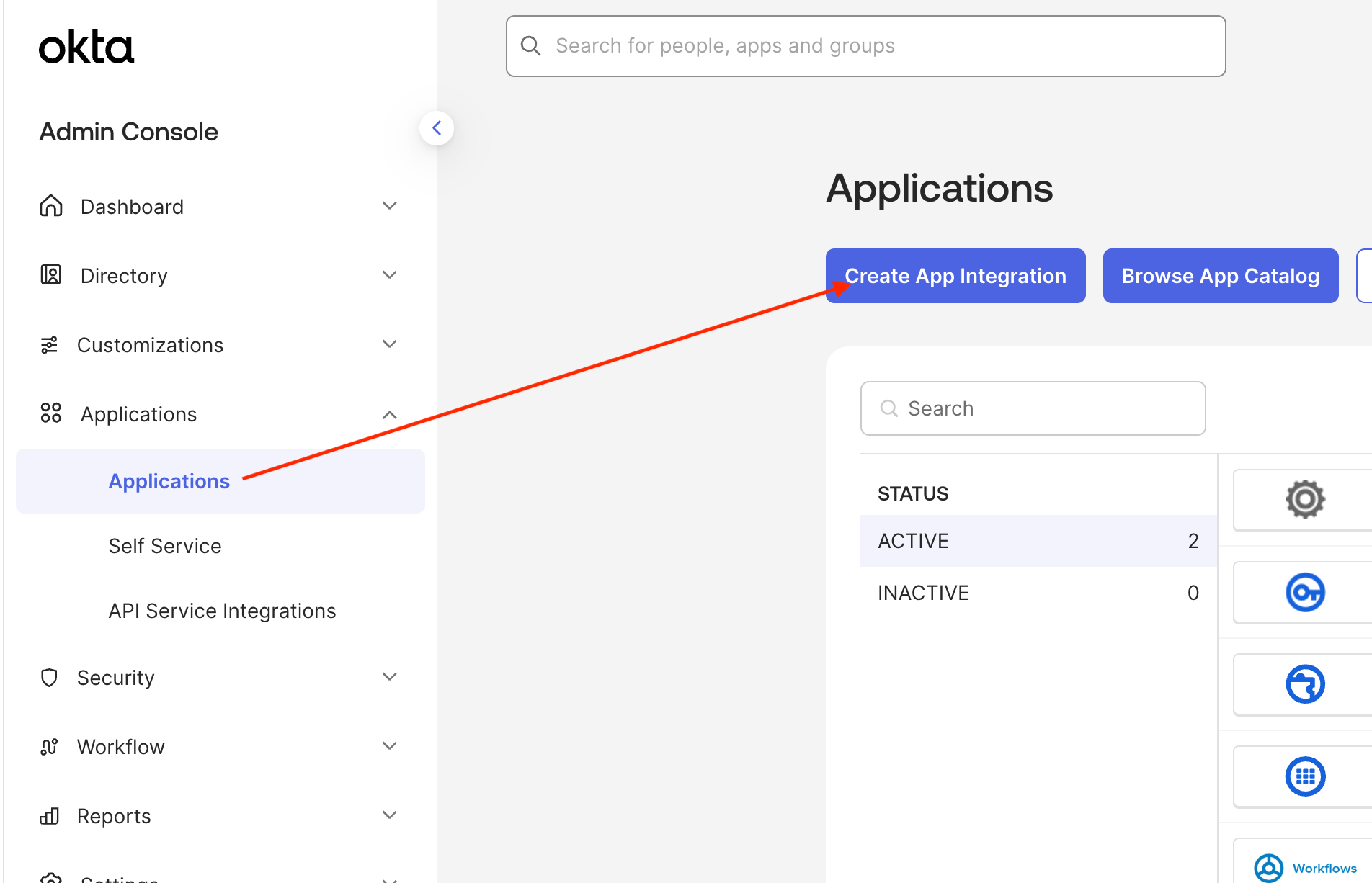
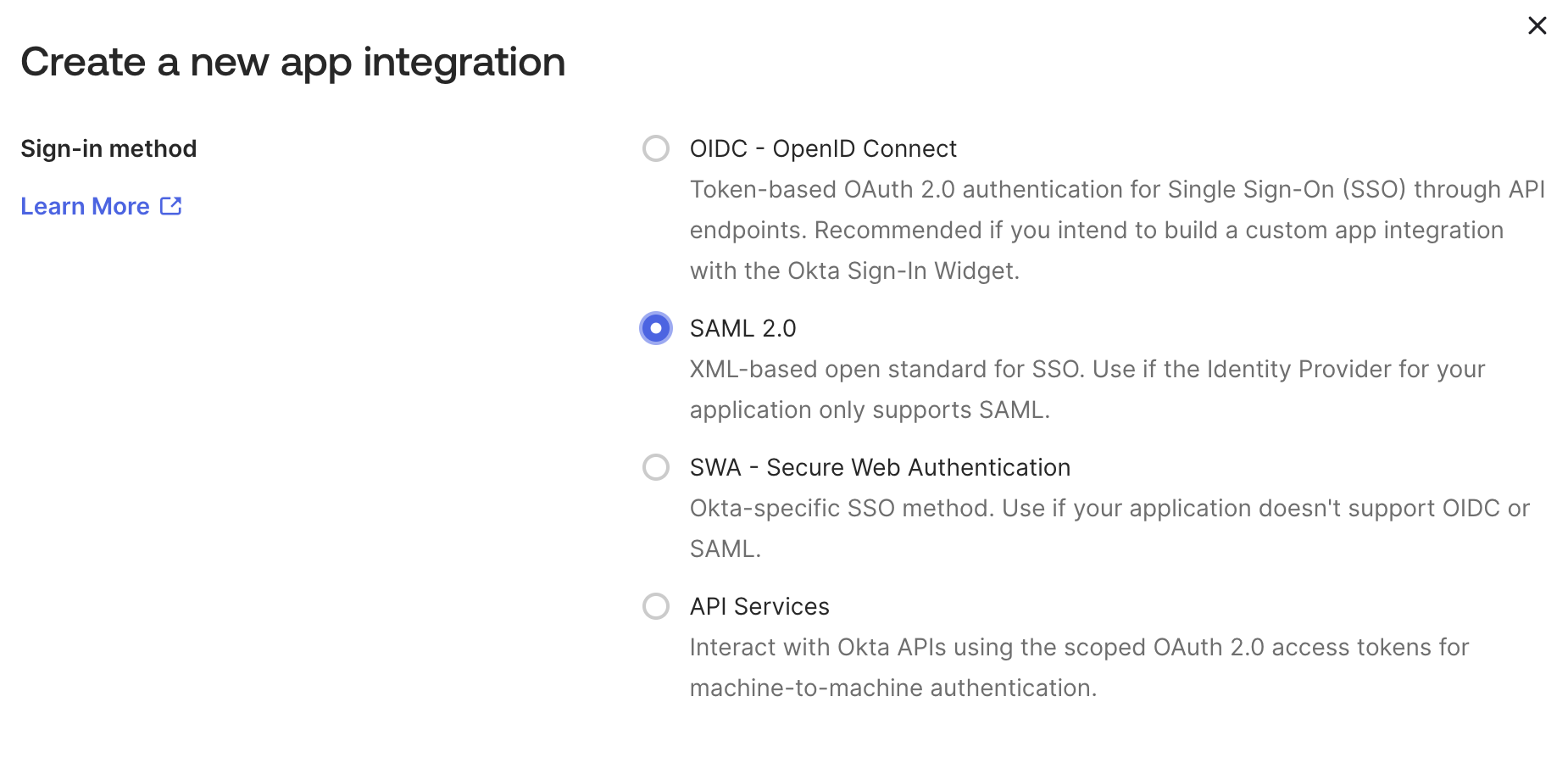
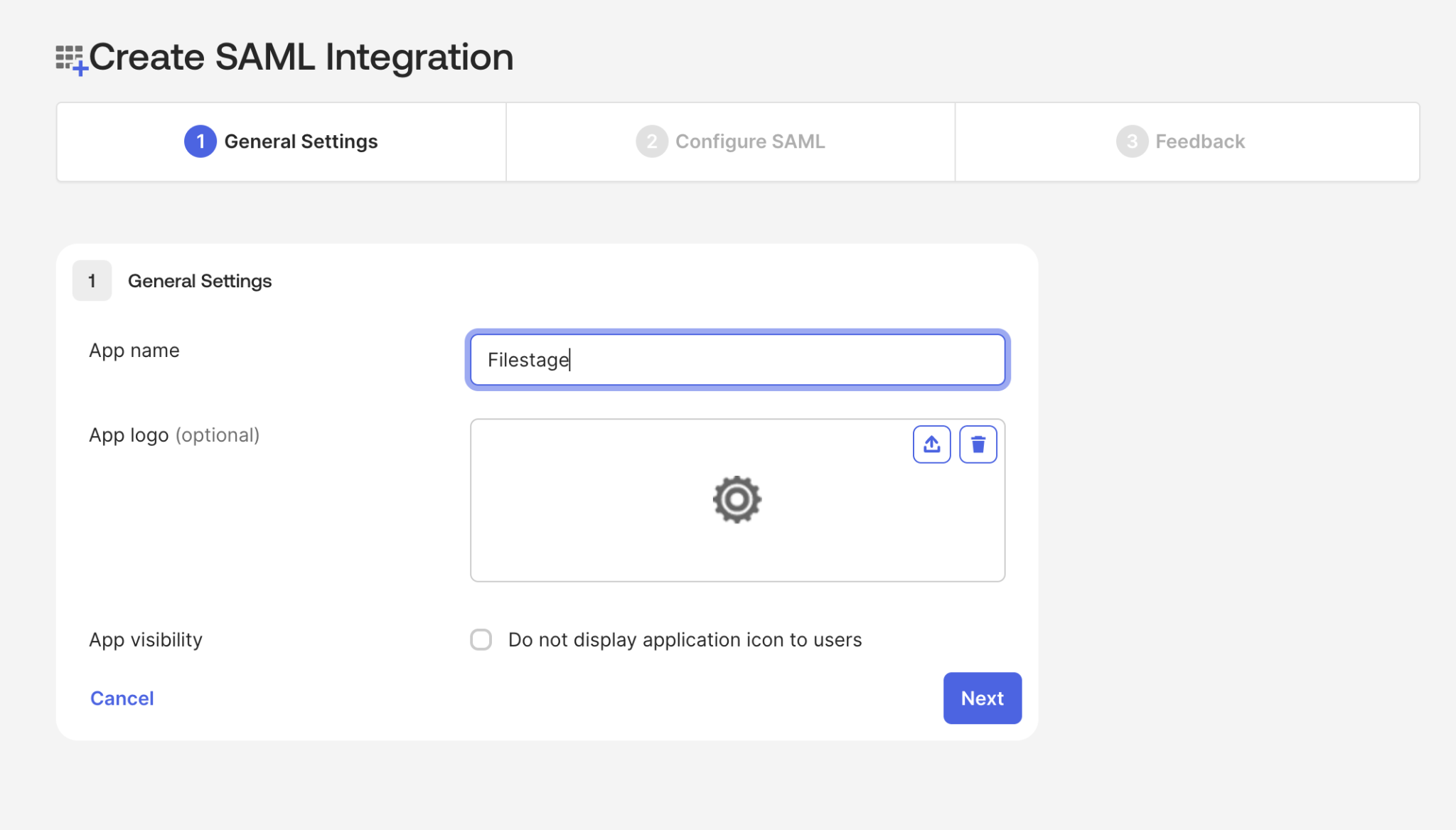
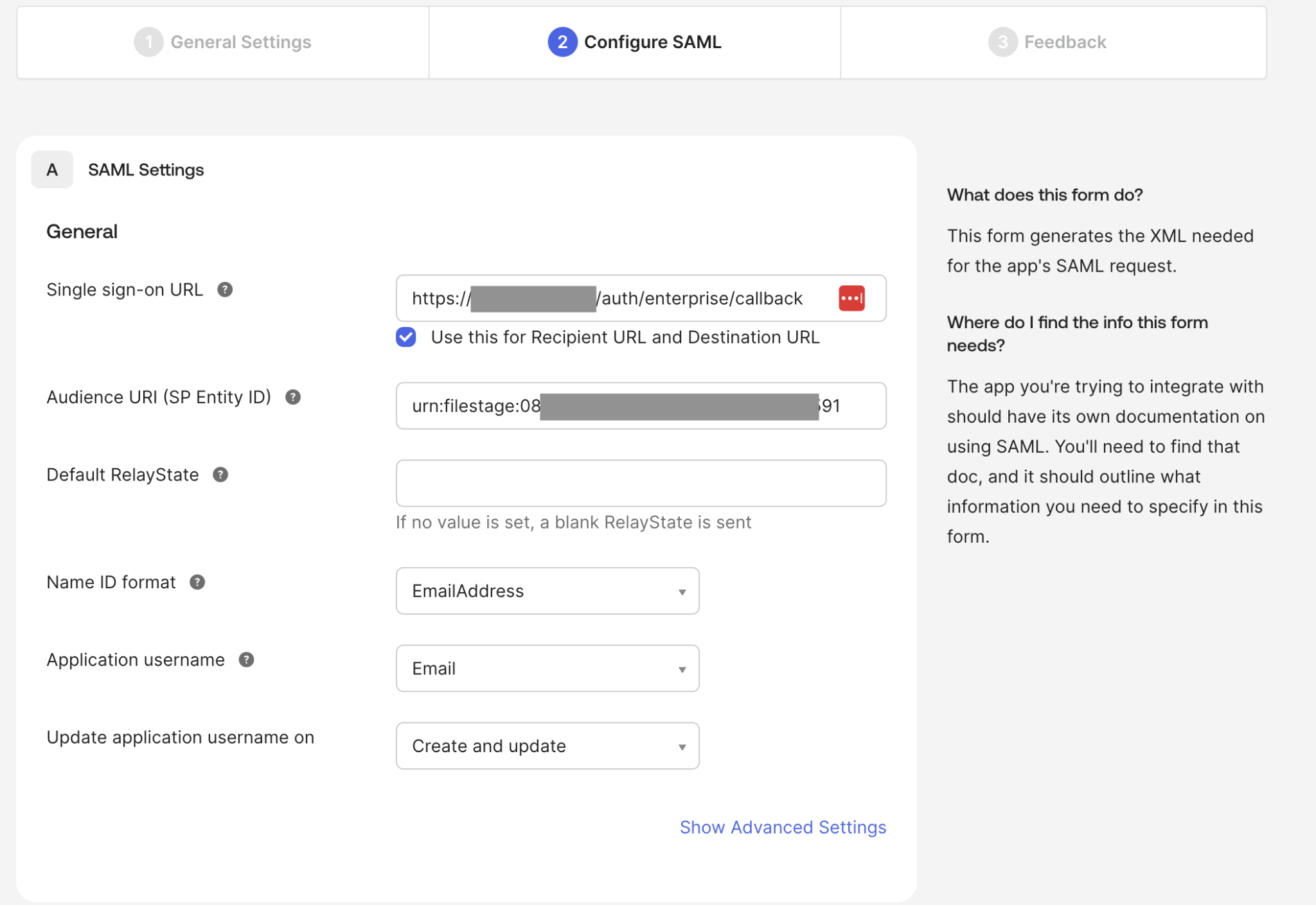
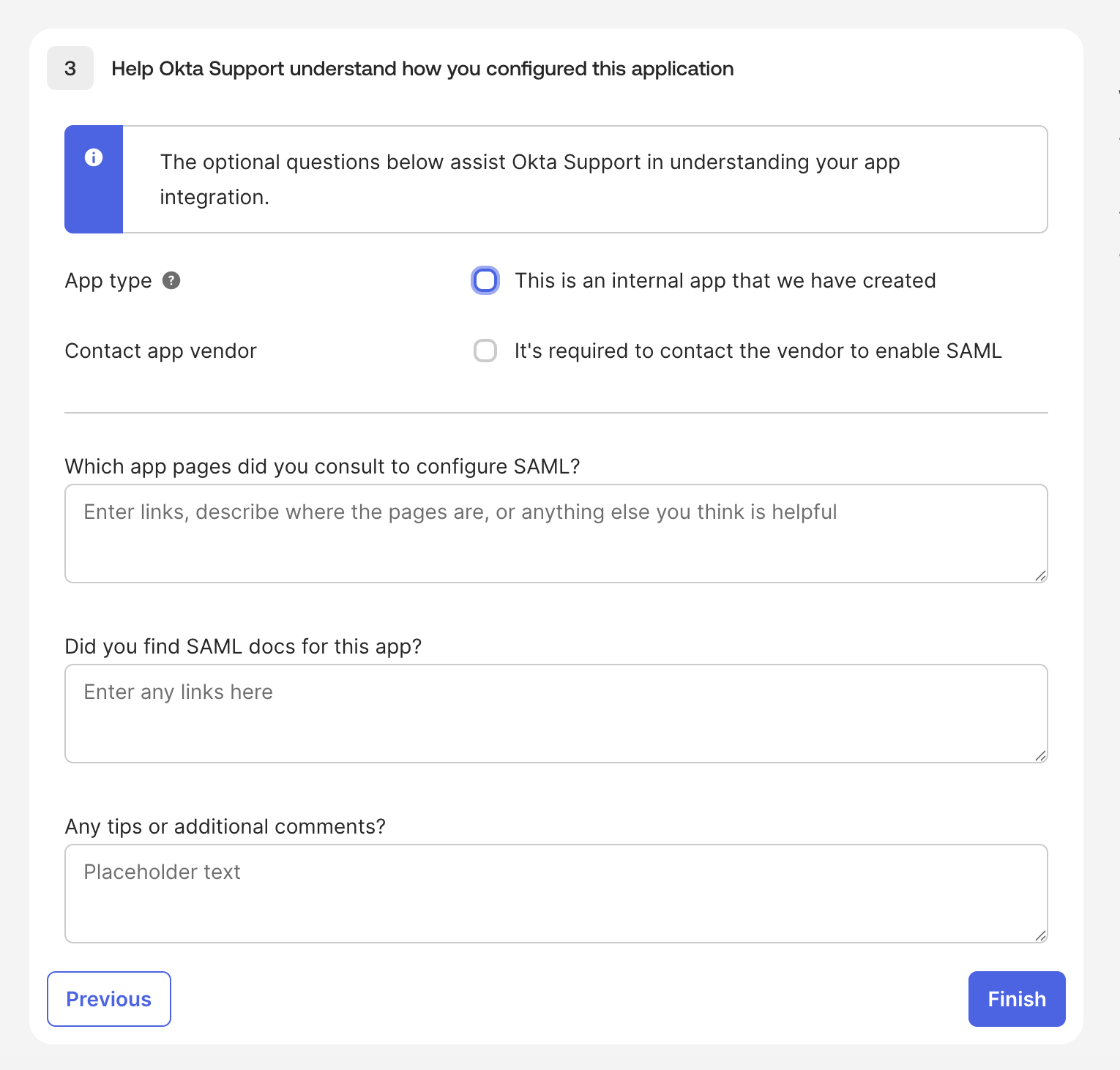
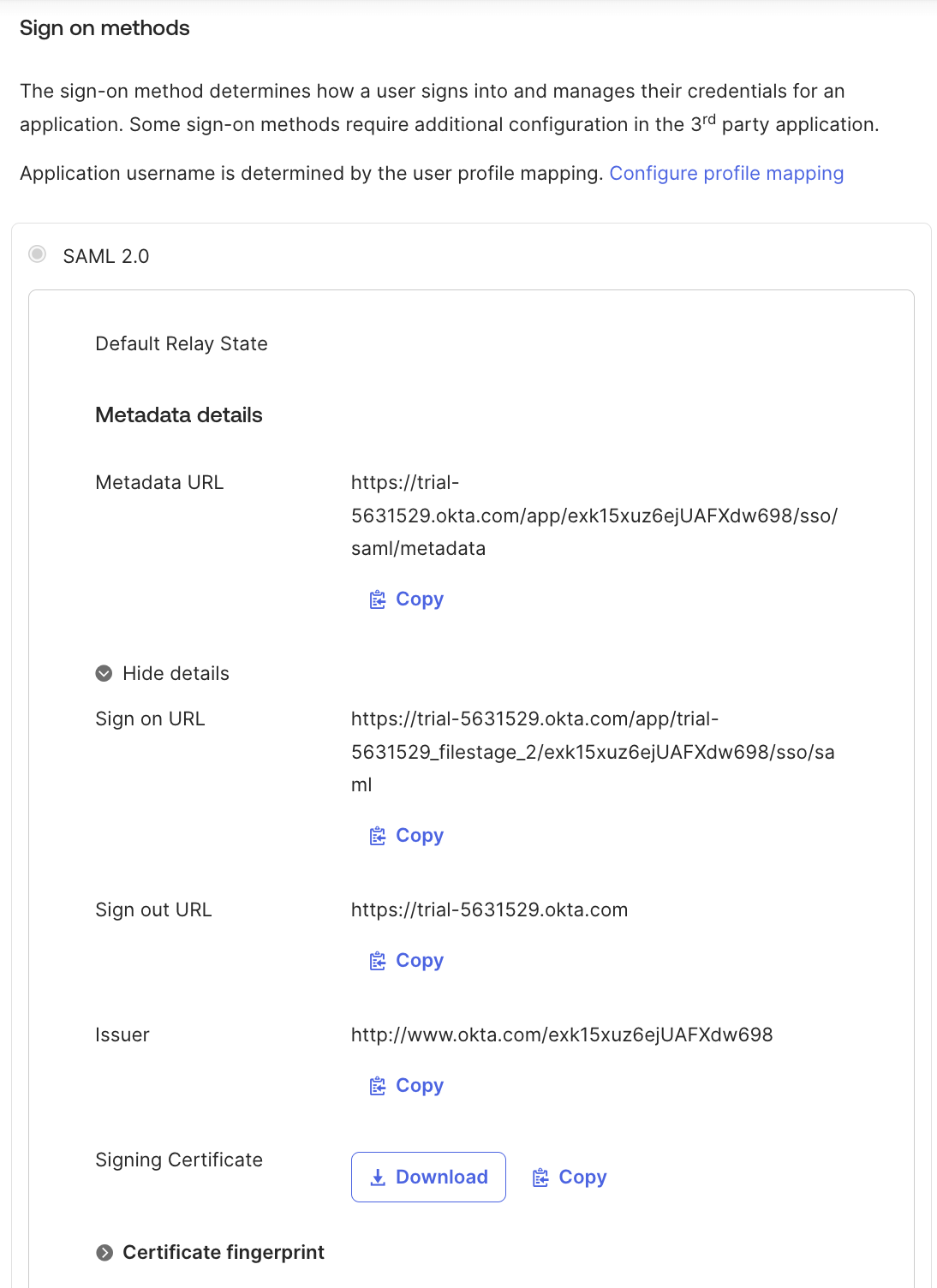
<table style="min-width: 25px;"><colgroup><col style="min-width: 25px;"></colgroup><tbody><tr><td colspan="1" rowspan="1" style="box-sizing: border-box; font-family: proxima-nova, &quot;Helvetica Neue&quot;, system-ui, &quot;Segoe UI&quot;, Roboto, Helvetica, Arial, sans-serif, &quot;Apple Color Emoji&quot;, &quot;Segoe UI Emoji&quot;, &quot;Segoe UI Symbol&quot;; line-height: 1; border: 1px solid rgba(0, 0, 0, 0.1); min-width: 100px; padding: 0.5rem; position: relative; text-align: left; vertical-align: top; margin-top: 0px;"><ol><li><p style="text-align: left;"><span style="color: rgb(0, 0, 0);">Log in to your <strong>Okta Admin Dashboard</strong>.</span></p></li><li><p style="text-align: left;"><span style="color: rgb(0, 0, 0);">Navigate to <strong>Applications &gt; Applications</strong> and click <strong>Create App Integration</strong>.</span></p></li></ol><img src="https://staticfiles.gleap.io/g/nAFaTlkBu1auWrrjdhqhYtgjm79twmf3Xu0ErKO4JFUAjATrZmzsgVfbR985PwIB4T7GmcmdnDh.png" style="box-sizing: border-box; font-family: proxima-nova, &quot;Helvetica Neue&quot;, system-ui, &quot;Segoe UI&quot;, Roboto, Helvetica, Arial, sans-serif, &quot;Apple Color Emoji&quot;, &quot;Segoe UI Emoji&quot;, &quot;Segoe UI Symbol&quot;; line-height: 1; height: auto; width: 100%; max-width: 100%; margin-top: 24px; margin-bottom: 24px; border-radius: 8px; align-self: center; cursor: pointer;"><ol start="3"><li><p style="text-align: left;">Select <strong>SAML 2.0</strong> as the sign-in method, then click <strong>Next</strong>.</p></li></ol><img src="https://staticfiles.gleap.io/g/B9htfrznp6AzSi8vcndvoit7puwX8x1jYLihAl2l6FWS8OgDOjAmretCN9cYM4oqUfpYB1wYktB.png" style="box-sizing: border-box; font-family: proxima-nova, &quot;Helvetica Neue&quot;, system-ui, &quot;Segoe UI&quot;, Roboto, Helvetica, Arial, sans-serif, &quot;Apple Color Emoji&quot;, &quot;Segoe UI Emoji&quot;, &quot;Segoe UI Symbol&quot;; line-height: 1; height: auto; width: 100%; max-width: 100%; margin-top: 24px; margin-bottom: 24px; border-radius: 8px; align-self: center; cursor: pointer;"><ol start="4"><li><p style="text-align: left;">Enter an <strong>App name</strong> that helps you identify the app (e.g. Filestage) and click <strong>Next</strong>.</p></li></ol><img src="https://staticfiles.gleap.io/g/9eUe2Um9Ej3z7Cv51UPyI30CjaOP6iPOaXL5Orh8jrLccUy6QEBKqKQX8Y1SlwDI1CCfvfj0PnG.png" style="box-sizing: border-box; font-family: proxima-nova, &quot;Helvetica Neue&quot;, system-ui, &quot;Segoe UI&quot;, Roboto, Helvetica, Arial, sans-serif, &quot;Apple Color Emoji&quot;, &quot;Segoe UI Emoji&quot;, &quot;Segoe UI Symbol&quot;; line-height: 1; height: auto; width: 100%; max-width: 100%; margin-top: 24px; margin-bottom: 24px; border-radius: 8px; align-self: center; cursor: pointer;"><ol start="5"><li><p style="text-align: left;">In the Configure SAML step, set <strong>Single sign-on URL</strong> to the <strong>Assertion Consumer Service (ACS) URL</strong> you copied from Filestage.</p></li><li><p style="text-align: left;">Set <strong>Audience URI (SP Entity ID)</strong> to the <strong>Entity ID (Audience)</strong> you copied from Filestage.</p></li><li><p style="text-align: left;">Set <strong>Name ID format</strong> to <strong>EmailAddress</strong> and <strong>Application username</strong> to <strong>Email</strong>, then click <strong>Next</strong>.</p></li></ol><img src="https://staticfiles.gleap.io/g/vfLLQejc3bJo93m4DTYcFAZY0KBgRre6fN6kQItiBa88lb7jFD3ZDcJcicCWyevZWQQwVx6OQqJ.png" style="box-sizing: border-box; font-family: proxima-nova, &quot;Helvetica Neue&quot;, system-ui, &quot;Segoe UI&quot;, Roboto, Helvetica, Arial, sans-serif, &quot;Apple Color Emoji&quot;, &quot;Segoe UI Emoji&quot;, &quot;Segoe UI Symbol&quot;; line-height: 1; height: auto; width: 100%; max-width: 100%; margin-top: 24px; margin-bottom: 24px; border-radius: 8px; align-self: center; cursor: pointer;"><ol start="8"><li><p style="text-align: left;">In the <strong>Feedback</strong> step, all fields are optional - click <strong>Finish</strong>.</p></li></ol><img src="https://staticfiles.gleap.io/g/9MF18chzXfMLB3LsX2c03wu6l1su8KqAli5N2peuqUSm0Co2o4tCacd9guF3cOofEVeWiSI7HaJ.png" style="box-sizing: border-box; font-family: proxima-nova, &quot;Helvetica Neue&quot;, system-ui, &quot;Segoe UI&quot;, Roboto, Helvetica, Arial, sans-serif, &quot;Apple Color Emoji&quot;, &quot;Segoe UI Emoji&quot;, &quot;Segoe UI Symbol&quot;; line-height: 1; height: auto; width: 100%; max-width: 100%; margin-top: 24px; margin-bottom: 24px; border-radius: 8px; align-self: center; cursor: pointer;"><ol start="9"><li><p style="text-align: left;">Open the app you just created, go to the <strong>Sign On</strong> tab and click <strong>More details</strong>.</p></li></ol><img src="https://staticfiles.gleap.io/g/eouzb3OURNA6ZUiIN81dmxFLk8YgGMDueK1VOuq0S1kebFhpqGQla7yByPsHc1fqgGETxfQU6bN.png" style="box-sizing: border-box; font-family: proxima-nova, &quot;Helvetica Neue&quot;, system-ui, &quot;Segoe UI&quot;, Roboto, Helvetica, Arial, sans-serif, &quot;Apple Color Emoji&quot;, &quot;Segoe UI Emoji&quot;, &quot;Segoe UI Symbol&quot;; line-height: 1; height: auto; width: 100%; max-width: 100%; margin-top: 24px; margin-bottom: 24px; border-radius: 8px; align-self: center; cursor: pointer;"><ol start="10"><li><p style="text-align: left;">Note the <strong>Sign on URL</strong> and the <strong>Issuer</strong>, and download the <strong>Signing Certificate</strong> - you'll need them in Filestage.</p></li></ol></td></tr></tbody></table>

### Step 3: Configure SSO in Filestage

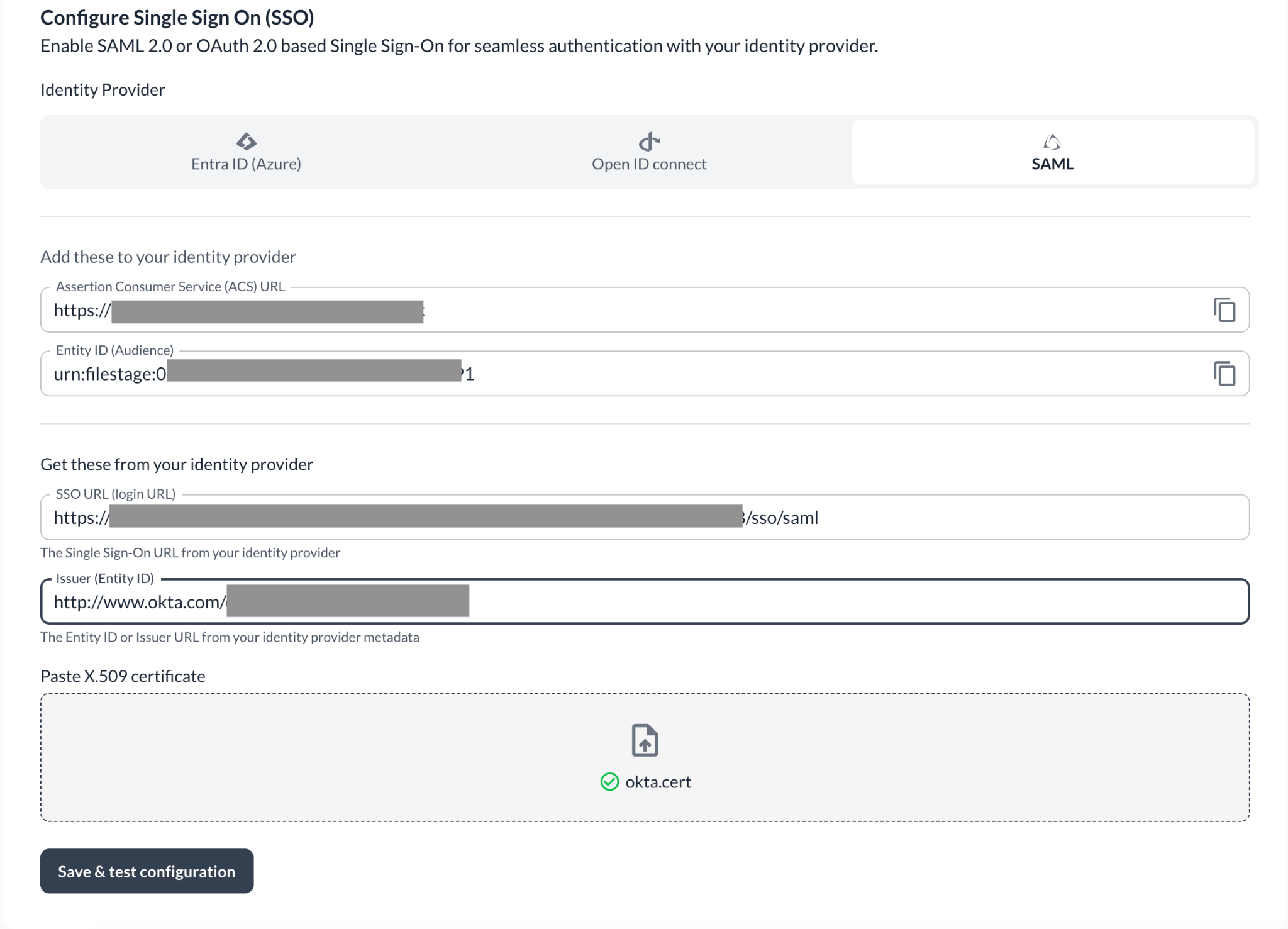
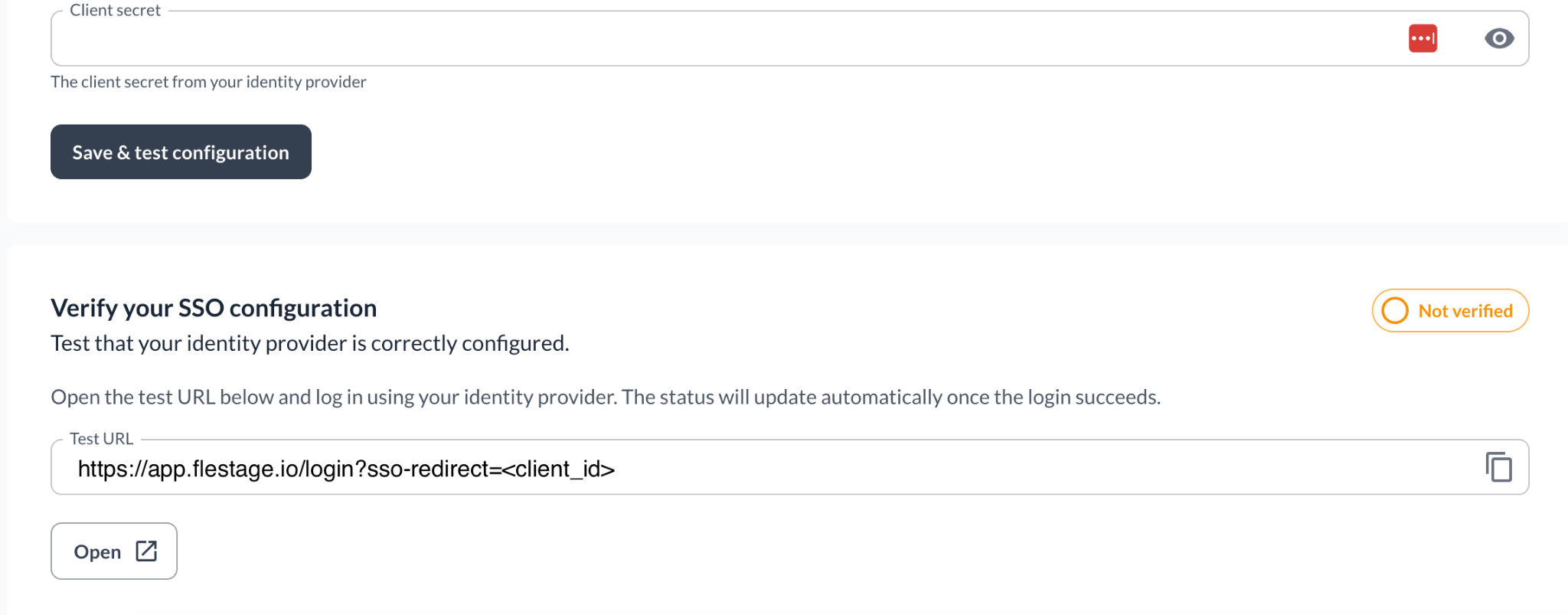
<table style="min-width: 25px;"><colgroup><col style="min-width: 25px;"></colgroup><tbody><tr><td colspan="1" rowspan="1" style="box-sizing: border-box; font-family: proxima-nova, &quot;Helvetica Neue&quot;, system-ui, &quot;Segoe UI&quot;, Roboto, Helvetica, Arial, sans-serif, &quot;Apple Color Emoji&quot;, &quot;Segoe UI Emoji&quot;, &quot;Segoe UI Symbol&quot;; line-height: 1; border: 1px solid rgba(0, 0, 0, 0.1); min-width: 100px; padding: 0.5rem; position: relative; text-align: left; vertical-align: top; margin-top: 0px;"><ol><li><p style="text-align: left;"><span style="color: rgb(0, 0, 0);">In Filestage, go to </span><a target="_blank" rel="noopener noreferrer nofollow" class="linktype-link link" data-linktype="link" href="https://app.filestage.io/teams/security-and-privacy"><span style="color: rgb(0, 0, 0);"><u>app.filestage.io/teams/security-and-privacy</u></span></a><span style="color: rgb(0, 0, 0);"> - this opens the security and privacy settings of your last selected team.</span></p></li><li><p style="text-align: left;"><span style="color: rgb(0, 0, 0);">Scroll down to the <strong>Identity and Access Management (IAM)</strong> section and click <strong>Configure SSO</strong>.</span></p></li></ol><img src="https://staticfiles.gleap.io/g/uE3ZMLWr50g1O2UL8pfxYZg5b7UUg4UfAZpOjKYULiy8fqbC6uIydXI6AGCeFtL2gKjfRLpxd8U.png" style="box-sizing: border-box; font-family: proxima-nova, &quot;Helvetica Neue&quot;, system-ui, &quot;Segoe UI&quot;, Roboto, Helvetica, Arial, sans-serif, &quot;Apple Color Emoji&quot;, &quot;Segoe UI Emoji&quot;, &quot;Segoe UI Symbol&quot;; line-height: 1; height: auto; width: 100%; max-width: 100%; margin-top: 24px; margin-bottom: 24px; border-radius: 8px; align-self: center; cursor: pointer;"><ol start="3"><li><p style="text-align: left;">Select the <strong>SAML</strong> option.</p></li><li><p style="text-align: left;">Fill in the details you copied from Okta: paste the <strong>Sign on URL</strong> into <strong>SSO URL (login URL)</strong>, the <strong>Issuer</strong> into <strong>Issuer (Entity ID)</strong>, and upload the <strong>Signing certificate</strong> file.</p></li></ol><img src="https://staticfiles.gleap.io/g/iqrRZQiHrzCNHQ3RfzCvMoNTR8xaRg1xUdKel3Z4R2tjWr3DcpVyXMi9ennuiadD7sNzJjkeBsV.png" style="box-sizing: border-box; font-family: proxima-nova, &quot;Helvetica Neue&quot;, system-ui, &quot;Segoe UI&quot;, Roboto, Helvetica, Arial, sans-serif, &quot;Apple Color Emoji&quot;, &quot;Segoe UI Emoji&quot;, &quot;Segoe UI Symbol&quot;; line-height: 1; height: auto; width: 100%; max-width: 100%; margin-top: 24px; margin-bottom: 24px; border-radius: 8px; align-self: center; cursor: pointer;"><ol start="5"><li><p style="text-align: left;"><span style="color: rgb(0, 0, 0);">Click <strong>Save &amp; test configuration</strong> - the verify section will appear at the bottom of the page.</span></p></li></ol><img src="https://staticfiles.gleap.io/g/bn7BlirgMI0sxZtbi1qB1qeaaWHtSFUTVRoEHVS1wuMCQsNiR3MaUiZwxZwPtoTbX8OZyqyn3Am.png" style="box-sizing: border-box; font-family: proxima-nova, &quot;Helvetica Neue&quot;, system-ui, &quot;Segoe UI&quot;, Roboto, Helvetica, Arial, sans-serif, &quot;Apple Color Emoji&quot;, &quot;Segoe UI Emoji&quot;, &quot;Segoe UI Symbol&quot;; line-height: 1; height: auto; width: 100%; max-width: 100%; margin-top: 24px; margin-bottom: 24px; border-radius: 8px; align-self: center; cursor: pointer;"></td></tr></tbody></table>

### Step 4: Verify your SSO configuration

> **Warning:** Once the verification is completed successfully, all your team members will be required to log in to Filestage via SSO only.

<table style="min-width: 25px;"><colgroup><col style="min-width: 25px;"></colgroup><tbody><tr><td colspan="1" rowspan="1" style="box-sizing: border-box; font-family: proxima-nova, &quot;Helvetica Neue&quot;, system-ui, &quot;Segoe UI&quot;, Roboto, Helvetica, Arial, sans-serif, &quot;Apple Color Emoji&quot;, &quot;Segoe UI Emoji&quot;, &quot;Segoe UI Symbol&quot;; line-height: 1; border: 1px solid rgba(0, 0, 0, 0.1); min-width: 100px; padding: 0.5rem; position: relative; text-align: left; vertical-align: top; margin-top: 0px;"><ol><li><p style="text-align: left;"><span style="color: rgb(0, 0, 0);">Copy the <strong>Test URL</strong> from the verify section.</span></p></li><li><p style="text-align: left;"><span style="color: rgb(0, 0, 0);">Sign out of Filestage, or open the test URL in an incognito window of your browser.</span></p></li><li><p style="text-align: left;"><span style="color: rgb(0, 0, 0);">Log in with your identity provider. If everything is configured correctly, the status switches to <strong>Verified</strong> and you'll see this confirmation:</span></p></li></ol><img src="https://staticfiles.gleap.io/g/oACzy4fPlG5d8AxR7DscdsQsJGecEGLKe5mfhnNmlGUlkfbTITLVpdktcOViscnfgvObVfGNacG.png" style="box-sizing: border-box; font-family: proxima-nova, &quot;Helvetica Neue&quot;, system-ui, &quot;Segoe UI&quot;, Roboto, Helvetica, Arial, sans-serif, &quot;Apple Color Emoji&quot;, &quot;Segoe UI Emoji&quot;, &quot;Segoe UI Symbol&quot;; line-height: 1; height: auto; width: 100%; max-width: 100%; margin-top: 24px; margin-bottom: 24px; border-radius: 8px; align-self: center; cursor: pointer;"></td></tr></tbody></table>

And that's it - from now on, your team members log in to Filestage with your identity provider.

💡 What’s next? Once you’re done, see how to [manage your team members](https://help.filestage.io/en/articles/9465096-understand-and-manage-team-members.md)!

Let us know if you have any questions by reaching out to us on chat or emailing us at [support@filestage.io](mailto:support@filestage.io). We're always happy to help!