---
title: "Set up Single sign-on (SSO) via Okta (OpenID Connect)"
description: "Learn how to establish a connection using OpenID Connect protocol for SSO with Filestage"
url: https://help.filestage.io/en/articles/9465128-set-up-single-sign-on-sso-via-okta-openid-connect
collection: "Setup, Compatibility and Troubleshooting"
updated: 2026-08-11
language: en
alternates: [de, fr, es]
---

# Set up Single sign-on (SSO) via Okta (OpenID Connect)

Learn how to establish a connection using OpenID Connect protocol for SSO with Filestage

> **Info:** This feature is available on our Enterprise plan, or as a paid add-on on our Business plan. Should you have any additional questions, please reach out to our customer support via [support@filestage.io](mailto:support@filestage.io) or via our chat.

* * *

_Single sign-on (SSO) lets your team log in to Filestage with the Okta account they already use every day. No extra passwords, tighter security, and full control over who can access your projects - and connecting Okta via OpenID Connect only takes a few minutes._

## How single sign-on via OpenID Connect can help you

Connecting Filestage to Okta makes logging in easier for your team and gives your admins central control over access:

-   **No extra passwords** - everyone signs in to Filestage with their existing Okta account.
    
-   **Central access control** - decide in Okta who can access Filestage and remove access in one place when someone leaves your organization.
    
-   **Enterprise-grade security** - your authentication policies, like multi-factor authentication, automatically apply to every Filestage login.
    

## How to set up SSO with OpenID Connect (via Okta)

### Step 1: Create the app integration in Okta

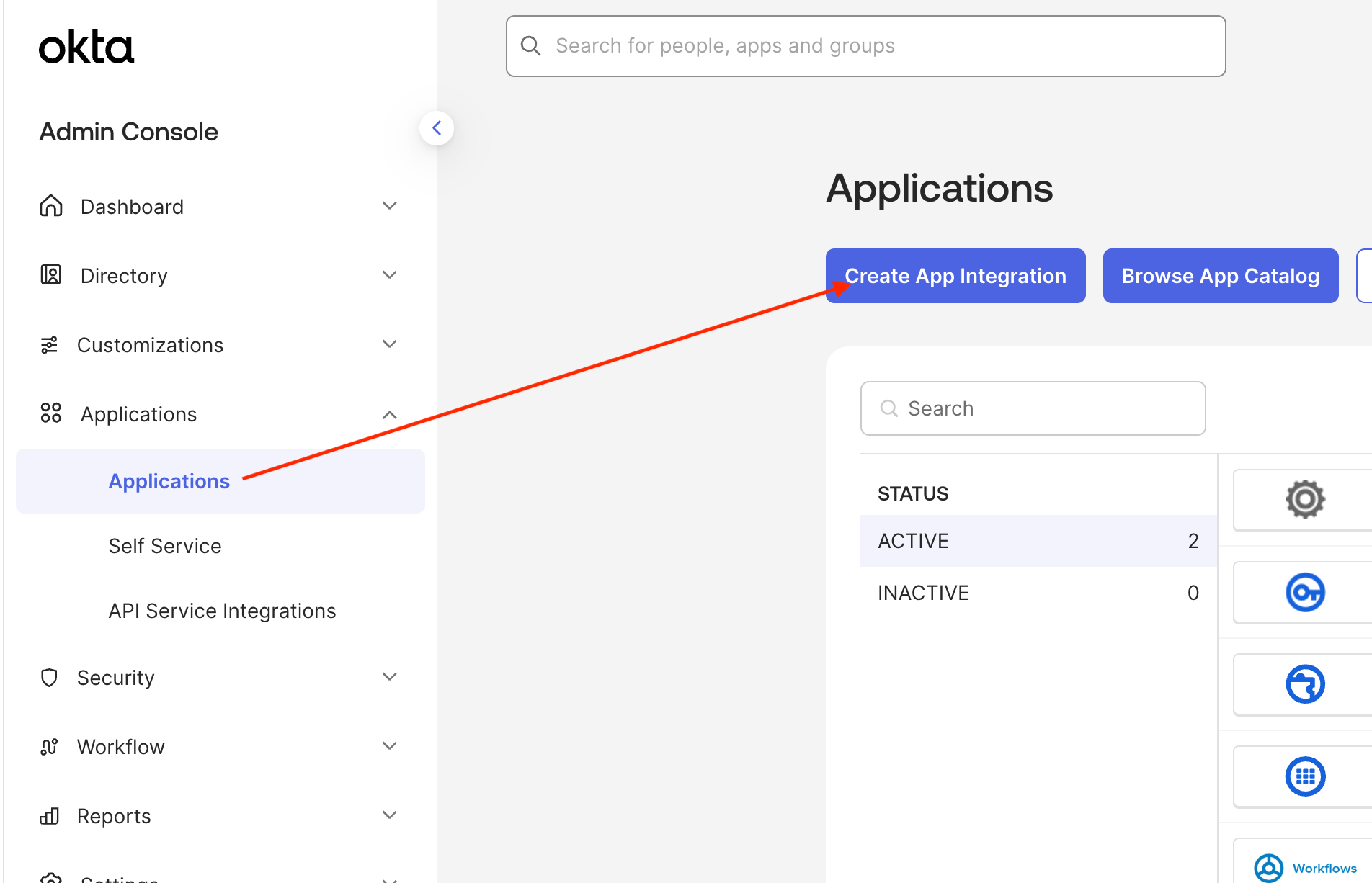
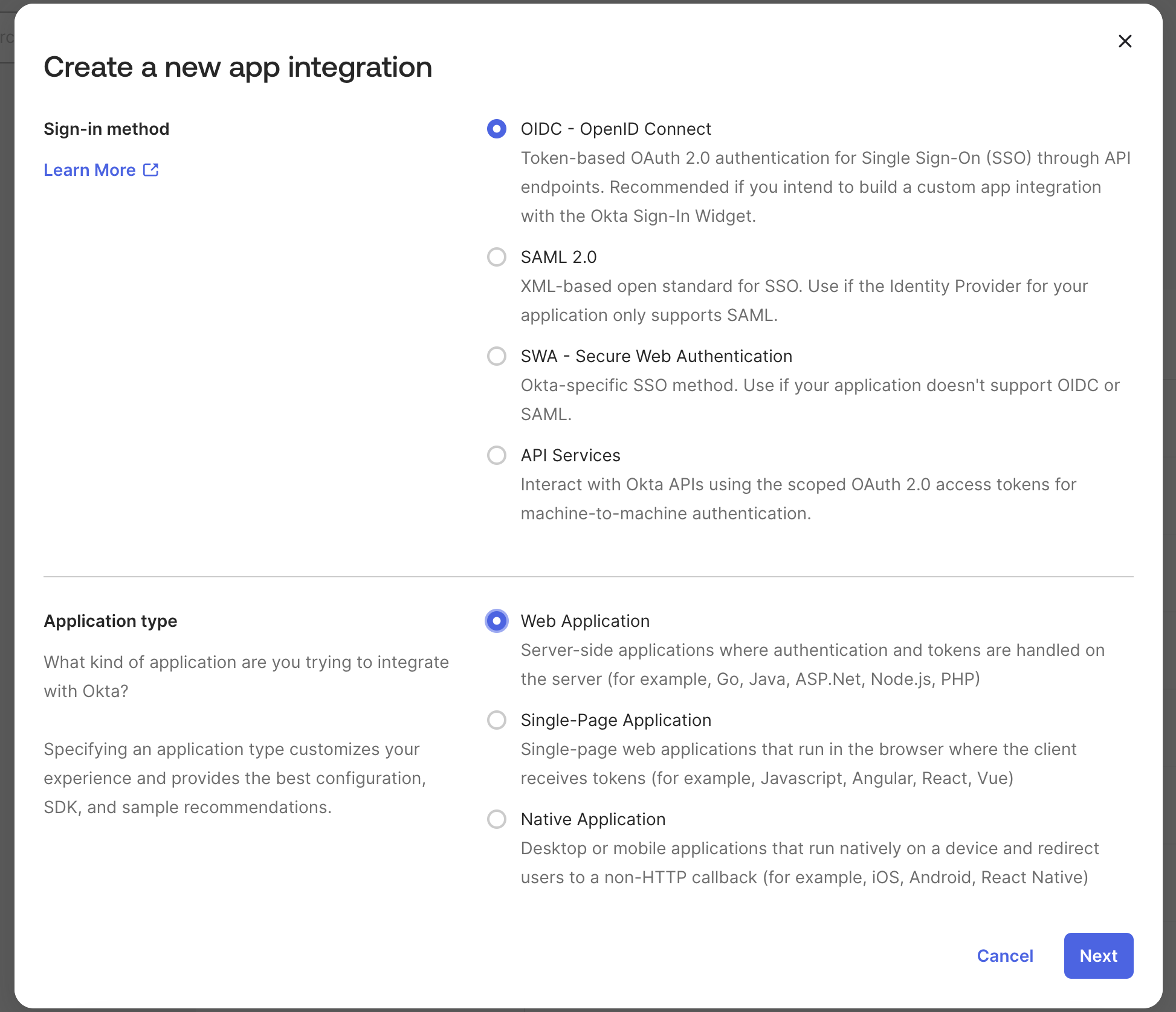
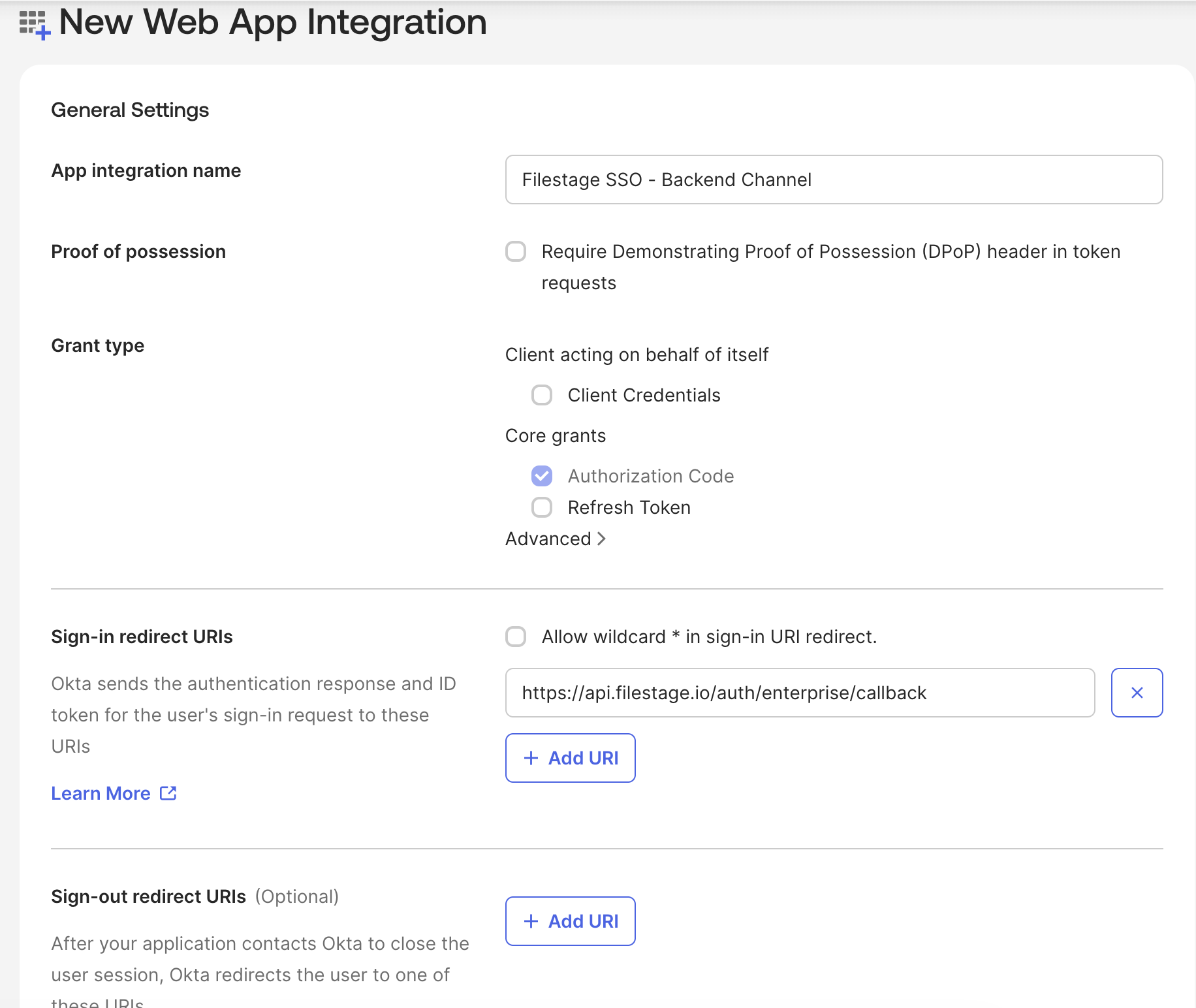
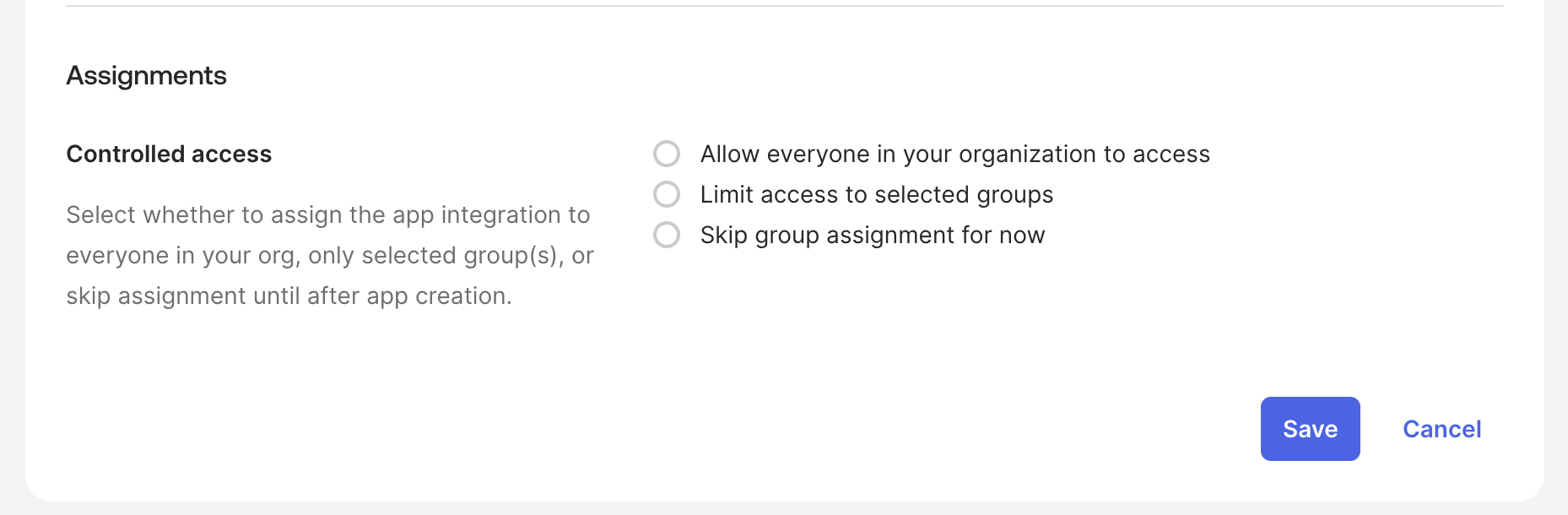
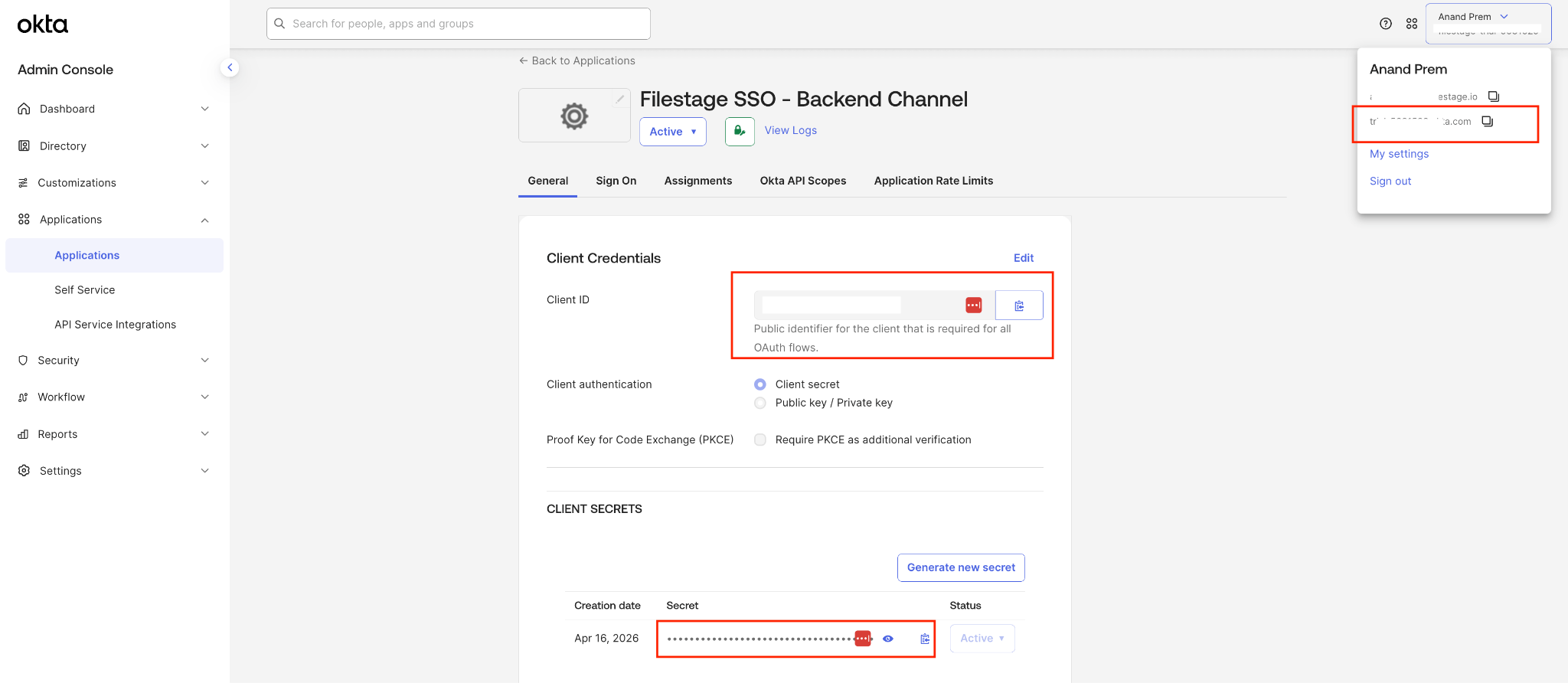
<table data-id="05d3f4d1-70df-4758-afd5-ea8d5d7cb92e" style="min-width: 25px;"><colgroup><col style="min-width: 25px;"></colgroup><tbody><tr><td colspan="1" rowspan="1" style="box-sizing: border-box; font-family: proxima-nova, &quot;Helvetica Neue&quot;, system-ui, &quot;Segoe UI&quot;, Roboto, Helvetica, Arial, sans-serif, &quot;Apple Color Emoji&quot;, &quot;Segoe UI Emoji&quot;, &quot;Segoe UI Symbol&quot;; line-height: 1; border: 1px solid rgba(0, 0, 0, 0.1); min-width: 100px; padding: 0.5rem; position: relative; text-align: left; vertical-align: top; margin-top: 0px;"><ol><li><p data-id="304972e7-3fb4-42c5-9fdf-e7867a2d0d69" style="text-align: left;"><span style="color: rgb(0, 0, 0);">Log in to your <strong>Okta Admin Dashboard</strong>.</span></p></li><li><p data-id="fcd4f933-88bb-41db-96f9-a79ff5c33d6e" style="text-align: left;"><span style="color: rgb(0, 0, 0);">Navigate to <strong>Applications &gt; Applications</strong> and click <strong>Create App Integration</strong>.</span></p></li></ol><img src="https://staticfiles.gleap.io/g/nAFaTlkBu1auWrrjdhqhYtgjm79twmf3Xu0ErKO4JFUAjATrZmzsgVfbR985PwIB4T7GmcmdnDh.png" alt="Create App Integration button in the Okta Admin Dashboard" style="box-sizing: border-box; font-family: proxima-nova, &quot;Helvetica Neue&quot;, system-ui, &quot;Segoe UI&quot;, Roboto, Helvetica, Arial, sans-serif, &quot;Apple Color Emoji&quot;, &quot;Segoe UI Emoji&quot;, &quot;Segoe UI Symbol&quot;; line-height: 1; height: auto; width: 100%; max-width: 100%; margin-top: 24px; margin-bottom: 24px; border-radius: 8px; align-self: center; cursor: pointer;"><ol start="3"><li><p data-id="867bbb33-c1ad-4c56-9bc1-0fa3b2f3b158" style="text-align: left;"><span style="color: rgb(0, 0, 0);">Select <strong>OIDC - OpenID Connect</strong> as the sign-in method and <strong>Web Application</strong> as the application type, then click <strong>Next</strong>.</span></p></li></ol><img src="https://staticfiles.gleap.io/g/n9LZoM7Z4XWlKpuuFnQZKHqZ5udg0aei158vVXefcPcs9RwV4juMRfK8b59M9uQUgB28NxY5cyc.png" alt="Selecting OIDC - OpenID Connect and Web Application in Okta" style="box-sizing: border-box; font-family: proxima-nova, &quot;Helvetica Neue&quot;, system-ui, &quot;Segoe UI&quot;, Roboto, Helvetica, Arial, sans-serif, &quot;Apple Color Emoji&quot;, &quot;Segoe UI Emoji&quot;, &quot;Segoe UI Symbol&quot;; line-height: 1; height: auto; width: 100%; max-width: 100%; margin-top: 24px; margin-bottom: 24px; border-radius: 8px; align-self: center; cursor: pointer;"><ol start="4"><li><p data-id="9ee08a1d-5fc8-4e05-b82b-12d069f9fe76" style="text-align: left;"><span style="color: rgb(0, 0, 0);">Enter an <strong>App integration name</strong> that helps you identify the connection (e.g. Filestage).</span></p></li><li><p data-id="6a546aa2-3a52-4128-b23e-4562f2e8f250" style="text-align: left;"><span style="color: rgb(0, 0, 0);">Under Grant type, select the <strong>Authorization Code</strong> option.</span></p></li><li><p data-id="d233f959-292c-49a0-b8d7-68183bb05ebe" style="text-align: left;"><span style="color: rgb(0, 0, 0);">Add the following <strong>Sign-in redirect URI</strong>: https://api.filestage.io/auth/enterprise/callback</span></p></li></ol><img src="https://staticfiles.gleap.io/g/VnOF9Ub8M3LSEpyuddeIinz4sWCgviuO6dVkeVJHq7jdbniOCoFA5WAWK7yfGoairGJjV9USGj5.png" alt="New Web App Integration settings in Okta with the Filestage redirect URI" style="box-sizing: border-box; font-family: proxima-nova, &quot;Helvetica Neue&quot;, system-ui, &quot;Segoe UI&quot;, Roboto, Helvetica, Arial, sans-serif, &quot;Apple Color Emoji&quot;, &quot;Segoe UI Emoji&quot;, &quot;Segoe UI Symbol&quot;; line-height: 1; height: auto; width: 100%; max-width: 100%; margin-top: 24px; margin-bottom: 24px; border-radius: 8px; align-self: center; cursor: pointer;"><ol start="7"><li><p data-id="6f4bacad-9657-4e8f-b007-9a2b41baf27b" style="text-align: left;"><span style="color: rgb(0, 0, 0);">Under Assignments, choose who from your organization should have access to Filestage.</span></p></li></ol><img src="https://staticfiles.gleap.io/g/A3Fd1GErzhVkI71gIjG1nMGOCd6iE1bn1p3JEu9q6qrPN8gJdRQFR4KnzhpxP2CjPUKinm25DHK.png" alt="Assignments section with controlled access options in Okta" style="box-sizing: border-box; font-family: proxima-nova, &quot;Helvetica Neue&quot;, system-ui, &quot;Segoe UI&quot;, Roboto, Helvetica, Arial, sans-serif, &quot;Apple Color Emoji&quot;, &quot;Segoe UI Emoji&quot;, &quot;Segoe UI Symbol&quot;; line-height: 1; height: auto; width: 100%; max-width: 100%; margin-top: 24px; margin-bottom: 24px; border-radius: 8px; align-self: center; cursor: pointer;"><ol start="8"><li><p data-id="42536993-6e72-40ac-91a9-979a0a030a42" style="text-align: left;"><span style="color: rgb(0, 0, 0);"><strong>Save</strong> the application.</span></p></li><li><p data-id="ec136455-283a-4e7b-be0a-e694edec3395" style="text-align: left;"><span style="color: rgb(0, 0, 0);">On the app's General page, copy the <strong>Client ID</strong> and the <strong>Client Secret</strong>. You'll also need your <strong>Okta domain URI</strong> - you can find it in the dropdown under your username/profile icon in the top right corner.</span></p></li></ol><img src="https://staticfiles.gleap.io/g/r49TnLmvxFWecacjd7264v3P6mRcH206RHgyezHc1unB9piSIBuih9DDHB3aOVbCUyvusnqvr3Q.png" alt="Client ID, client secret, and Okta domain in the Okta app settings" style="box-sizing: border-box; font-family: proxima-nova, &quot;Helvetica Neue&quot;, system-ui, &quot;Segoe UI&quot;, Roboto, Helvetica, Arial, sans-serif, &quot;Apple Color Emoji&quot;, &quot;Segoe UI Emoji&quot;, &quot;Segoe UI Symbol&quot;; line-height: 1; height: auto; width: 100%; max-width: 100%; margin-top: 24px; margin-bottom: 24px; border-radius: 8px; align-self: center; cursor: pointer;"></td></tr></tbody></table>

And that's it for the Okta side - with your Client ID, Client Secret, and Okta domain URI you have everything you need to connect Filestage.

### Step 2: Configure SSO in Filestage

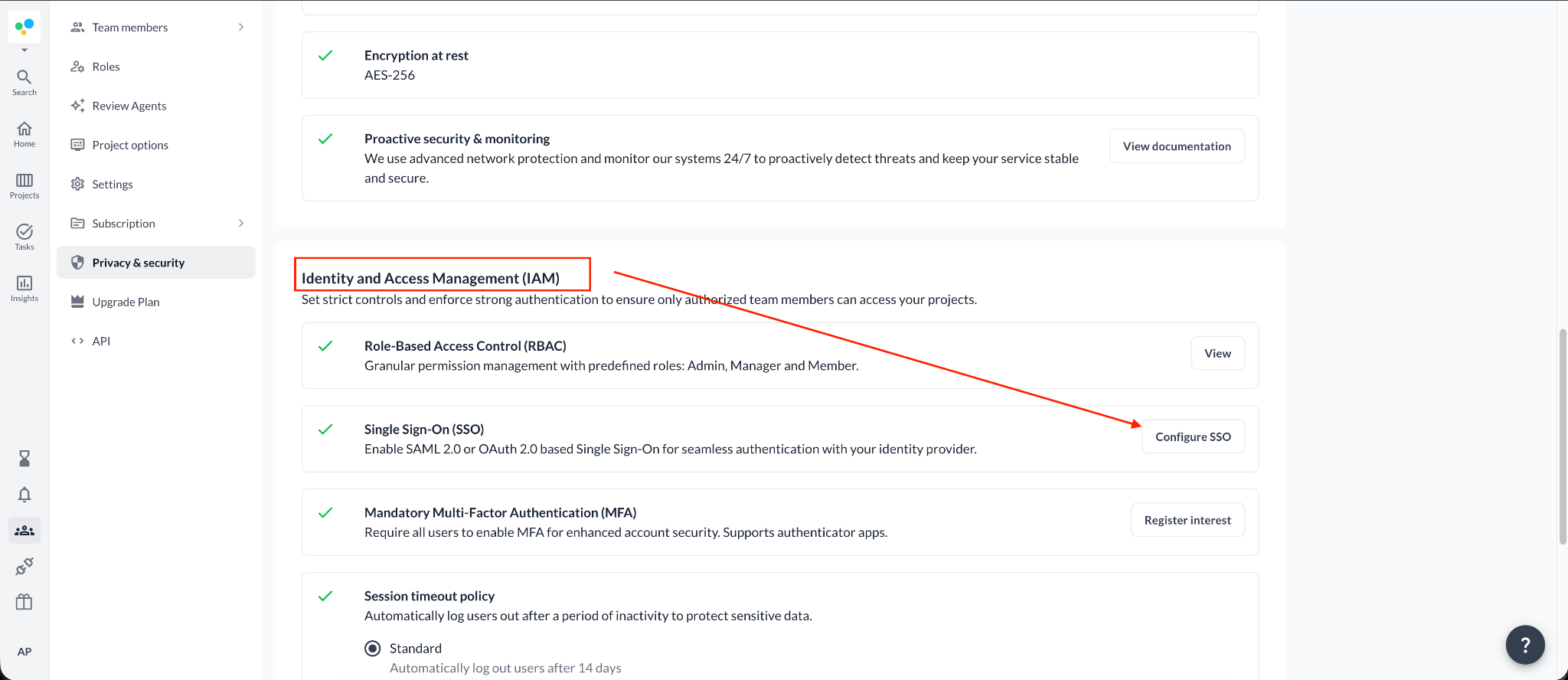
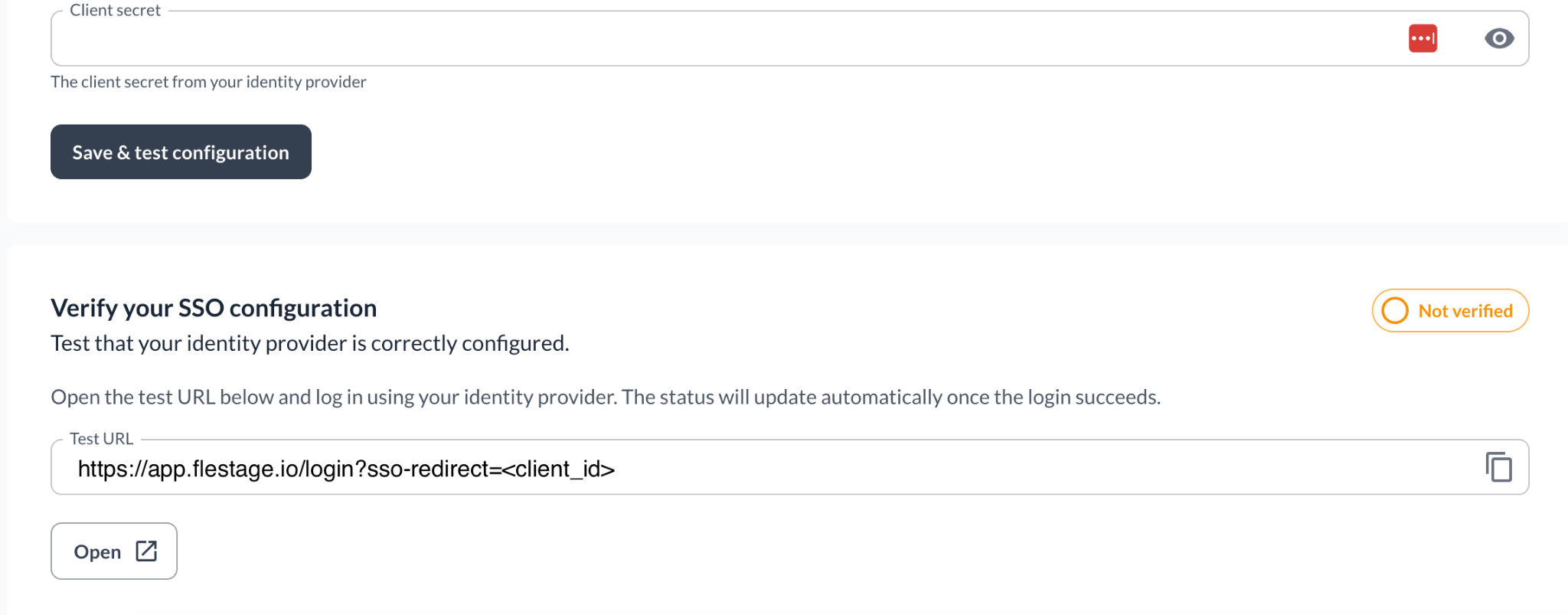
<table data-id="2c200101-ac00-4640-91e0-2ab7a86de04a" style="min-width: 25px;"><colgroup><col style="min-width: 25px;"></colgroup><tbody><tr><td colspan="1" rowspan="1" style="box-sizing: border-box; font-family: proxima-nova, &quot;Helvetica Neue&quot;, system-ui, &quot;Segoe UI&quot;, Roboto, Helvetica, Arial, sans-serif, &quot;Apple Color Emoji&quot;, &quot;Segoe UI Emoji&quot;, &quot;Segoe UI Symbol&quot;; line-height: 1; border: 1px solid rgba(0, 0, 0, 0.1); min-width: 100px; padding: 0.5rem; position: relative; text-align: left; vertical-align: top; margin-top: 0px;"><ol><li><p data-id="0b7acb3a-9028-43e2-8a3b-cc8fc7adc49f" style="text-align: left;"><span style="color: rgb(0, 0, 0);">In Filestage, go to </span><a target="_blank" rel="noopener noreferrer nofollow" class="linktype-link link" data-linktype="link" href="https://app.filestage.io/teams/security-and-privacy"><span style="color: rgb(0, 0, 0);"><u>app.filestage.io/teams/security-and-privacy</u></span></a><span style="color: rgb(0, 0, 0);"> - this opens the security and privacy settings of your last selected team.</span></p></li><li><p data-id="57d1cdf4-c532-42cb-b27e-4c977adbf1a8" style="text-align: left;"><span style="color: rgb(0, 0, 0);">Scroll down to the <strong>Identity and Access Management (IAM)</strong> section and click <strong>Configure SSO</strong>.</span></p></li></ol><img src="https://staticfiles.gleap.io/g/uE3ZMLWr50g1O2UL8pfxYZg5b7UUg4UfAZpOjKYULiy8fqbC6uIydXI6AGCeFtL2gKjfRLpxd8U.png" alt="Identity and Access Management section with the Configure SSO button in Filestage" style="box-sizing: border-box; font-family: proxima-nova, &quot;Helvetica Neue&quot;, system-ui, &quot;Segoe UI&quot;, Roboto, Helvetica, Arial, sans-serif, &quot;Apple Color Emoji&quot;, &quot;Segoe UI Emoji&quot;, &quot;Segoe UI Symbol&quot;; line-height: 1; height: auto; width: 100%; max-width: 100%; margin-top: 24px; margin-bottom: 24px; border-radius: 8px; align-self: center; cursor: pointer;"><ol start="3"><li><p data-id="ad413180-a193-4de1-a514-06de6a288dc1" style="text-align: left;"><span style="color: rgb(0, 0, 0);">Select the <strong>OpenID Connect</strong> option.</span></p></li><li><p data-id="02b215ed-e168-4822-a4c5-cb868f1da88c" style="text-align: left;"><span style="color: rgb(0, 0, 0);">Fill in the details you copied from Okta: <strong>Issuer URL</strong></span> (your Okta domain URI)<span style="color: rgb(0, 0, 0);">, <strong>Client ID</strong>, and <strong>Client Secret</strong>.</span></p></li><li><p data-id="591618f4-8be4-4d62-9b40-14e38da4d44b" style="text-align: left;"><span style="color: rgb(0, 0, 0);">Click <strong>Save &amp; test configuration</strong> - the verify section will appear at the bottom of the page.</span></p></li></ol><img src="https://staticfiles.gleap.io/g/bn7BlirgMI0sxZtbi1qB1qeaaWHtSFUTVRoEHVS1wuMCQsNiR3MaUiZwxZwPtoTbX8OZyqyn3Am.png" alt="Verify your SSO configuration section with the test URL in Filestage" style="box-sizing: border-box; font-family: proxima-nova, &quot;Helvetica Neue&quot;, system-ui, &quot;Segoe UI&quot;, Roboto, Helvetica, Arial, sans-serif, &quot;Apple Color Emoji&quot;, &quot;Segoe UI Emoji&quot;, &quot;Segoe UI Symbol&quot;; line-height: 1; height: auto; width: 100%; max-width: 100%; margin-top: 24px; margin-bottom: 24px; border-radius: 8px; align-self: center; cursor: pointer;"></td></tr></tbody></table>

### Step 3: Verify your SSO configuration

> **Warning:** Once the verification is completed successfully, all your team members will be required to log in to Filestage via SSO only.

<table data-id="97ee0653-5af9-4b74-a90f-6205301e11ec" style="min-width: 25px;"><colgroup><col style="min-width: 25px;"></colgroup><tbody><tr><td colspan="1" rowspan="1" style="box-sizing: border-box; font-family: proxima-nova, &quot;Helvetica Neue&quot;, system-ui, &quot;Segoe UI&quot;, Roboto, Helvetica, Arial, sans-serif, &quot;Apple Color Emoji&quot;, &quot;Segoe UI Emoji&quot;, &quot;Segoe UI Symbol&quot;; line-height: 1; border: 1px solid rgba(0, 0, 0, 0.1); min-width: 100px; padding: 0.5rem; position: relative; text-align: left; vertical-align: top; margin-top: 0px;"><ol><li><p data-id="0b77a014-becd-4561-a36d-ac32e3f6de42" style="text-align: left;"><span style="color: rgb(0, 0, 0);">Copy the <strong>Test URL</strong> from the verify section.</span></p></li><li><p data-id="f32d72d4-0f5c-4a2e-af7d-13cc392661e2" style="text-align: left;"><span style="color: rgb(0, 0, 0);">Sign out of Filestage, or open the test URL in an incognito window of your browser.</span></p></li><li><p data-id="d896225f-e664-4bd2-953d-162d21e8e01e" style="text-align: left;"><span style="color: rgb(0, 0, 0);">Log in with your identity provider. If everything is configured correctly, the status switches to <strong>Verified</strong> and you'll see this confirmation:</span></p></li></ol><img src="https://staticfiles.gleap.io/g/oACzy4fPlG5d8AxR7DscdsQsJGecEGLKe5mfhnNmlGUlkfbTITLVpdktcOViscnfgvObVfGNacG.png" alt="Your SSO configuration has been verified successfully message in Filestage" style="box-sizing: border-box; font-family: proxima-nova, &quot;Helvetica Neue&quot;, system-ui, &quot;Segoe UI&quot;, Roboto, Helvetica, Arial, sans-serif, &quot;Apple Color Emoji&quot;, &quot;Segoe UI Emoji&quot;, &quot;Segoe UI Symbol&quot;; line-height: 1; height: auto; width: 100%; max-width: 100%; margin-top: 24px; margin-bottom: 24px; border-radius: 8px; align-self: center; cursor: pointer;"></td></tr></tbody></table>

And that's it - from now on, your team members log in to Filestage with your identity provider.

💡 What’s next? Once you’re done, see how to [manage your team members](https://help.filestage.io/en/articles/9465096-understand-and-manage-team-members.md)!

Let us know if you have any questions by reaching out to us on chat or emailing us at [support@filestage.io](mailto:support@filestage.io). We're always happy to help!