---
title: "Securing the review process with verified approvals at Filestage"
description: "Learn how to lock down your sign-offs with electronic signatures and one-time passwords."
url: https://help.filestage.io/en/articles/9465097-securing-the-review-process-with-verified-approvals-at-filestage
collection: "Reviewer Management"
updated: 2026-06-29
language: en
alternates: [fr, de, es]
---

# Securing the review process with verified approvals at Filestage

Learn how to lock down your sign-offs with electronic signatures and one-time passwords.

_Verified approvals turn a normal click-to-approve into a signed, identity-checked decision. Each reviewer confirms with an electronic signature and a one-time password, so you always know exactly who approved what — and stay compliant with FDA 21 CFR Part 11 and EU Annex 11 while you're at it._

> ⚠ **Note:** Verified approvals are available on the **Enterprise** plan.

* * *

## How verified approvals can help you

Verified approvals make every sign-off auditable and tamper-proof. Instead of a simple click, each reviewer confirms their decision with an electronic signature and a one-time password sent to their email — giving you a clear, compliant record of who approved each file and when.

This is especially valuable when you need to:

-   Meet regulatory requirements such as FDA 21 CFR Part 11 or EU Annex 11
    
-   Prove reviewer identity for legal, medical, or pharmaceutical content
    
-   Create a defensible audit trail for high-stakes or contractual approvals
    

* * *

## How to turn on verified approvals

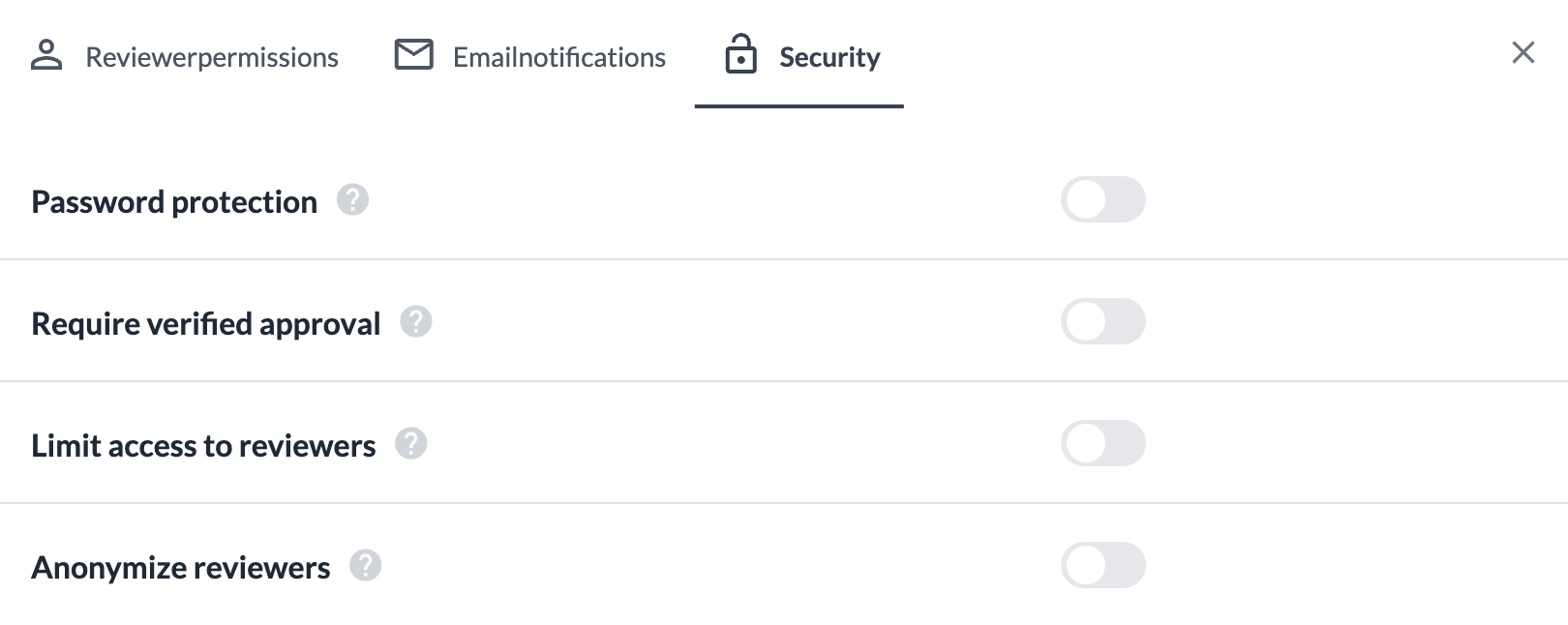
And this is how you can switch verified approvals on:

<table data-id="84ee084c-ac6c-409b-a9d3-449d27ea4d6f" style="min-width: 25px;"><colgroup><col style="min-width: 25px;"></colgroup><tbody><tr><td colspan="1" rowspan="1"><ol><li><p data-id="9227181b-6d91-467e-8daf-1161de780663">On your project board, hover over the desired <strong>reviewer group</strong> and click the <strong>settings (gear) icon</strong> (<em>Manage reviewer settings</em>).</p></li><li><p data-id="70d12ea1-b918-4979-9388-58a03c58eaae">Open the <strong>Security</strong> tab.</p></li><li><p data-id="86add4f1-271b-4785-ac2d-5310962cbf7a">Toggle on <strong>Require verified approval</strong>. You can also pre-set this in your <strong>project templates</strong> so it's applied automatically to every new project.</p><img src="https://staticfiles.gleap.io/gattachments/9q3KiQkcYPyb3qYoleHCK86PFirHMlXa9CkpHJk9YpCz613tlMhpcCjw6qgHXhKFsKNxWEkwgif.png" style="width: 100%; border-radius: 10px; margin-top: 10px; margin-bottom: 10px; max-width: 100%;"></li></ol></td></tr></tbody></table>

### How to spot a verified approval

Once it's switched on, every reviewer in the step must confirm with a one-time password. A **pen icon** appears next to each verified approval in the review decisions, so you can see at a glance who has signed off.

![](https://staticfiles.gleap.io/gattachments/nYqHntYdckoSIV6mvtorwQ1mxzxYKwyx8RkC7L5i1Oyt0hRs3RSnOz0yMJ5nakjOEXeBzHBrCHX.jpg)

* * *

## How to leave a verified approval (as a reviewer)

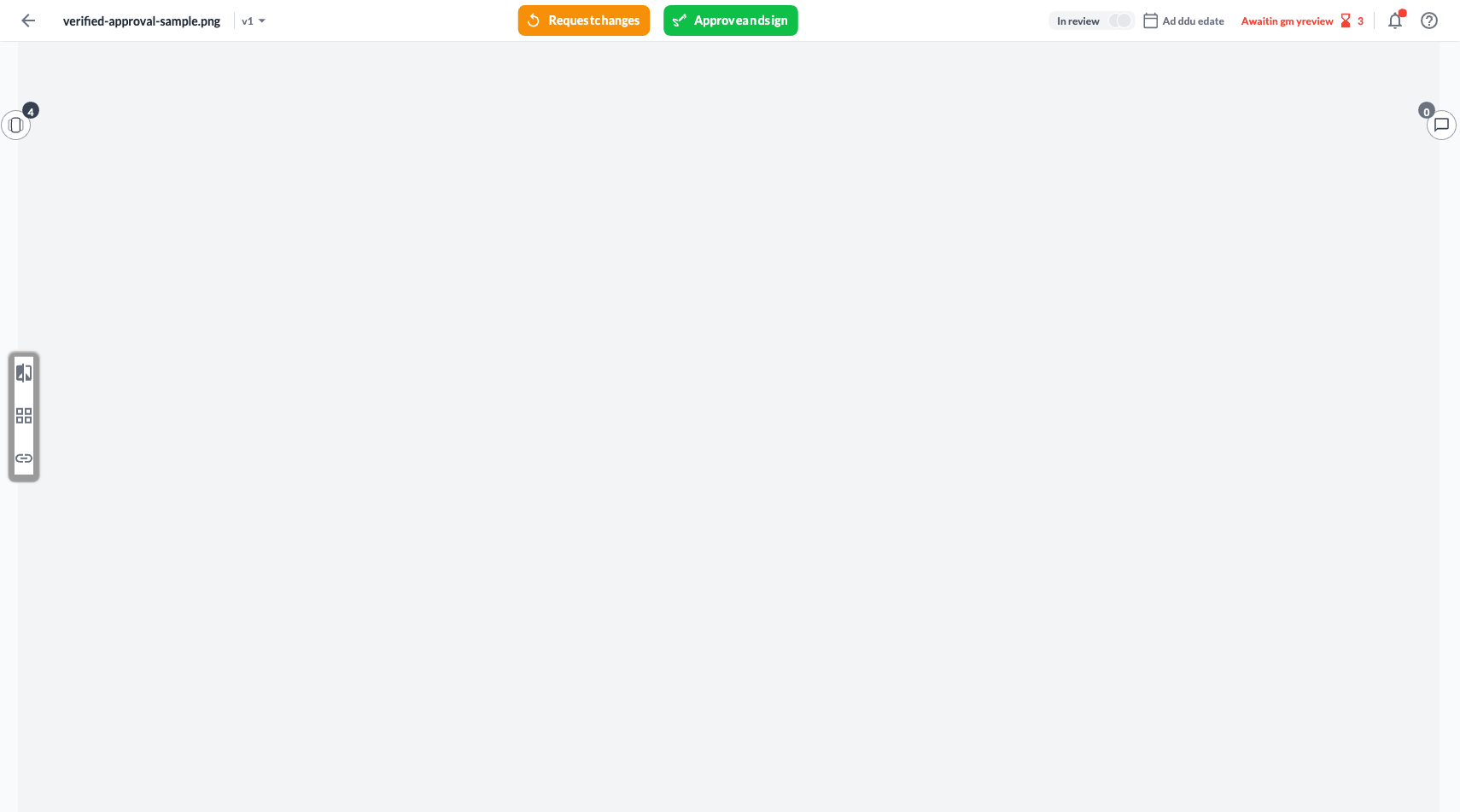
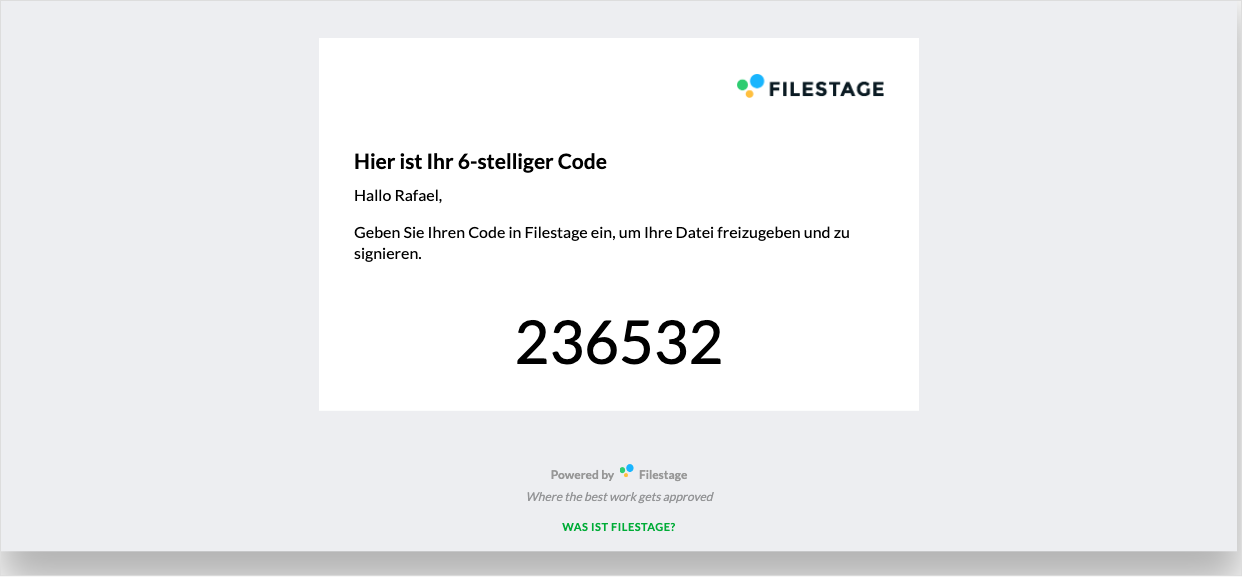
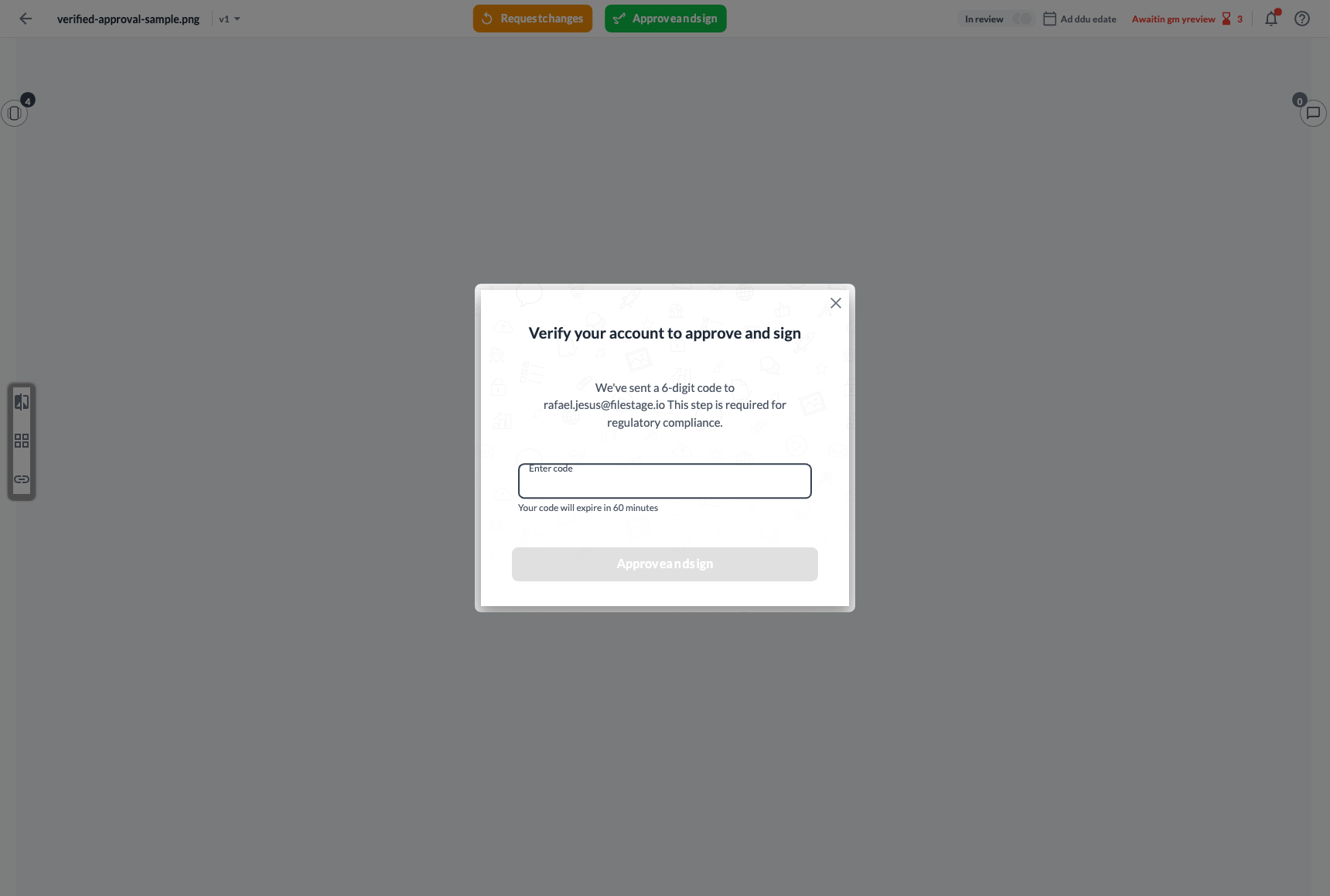
And this is how reviewers complete a verified approval:

<table data-id="6322166d-75e6-440c-9c1b-56b7001f8584" style="min-width: 25px;"><colgroup><col style="min-width: 25px;"></colgroup><tbody><tr><td colspan="1" rowspan="1"><ol><li><p data-id="64b6d9d5-3e2f-462c-a7f9-fa9ec606ac6b">When reviewing the file, click <strong>Approve and sign</strong> in the top-right corner of the file viewer.</p><img src="https://staticfiles.gleap.io/gattachments/dopwLn7ilFlqcD91R2QQOj4ai1zNcGKTNTvlbXO9RsiWKETKB8ieK6SpDeSeGzl20XBt4Z0kVha.png" style="width: 100%; border-radius: 10px; margin-top: 10px; margin-bottom: 10px; max-width: 100%;"></li><li><p data-id="8c33a118-a895-4da6-b13c-d9310a4c66d6">Open the email linked to your Filestage account and copy your <strong>6-digit one-time password</strong>.</p><img src="https://staticfiles.gleap.io/gattachments/dBH8M3LeHPrvWK9fIC4j5RfbmBxZvJ2ZY1UmrrjUaONKu7kR2D4WHUrXtlWXmGhZHZBFJeZ9mXN.png" style="width: 100%; border-radius: 10px; margin-top: 10px; margin-bottom: 10px; max-width: 100%;"></li><li><p data-id="450401b9-3b00-445e-bd93-a41e8b79fe9f">Enter it in the <strong>Enter code</strong> field and click <strong>Approve and sign</strong> to confirm. The code is valid for <strong>60 minutes</strong>.</p><img src="https://staticfiles.gleap.io/gattachments/MiBMgoA71hftaM1eiQSMt6v8WFDcOaA31xvqs2egPwlHq8K0XH4WuRaixWUwskhPi4tDoHGfyT6.png" style="width: 100%; border-radius: 10px; margin-top: 10px; margin-bottom: 10px; max-width: 100%;"></li></ol></td></tr></tbody></table>

* * *

💡 **What's next?** Once you're done, see how to [**Supported file formats in FileStage**](https://help.filestage.io/en/articles/1482221-supported-file-formats.md)

Let us know if you have any questions by reaching out to us on chat or emailing us at [support@filestage.io](mailto:support@filestage.io). We're always happy to help!