---
title: "Integrate Filestage with Adobe Photoshop"
description: "Streamline your workflow by exporting assets and viewing Filestage comments directly within Adobe Photoshop."
url: https://help.filestage.io/en/articles/9465089-integrate-filestage-with-adobe-photoshop
collection: "Integrations"
updated: 2026-05-01
language: en
alternates: [de, fr, es]
---

# Integrate Filestage with Adobe Photoshop

Streamline your workflow by exporting assets and viewing Filestage comments directly within Adobe Photoshop.

_With the Filestage for Adobe Photoshop plugin, content creators can streamline their creative workflow by exporting images directly to reviewer groups and viewing feedback as native markers inside Photoshop._

> **Success:** The Filestage for Adobe Photoshop plugin is available on all subscription plans.

* * *

## How this plugin can help you

Switching between your creative tools and your review platform can be a major distraction. This integration eliminates that friction by bringing your Filestage projects directly into your Adobe Photoshop workspace.

**Key benefits for Content Creators:**

-   **Save time:** Export images in various formats (PNG, JPEG, etc.) directly to Filestage without the manual "save-as" and upload dance.
    
-   **Maintain focus:** Stay in your creative flow by viewing reviewer comments as native Photoshop markers pinned to the exact right location.
    
-   **Simple collaboration:** Select specific reviewer groups and start reviews the moment you finish your design.
    

* * *

## **How to use the feature**

The following steps will indicate to you, step by step, how the Adobe Photoshop plugin works.

### Install and set up the plugin

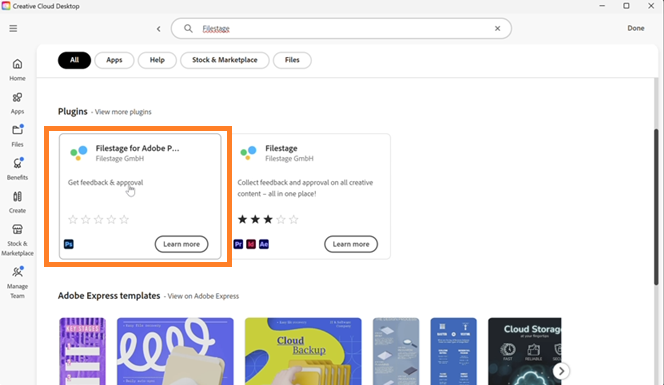
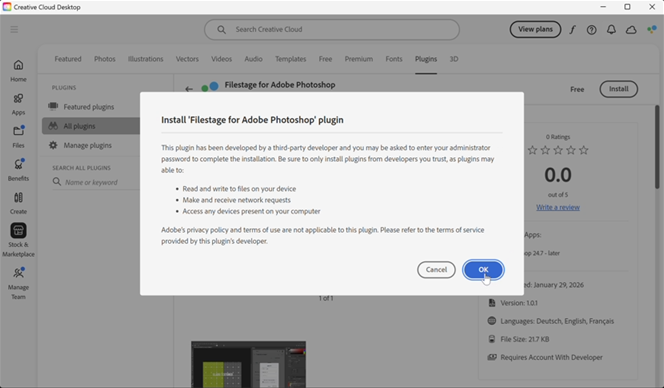
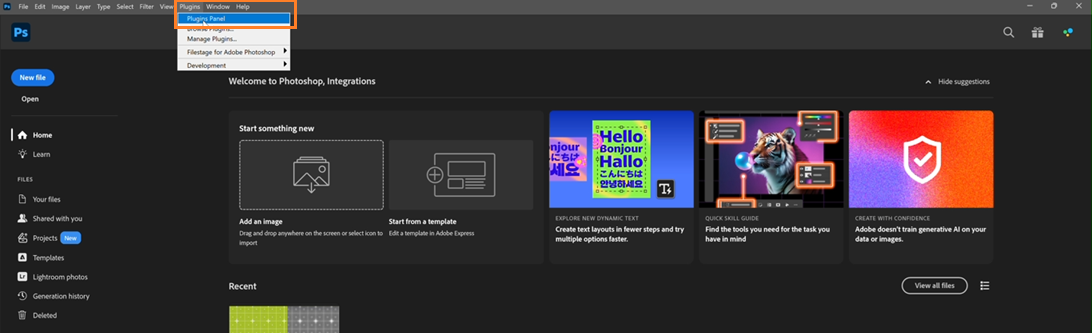
<table data-id="ee85caa7-d97b-4d34-a9f8-2c2619c3e51d" style="min-width: 25px;"><colgroup><col style="min-width: 25px;"></colgroup><tbody><tr><td colspan="1" rowspan="1"><ol><li><p data-id="ea248670-b7f9-425b-8970-92dbf0f40be9">Navigate to the <strong>Adobe Exchange</strong> marketplace and search for the <strong>Filestage for Adobe Photoshop</strong> plugin.</p><img src="https://staticfiles.gleap.io/ghelparticle/joIUBFptYa88NRUReusX04WRxKreAUBznPaMeMECTgVoBCDRn7Yv73uEbKbfMiBkOuyioHJBdVe.png" alt="" style="width: 384px;"></li><li><p data-id="b825613f-c85a-447f-a969-4283fcf3be3f">Click <strong>Install</strong> and then <strong>OK</strong> to add the plugin to your Creative Cloud account.</p><img src="https://staticfiles.gleap.io/ghelparticle/TQokLX9pr8t4U27mrYY1UixhSh3ymQf8FLRIuXoVGKIl1BrpfbzArEYniuxHWPWQkzGPFdIR0x1.png" alt="" style="width: 384px;"></li><li><p data-id="d1e45bbe-5ab3-4dab-a678-ce83390a571c">In Photoshop, go to <strong>Plugins</strong>, open the <strong>Plugins panel</strong>, and select <strong>Filestage</strong>.</p><img src="https://staticfiles.gleap.io/ghelparticle/xoBefxozSc79sb6Tvv8M1iEwrIyFZcwn0oO11yzxpoJb9YxB59AE7m4qakOpzc8jvXed0qC89tR.png" alt="" style=""></li><li><p data-id="ae9a72f6-0ec1-4bba-81a8-d17a66756798">Click <strong>Log in</strong> and enter your Filestage credentials to link your account.</p></li><li><p data-id="56b84791-6f9f-452b-80c1-911758de8eb5">Click <strong>Authorize</strong> to enable the integration.</p></li></ol></td></tr></tbody></table>

* * *

### Export images to Filestage

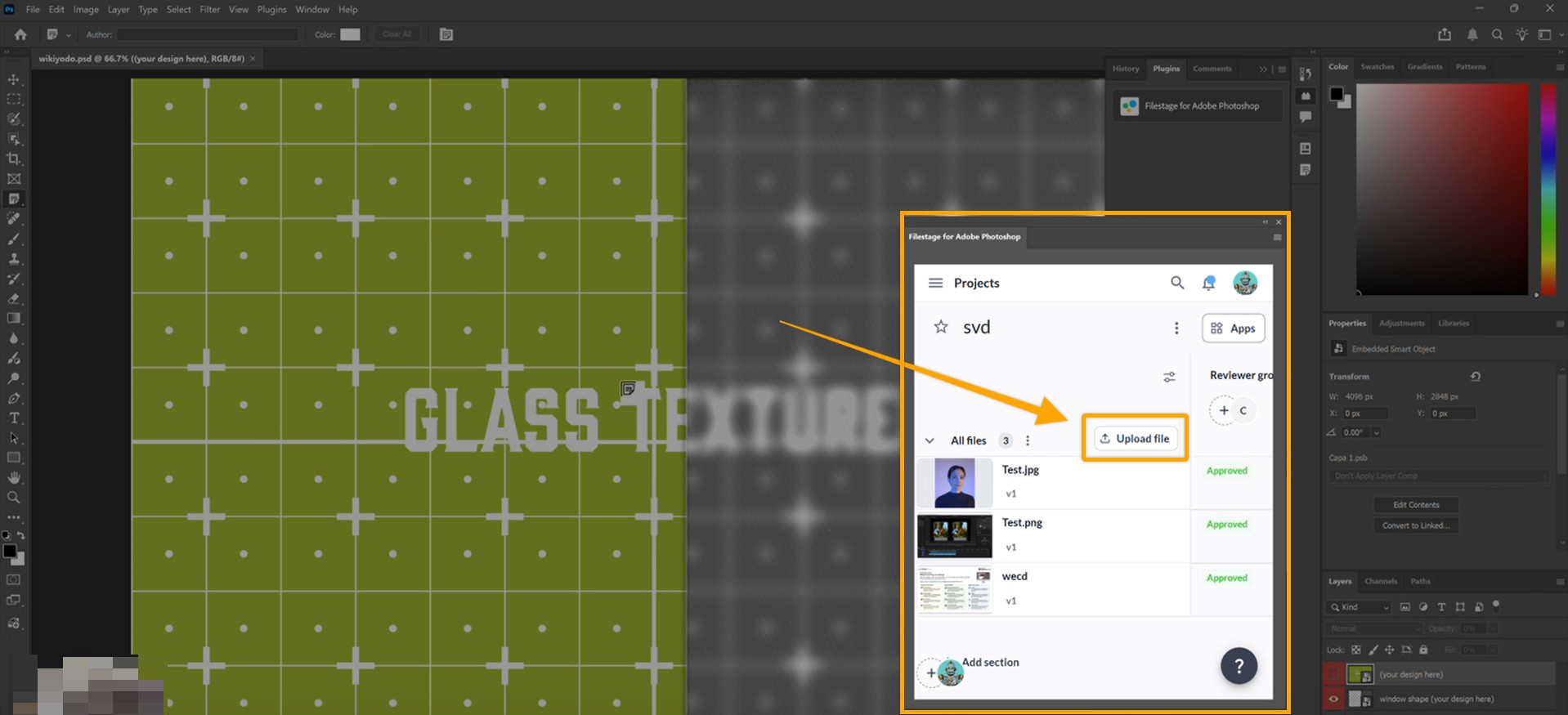
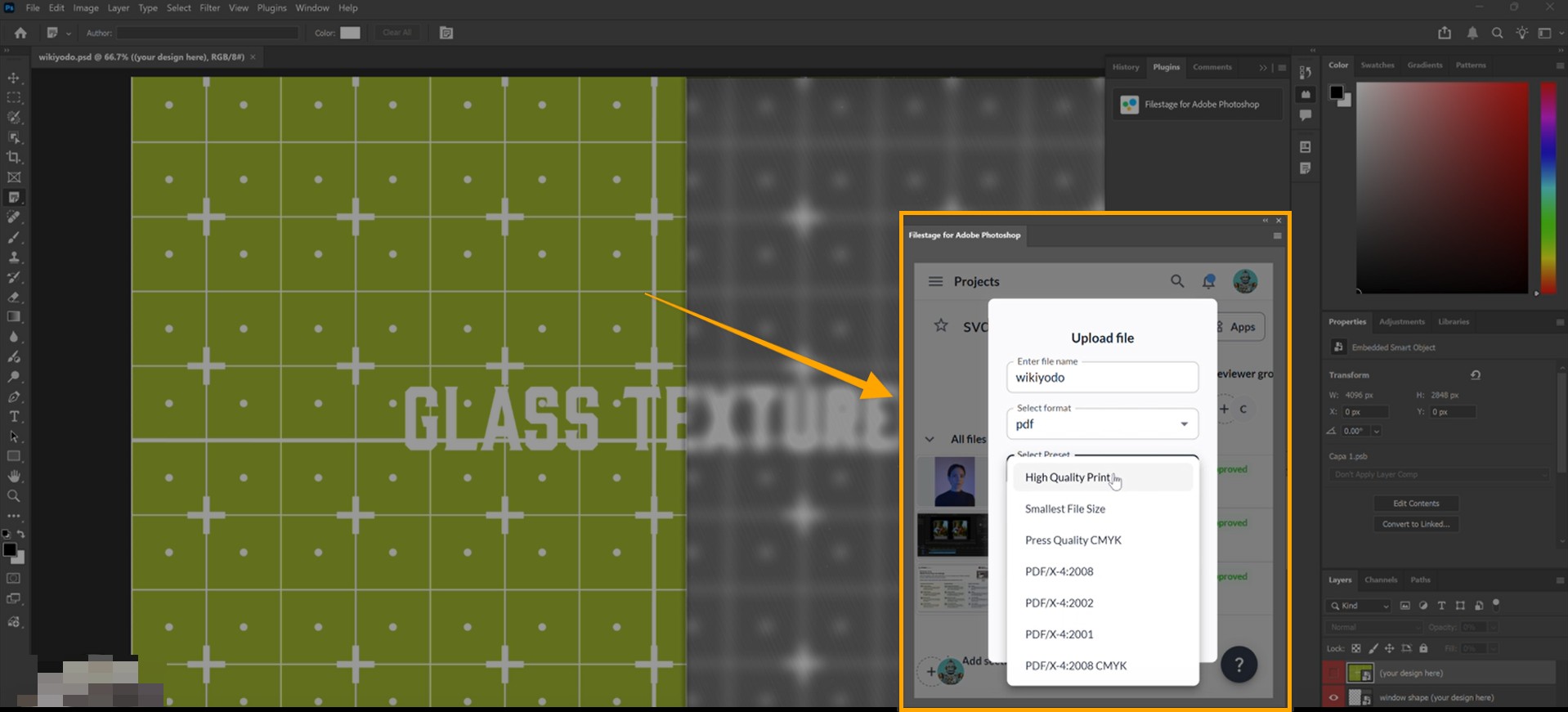
<table data-id="70c32d72-819b-479f-820b-c5a0b0580b4c" style="min-width: 25px;"><colgroup><col style="min-width: 25px;"></colgroup><tbody><tr><td colspan="1" rowspan="1"><ol><li><p data-id="b5c0aebb-cd76-41ec-9b0d-444e3944a884">In the Photoshop <strong>Filestage panel</strong>, navigate to your desired project and click <strong>Upload file</strong>.</p><img src="https://staticfiles.gleap.io/ghelparticle/RDDVFKLPTxRsfuPWEbV5sQOyFjS7QPtVamsU9OaIO2dKK6bkDfK87m68219Mxr1i39NFyefbLPn.jpeg" alt="" style="width: 392px;"></li><li><p data-id="1e63854d-d401-4833-9faa-10d61a4db0fa">Enter a <strong>Name</strong> for the asset as it should appear in Filestage.</p></li><li><p data-id="7442bd6f-aebd-4020-af3e-cf9b84e5442e">Choose your <strong>file format</strong> (e.g., PNG, JPEG) and select any desired <strong>export presets</strong>.</p><img src="https://staticfiles.gleap.io/ghelparticle/82AwE6i8rBYEindEQBU5IAu35Fhs7FtzJuFpkLwywHivgJELDvQIH0Rifuhx4ZQuQxKygFweCID.jpeg" alt="" style="width: 395px;"></li><li><p data-id="5b1c3b60-8357-4d95-acc1-09226cd9bb8b">Select the <strong>reviewer groups</strong> where you want the review to start.</p></li><li><p data-id="09c7a9a3-8ec2-4803-9008-7414a92b9540">Click <strong>Upload</strong> to process the export and send the file to your Filestage project.</p></li></ol></td></tr></tbody></table>

* * *

## View Filestage comments in Photoshop

In the file you are working on in Photoshop, Filestage comments will be displayed as **Notes.**  
As soon as a **reviewer** adds a **comment** in Filestage, it will appear as a **note** in your Photoshop viewer.

![](https://staticfiles.gleap.io/ghelparticle/O0k24RdnsRXCgchy8XU8r0F8IrShKHiO7lkw3a7EJaqOvfN4fyl03uEDi1moiqEVDJyBgiDWVUd.jpeg)

Click the **note** icon to read the feedback and see exactly where it was placed.

* * *

💡 **What's next?**

Once you've mastered the Photoshop plugin, check out how to [**Integrate Filestage with Adobe Premiere Pro**](https://www.google.com/search?q=https://help.filestage.io/en/articles/6984643-integrate-filestage-with-adobe-premiere-pro) or [**Adobe InDesign**](https://help.filestage.io/en/articles/7966061-integrate-filestage-with-adobe-indesign.md)!

* * *

Let us know if you have any questions by reaching out to us on chat or emailing us at [**support@filestage.io**](mailto:support@filestage.io). We're always happy to help!