---
title: "How to create and manage projects in Filestage"
description: "Learn how to create, organize, and administer your projects"
url: https://help.filestage.io/en/articles/9465085-how-to-create-and-manage-projects-in-filestage
collection: "Project Setup and Organization"
updated: 2026-05-29
language: en
alternates: [es, de, fr]
---

# How to create and manage projects in Filestage

Learn how to create, organize, and administer your projects

_Projects in Filestage are the central hub for your creative work. They bring together files, versions, and stakeholders in one organized dashboard, ensuring every asset follows a clear approval workflow from the first draft to the final sign-off._

* * *

## What are projects?

Projects are the foundation of your workflow and the central structuring element in Filestage.

Instead of losing feedback in endless email chains or chat messages, projects provide a transparent "source of truth" for your entire team and enable you to:

-   **Standardize workflows:** Define exactly who needs to approve a file and in what order using reviewer groups.
    
-   **Track due dates:** Get a high-level view of your project's status and see exactly who you are waiting for.
    
-   **Stay organized:** Group related projects into **folders** and use **sections** to categorize different phases or asset types within your project.
    

* * *

## How to create a project

When starting a new project, you will be guided through every step of the project setup to clearly define your review process.

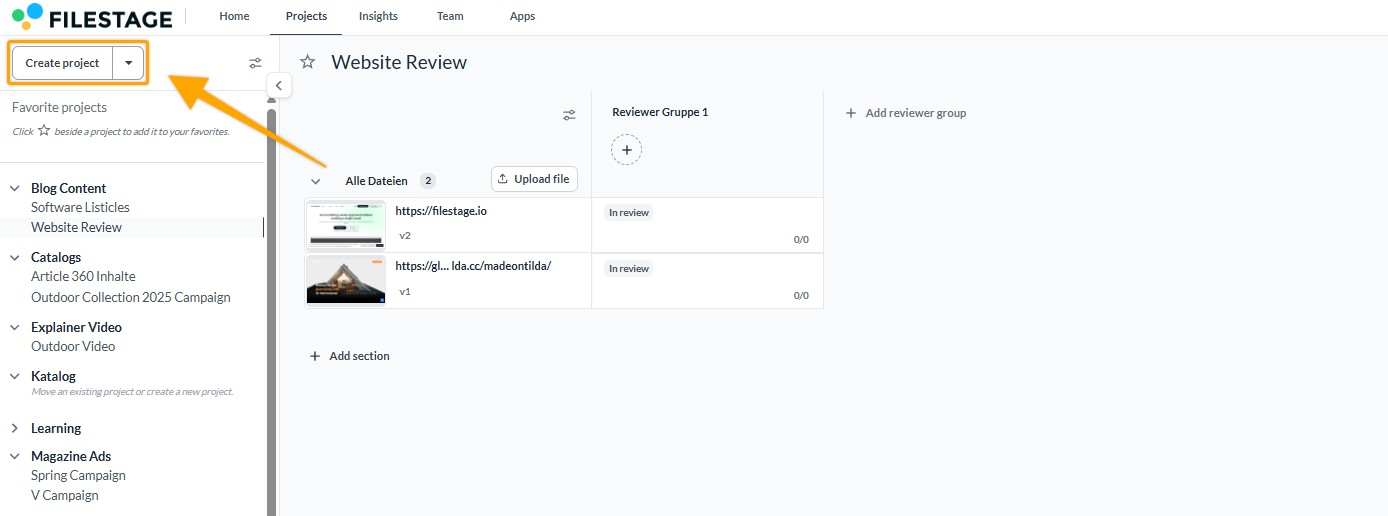
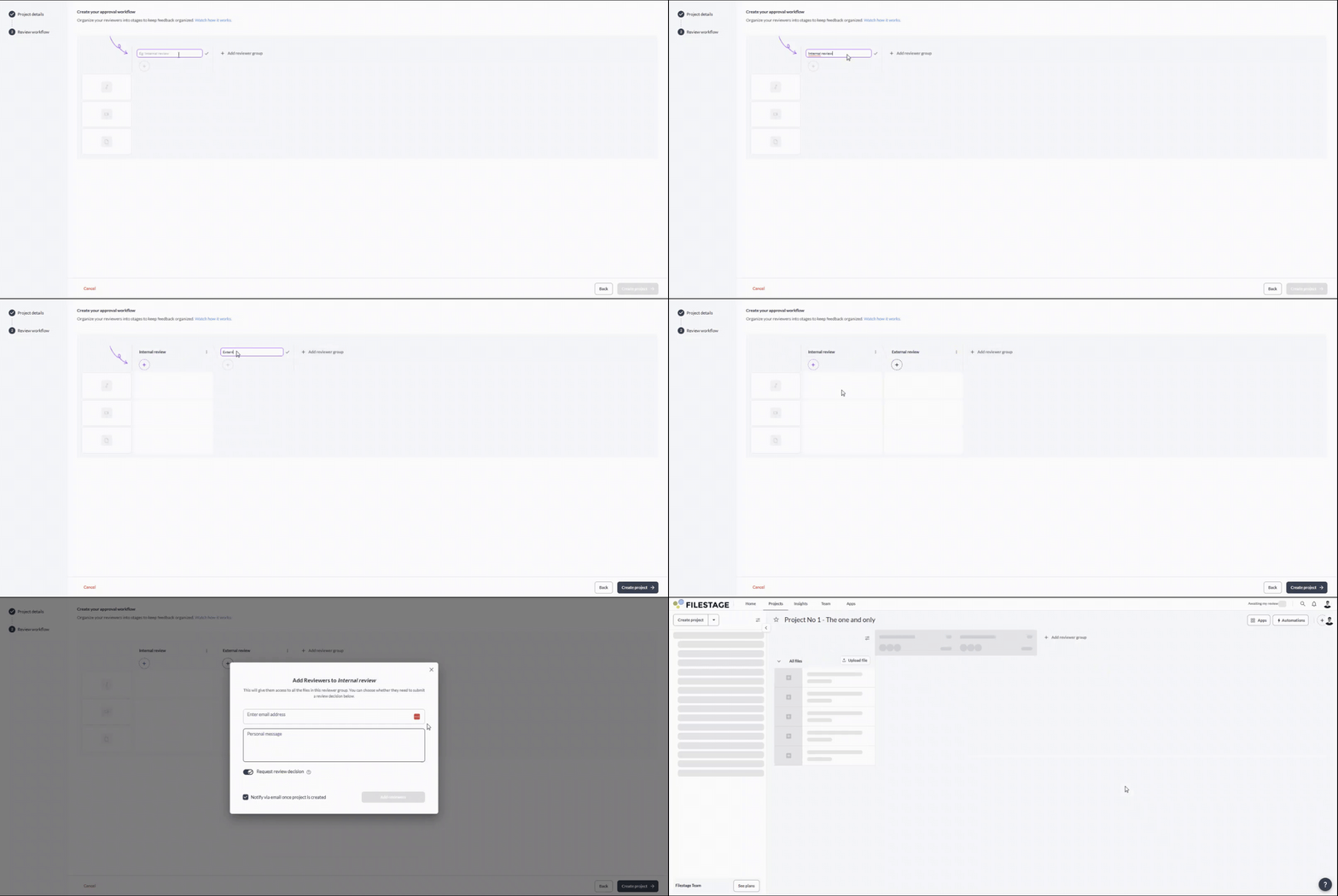
<table data-id="4e80709a-7028-40b4-98d8-51e3ab9c4d86" style="min-width: 25px;"><colgroup><col style="min-width: 25px;"></colgroup><tbody><tr><td colspan="1" rowspan="1"><ol><li><p data-id="eaaa6574-84b0-4cc7-9994-17b20e3afb48">Click on the <strong>Create project</strong> button.</p><div style="text-align: left; width: 100%;"><img src="https://staticfiles.gleap.io/gattachments/GhLUa7efnZmJMGnbm9JyHAGoQqSRmrZhXPQ1GqKG4Y3MImYWnEbOnoK4uM1E9LkJt8b1mhIcZYw.png" data-width="75%" data-align="left" style="width: 75%; border-radius: 10px; margin-top: 10px; margin-bottom: 10px;"></div></li><li><p data-id="97f06810-ed0c-4477-b34f-120fa46e297c">Enter the project name and select the folder where it should be stored.<br><span>Optionally, activate the integration with your favorite apps (Teams, Slack, or Google Drive) or choose a project template to pre-populate your workflow.</span></p><img src="https://staticfiles.gleap.io/ghelparticle/DoWjZjwCzMfIjKnwuJvXc7cKI2yGtHzhvRlnQjvlJS7YBz7fsn5LuNkDUW2hH8K1oRAk3cOWJWP.gif" alt="" style="width: 479px;"></li><li><p data-id="ee5bf10a-159d-4dc0-afe1-956d88cfb354"><span>Create the reviewer groups required for your review process and invite the appropriate reviewers.</span></p><img src="https://staticfiles.gleap.io/ghelparticle/e2siYal4IlmIl1GU7TzzUy4kxOUeVjh8vJPTg5MAp6s6qVAe9rDNhzhYIQXxmJA9jOC4QcqUCTz.gif" alt="" style="width: 479px;"></li><li><p data-id="27697aba-bfa5-426f-8b92-4e5d835ee1ce">Click on <strong>Create project.</strong></p></li></ol></td></tr></tbody></table>
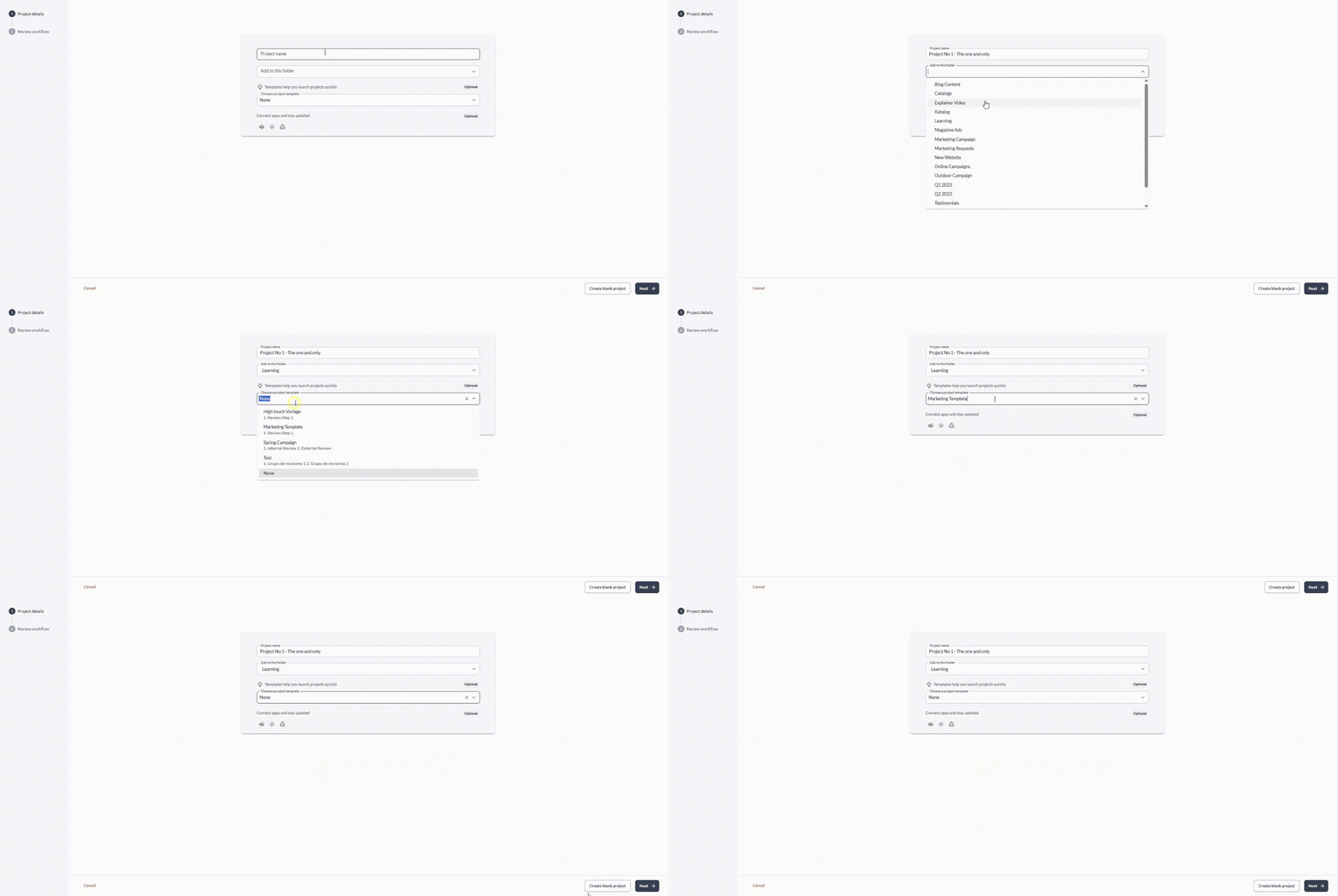
> **Success:** To create an empty project, choose **None** in the project template selection and click on Create blank project to get started!

* * *

## Managing your projects

As your workspace grows, you may need to structure, archive, or delete projects to keep your dashboard clean.

### Move a project to a folder

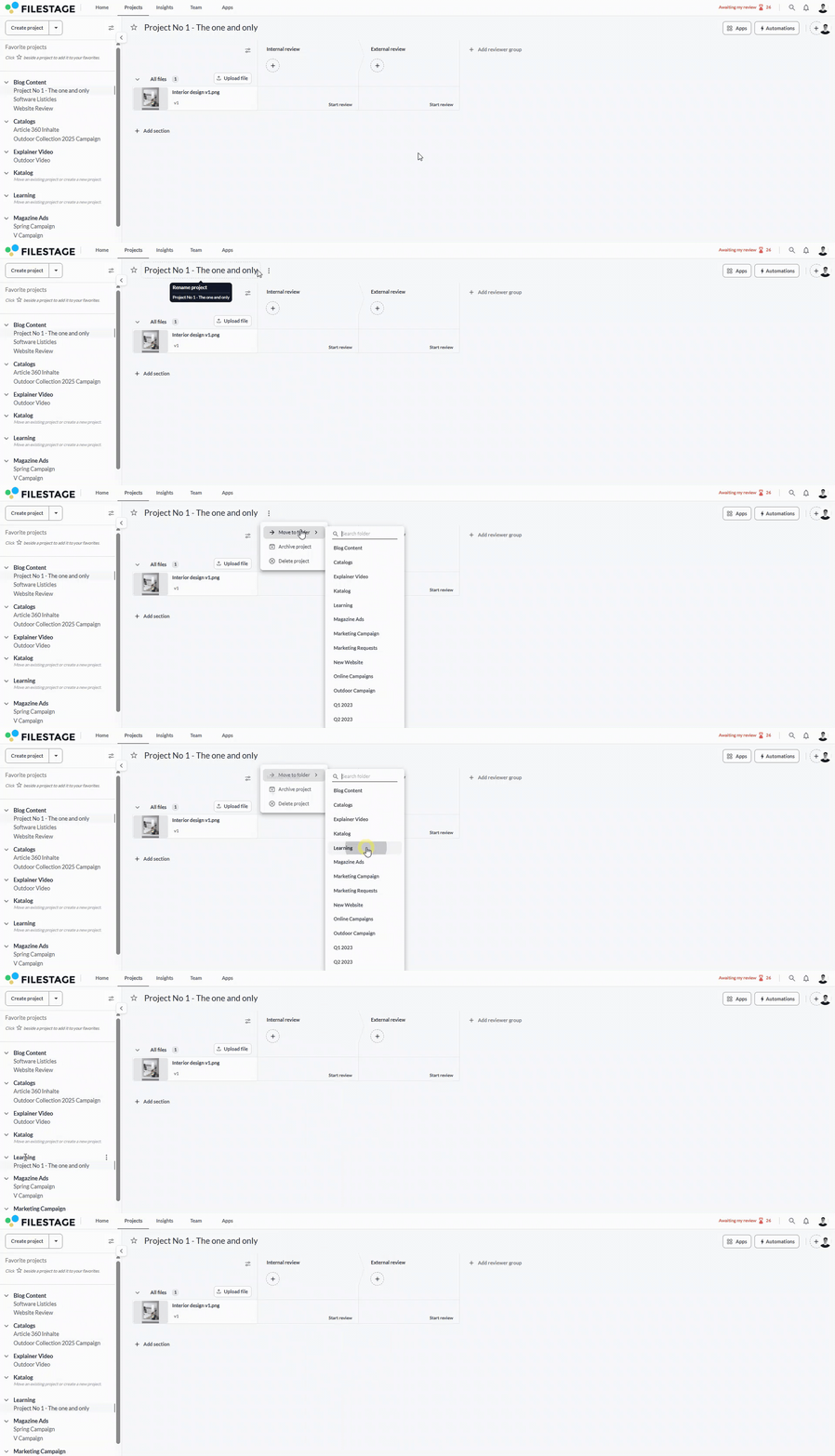
Keeping related projects together is easy with folders. Together with subfolders, this allows you to keep everything where it belongs.

<table data-id="6b0e3287-6b01-491f-a1c7-916e4bcfadb1" style="min-width: 25px;"><colgroup><col style="min-width: 25px;"></colgroup><tbody><tr><td colspan="1" rowspan="1"><ol><li><p data-id="c37b1f62-ae41-4536-a30e-0094cc83673d">Hover over the project name in your dashboard.</p></li><li><p data-id="178e0d29-771f-417d-9518-d16ca3f11f21">Click the <strong>three dots</strong> icon.</p></li><li><p data-id="c447f1e4-32c1-4e81-ad02-cf8c4c8b32e7">Select <strong>Move to folder</strong>.</p><img src="https://staticfiles.gleap.io/ghelparticle/JaIDmZxIyJ3qn9G864vLVn0aeuLBjO4GBzDYUM7NTNLE9WWstaFFb5LxIKksHL7btVKtT88B922.gif" alt="" style="width: 493px;"></li><li><p data-id="9229f0cf-0c6a-4433-be24-80f7d3865f82">Click on the destination folder.</p></li></ol></td></tr></tbody></table>

> **Info:** Learn more about folders and how to organize your projects [**here**](https://help.filestage.io/en/articles/2416550-organize-your-projects-in-folders.md)**.**

* * *

### Archive a project

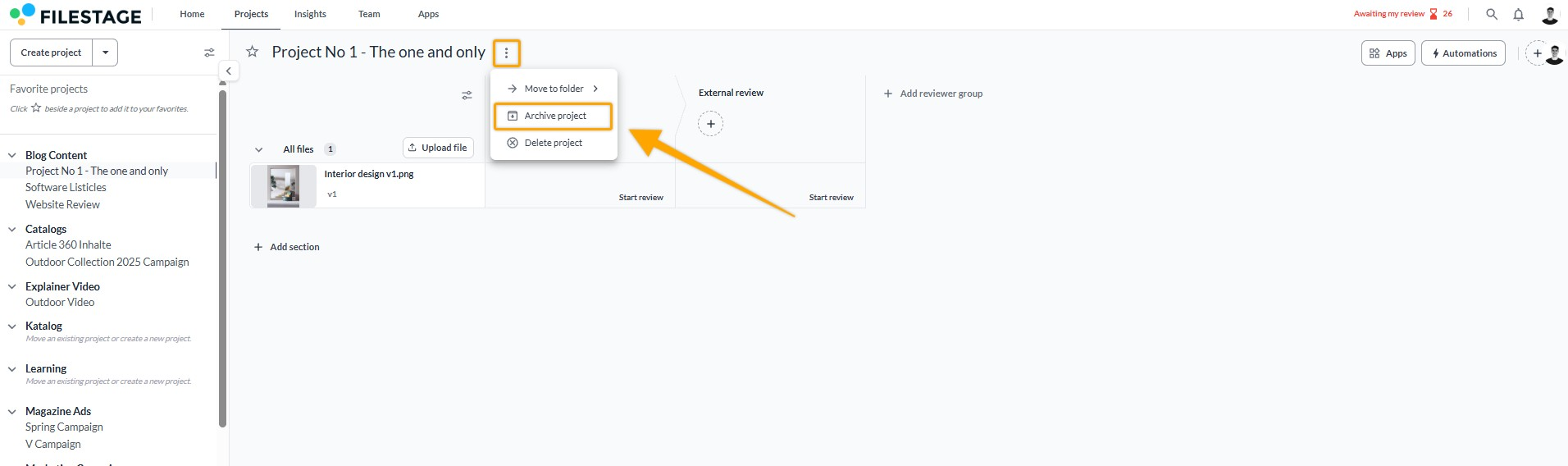
If a project is finished but you want to keep the feedback for future reference, we recommend archiving it.

<table data-id="66b3041f-f732-4562-834f-b73ca382e73c" style="min-width: 25px;"><colgroup><col style="min-width: 25px;"></colgroup><tbody><tr><td colspan="1" rowspan="1"><ol><li><p data-id="28040ae4-d6e5-44da-8f06-819bbd03cf77">Click the <strong>three dots</strong> icon next to the project name.</p></li></ol><div style="text-align: left; width: 100%;"><img src="https://staticfiles.gleap.io/gattachments/kroD83daAHTMHUJ2mafM6bIrZKDVRlPWfa7tWqD2NbaiMZssFQjeg4Q5Qy4zZ6twSK8sIxUNq0a.png" data-width="75%" data-align="left" style="width: 75%; border-radius: 10px; margin-top: 10px; margin-bottom: 10px;"></div><ol start="2"><li><p data-id="a89e42ff-c3d2-4259-96fe-d5665534c97b">Select <strong>Archive project</strong>.</p></li></ol></td></tr></tbody></table>

> **Info:** You can find additional information on archiving projects [**here**](https://help.filestage.io/en/articles/2484421-archive-projects-to-keep-them-for-documentation.md)**.**

* * *

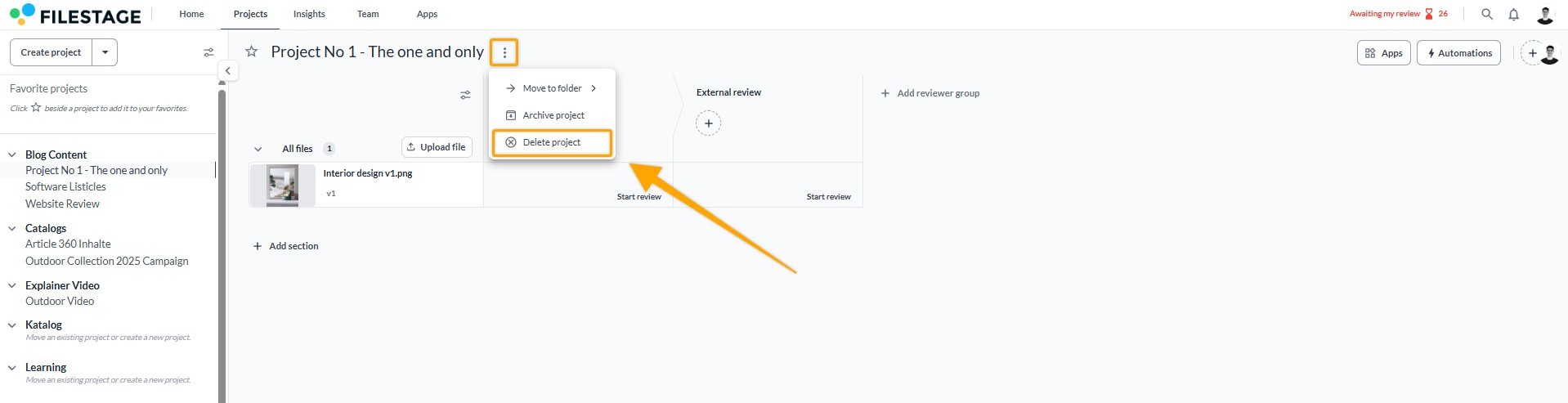
### Delete a project

Delete a project only if you no longer need any of its files or comments, as this action cannot be undone.

<table data-id="e74c7e4c-5ab0-42d7-a86a-69130f7ca4fd" style="min-width: 25px;"><colgroup><col style="min-width: 25px;"></colgroup><tbody><tr><td colspan="1" rowspan="1"><ol><li><p data-id="c90b19ee-3c28-4f17-a756-4b91acbaa7f4">Click the <strong>three dots</strong> icon next to the project name.<br></p><div style="text-align: left; width: 100%;"><img src="https://staticfiles.gleap.io/gattachments/GYVJxvUv89yQ0RRdMukoFOAWF7JooQfTxzAPuV9MamlYaW63cpzWuPXgV6Yw57UMgiZum5o309x.png" data-width="75%" data-align="left" style="width: 75%; border-radius: 10px; margin-top: 10px; margin-bottom: 10px;"></div></li><li><p data-id="1ea9c059-c8ce-45d8-b94b-7dc87ed7c58b">Select <strong>Delete project</strong>.</p></li><li><p data-id="2164c2c0-2ff8-4807-870c-e3c139ffc90d">Confirm the deletion in the pop-up window.</p></li></ol></td></tr></tbody></table>

> **Warning:** **_Please note_**_: Deleting a project will permanently_ **_remove all files and comments from it_**_. For security reasons, deleting projects from Filestage is final. Deleted projects cannot be restored._

* * *

💡 **What's next?** Now that your project is set up, learn how to [**assign roles and permissions**](https://help.filestage.io/en/articles/7858123-chapter-2-assigning-roles-and-permissions.md) to your team members!

* * *

Let us know if you have any questions by reaching out to us on chat or emailing us at [**support@filestage.io**](mailto:support@filestage.io)**.** We're always happy to help!