---
title: "Integrate Filestage with Jira"
description: "Learn how to connect your Filestage project with Jira to track review progress in real time, including versions, due dates, and statuses."
url: https://help.filestage.io/en/articles/9465073-integrate-filestage-with-jira
collection: "Integrations"
updated: 2026-03-04
language: en
alternates: [fr, de, es]
---

# Integrate Filestage with Jira

Learn how to connect your Filestage project with Jira to track review progress in real time, including versions, due dates, and statuses.

> **Success:** If you need further help integrating Filestage with Jira, get in touch with our integration consultants using our support chat or via support@filestage.io.

_Looking to connect your Filestage project to your Jira task? Our Jira integration makes it easy to streamline your project management process. With this integration, you can track the review progress of your files directly in Jira. Monitor real-time updates directly within Jira issues and keep everything in one central place to improve efficiency and collaboration._

* * *

## What information is synced to Jira?

The following information can be made available in Jira tasks using the Filestage app for Jira:

-   File name
    
-   Project name
    
-   Reviewer group
    
-   Version number
    
-   Review status
    
-   Submitted review decisions
    
-   Due dates for reviews
    

* * *

## How to connect Jira to Filestage

To track the progress of your Filestage project in Jira, you'll need to install our Filestage app in your Jira workspace.

Here's how:

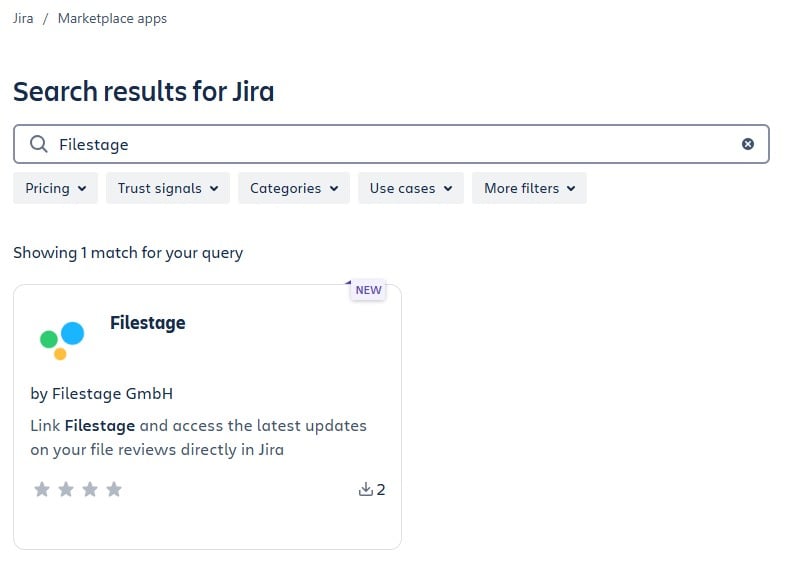
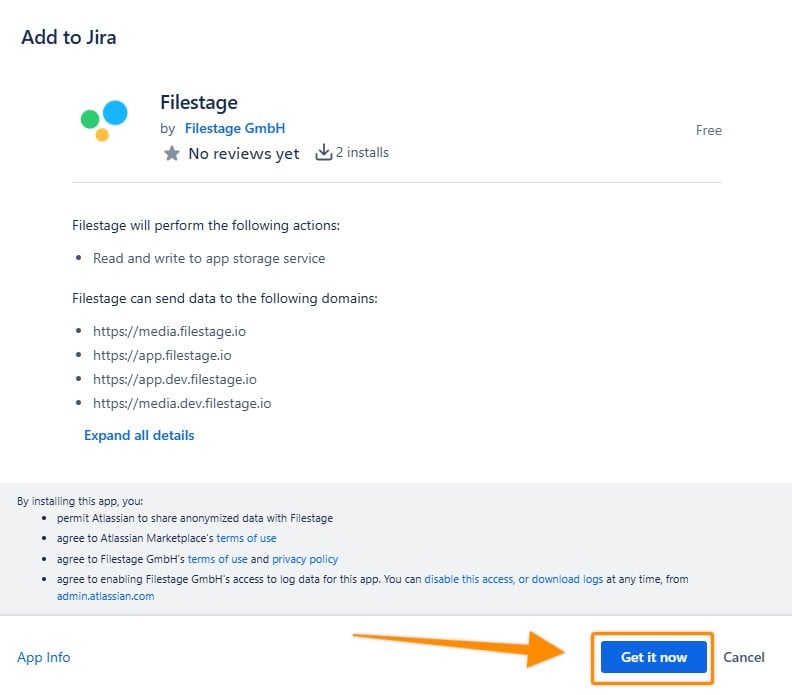
<table data-id="532c5911-e7f3-4815-a76d-58fb574368a5" style="min-width: 25px;"><colgroup><col style="min-width: 25px;"></colgroup><tbody><tr><td colspan="1" rowspan="1"><ol><li><p data-id="bbd71d08-0e96-4217-b5aa-cadd02e86c23" style="text-align: left;">Log into your Jira account.</p></li><li><p data-id="71d94a36-e8c6-4fb5-925c-bd90e2297a80" style="text-align: left;">Open the marketplace and type <strong>Filestage </strong>into the search bar or <a target="" rel="noopener noreferrer nofollow" class="linktype-link link" data-linktype="link" href="https://marketplace.atlassian.com/apps/1236434/filestage?hosting=cloud&amp;tab=overview">use this link</a>.</p><div style="text-align: center; width: 100%;"><img src="https://staticfiles.gleap.io/ghelparticle/ZW70kTMHvzI1lTwFRr84RvIM7MmDnz1dttbfmrKwuwCBbLEQjPaEBUU1cvIFscelRRcGUf7c3qX.jpeg" data-width="70%" data-align="center" data-link="" data-target="" style="width: 70%; border-radius: 10px; margin-top: 10px; margin-bottom: 10px;"></div></li><li><p data-id="948618ac-2c61-4ab9-b1d6-058299971a55" style="text-align: left;">Open the app window and click on <strong>Get it now.</strong></p><div style="text-align: center; width: 100%;"><img src="https://staticfiles.gleap.io/ghelparticle/m82jRplQcVJUgU6fhrfGfTEG3yynDRtZvqOADD7chffkL2RnlULKV9EDU3GwJREQG1FUxUkWZjK.jpeg" data-width="70%" data-align="center" data-link="" data-target="" style="width: 70%; border-radius: 10px; margin-top: 10px; margin-bottom: 10px;"></div></li><li><p data-id="c99df509-d6f1-4df9-98ee-b82de6e04224" style="text-align: left;">The app is now correctly connected to your Jira workspace! <span data-name="hooray" data-type="emoji">🥳</span></p></li></ol></td></tr></tbody></table>

* * *

## How to connect your Filestage project to a Jira task

With the Filestage integration for Jira, it is possible to view review statuses, review decisions, and many more. Here Filestage offers two options:

-   Connecting reviews of single files to a Jira task
    
-   Connecting reviews of all files shared within the designated reviewer groups
    

> **Info:** The connection of all files of a project is carried out using the review link of a reviewer group. Due to this, the individual files are only visible if their review has already started.

To connect a file or all files of a reviewer group to your Jira task, follow these steps in Jira:

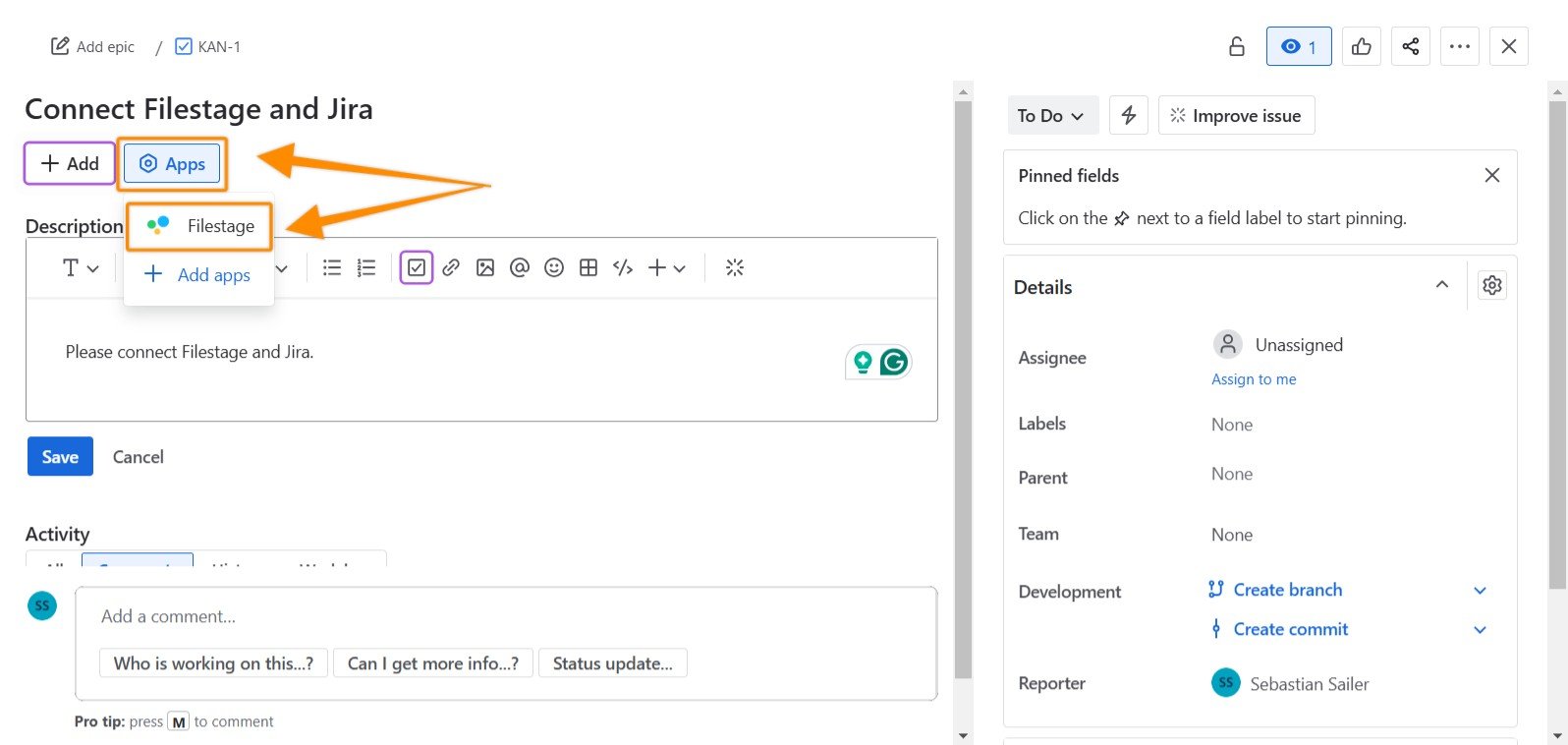
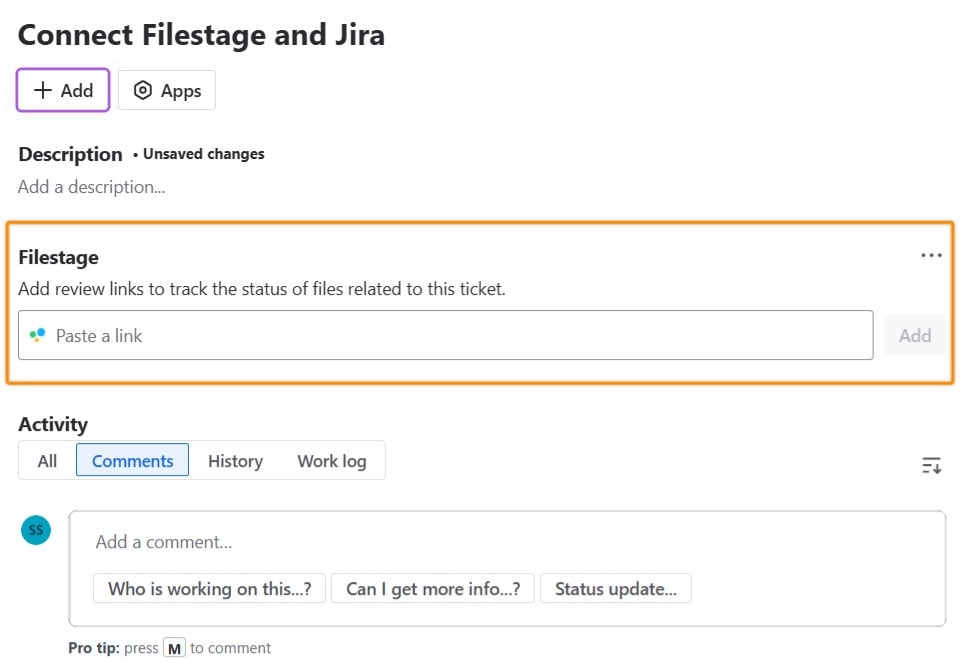
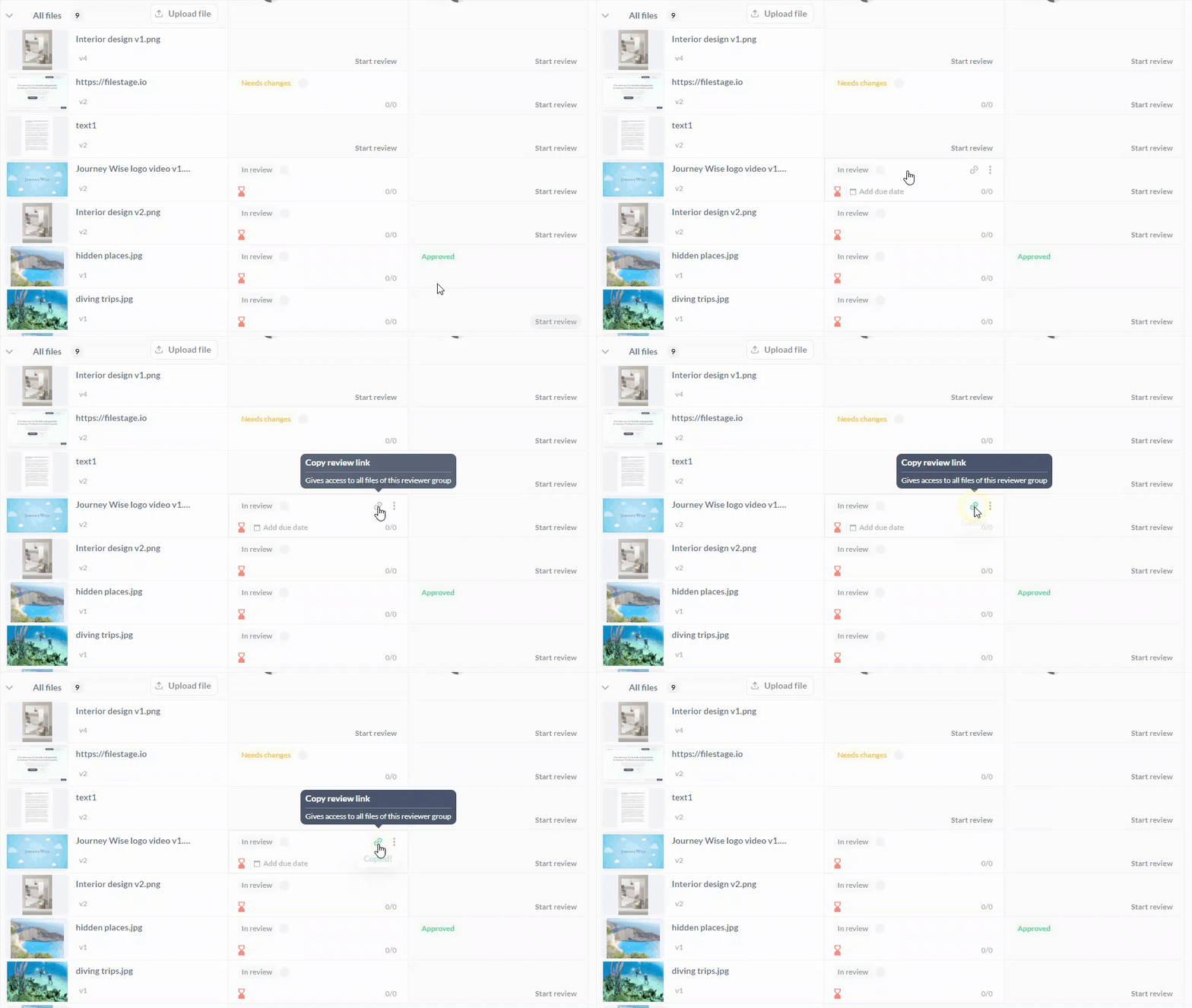
<table data-id="5dd95be0-1820-44b0-9631-62eb97162653" style="min-width: 25px;"><colgroup><col style="min-width: 25px;"></colgroup><tbody><tr><td colspan="1" rowspan="1"><ol><li><p data-id="35c87993-5c5c-4e83-8f8a-3137c9aef7e0" style="text-align: left;"><span style="color: #000000;">Open the task you would like to connect to Filestage.</span></p></li><li><p data-id="812a72f2-8751-4f60-91c5-5862d4d1c8c0" style="text-align: left;"><span style="color: #000000;">Click on the <strong>Apps </strong>button below the task title, then click on <strong>Filestage.</strong></span></p><div style="text-align: center; width: 100%;"><img src="https://staticfiles.gleap.io/ghelparticle/VSnEDathEK89V941zTUcyLVepMgubUdTLwMWPMLfEk3tFSIqunsIHmRZdCeoOVk6SLkfkoFmawm.jpeg" data-width="70%" data-align="center" data-link="" data-target="" style="width: 70%; border-radius: 10px; margin-top: 10px; margin-bottom: 10px;"></div></li><li><p data-id="f1ade8b9-8aac-40cc-b2db-7fe5f9c24e94" style="text-align: left;">Once the app is successfully loaded, a new field called Filestage will appear below the task description in Jira. Click the <strong>Connect with Filestage</strong> button.</p></li><li><p data-id="445be02d-16db-484d-ae46-fc62ce034a52" style="text-align: left;">After establishing the connection, a menu will appear, allowing you to enter the review link. You can choose to link either a single file or an entire reviewer group, depending on your preference.</p><img src="https://staticfiles.gleap.io/ghelparticle/gg1FdNgnnFIMUZygHSKOlHOgWJAj6JiiP15dD1yBKF3P5HVRhgsAoo65LuqwB4YFCXeW5BSuQS3.jpeg" style=""></li></ol></td></tr></tbody></table>

* * *

### How to add the review of a single file to a Jira task

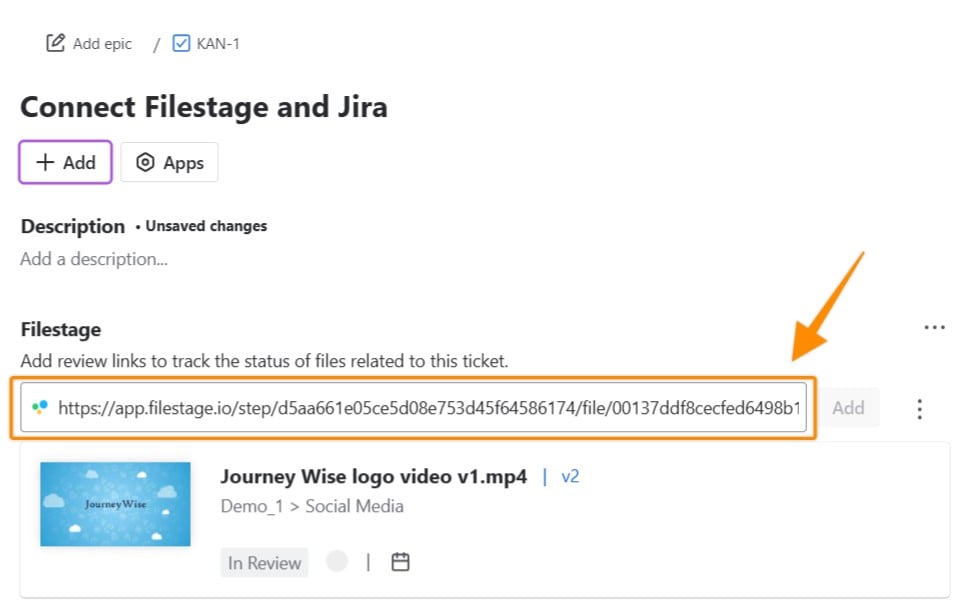
<table data-id="1efd842f-3411-433d-b08a-7ce06d53b2fc" style="min-width: 25px;"><colgroup><col style="min-width: 25px;"></colgroup><tbody><tr><td colspan="1" rowspan="1"><ol><li><p data-id="ed84b27c-5c56-43f9-8e57-11ce26b25b27" style="text-align: left;">Log into Filestage.</p></li><li><p data-id="c9603d3c-9c7d-437d-b40a-4c3fb76d3849" style="text-align: left;">Copy the review link of the file you want to add to your Jira task from your project dashboard.</p><div style="text-align: center; width: 100%;"><img src="https://staticfiles.gleap.io/ghelparticle/q1MgiuVJ5BklJKlkqKpHhaF99fdqe4iksmXLnr1GOxOhTmlVJRVyXzo92Z09bNBEF2fTygsg0dq.gif" data-width="75%" data-align="center" data-link="" data-target="" style="width: 75%; border-radius: 10px; margin-top: 10px; margin-bottom: 10px;"></div></li><li><p data-id="838ca0c3-9dfd-4492-9853-eefa2c3fcc88" style="text-align: left;">Paste the review link into the field in your Jira task and click on <strong>Add.</strong></p><div style="text-align: center; width: 100%;"><img src="https://staticfiles.gleap.io/ghelparticle/9eh28x6p1jZ3Tkjm8rh9DN6XWLu1pVaJcWF3zMzTT7UiTnrE86l9lBb3KSgQC9waYw6ZxBY3gmu.jpeg" data-width="70%" data-align="center" data-link="" data-target="" style="width: 70%; border-radius: 10px; margin-top: 10px; margin-bottom: 10px;"></div></li><li><p data-id="acdc87b3-c13d-422b-83a8-dd88d3becae9" style="text-align: left;">Once a file is added to your task, you can view its details, including the file name, project name, reviewer group, version number, review status, reviewer decisions, and deadline.</p></li></ol></td></tr></tbody></table>

* * *

### How to add the reviews of all active files in a reviewer group to a Jira task

> **Info:** Jira will only display files for which the review was started in the linked reviewer group. Files for which the review has not been started will not be added to the Jira task.

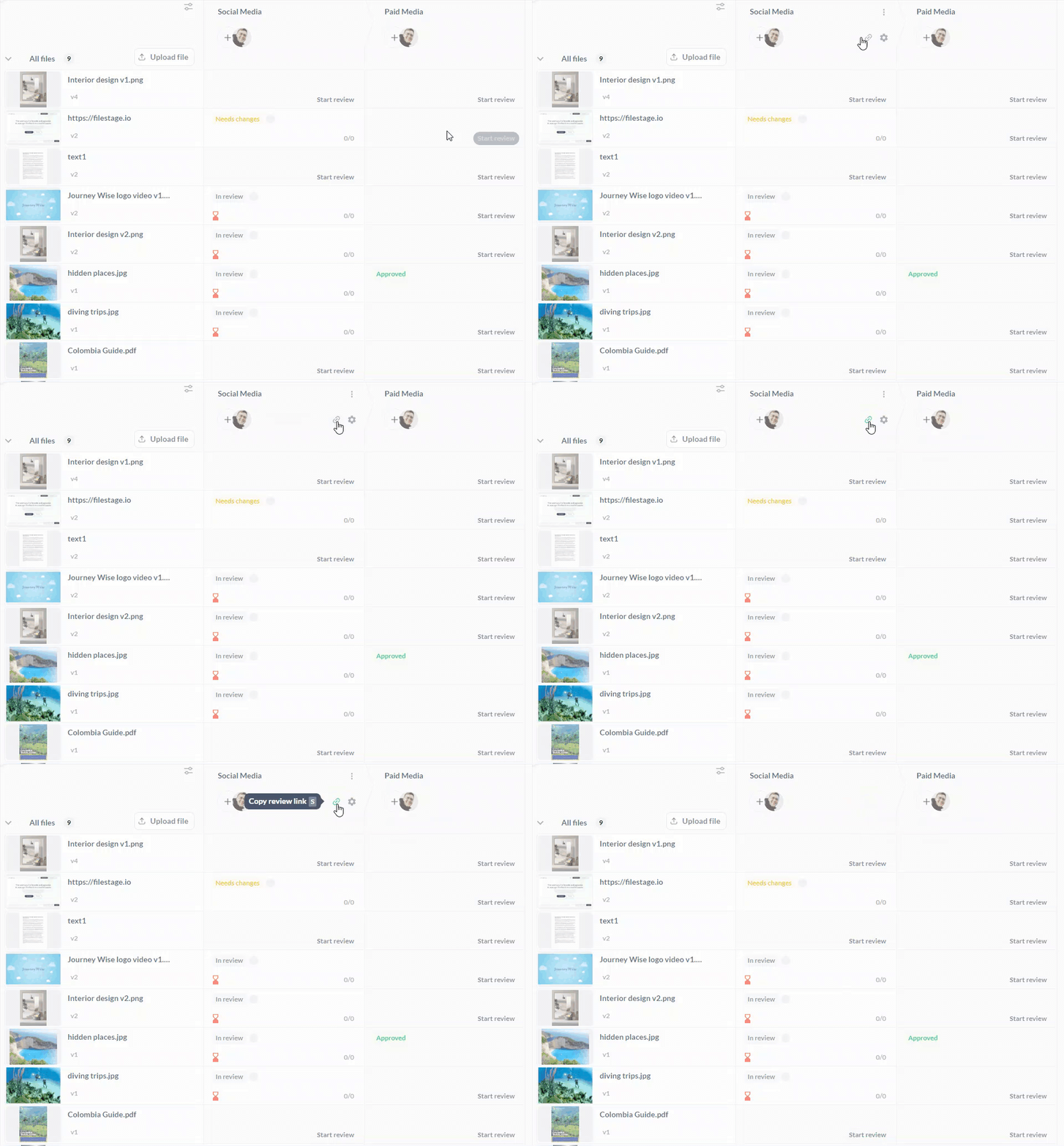
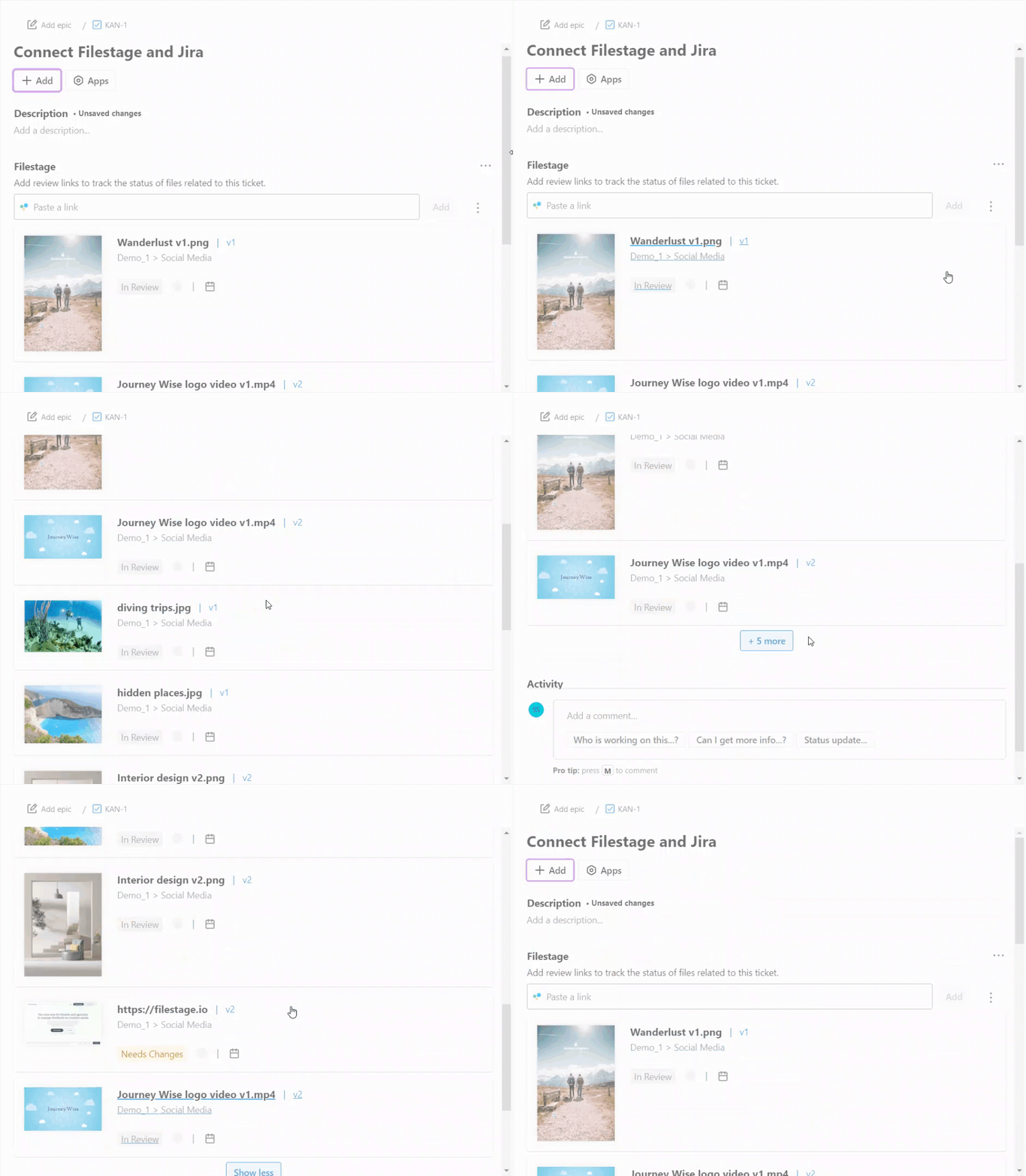
<table data-id="11496b2d-68cf-4780-bd99-553971d08992" style="min-width: 25px;"><colgroup><col style="min-width: 25px;"></colgroup><tbody><tr><td colspan="1" rowspan="1"><ol><li><p data-id="3a581f62-34e5-4294-88f4-5746555b33d5" style="text-align: left;">Log into Filestage.</p></li><li><p data-id="c7f8f45a-b173-4323-bb8e-bb239bce5a92" style="text-align: left;">Copy the review link of the reviewer group you want to add to your Jira task.</p><div style="text-align: center; width: 100%;"><img src="https://staticfiles.gleap.io/ghelparticle/DZeZOmaw84LbqG3a07LnXcQ5dRldt4jTpleUgp2MtbeCip8XoHRHQepAV1ugfDJphbVSnqBI9vV.gif" data-width="70%" data-align="center" data-link="" data-target="" style="width: 70%; border-radius: 10px; margin-top: 10px; margin-bottom: 10px;"></div></li><li><p data-id="14a6ce58-11c4-4e4d-898b-9018134883f9" style="text-align: left;">Paste the review link into the field in your Jira task and click on <strong>Add.</strong></p><div style="text-align: center; width: 100%;"><img src="https://staticfiles.gleap.io/ghelparticle/dYQJjVhvHOvGss4J7lgoWVvKRSKj6eqvjXwpHo5LtxWV9Qur1OYm5FgaZvX7rWKG7EhblCK7TKv.gif" data-width="70%" data-align="center" data-link="" data-target="" style="width: 70%; border-radius: 10px; margin-top: 10px; margin-bottom: 10px;"></div></li><li><p data-id="8d693d45-1802-41f8-9e9a-075814bade3c" style="text-align: left;">Once a reviewer group is added to your task, you can view the details of all files, including the file name, project name, reviewer group, version number, review status, reviewer decisions, and deadline.</p></li></ol></td></tr></tbody></table>

* * *

💡**What's next?** After syncing your Filestage project with Jira, learn [how you can connect Filestage to your Slack account](https://help.filestage.io/en/articles/6416366-integrate-filestage-with-slack.md)!

* * *

_If you have any questions or comments, feel free to start a chat or email us at_ [_support@filestage.io_](mailto:support@filestage.io)_. We’re always happy to help._