---
title: "Integrate Filestage with Adobe InDesign"
description: "Learn how to integrate Filestage with Adobe InDesign to streamline the review process for your designs"
url: https://help.filestage.io/en/articles/7966061-integrate-filestage-with-adobe-indesign
collection: "Integrations"
updated: 2026-06-09
language: en
alternates: [fr, de, es]
---

# Integrate Filestage with Adobe InDesign

Learn how to integrate Filestage with Adobe InDesign to streamline the review process for your designs

_With the Filestage plugin for_ **_Adobe InDesign_**_, you can import your designs directly from InDesign to Filestage, initiating the review process without manual steps._

_Furthermore, the feedback received on the designs can be reviewed directly within InDesign, eliminating the need to switch between tools._

> **Info:** **_Please note:_** _To use this plugin, you need an Adobe Creative Cloud subscription and an installed version of_ [_Adobe InDesign_](https://www.adobe.com/id_en/products/indesign.html)_._

* * *

## **Get the Filestage plugin for InDesign**

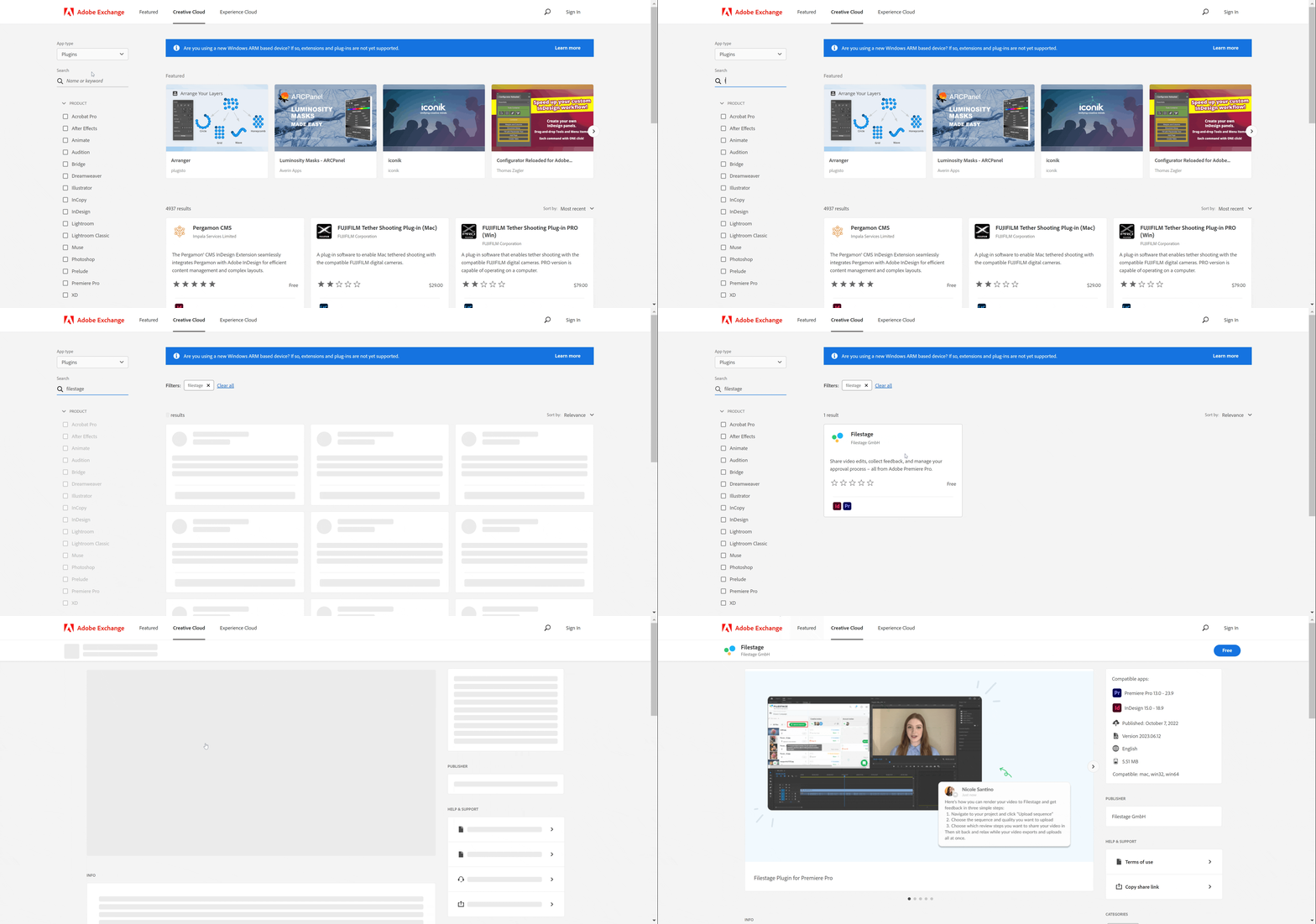
<table data-id="d292057c-1cf8-4170-84d0-7435e120ef42" style="min-width: 25px;"><colgroup><col style="min-width: 25px;"></colgroup><tbody><tr><td colspan="1" rowspan="1"><ol><li><p data-id="74318d8d-50d0-4c7f-b2ed-9029733232fa" style="text-align: left;"><strong>Locate the plugin</strong> in Adobe Creative Cloud</p><ul><li><p data-id="38e9f76e-e162-4446-a506-2131e61c94c2" style="text-align: left;">You can access the plugin via the following link: <a target="_blank" rel="noopener noreferrer nofollow" class="linktype-link intercom-content-link link" data-linktype="link" href="https://exchange.adobe.com/apps/cc/108907/filestage">Filestage plugin for InDesign</a></p></li><li><p data-id="94605c83-70b8-4e96-8382-40d8107e2d29" style="text-align: left;"><em>Or</em> search for <strong><em>Filestage</em></strong> in the Creative Cloud marketplace and open it</p><img src="https://staticfiles.gleap.io/helpcenter/668fad7b14cdc36cb3fd211c/20240814123625_2919.gif" style="width: 100%; height: auto; cursor: pointer;"></li></ul></li><li><p data-id="a9b6ffcc-5137-4383-9f3e-9d01d26c6a6d" style="text-align: left;"><strong>Install the plugin</strong></p><ul><li><p data-id="9ce7d59b-666c-469b-9d4e-c12269aa3206" style="text-align: left;">Click on<strong> Get</strong> in the upper right corner of the screen and accept the Third-Party information</p></li><li><p data-id="4b5ad7d7-fa52-40f7-885d-cc35a0c74213" style="text-align: left;">Filestage's Plugin for InDesign will be installed</p></li></ul></li></ol></td></tr></tbody></table>

* * *

## **Activate the plugin for your project**

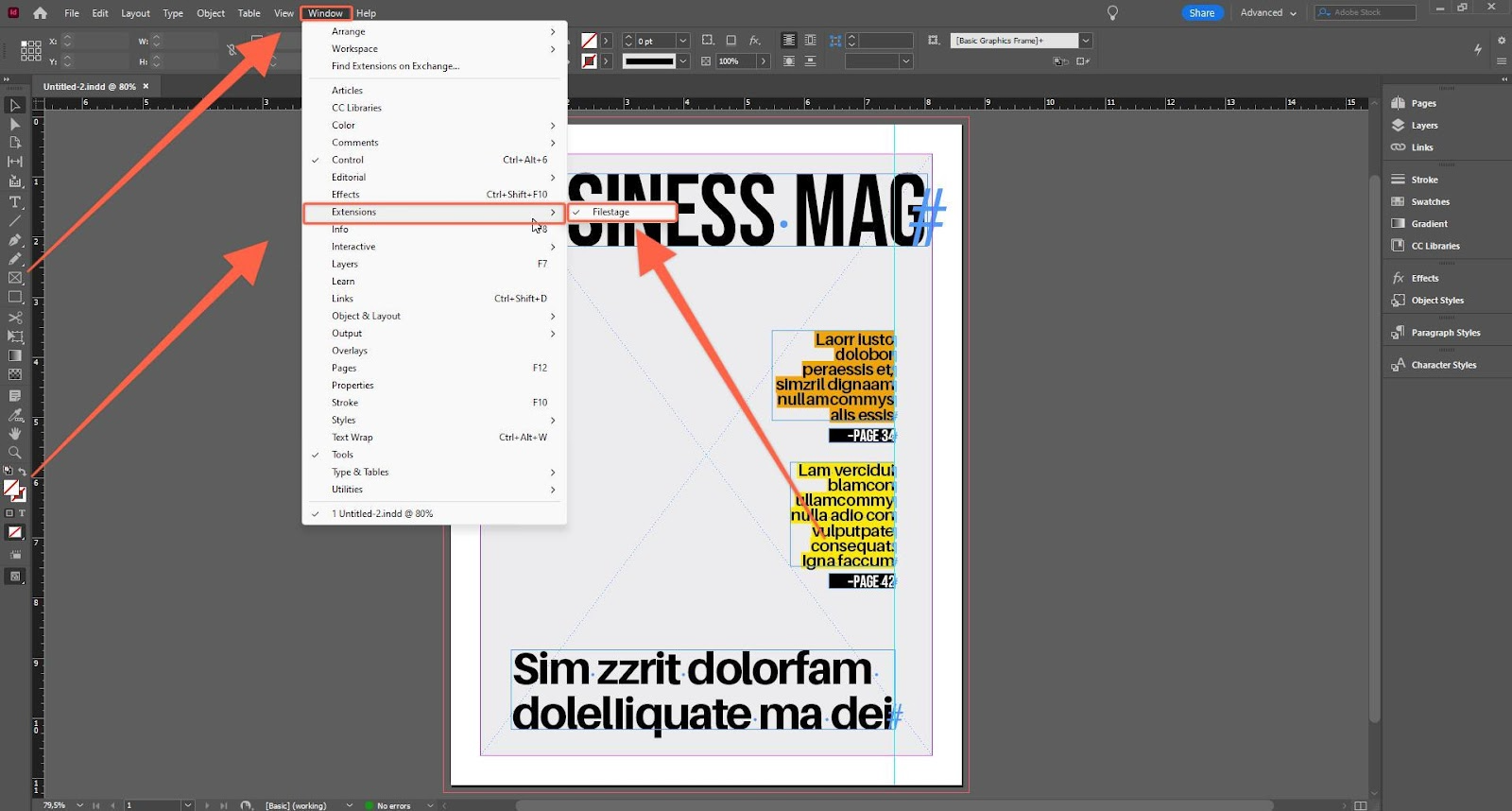
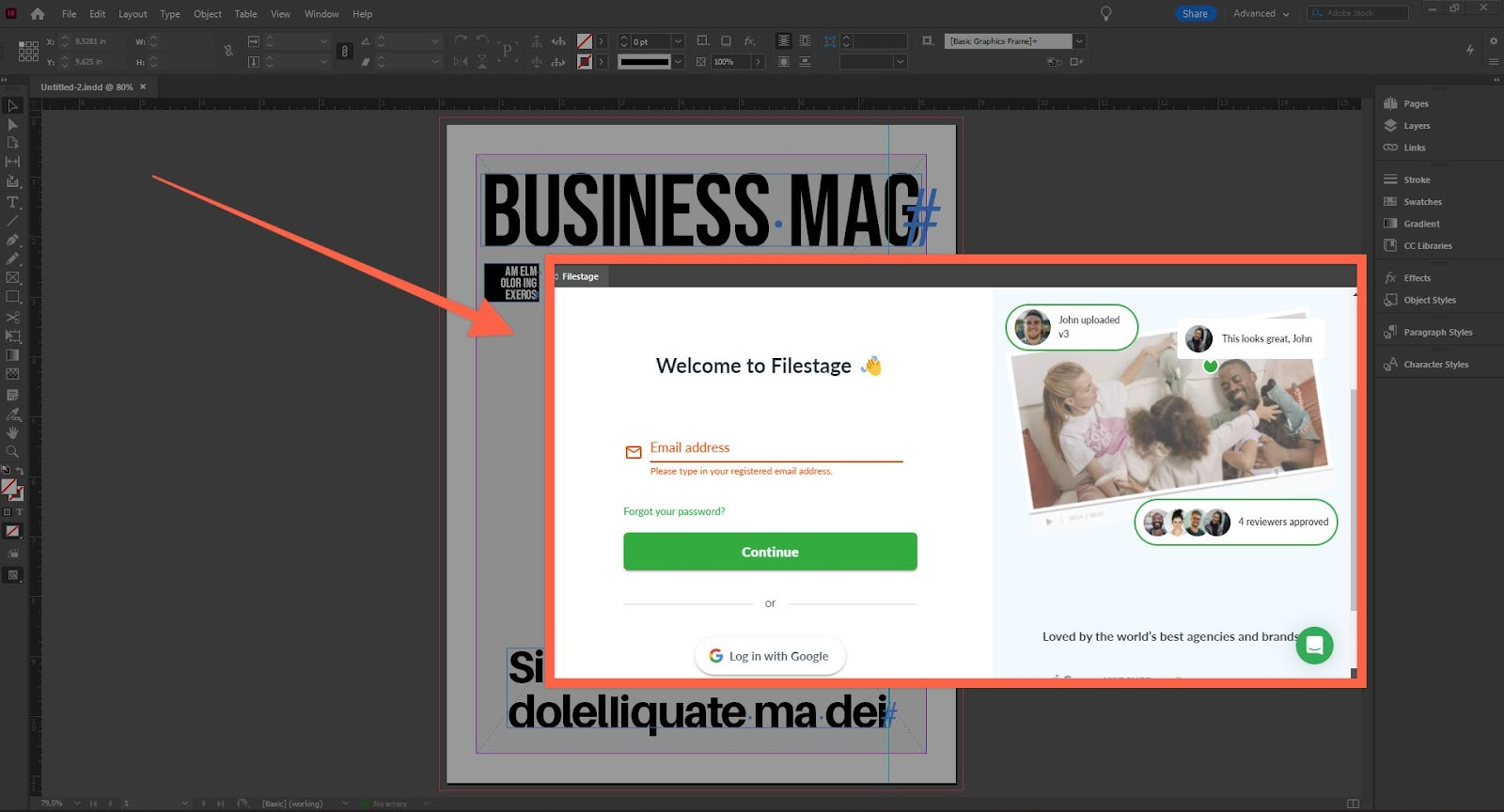
<table data-id="96e01391-4681-40f0-8019-eecce50b3102" style="min-width: 25px;"><colgroup><col style="min-width: 25px;"></colgroup><tbody><tr><td colspan="1" rowspan="1"><ol><li><p data-id="e0296d41-8c29-4a07-8868-debc6a112985" style="text-align: left;"><strong>Activate the plugin</strong> inside your InDesign project</p><ul><li><p data-id="207ad032-b0a3-443a-b20a-081b72763d86" style="text-align: left;">Open the desired InDesign project you want to integrate with Filestage.</p></li><li><p data-id="dad3c6ea-b22a-46c5-9245-0f38524ec6bb" style="text-align: left;">Click on Windows in the top bar and go to Extensions in the dropdown menu. Now select Filestage.</p><img src="https://staticfiles.gleap.io/helpcenter/668fad7b14cdc36cb3fd211c/20240814123624_4365.png" style="width: 100%; height: auto; cursor: pointer;"></li><li><p data-id="86d5cce0-bc77-4e87-975d-2648ac808e99" style="text-align: left;">You will now see the Filestage plugin window in your project.</p></li><li><p data-id="036f1456-32a2-4d3f-a1b5-b1af0f07f315" style="text-align: left;">To disable the plugin again, you need to go through the previous steps again and click on the Filestage extension.</p></li></ul></li><li><p data-id="7c63d5f1-42e9-4d0c-9159-3f8f50bcf11d" style="text-align: left;"><strong>Log in </strong>to your Filestage account</p><ul><li><p data-id="907f0a42-cdd2-41a5-81a7-246207f81cc6" style="text-align: left;">Fill in your login information and enter your Filestage account.</p><img src="https://staticfiles.gleap.io/helpcenter/668fad7b14cdc36cb3fd211c/20240814123624_7640.png" style="width: 100%; height: auto; cursor: pointer;"></li><li><p data-id="76101f62-dd04-45f8-9b62-ff000c2e31e1" style="text-align: left;">You can now navigate through Filestage just like you would in a browser.</p></li></ul></li></ol></td></tr></tbody></table>

* * *

> **Success:** 💡 **Pro-Tip:** Add Filestage directly to the workspace bar (menu) in InDesign, providing an even smoother access to the plugin functionalities.

![](https://staticfiles.gleap.io/helpcenter/668fad7b14cdc36cb3fd211c/20240814123623_8681.gif)

For more details on how to set it up, click here: [InDesign Workspace basics](https://helpx.adobe.com/indesign/using/workspace-basics.html)

* * *

## **Uploading designs to Filestage**

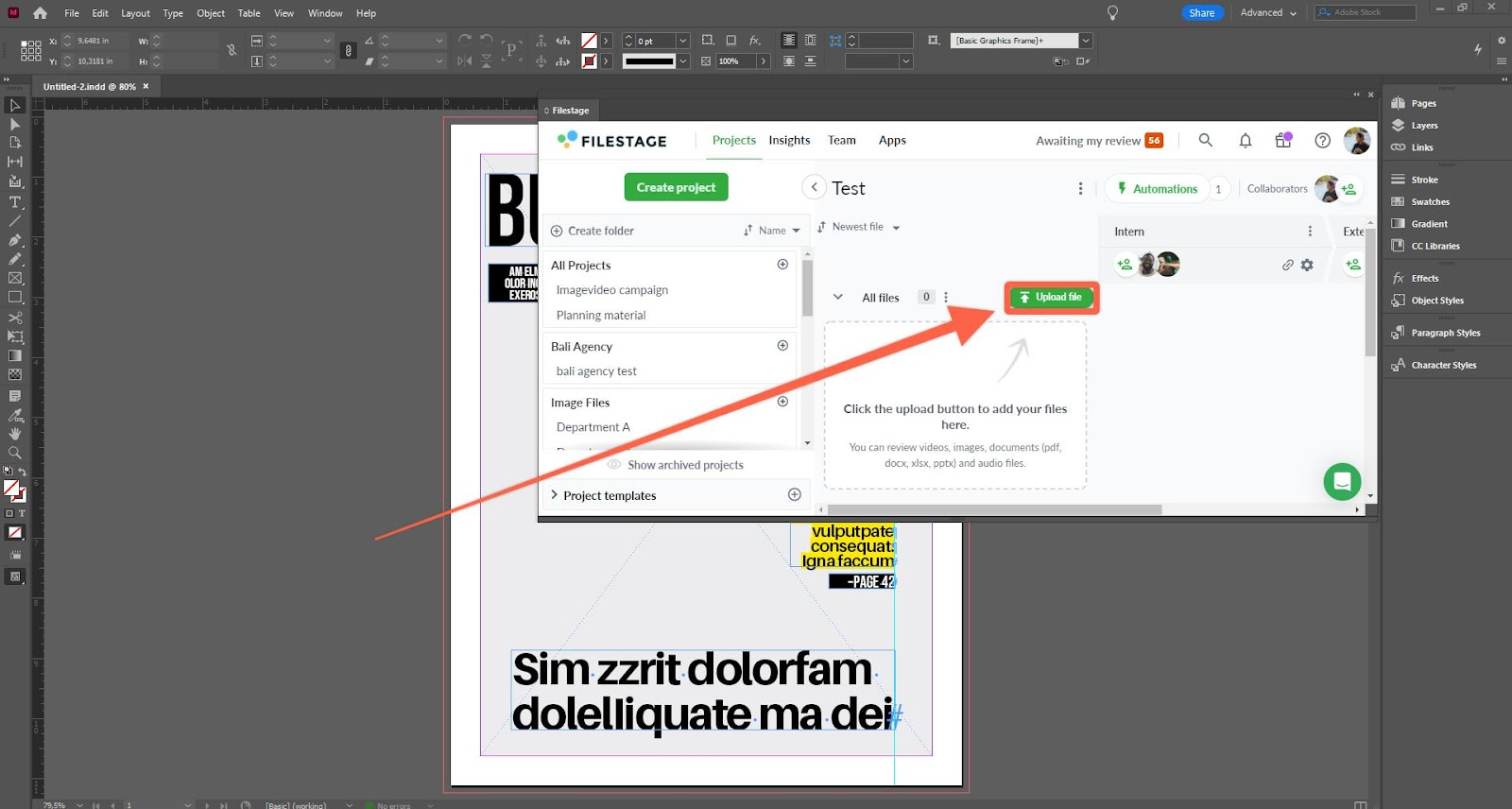
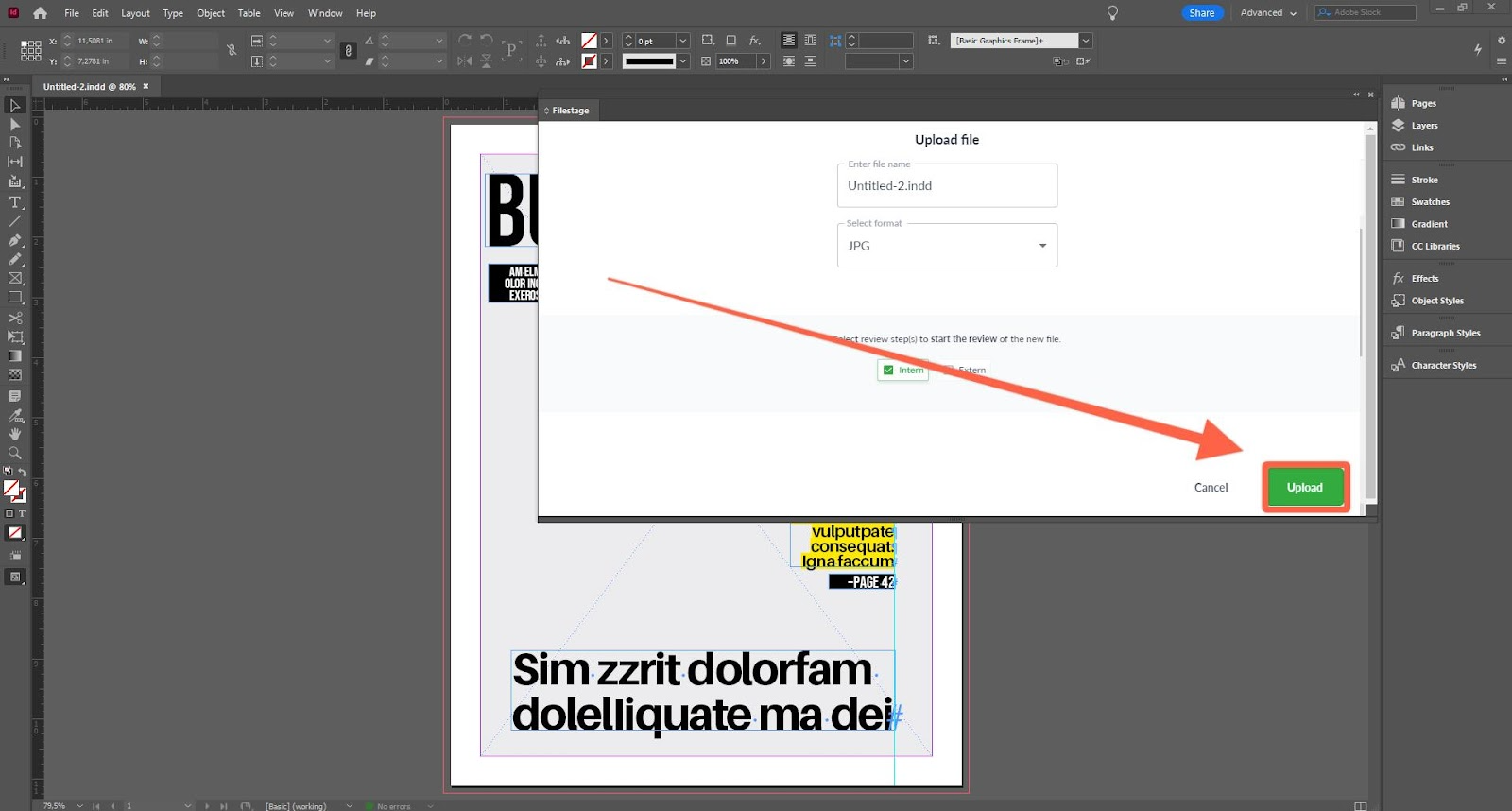
<table data-id="6c456008-a367-456c-ae21-e7781234c9dd" style="min-width: 25px;"><colgroup><col style="min-width: 25px;"></colgroup><tbody><tr><td colspan="1" rowspan="1"><ol><li><p data-id="77fc21f1-d40c-4c94-99c5-ab19542ce187" style="text-align: left;"><strong>Select the project</strong> in Filestage to which you want to upload your designs</p><ul><li><p data-id="7cb32eee-a67d-4729-8418-1fcef5a587b8" style="text-align: left;">In the project list, select the project where you want to upload the designs for review.</p></li></ul></li><li><p data-id="2a01cc53-1949-42b3-b168-051b7fc98b65" style="text-align: left;"><strong>Upload the designs</strong></p><ul><li><p data-id="2d6cdc3f-9e27-4965-830b-3339260fde2c" style="text-align: left;">Click <strong>Upload file</strong> in the selected project.</p><img src="https://staticfiles.gleap.io/helpcenter/668fad7b14cdc36cb3fd211c/20240814123623_9834.png" style="width: 100%; height: auto; cursor: pointer;"></li><li><p data-id="89b5e560-a9cd-484f-91b2-ef14eac8f5d6" style="text-align: left;"><em>Optional:</em><br>Filestage uses the file name set for the project. You can change the name if needed in the upload window.</p></li><li><p data-id="44b98c13-ef43-4872-92e9-cb2cff7da783" style="text-align: left;">Select the file format that should be uploaded. You can choose between jpg., png. or pdf.</p></li><li><p data-id="a0463d25-b2cb-4a96-b8a8-2e006460fae4" style="text-align: left;">After doing your selection click on the <strong>upload</strong> button.</p><img src="https://staticfiles.gleap.io/helpcenter/668fad7b14cdc36cb3fd211c/20240814123623_1360.png" style="width: 100%; height: auto; cursor: pointer;"></li><li><p data-id="a4d68d1c-45d6-4c0e-a8f3-e9eaea61787c" style="text-align: left;">The design is now uploaded to your selected project and can be reviewed.</p></li></ul></li></ol></td></tr></tbody></table>

* * *

## **Viewing and interacting with comments**

Once your reviewers leave feedback, all comments and annotations automatically sync directly to your InDesign workspace across two areas:

-   **InDesign’s native notes view:** Perfect for quickly viewing comments directly on your layout.
    
-   **The Filestage extension panel:** Used to view, reply to, and resolve feedback threads
    

This dual sync lets you track and act on feedback instantly without ever switching tools.

![](https://staticfiles.gleap.io/helpcenter/668fad7b14cdc36cb3fd211c/20240814123624_7648.png)

> **Warning:** **Please note:** _The plugin synchronizes comments from Filestage to Filestage InDesign-Plugin. Any changes made in InDesign will not affect the uploaded designs in Filestage._

* * *

💡 **What's next?** Once you're done uploading a design, see how to [Manage different versions of a file](https://help.filestage.io/en/articles/2211321-manage-different-versions-of-a-file.md).

* * *

_Let us know if you have any questions by reaching out to us on chat or emailing us_ [_support@filestage.io_](mailto:atsupport@filestage.io)_! We're always happy to help!_