---
title: "Integrate Filestage with Microsoft Teams"
description: "Connect Filestage with Microsoft Teams to receive updates about comments, review decisions, and more in your MS Teams channel!"
url: https://help.filestage.io/en/articles/6226332-integrate-filestage-with-microsoft-teams
collection: "Integrations"
updated: 2025-11-14
language: en
alternates: [fr, de, es]
---

# Integrate Filestage with Microsoft Teams

Connect Filestage with Microsoft Teams to receive updates about comments, review decisions, and more in your MS Teams channel!

> **Success:** If you need further help integrating Filestage with Microsoft Teams, get in touch with our integration consultants using our support chat or via [support@filestage.io](mailto:support@filestage.io).

* * *

_Connecting your Filestage projects with Microsoft Teams channels ensures you stay informed about project activity in real time, right where your team collaborates. With this integration, you can receive timely updates whenever key actions occur, such as file or version uploads, reviews starting, status changes, new comments, review decisions, or adjustments to due dates._

* * *

Watch this video to get started or follow the step-by-step instructions below to set it up:

* * *

## **Connect Microsoft Teams and Filestage**

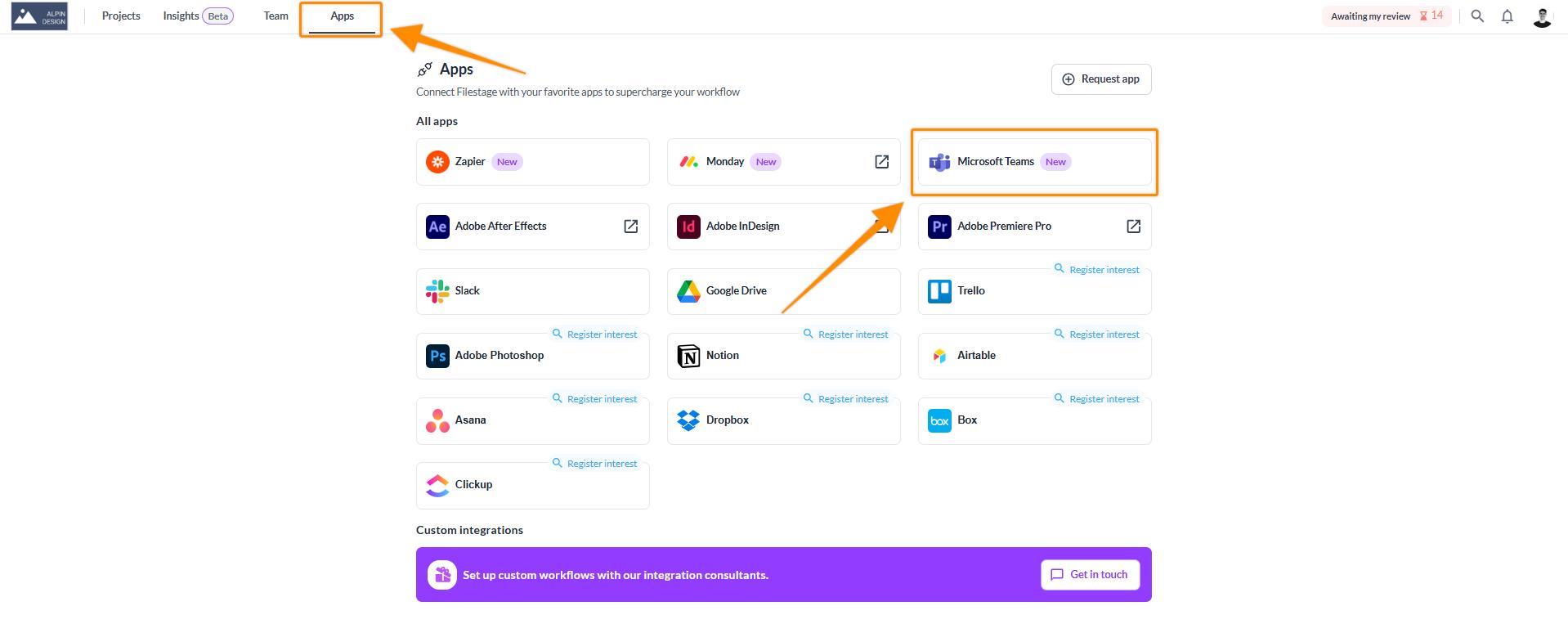
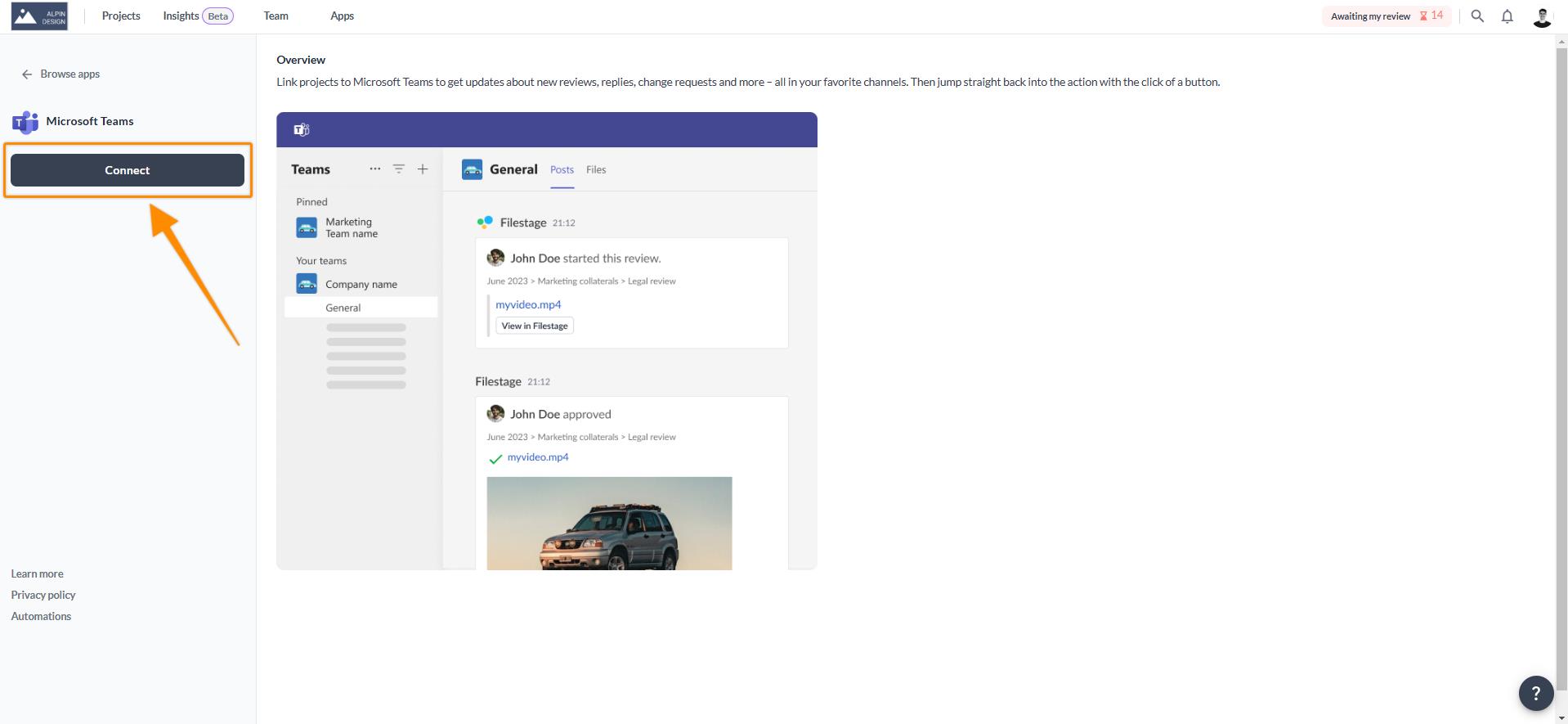
To set up the integration between Filestage and Microsoft Teams for the first time, follow these steps:

<table data-id="0b74a50e-1390-4dc6-8462-ae2725fae317" style="min-width: 25px;"><colgroup><col style="min-width: 25px;"></colgroup><tbody><tr><td colspan="1" rowspan="1" style="box-sizing: border-box; font-family: proxima-nova, &quot;Helvetica Neue&quot;, system-ui, &quot;Segoe UI&quot;, Roboto, Helvetica, Arial, sans-serif, &quot;Apple Color Emoji&quot;, &quot;Segoe UI Emoji&quot;, &quot;Segoe UI Symbol&quot;; line-height: 1; border: 1px solid rgba(0, 0, 0, 0.1); min-width: 100px; padding: 0.5rem; position: relative; text-align: left; vertical-align: top; margin-top: 0px;"><ol><li><p data-id="e4c85e3c-3838-4543-a940-33332256bce4" style="text-align: left;">Go to <strong>Apps </strong>in the navigation bar and click on <strong>Microsoft Teams</strong></p><div style="text-align: center; width: 100%;"><img src="https://staticfiles.gleap.io/ghelparticle/lNh3O8WQxcwqcStGSabtBYAwAyEwWO1BBq4IDd19EJyw3dPODBfxcylq8Moe3QFV6Fea1hUTk1u.jpeg" data-width="100%" data-align="center" data-link="" data-target="" style="width: 100%; border-radius: 10px; margin-top: 10px; margin-bottom: 10px;"></div></li><li><p data-id="56361808-deb5-4832-b282-0c5681ba218c" style="text-align: left;">Click on <strong>Connect </strong>to establish a connection with your Microsoft Teams account and workspace.</p><img src="https://staticfiles.gleap.io/ghelparticle/A1IumhmZ8fS7wacWe0HzNgpAajOZuLpSnXuE5ufYBB8emJA6K6wK2JRx6A94RYyv33fmqqPmV4A.jpeg" style="box-sizing: border-box; font-family: proxima-nova, &quot;Helvetica Neue&quot;, system-ui, &quot;Segoe UI&quot;, Roboto, Helvetica, Arial, sans-serif, &quot;Apple Color Emoji&quot;, &quot;Segoe UI Emoji&quot;, &quot;Segoe UI Symbol&quot;; line-height: 1; height: auto; width: 557.812px; max-width: 100%; margin-top: 24px; margin-bottom: 24px; border-radius: 8px; align-self: center; cursor: pointer;"></li></ol></td></tr></tbody></table>

* * *

## **Connecting your project to a Microsoft Teams channel**

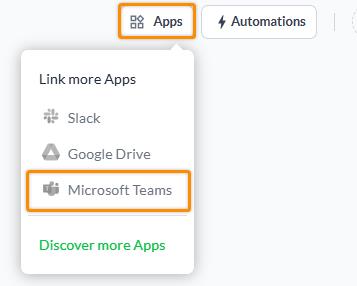
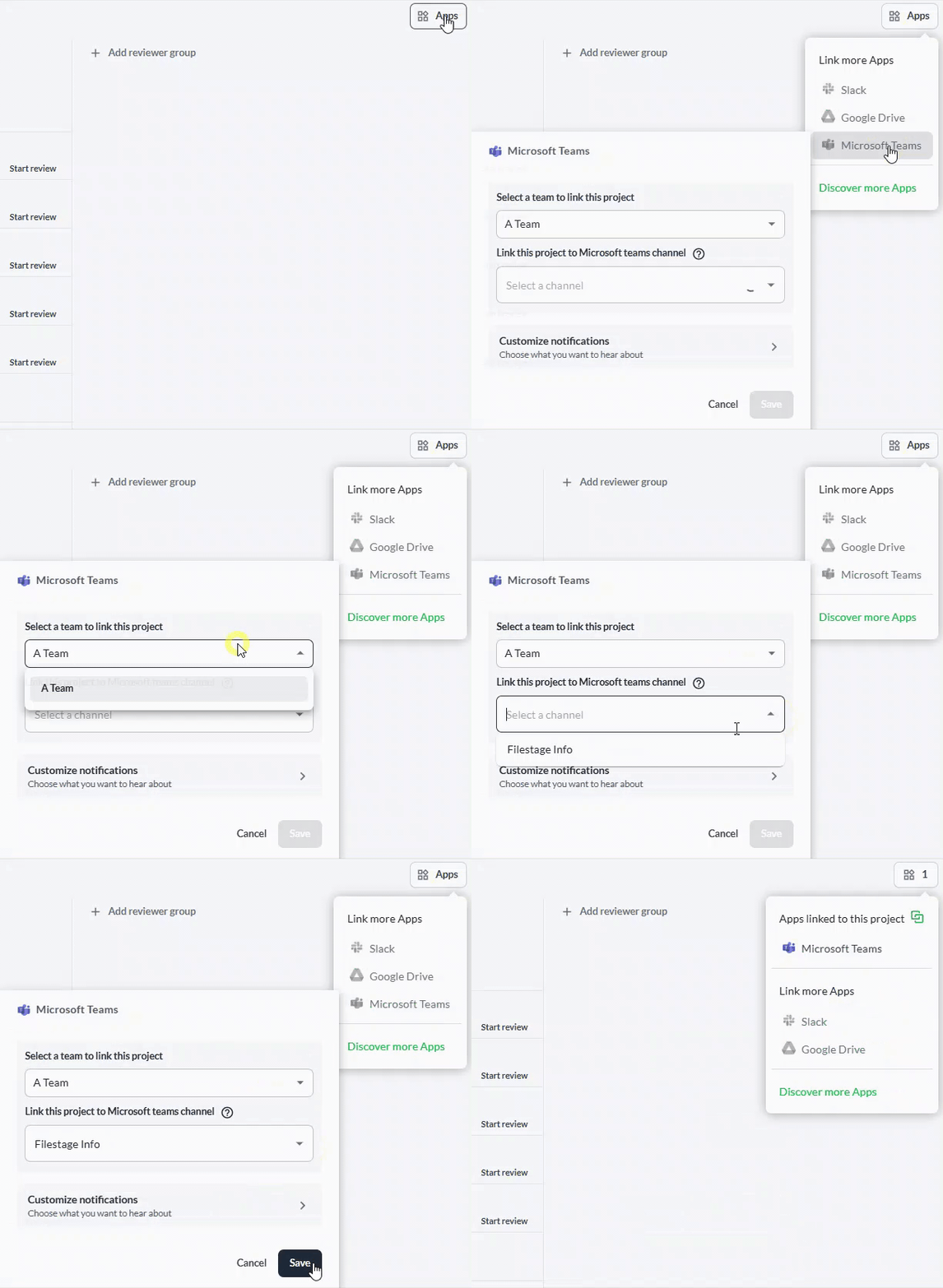
Once you’ve successfully connected Filestage with Microsoft Teams, the next step is to link the appropriate Filestage project to the specific Microsoft Teams channel where you want to receive notifications. Follow these steps to connect a Filestage project to a Microsoft Teams channel:

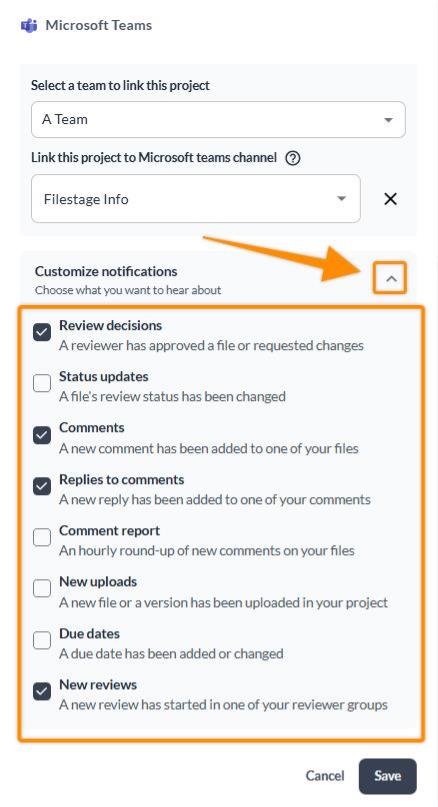
<table data-id="8cff9bed-0b0f-4a86-9327-9b6b4f89cd51" style="min-width: 25px;"><colgroup><col style="min-width: 25px;"></colgroup><tbody><tr><td colspan="1" rowspan="1" style="box-sizing: border-box; font-family: proxima-nova, &quot;Helvetica Neue&quot;, system-ui, &quot;Segoe UI&quot;, Roboto, Helvetica, Arial, sans-serif, &quot;Apple Color Emoji&quot;, &quot;Segoe UI Emoji&quot;, &quot;Segoe UI Symbol&quot;; line-height: 1; border: 1px solid rgba(0, 0, 0, 0.1); min-width: 100px; padding: 0.5rem; position: relative; text-align: left; vertical-align: top; margin-top: 0px;"><ol><li><p data-id="36733506-6335-4cb0-9938-ef03f0fb3f76" style="text-align: left;">Open the <strong>project </strong>you would like to connect to Microsoft Teams. Then click on the <strong>Apps </strong>symbol in the top right corner of your project dashboard and then select <strong>Microsoft Teams.</strong></p><img src="https://staticfiles.gleap.io/ghelparticle/G7WUdHArW9bvK2E9Sa0MuVGQWXtTzZ0K2WuulDgcUGdArYab0sMLwFtfpJLoJx3da9EYhWYwHpM.jpeg" style="box-sizing: border-box; font-family: proxima-nova, &quot;Helvetica Neue&quot;, system-ui, &quot;Segoe UI&quot;, Roboto, Helvetica, Arial, sans-serif, &quot;Apple Color Emoji&quot;, &quot;Segoe UI Emoji&quot;, &quot;Segoe UI Symbol&quot;; line-height: 1; height: auto; width: 278.906px; max-width: 100%; margin-top: 24px; margin-bottom: 24px; border-radius: 8px; cursor: pointer;"></li><li><p data-id="a3492845-0d9b-411b-8c3c-b1c4d9dd0c00" style="text-align: left;"><strong>Select a team</strong> and <strong>choose the channel</strong> to which you want to send the notifications.</p><img src="https://staticfiles.gleap.io/ghelparticle/fGAPezBGTxfLwgNkhUauXhm501V6XkASSP0ktYPr4m7cxYjYVJmlGwON0k0EegWDyEiLsrN68o7.gif" style="width: 371px;"></li><li><p data-id="896dcc60-3eec-446c-8172-fa180ac0f020" style="text-align: left;">Click <strong>Customize notifications</strong> and select the types of notifications you want to receive in your Microsoft Teams channel.</p><img src="https://staticfiles.gleap.io/ghelparticle/y6XyRBcESJqgUA8jwSZ6nL1geePtYdZWJjTgqeoJd56HNLrHjqBNC10KfcgcLHCOqu509Kdiy4n.jpeg" style="box-sizing: border-box; font-family: proxima-nova, &quot;Helvetica Neue&quot;, system-ui, &quot;Segoe UI&quot;, Roboto, Helvetica, Arial, sans-serif, &quot;Apple Color Emoji&quot;, &quot;Segoe UI Emoji&quot;, &quot;Segoe UI Symbol&quot;; line-height: 1; height: auto; width: 278.906px; max-width: 100%; margin-top: 24px; margin-bottom: 24px; border-radius: 8px; cursor: pointer;"></li><li><p data-id="5e1932e3-5867-4c31-a904-a6c6c045419b" style="text-align: left;">Congratulations <span data-name="party" data-type="emoji">🎉</span> You will now receive all project-related notifications in your Microsoft Teams channel.</p></li></ol></td></tr></tbody></table>

* * *

And that’s how easy it is to connect your Filestage project to your Microsoft Teams channel!

* * *

💡 **What's next?** Once you're done with Integrate Filestage with Microsoft Teams, learn how to [integrate Filestage with Microsoft Power Automate](https://help.filestage.io/en/articles/9465067-integrate-filestage-with-microsoft-power-automate.md).

* * *

_Let us know if you have any questions by reaching out to us on chat or emailing us at_ [_support@filestage.io_](mailto:support@filestage.io) _We're always happy to help!_