---
title: "Review Interactive HTML"
description: "Learn how to review websites, animations, HTML5 banners, e-learning content, and more"
url: https://help.filestage.io/en/articles/5977284-review-interactive-html
collection: "File Viewer and Content Types"
updated: 2026-09-09
language: en
alternates: [fr, de, es]
---
# Review Interactive HTML
Learn how to review websites, animations, HTML5 banners, e-learning content, and more
_You can share_ **_interactive HTML_** _content and collect feedback in Filestage, just like you would with other file formats._
* * *
# Review all your interactive HTML content with Filestage
**This includes:**
✔ Banner ads
✔ Dynamic display ads
✔ Emails
✔ E-learning content
✔ Animations
And any other interactive HTML content.
* * *
# How to upload HTML content
1. To review HTML files, you need to upload the files in a **zip file**. [Learn how to create a zip file here.](https://www.wikihow.com/Make-a-Zip-File)
- If you have multiple HTML files in the root folder of your zip file, we recommend renaming the main HTML file as “index.html” and keeping it in the root folder. Our viewer will load the "index.html" first.
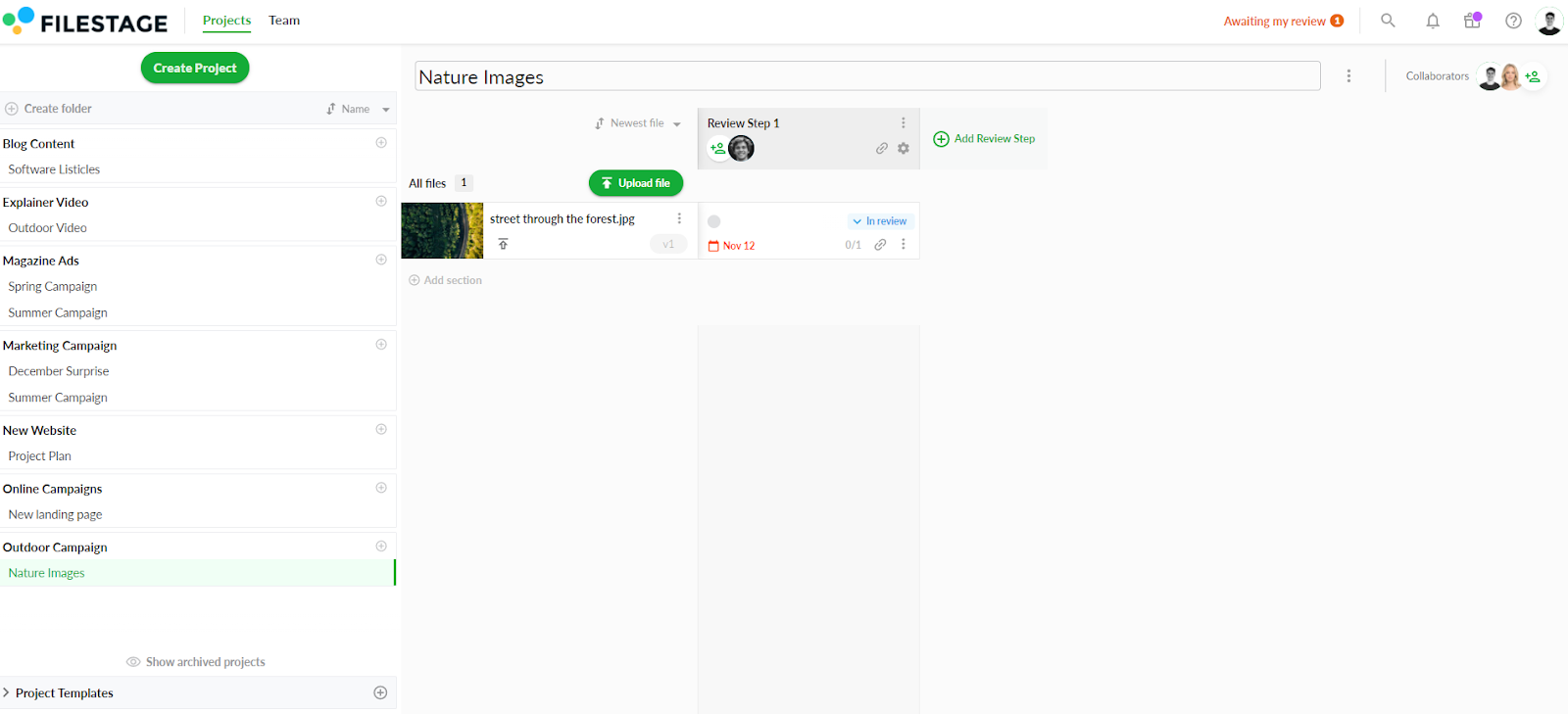
2. You can [upload](https://help.filestage.io/en/articles/3188612-manage-your-project-files.md) this zip file to Filestage as usual.
The zip file is displayed in the [website viewer](https://help.filestage.io/en/articles/5755744-review-live-websites.md) and allows you to switch between browse and comment mode. **For more information, please read our** [**review live websites**](https://help.filestage.io/en/articles/5755744-review-live-websites.md) **article.**
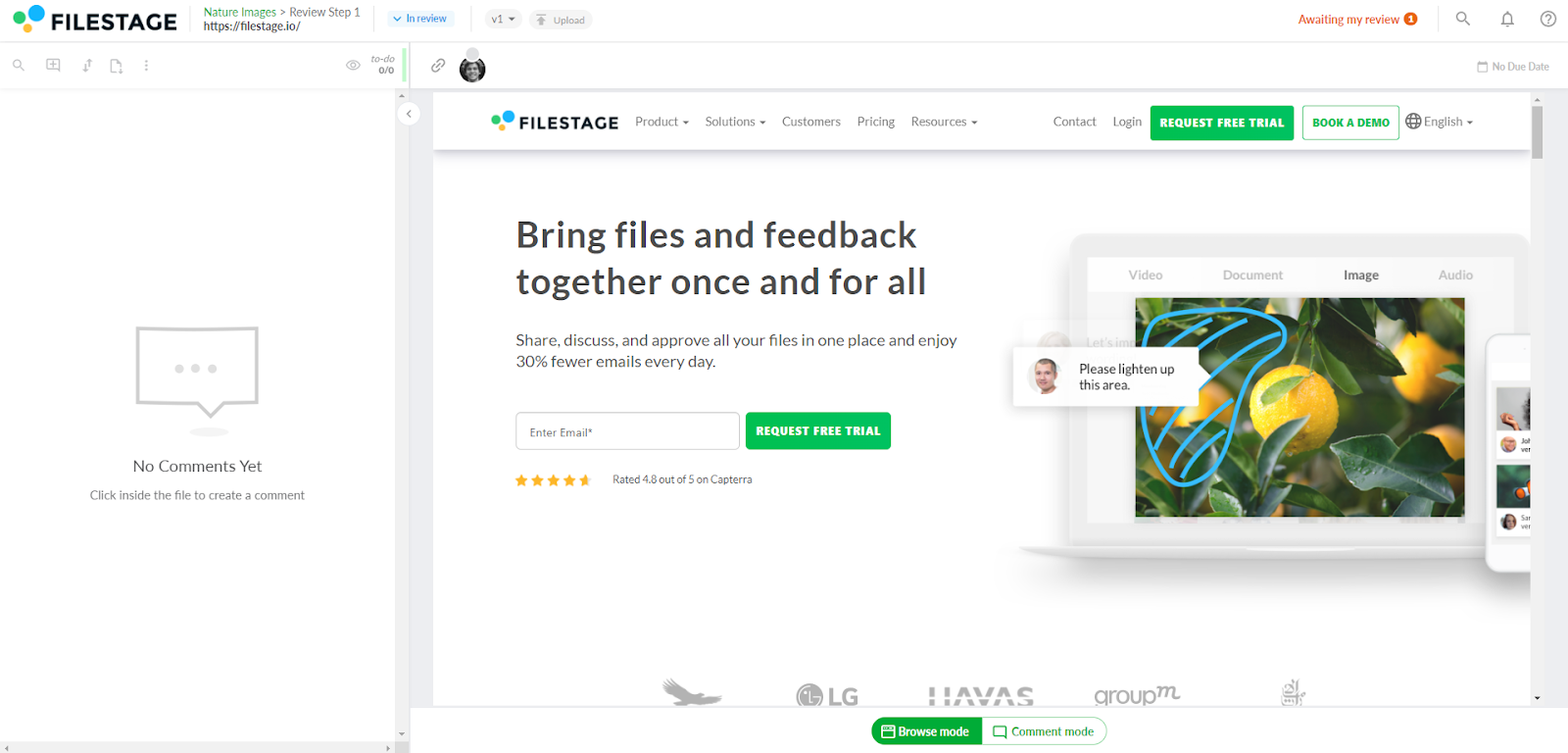
⚠️ **_Please note:_** _To fully view and comment on interactive HTML, install our browser extension. Click here to learn more about our_ [_supported browser extensions._](https://help.filestage.io/en/articles/5755478-install-our-browser-extension-to-fully-review-live-websites.md)
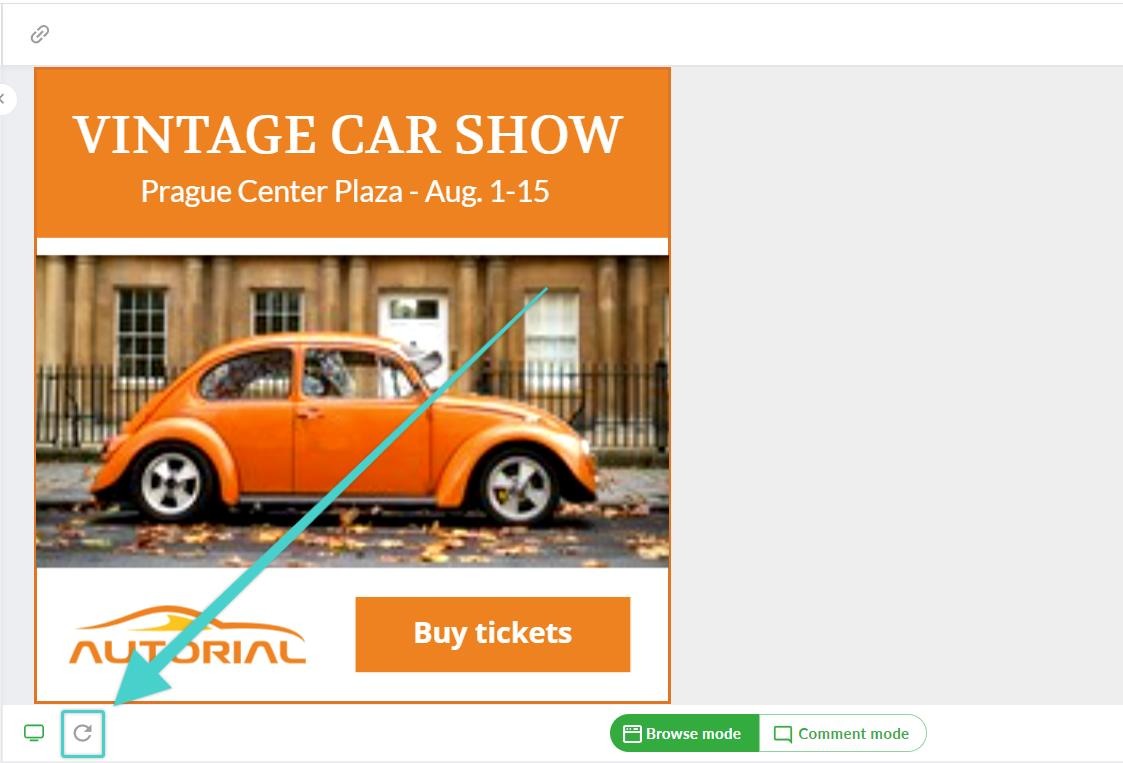
If you have animated banners or similar in your HTML content, you can re-play it using the refresh button. If an HTML banner viewer is blank but previews render or invisible links remain clickable, the ZIP and upload may be fine and your browser may be blocking the banner’s display scripts. First open the same banner in Chrome. If it works there, Firefox may be blocking external scripts; click the shield icon in Firefox’s address bar, disable protection for the site, and reload. You can also test the banner in a Chrome incognito window and use Filestage’s domain whitelist checker to identify network blocking.
## **Which plans allow me to upload interactive HTML?**
All our current plans include the option to upload interactive HTML. If you are on an older plan but are interested in the feature, you can choose an upgrade or contact us directly.
* * *
💡**What´s next?** After understanding how to review your canvas file, see how to [review your Google documents](https://help.filestage.io/en/articles/5839293-reviewing-your-google-documents-in-filestage.md) in Filestage.
* * *
_If you have any questions or comments, please contact us through chat or email at_ [_support@filestage.io_](mailto:support@filestage.io)_._