---
title: "Compare versions of a file directly in the viewer"
description: "Cross-check changes, comments, and annotations of two file versions"
url: https://help.filestage.io/en/articles/5560093-compare-versions-of-a-file-directly-in-the-viewer
collection: "File and Version Management"
updated: 2026-07-02
language: en
alternates: [fr, de, es]
---

# Compare versions of a file directly in the viewer

Cross-check changes, comments, and annotations of two file versions

_It is often difficult to see if changes have been added to new versions of your files._

_With the_ **_version compare feature_**_, you have two options to review these changes: a side-by-side comparison view and the overlay mode. You can see exactly which changes have been made on one screen and leave additional feedback._

> **Success:** _This feature is available on our Starter, Business, and Enterprise plans._

* * *

## How to compare versions of your files

You have two methods to compare your files: the overlay mode and the side-by-side comparison view. The Overlay Mode is ideal for a detailed, overlaid comparison, allowing you to discern subtle differences by adjusting the opacity of the versions. side-by-side comparison view, on the other hand, provides a clear, direct comparison by displaying the versions next to each other, making it easier to identify broader changes.

### Compare files side-by-side

To compare versions side-by-side, follow these steps:

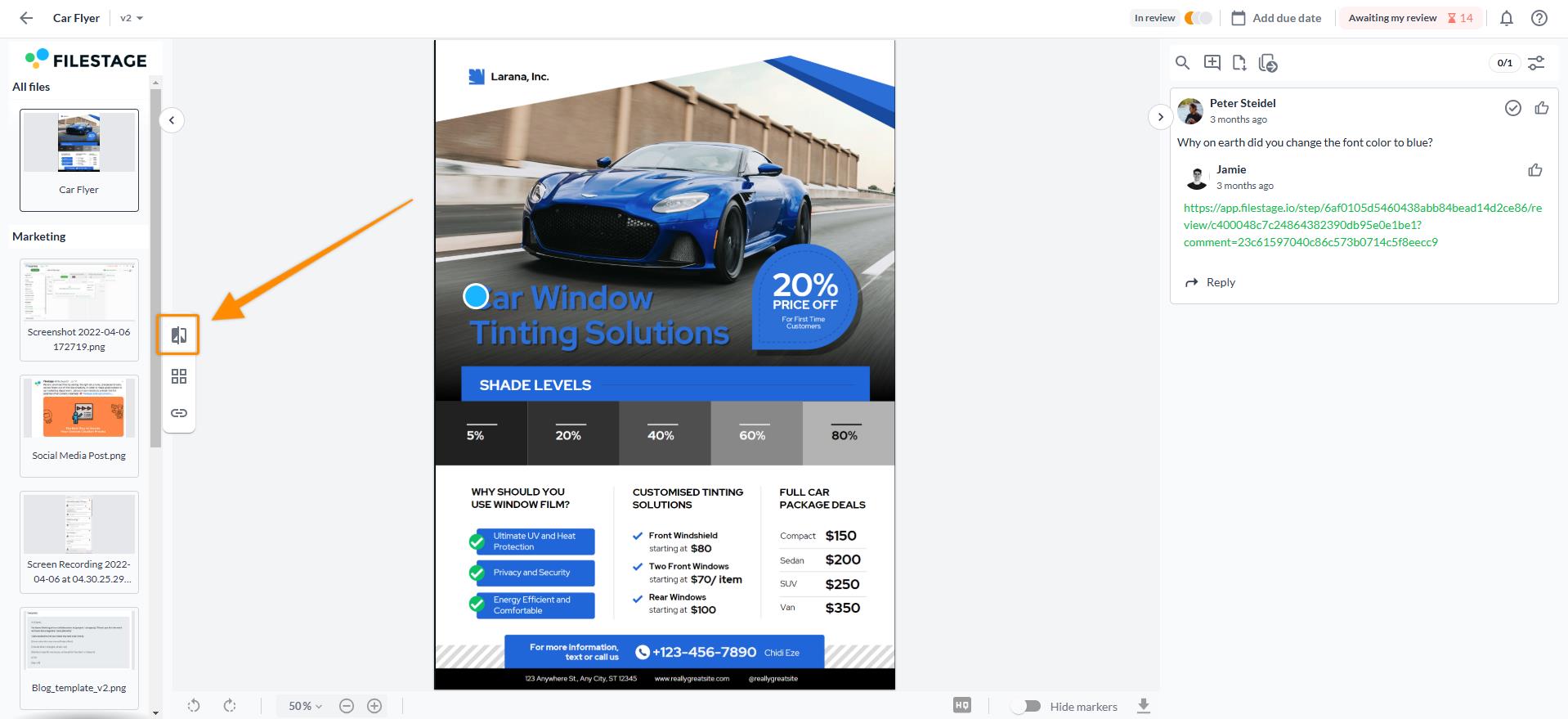
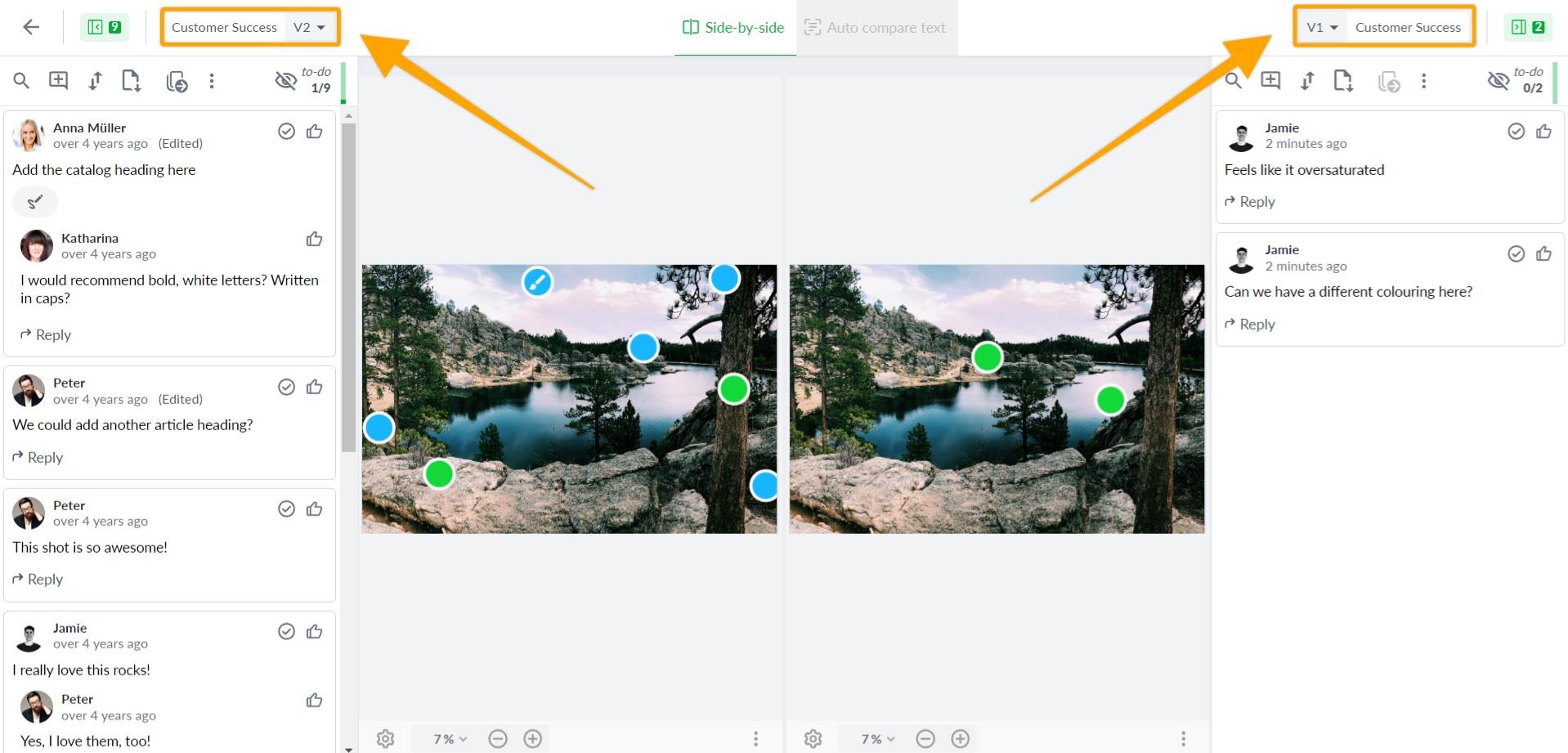
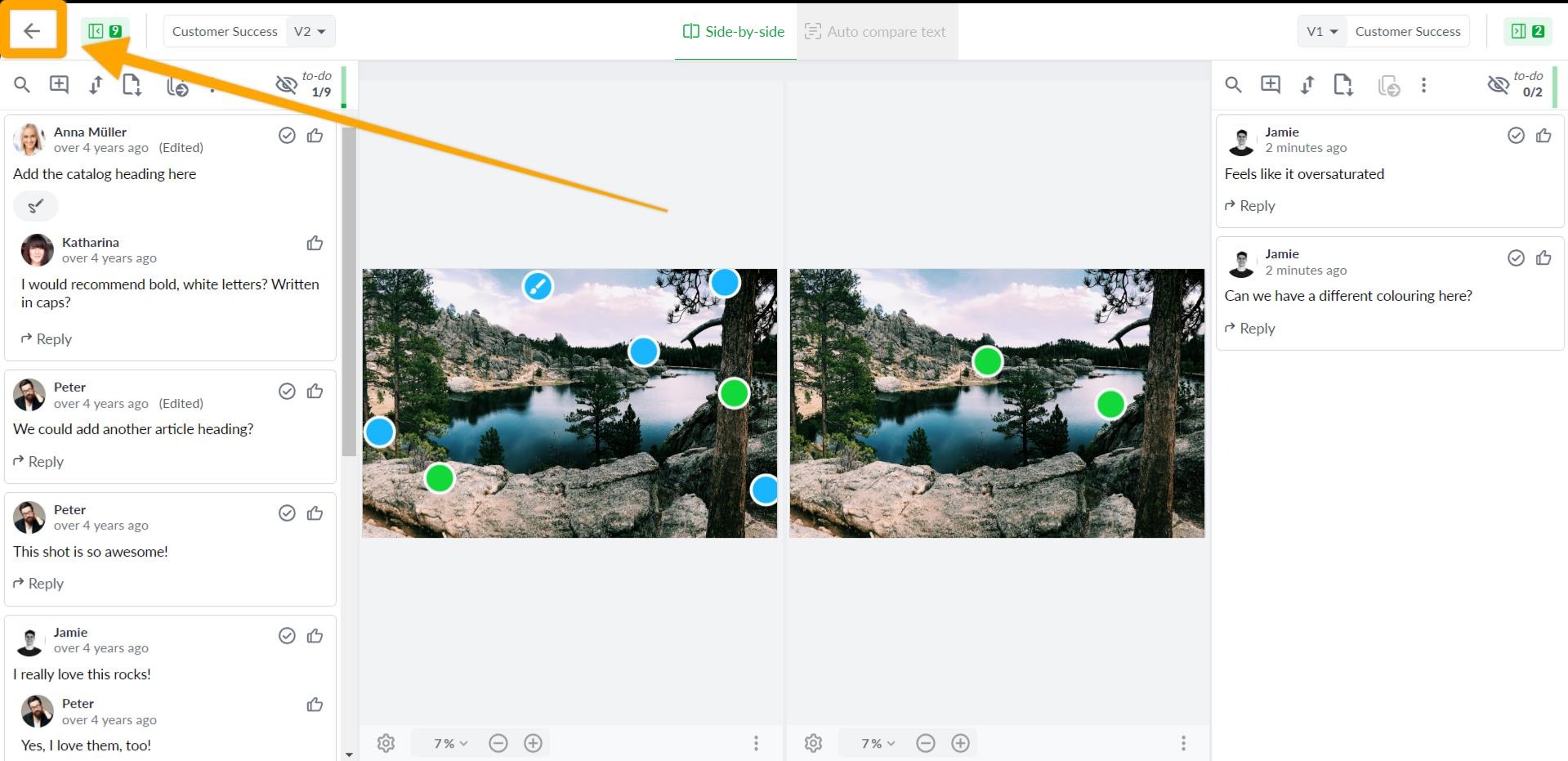
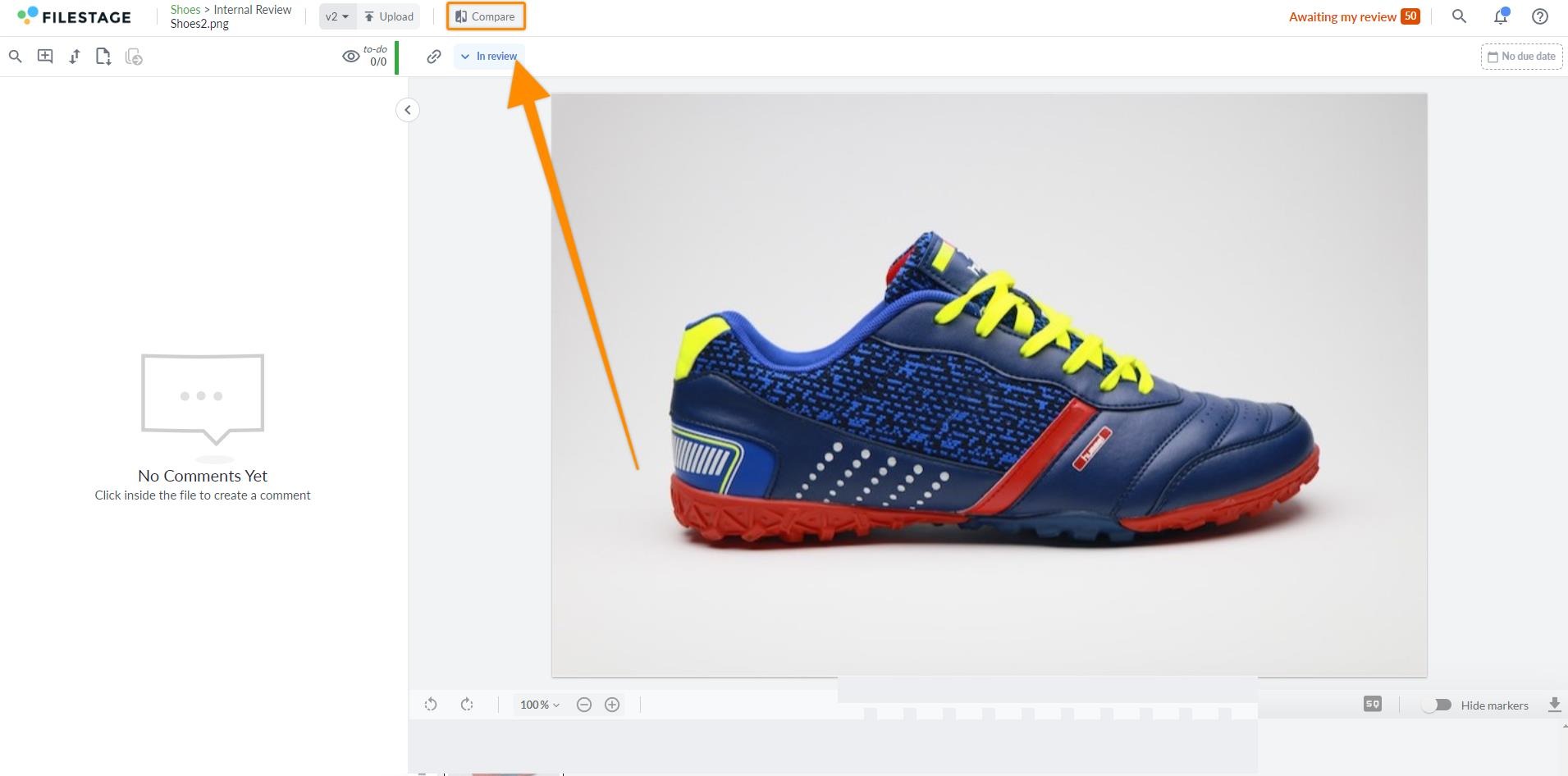
<table data-id="3634a680-844c-4cc3-ba27-389b7ce69bd7" style="min-width: 25px;"><colgroup><col style="min-width: 25px;"></colgroup><tbody><tr><td colspan="1" rowspan="1"><ol><li><p data-id="f9325414-204c-49ed-b8e2-ca758f9c388d" style="text-align: left;"><strong>Open the file</strong> you are going to work with.</p></li><li><p data-id="bf8f3c66-d0e9-4152-9895-c236f363c96f" style="text-align: left;">Click the <strong>Compare button</strong> on the left side of the screen. By default, the system will open the<strong> two most recent versions.</strong></p><img src="https://staticfiles.gleap.io/ghelparticle/1GxL0g08dhV3zfWjX5JDh3TezHgWbmHoZBRqaChrZIwj1VB3nBGcC6zrZp7f7yr37rsxwTstW1q.jpeg" style="width: 100%; height: auto; cursor: pointer;"></li><li><p data-id="5a3bc74b-cc09-43a0-8cb6-b58871c102b8" style="text-align: left;">If you would like to choose another version, either from a different or the same reviewer group, you can choose it from the <strong>version menu </strong>on the top bar.</p><img src="https://staticfiles.gleap.io/helpcenter/668fad7b14cdc36cb3fd211c/20240814123623_9462.jpg" style="width: 100%; height: auto; cursor: pointer;"></li><li><p data-id="1706bb57-3b07-41c4-9236-c9cd222d7797" style="text-align: left;">Once you selected the versions you would like to compare, you can use or disable <strong>our sync-review tool</strong>:<br>This will simplify the process of reviewing files, as zooming, rotating the image, or scrolling will then be simultaneously happening in both open versions.</p><img src="https://staticfiles.gleap.io/helpcenter/668fad7b14cdc36cb3fd211c/20240814123625_1459.gif" style="width: 100%; height: auto; cursor: pointer;"></li><li><p data-id="0c28690d-52e1-42a7-8ae5-314f58f05e27">To exit the compare versions mode, click the <strong>arrow </strong>on the upper left corner of your screen.</p><img src="https://staticfiles.gleap.io/helpcenter/668fad7b14cdc36cb3fd211c/20240814123623_3513.jpg" style="width: 100%; height: auto; cursor: pointer;"></li></ol></td></tr></tbody></table>

* * *

### Compare files in overlay mode

To use the overlay mode comparison, follow these steps:

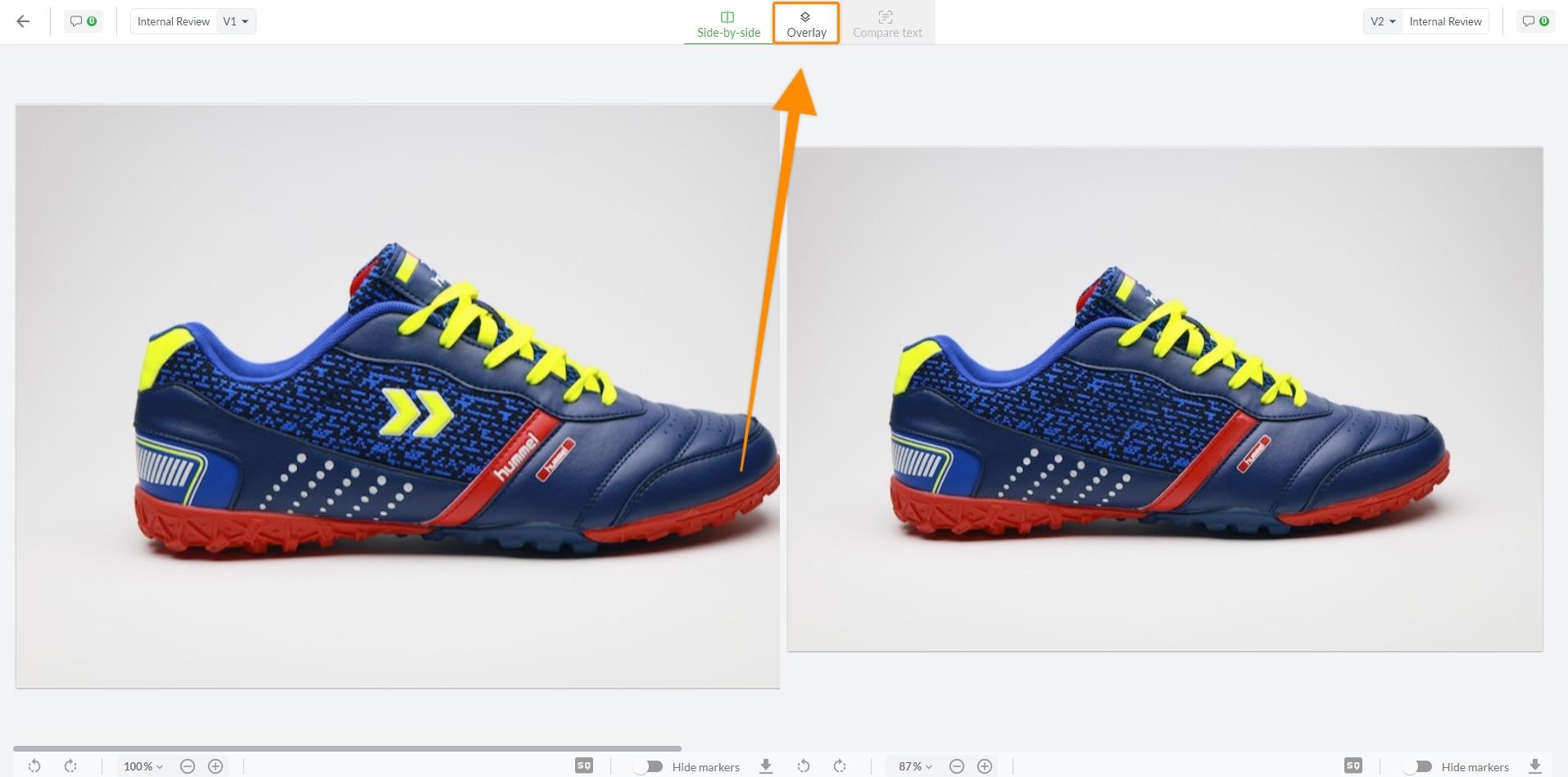
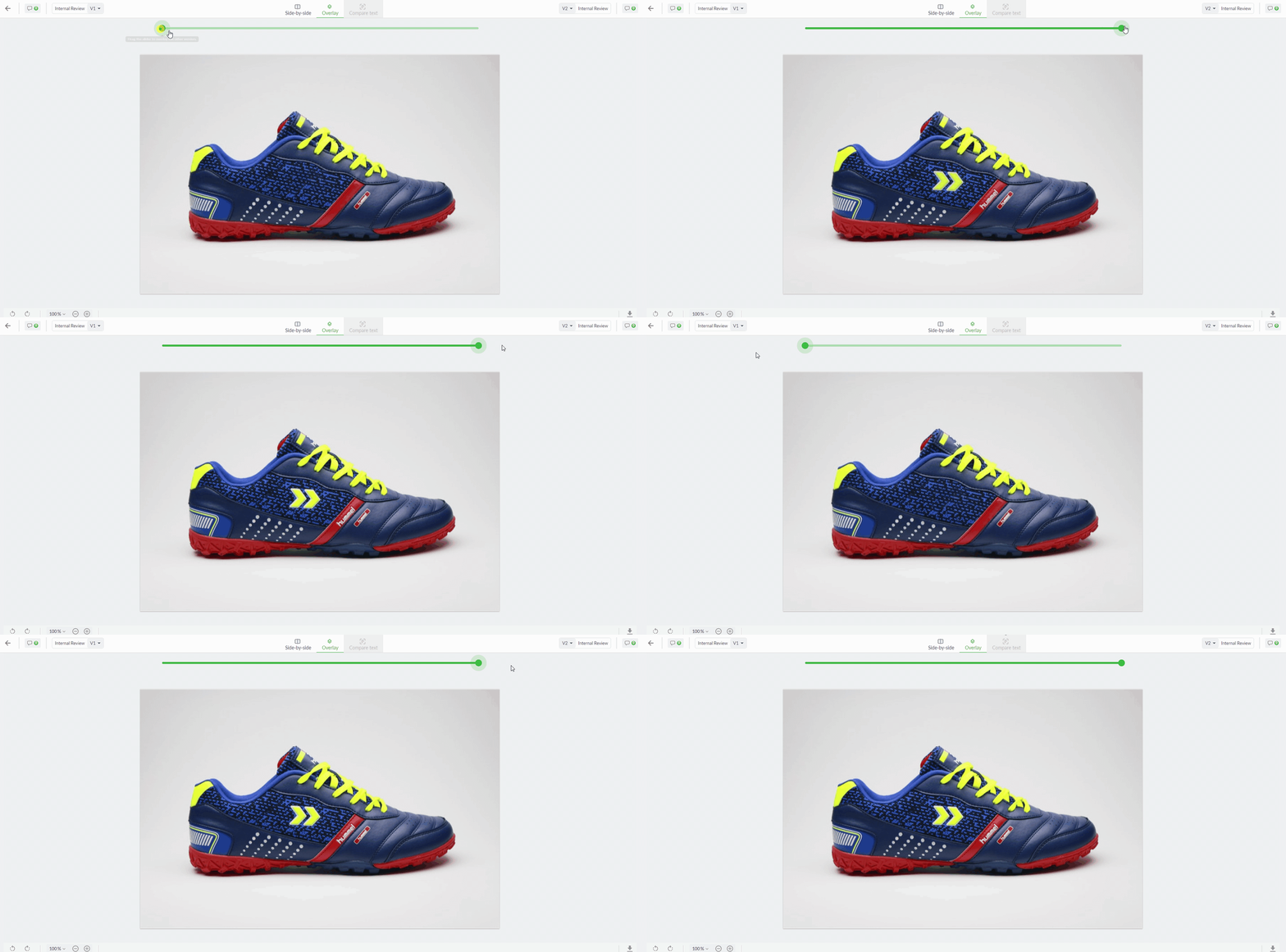
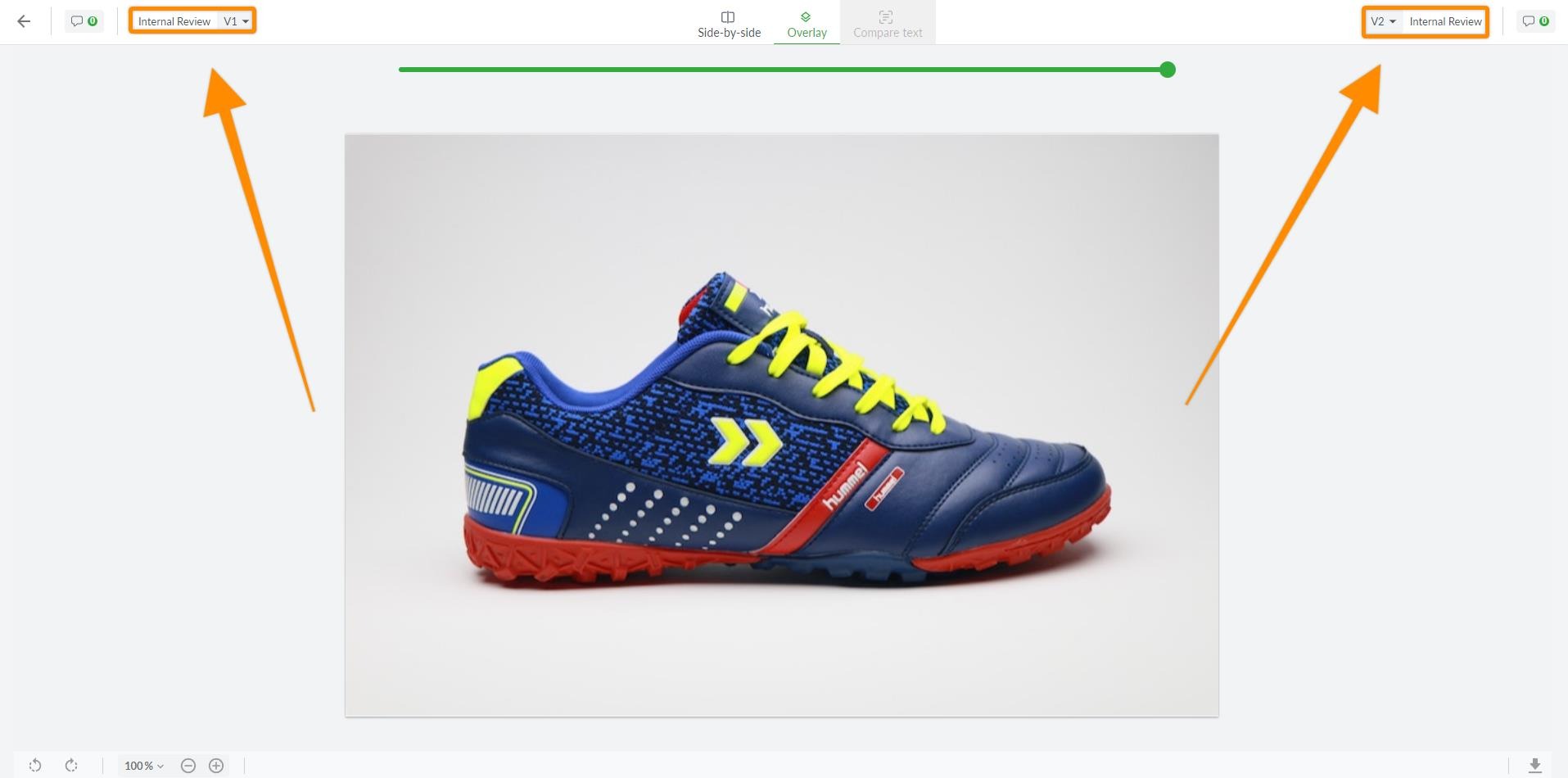
<table data-id="c5425899-9edb-49ee-928f-6514fc6fdbaa" style="min-width: 25px;"><colgroup><col style="min-width: 25px;"></colgroup><tbody><tr><td colspan="1" rowspan="1"><ol><li><p data-id="08491e35-2108-4860-ad0f-985f4e3a6593" style="text-align: left;"><strong>Open the file</strong> you are going to work with.</p></li><li><p data-id="4ffcc23a-434f-436f-8681-e395c604ca7c" style="text-align: left;">Click the <strong>Compare button</strong> on the top of the screen. By default, the system will open the<strong> two most recent versions </strong>in a side-by-side comparison view</p><img src="https://staticfiles.gleap.io/helpcenter/668fad7b14cdc36cb3fd211c/20240814123623_0795.jpg" style="width: 100%; height: auto; cursor: pointer;"></li><li><p data-id="d4db2848-bd64-491c-9ef1-a9333e9bc777" style="text-align: left;">Switch to the <strong>overlay mode.</strong> This will overlay both versions of the file.</p><img src="https://staticfiles.gleap.io/helpcenter/668fad7b14cdc36cb3fd211c/20240814123623_1063.jpg" style="width: 100%; height: auto; cursor: pointer;"></li><li><p data-id="b418f023-a704-4c41-a891-8688bb16eb73" style="text-align: left;">Use the slider to adjust the opacity, allowing you to transition between the versions and pinpoint changes.</p><img src="https://staticfiles.gleap.io/helpcenter/668fad7b14cdc36cb3fd211c/20240814123624_9951.gif" style="width: 100%; height: auto; cursor: pointer;"></li><li><p data-id="1809acec-ec9f-4d74-bd44-17eda36565a7" style="text-align: left;">If you would like to choose another version, either from a different or the same reviewer group, you can choose it from the <strong>version menu </strong>on the top bar.</p><img src="https://staticfiles.gleap.io/helpcenter/668fad7b14cdc36cb3fd211c/20240814123623_2991.jpg" style="width: 100%; height: auto; cursor: pointer;"></li><li><p data-id="7d1448a7-5aed-4294-a8d5-e6f29b6ef8bc" style="text-align: left;">To exit the compare versions mode, click the <strong>arrow </strong>on the upper left corner of your screen.</p></li></ol></td></tr></tbody></table>

* * *

## How to hide comments when comparing versions

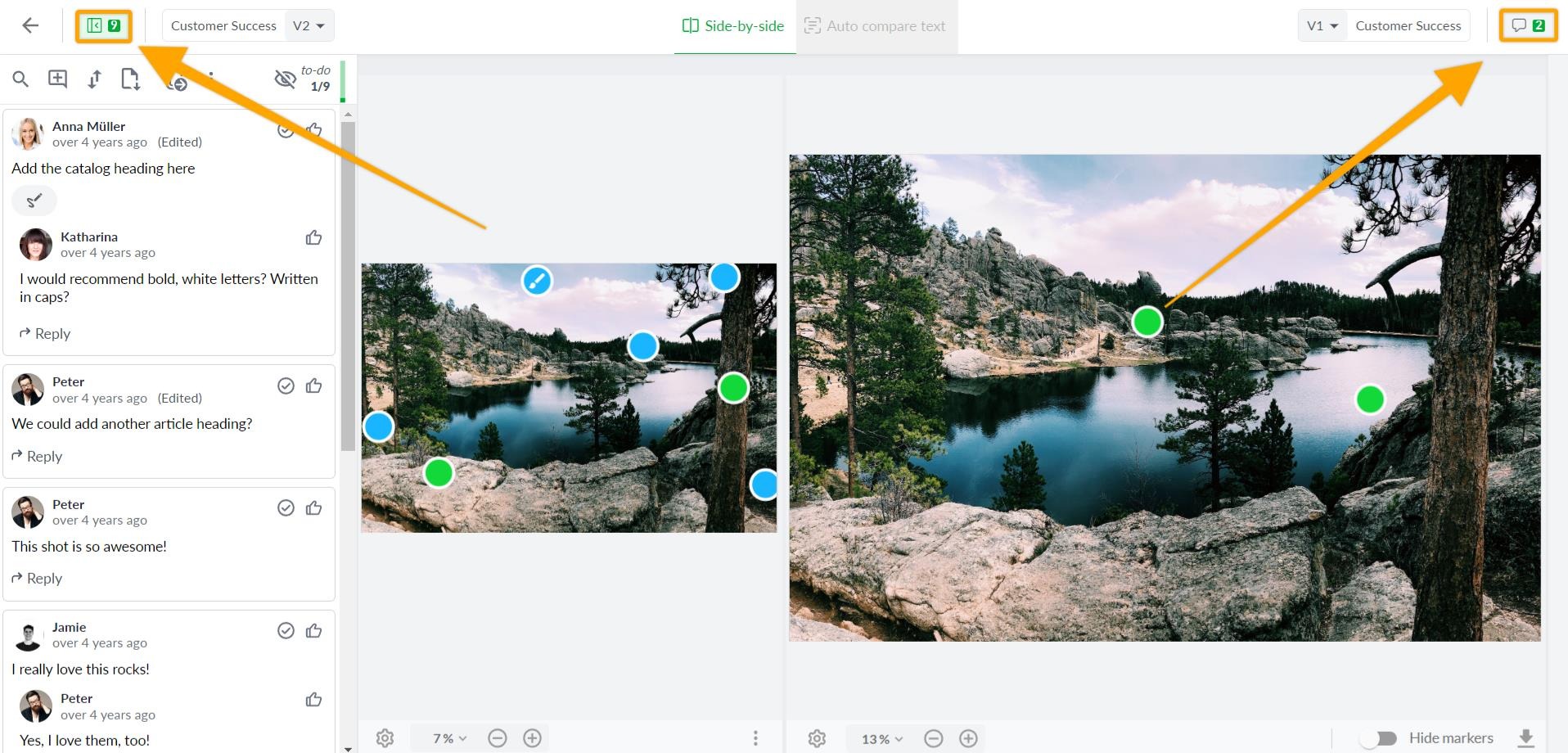
While using the comparison mode, you can decide whether you want to view the comments for each version or hide them.  
To hide them, please follow these steps:

<table data-id="cb461777-fa6a-40a3-878a-ff8f0844e81f" style="min-width: 25px;"><colgroup><col style="min-width: 25px;"></colgroup><tbody><tr><td colspan="1" rowspan="1"><ol><li><p data-id="c4dabd27-2b99-44c3-8971-34a213fb1a07" style="text-align: left;">Click the<strong> hide comments </strong>button of the comment section you would like to hide. The comments section will collapse on the side of your screen depending on which version’s comments you want to hide.</p></li><li><p data-id="53f53008-3fb2-45be-ae75-93a53ccab2a8" style="text-align: left;">You can reopen each section by clicking the<strong> comments button again.</strong></p></li></ol><img src="https://staticfiles.gleap.io/helpcenter/668fad7b14cdc36cb3fd211c/20240814123624_7241.jpg" style="width: 660px; height: auto; cursor: pointer;"></td></tr></tbody></table>

* * *

💡**What´s next?** After understanding how to compare versions of a file directly in the viewer, see how [**automatically point out text changes**](https://help.filestage.io/en/articles/6531702-auto-compare-text.md) between two versions.

* * *

_Let us know if you have any questions by reaching out to us on chat or emailing us at_ [_support@filestage.io_](mailto:support@filestage.io)_. We're always happy to help!_