---
title: "Organize your projects in folders"
description: "Managing and organizing your projects is easy - simply create a folder and add projects to it."
url: https://help.filestage.io/en/articles/2416550-organize-your-projects-in-folders
collection: "Project Setup and Organization"
updated: 2026-06-29
language: en
alternates: [fr, de, es]
---

# Organize your projects in folders

Managing and organizing your projects is easy - simply create a folder and add projects to it.

_Managing and organizing your projects in Filestage is simple and efficient. By creating folders, you can easily group and categorize projects based on client or department._

_To be able to create a more complex structure, you can also create subfolders. This makes it possible to create up to three layers of folders!_

* * *

## How to create a new folder

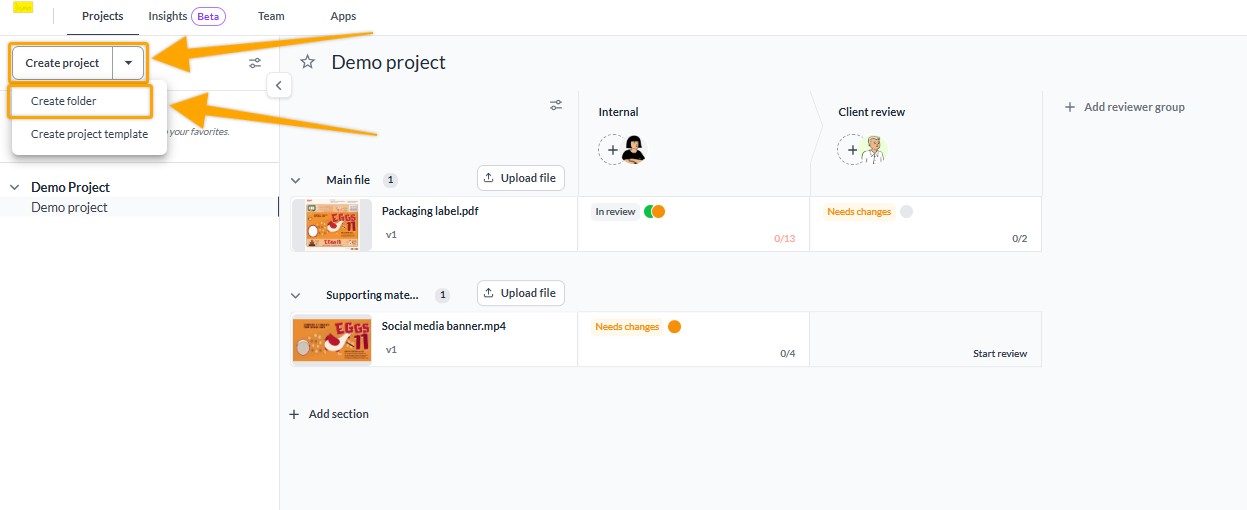
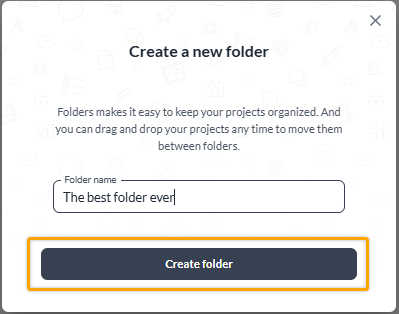
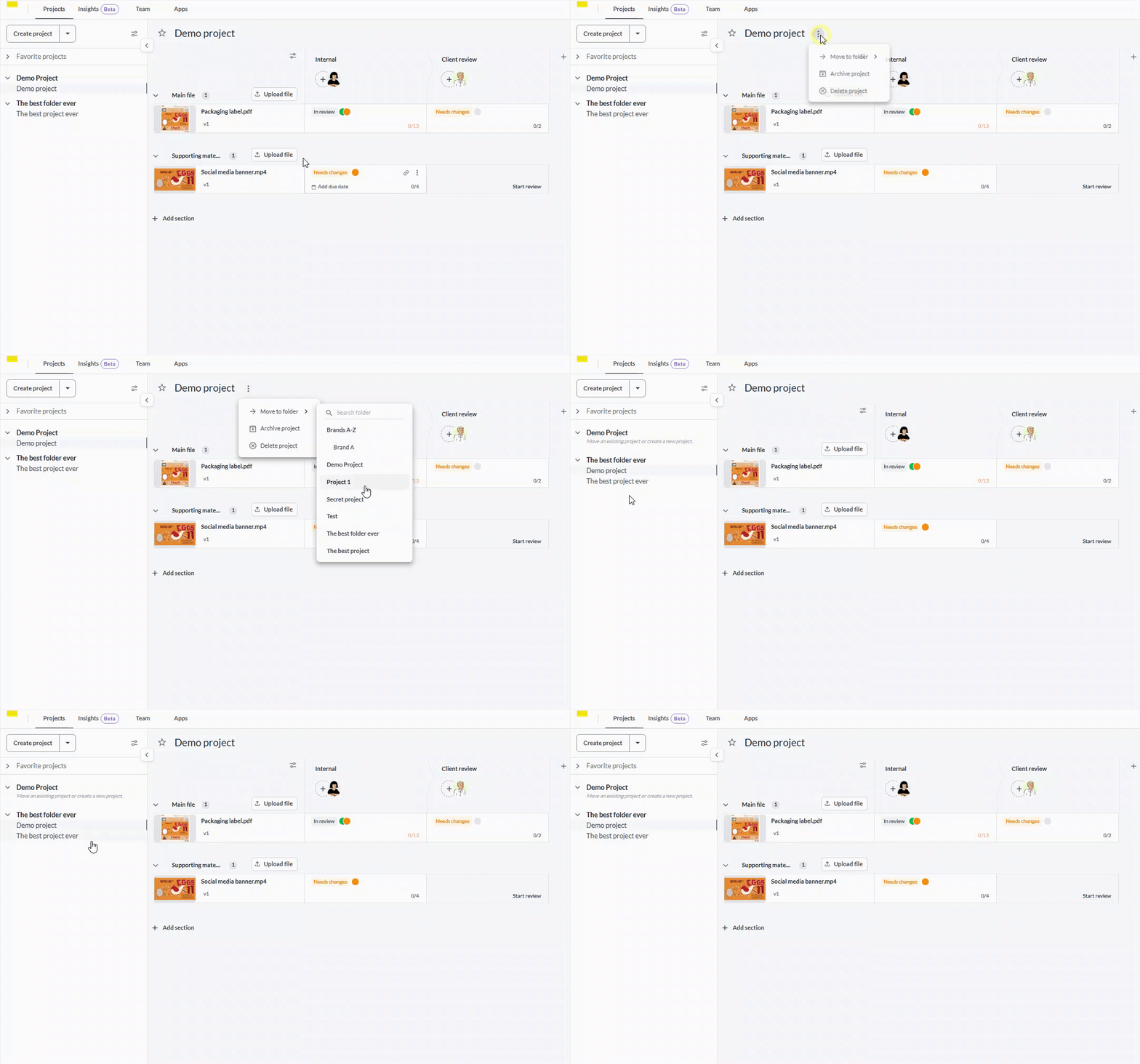
There are two ways to create a new folder. To do so, please follow these steps:

<table data-id="3933e496-fed5-433c-9a2e-f9f807b65e57" style="min-width: 25px;"><colgroup><col style="min-width: 25px;"></colgroup><tbody><tr><td colspan="1" rowspan="1"><ol><li><p data-id="aa2438e7-8e73-46d0-a3ff-e65ffb5d004a" style="text-align: left;">Click the<strong> downward arrow</strong> next to the Create project button at the top left corner, then select <strong>Create folder</strong>.</p><div style="text-align: left; width: 100%;"><img src="https://staticfiles.gleap.io/ghelparticle/KPMhxg1ujIi3zxyvcATRiVf0lCi9NoNysEpi12ZjLmteCmYwcgBoDZiDb4UHAuMBUQra0tjrQxL.jpeg" data-width="65%" data-align="left" data-link="" data-target="" style="width: 65%; border-radius: 10px; margin-top: 10px; margin-bottom: 10px;"></div></li><li><p data-id="09510a59-217f-4571-a28a-e92915e57a4c" style="text-align: left;"><strong>Name your folder</strong> and confirm by clicking on <strong>Create folder</strong>.</p><div style="text-align: left; width: 100%;"><img src="https://staticfiles.gleap.io/ghelparticle/YEc4btSZzWuqSJoOGpE5xCwt2B2TohQZmcnUWOoSkqulyal5ItQtXayoh7n5HNnXFobTLCK4V4P.png" data-width="45%" data-align="left" data-link="" data-target="" style="width: 45%; border-radius: 10px; margin-top: 10px; margin-bottom: 10px;"></div></li></ol><ul><li><p data-id="4d2df0e3-5836-4923-8d95-b6b72bb1287f" style="text-align: left;">Move the relevant projects into the folder by clicking on the <strong>three dots next to the project name</strong> in the project view. Then select <strong>Move to folder</strong> and select the desired folder.</p></li></ul><div style="text-align: left; width: 100%;"><img src="https://staticfiles.gleap.io/ghelparticle/afKwwl6dTsuYGO8SoDdPjKjKaCpW2TfPSJI6jPNwdnvuGDKqgjvVMXeyQcAm0ku3cPGBFNgspQC.gif" data-width="65%" data-align="left" data-link="" data-target="" style="width: 65%; border-radius: 10px; margin-top: 10px; margin-bottom: 10px;"></div><p data-id="92e3df6f-213c-43cf-9ea2-5ecd499fb1e5" style="text-align: left;"><strong>OR</strong></p><ol><li><p data-id="fd3a548b-69c0-489d-a3f7-76db277a9fba" style="text-align: left;">Click on <strong>Create Project </strong>button located on the top left corner.</p><div style="text-align: left; width: 100%;"><img src="https://staticfiles.gleap.io/ghelparticle/lqGzgXG8Au9rosRhxA9FFABFnuJWLUf7ORIntarB7GfL0WgAKUTzuz9uYZZoz0Dgad4J4yis0EP.png" data-width="65%" data-align="left" data-link="" data-target="" style="width: 65%; border-radius: 10px; margin-top: 10px; margin-bottom: 10px;"></div></li><li><p data-id="9316c26f-c7cd-4b4d-9e68-e242676424a7" style="text-align: left;"><strong>Name your project.</strong></p></li><li><p data-id="23a6da88-5e3e-48cf-b8ab-05b078d88b3a" style="text-align: left;"><strong>Name the folder</strong> you’d like to nest the project in.</p><div style="text-align: left; width: 100%;"><img src="https://staticfiles.gleap.io/ghelparticle/IUmCoX3AoqHQuBlzihPdZiVeBdrK9f2DdXnMi7arZ7n1TCs7JnM0ElXCOcHj1XffeDYaIGDllr7.png" data-width="65%" data-align="left" data-link="" data-target="" style="width: 65%; border-radius: 10px; margin-top: 10px; margin-bottom: 10px;"></div></li><li><p data-id="11260dbb-c5f7-4674-9656-0a1c55ad2653" style="text-align: left;"><strong>Create the project.</strong></p></li></ol></td></tr></tbody></table>

* * *

## Rename a folder

If your structure changes or you simply would like to rename the folder for any other reason, you can do so by following these steps:

<table data-id="782b415e-8e10-406b-8de0-f3044f8192b9" style="min-width: 25px;"><colgroup><col style="min-width: 25px;"></colgroup><tbody><tr><td colspan="1" rowspan="1"><ol><li><p data-id="94a1cd48-9056-4d09-9054-ad77a7cc9b13" style="text-align: left;"><strong>Hover over the folder name.</strong></p></li><li><p data-id="e8418da2-e4ac-4282-a00d-b38b23dc7a55" style="text-align: left;">Select the three appearing dots<strong>.</strong></p></li><li><p data-id="4ea9107d-e021-4ca4-b8a4-581954436a36" style="text-align: left;">Click on <strong>Edit folder name.</strong></p><div style="text-align: left; width: 100%;"><img src="https://staticfiles.gleap.io/ghelparticle/nFLnSVjNvCXhUZztNTToAUAdgQTR5hpJyipo99xqNzXxJG3sZJjc0dclnKdhhdjP5tw7ftcsFCp.png" data-width="65%" data-align="left" data-link="" data-target="" style="width: 65%; border-radius: 10px; margin-top: 10px; margin-bottom: 10px;"></div></li><li><p data-id="5816897b-c430-4106-aa3d-073915a40db4" style="text-align: left;">Type in the desired name and confirm with a click on<strong> Save</strong></p></li></ol></td></tr></tbody></table>

* * *

## Delete a folder

To delete a folder, it must not contain any projects. Before it can be deleted, all projects within it must be moved or deleted. You can delete an existing folder by following these steps:

<table data-id="87c077a2-b3f4-48a2-89cd-d0d662a00b8d" style="min-width: 25px;"><colgroup><col style="min-width: 25px;"></colgroup><tbody><tr><td colspan="1" rowspan="1"><ol><li><p data-id="535d90cc-13a2-4cac-94eb-cdc722869eb5" style="text-align: left;"><strong>Hover over the folder name </strong>in the project list<strong>.</strong></p></li><li><p data-id="4f463115-7176-4b4b-9c61-33b773e210dd" style="text-align: left;"><strong>Click on the three dots </strong>that appear.</p></li><li><p data-id="491ff015-2096-402e-9810-31df7ea1fea3" style="text-align: left;">Select <strong>Delete folder</strong></p><div style="text-align: left; width: 100%;"><img src="https://staticfiles.gleap.io/ghelparticle/6eDArZy9Qu1DBoKWpmBFHeyokkLCvsXcD1ersyj3p3sHGzOErayYDnc5DHLIzcZCdr30MGEocww.gif" data-width="65%" data-align="left" data-link="" data-target="" style="width: 65%; border-radius: 10px; margin-top: 10px; margin-bottom: 10px;"></div></li><li><p data-id="7ba7ee4a-c292-41f0-a7db-e026fe88b410" style="text-align: left;">Confirm by clicking on<strong> Delete folder</strong></p></li></ol></td></tr></tbody></table>

* * *

## How to create subfolders

To create a subfolder, follow these steps:

<table data-id="ed6d5e50-5410-489c-8d5f-91896b422fe7" style="min-width: 25px;"><colgroup><col style="min-width: 25px;"></colgroup><tbody><tr><td colspan="1" rowspan="1"><ol><li><p data-id="6fa65d24-4130-4d67-b436-439a6eec8fcd" style="text-align: left;"><strong>Hover over the folder</strong>, to which you would like to add a subfolder</p></li><li><p data-id="212a0a76-b7f5-48ef-ba83-c554797bb652" style="text-align: left;">Click on the appearing <strong>three dots</strong></p><div style="text-align: left; width: 100%;"><img src="https://staticfiles.gleap.io/ghelparticle/lRS3jECOQydpkznN40BN6PPeqHQZXyjjNriJvIWPxJI0g0cjsYKq50AwJ9CXeOyA9MRtnChpS0E.gif" data-width="65%" data-align="left" data-link="" data-target="" style="width: 65%; border-radius: 10px; margin-top: 10px; margin-bottom: 10px;"></div></li><li><p data-id="8f056cb0-deb2-4a2a-b177-77a188d05dfe" style="text-align: left;">Click on <strong>Create subfolder</strong></p></li><li><p data-id="ecaa784b-acd2-4000-b582-a4fc7339bdfe" style="text-align: left;">Type in the name of your subfolder</p></li><li><p data-id="12bb6bb8-0ebd-4c64-8121-b8d83eafb162" style="text-align: left;">Click on <strong>Create folder</strong></p></li></ol></td></tr></tbody></table>

* * *

## Folders & Archiving

Under certain circumstances, folders can also be archived. The following conditions must be met to archive a folder:

-   If a folder contains at least one active project inside it or any of its subfolders, then it will be visible, together with all of its subfolders.
    

In other words:

-   If a folder and all of its subfolders do not contain any active projects, it is archived together with the last active project.
    
    -   This applies only to main folders (the first-level folders).
        
-   Subfolders are only archived together with the main folders
    

* * *

## Save your favorite projects

You now can **bookmark your favorite projects** to be able to find them quickly and access them right away!  
To mark a project as your favorite, simply click on the star next to the project name in the dashboard view:

![](https://staticfiles.gleap.io/ghelparticle/gFdHCrHTBHZxDZ4OZVgKqCO6uRdoj5F268cfyWKPnbODH8Vmmqw94oQj3Gj02e5TE8ZdqgdH77C.png)

Now you can find your favorite projects **right on the top of the project list**, on the left border of the dashboard view!

* * *

## Invite team members or reviewers to access your projects

-   **Invite team members as project collaborators to a specific project.** Once invited, they will be able to access the project and see which folders projects are nested in.
    
-   **Invite reviewers to reviewer groups where you want them to have access to particular f**iles. Once invited, they will be able to see all the files in the reviewer group.
    

Unfortunately, it is currently not possible to invite team members or reviewers to view an **entire folder**.

* * *

💡 **What's next?** Once see how to organize projects in folders, see [how to manage your email notifications](https://help.filestage.io/en/articles/6978893-managing-your-email-notifications.md#h_6ca95850e8).

* * *

_Let us know if you have any questions by reaching out to us on chat or emailing us at_ [_support@filestage.io_](mailto:support@filestage.io) _We're always happy to help!_